Showing posts with label Apache Solr. Show all posts

January 2, 2021
Estimated Post Reading Time ~

Client Certificate Authentication with Solr

Securing your Solr instance is an important part of the Sitecore security hardening process. In many on-premises environments, the Solr servers are behind the firewall without the need to be publicly accessible – just accessible by the Sitecore application itself. 

However, with cloud-based hosting such as Azure App Services, this becomes more difficult as the Solr implementation will need to be accessible by the App Service over the internet. This means we have to secure our Solr instances! We can use basic username/password authentication, but where’s the fun in that? Let’s authenticate with client certificates!

Solr Configuration
Let’s begin by configuring Solr to require client authentication for all requests. The key configuration value that is needed is in bin/solr.in.cmd with the key SOLR_SSL_NEED_CLIENT_AUTH. The value of this key should be set to true to require all requests to be authenticated. You might notice another key that is named SOLR_SSL_WANT_CLIENT_AUTH which enables clients to be able to authenticate against the Solr instance but is not required. The value for this key should be set as false as the two configuration settings are mutually exclusive.

Reference: https://lucene.apache.org/solr/guide/6_6/enabling-ssl.html#EnablingSSL-SetcommonSSLrelatedsystemproperties

Generate Certificates
You will want to generate a client authentication certificate that follows the certificate chain currently configured in the SOLR_SSL_TRUST_STORE configuration. If you’ve used a self-signed certificate and imported it into your key store, you can create a client authentication certificate that is issued by the certificate in the key store. You can do this by issuing a certificate signing request (CSR), then sign the request by the certificate in the key store. Depending on the tools you’re using, there are different ways to approach this.

Once you get your signed client authentication certificate, install it on your Sitecore server and make sure you grant permissions to your application pool user to the private key. Take note of the certificate thumbprint as you’ll need it in your Sitecore configuration shortly.

IHttpWebRequestFactory Implementation
The default install of Solr comes with no authentication configured. There is the possibility of configuring basic authentication with a username/password [link] using the SolrNet.dll library and Sitecore configuration updates. However, the version of SolrNet.dll that Sitecore is using (0.4.0.2002 to be specific – caution if you’re trying to pull this from NuGet as this version is not in the repo) includes capabilities for basic authentication with the BasicAuthHttpWebRequestFactory but does not provide an implementation of IHttpWebRequestFactory for certificate authentication. Thanks to good architecture patterns, we can solve this problem ourselves!

In SolrNet.dll, whenever a request is made to the Solr server, it creates the web request using an implementation of IHttpWebRequestFactory. As mentioned previously, there is already an implementation of IHttpWebRequestFactory called BasicAuthHttpWebRequestFactory which creates the web request with the appropriate authentication fields. We’ll just create our own implementation of IHttpWebRequestFactory which will attach a client authentication certificate as part of the web request!

See below for the implementation:
ClientCertificateHttpWebRequestFactory.cs
using System;
using System.Net;
using HttpWebAdapters;
using HttpWebAdapters.Adapters;
using System.Security.Cryptography.X509Certificates;

namespace GC.Foundation.Search.Solr
{
public class ClientCertificateHttpWebRequestFactory : IHttpWebRequestFactory
{
private readonly X509Certificate2 _certificate;

public ClientCertificateHttpWebRequestFactory(string thumbprint)
{
// get the Personal certificate store
var store = new X509Store(StoreName.My, StoreLocation.CurrentUser);
// open the certificate store as read-only
store.Open(OpenFlags.ReadOnly);
try
{
// get the certificate that matches the thumbprint specified
var clientCert = store.Certificates.Find(X509FindType.FindByThumbprint, thumbprint, true);
this._certificate = clientCert.Count > 0 ? clientCert[0] : null;
}
finally
{
// close the store when you're done with it
store.Close();
}
}

public IHttpWebRequest Create(Uri url)
{
// create a new web request
var request = (HttpWebRequest)WebRequest.Create(url);
if (_certificate != null)
{
// add the client certificate to the request
request.ClientCertificates.Add(_certificate);
}
// return the request with the certificate
return new HttpWebRequestAdapter(request);
}
}
}


When the factory is created, the certificate is fetched from the certificate store based on a thumbprint that is configured in the Sitecore configuration (more on that later). This certificate is then used when a web request is created; when the SolrNet.dll calls for a web request, the Create method of this class will be executed, a web request is created, the client certificate is attached, and returned back to the SolrNet call to execute the request against the Solr server.

Sitecore Configuration
Great, now we’re sending along with the client authentication certificate along with our request. Let’s configure Sitecore to use this implementation for Solr.

Sitecore specifies the implementation to be used in the configuration/sitecore/contentSearch/indexConfigurations/solrHttpWebRequestFactory node. To configure this, you’ll want to use a patch file to this node that will look a lot like the following:

GC.Foundation.Search.CertificateAuth.config

<configuration xmlns:patch="http://www.sitecore.net/xmlconfig/" xmlns:role="http://www.sitecore.net/xmlconfig/role/" xmlns:search="http://www.sitecore.net/xmlconfig/search/">
<sitecore search:require="solr" role:require="ContentManagement or ContentDelivery">
<contentSearch>
<indexConfigurations>
<solrHttpWebRequestFactory type="GC.Foundation.Search.Solr.ClientCertificateHttpWebRequestFactory, GC.Foundation.Search">
<param hint="thumbprint">{CertificateThumbprint}</param>
</solrHttpWebRequestFactory>
</indexConfigurations>
</contentSearch>
</sitecore>
</configuration>

The value in the <param> node is what will be used as the constructor parameter for the class we just implemented. This sets the constructor parameter thumbprint to the value provided. This is where you’ll want to put the thumbprint of your Solr client authentication certificate.

With that, you should have Sitecore configured to connect to Solr with a client authentication certificate! Now your Solr server is nice and secure even if it’s publicly exposed to the internet.


By aem4beginner

May 19, 2020
Estimated Post Reading Time ~

Basic non-Adobe Integrations with AEM

Adding onto your AEM platform though the integration of a new application can add new, robust capabilities to your already powerful system. But many integrations are not as simple as plug and go. They take expertise and know-how to make them work best and give your system the benefits and performance you need.

We asked our developers to walk us through some of the more popular non-Adobe integrations that add value and capabilities to enterprise AEM systems. They have cultivated valuable expertise with multiple client experiences in each of these integrations, and share some of the challenges they’ve faced, and the best practices that have proved to be successful.

Solr: Add Robust Search Capabilities
Solr is a fast and powerful search platform that powers many of the world’s largest sites. It uses advanced algorithms to organize data in a variety of ways, according to the needs of the business and its users. It’s highly customizable to meet the unique challenges and expectations of enterprise business and the needs of its customers. When integrating Solr with AEM, there are two areas that should be considered: indexing content and searching content. It’s important to take the time to clean and prepare your content before sending the data into Solr so that the application can index it, and quickly find relevant results for your user.

One of the major challenges of Solr is that documentation from Apache can be tough to decipher. While a plain instance is relatively easy to get going, more custom integration and full utilization of the Solr benefits are much more difficult. It is also not a very intuitive integration, and even though it is a very widely used, open-sourced application, not a lot of developer information or examples of complex integrations are available. The time commitment for a Solr integration is fully dependent on the search query complexity that you want to create, and how much user interaction you want to allow.

Salesforce: Track your Lead Generation
Salesforce is a CRM that helps businesses connect with their customers, bringing together all of their information into a single platform that gives you a more complete understanding of your customers, and the ability to translate that into success. It is a widely used application that keeps track of your customer's movements and can steer them to relevant content, increasing the likelihood of turning them into a qualified lead. One of the benefits of Salesforce is that it can be pointed to multiple applications, yet keep each set of data siloed.

The major challenge when integrating Salesforce into AEM is that you need to simultaneously work in both applications, and that is not always intuitive. You need to add AEM to the Salesforce register and generate a client key, and then add that to your AEM system to properly connect the two; essentially you are telling Salesforce that it should associate with your site. Another issue can arise if the enterprise is using the test version of Salesforce to test the system. But really, a production-level account is needed to fully integrate the two, and know how the systems will interact and share data.

Video: Add a New Dimension to your Content
For AEM integrations, two of the more popular video hosting sites are Brightcove and YouTube. They each have good API integration, but the level of difficulty increases as you add to the customization through things like search functionality, comment moderation, playlists, etc. How much you want to offer your user will directly affect the time and effort of the integration, like adding in a search function.

A significant amount of video integration work from these hosts is actually prepared on the hosting side. The complexity comes when you are adding in different players and features that are designed specifically for, and are dependent on the end user’s device (ie mobile, tablet, or desktop).

Google: Create Fuller User Experiences
Google offers a variety of tools that can offer the users of your site a more complete experience. From customized map functions to in-depth analytics, its features are easy to work with and the support that’s available across the web is excellent. Integrating one of these Google products into your system, instead of simply inserting iframes, for example, allows you to create customizable features that give your customers the solution they are looking for.

A good example of how a Google Map integration can be beneficial is that it will store and show particular information that is most useful and complete for your customer. Tightly integrating into your system allows users to search in specific zip code ranges, obtain directions from their location, see location specifics (i.e. hours and address), and a variety of other useful features.

Education is the Starting Point
Integrating non-Adobe products into AEM can be a challenge, but armed with the right know-how ahead of time can help you mitigate any potential issues and be prepared for the glitches that tend to always pop up.


By aem4beginner

AEM Search VS Solr Search

AEM comes standard with a functional search feature that can be leveraged when creating new AEM applications with no added cost. This solution is appropriate in many cases, mostly with simple sites that use search as a secondary feature. However, it can fall short in applications looking for an advanced search experience and features, or with huge repository sizes.

When you are dealing with a sizable amount of content and/or the file sizes you are storing are large, the AEM repository is consequently bigger and the out of the box solution starts showing its limitations. In those cases, offloading indexing and search out of the repository can be an excellent solution for the project.

Solr is one of the most powerful integrations with Adobe Experience Manager to improve indexing/search.
So what exactly is Solr? Solr is a popular, blazing-fast, open source enterprise search platform built on Apache Lucene. Solr is highly reliable, scalable, and fault tolerant. It provides distributed indexing, replication and load-balanced querying, automated fail-over and recovery, centralized configuration and much more. Solr also powers the search and navigation features of many of the world's largest internet sites.

In this article we are going to describe our experience working with AEM search and indexing (Oak). We're also going to explain how you can empower AEM search with Solr to create advanced search experiences and increase overall site performance.

AEM's Out of the Box Indexing and Search
Since version 6, the AEM platform is based on Apache Jackrabbit Oak. This is what AEM will use to work with indexes and search in the platform.

Oak based backend allows different indexers to be plugged into the repository, for example:
Property Index: One of the most used by developers to be able to filter queries by specific properties. Index is stored in the repository itself.
Lucene Index: This supports full-text indexing. Widely used on AEM projects and also stored as part of the AEM repository.
Traversal Index: This is used if no other indexer is available. This means that the content is not indexed and content nodes are traversed to find matches to the query.

If multiple indexers are available for a query, each available indexer estimates the cost of executing the query. Oak then chooses the indexer with the lowest estimated cost.

Our experience with Oak 
While Oak indexing and searching is really powerful there are some cases in which we could face some challenges on AEM projects. Here is a list of cases that our clients faced while working with Oak:
  • Number of indexed documents: due to a large number of indexed documents (2B documents Lucene limit), the repository size grows. This could cause performance issues on our publish environments.
  • Size of indexed documents: Lucene indexes binaries and takes up a lot of space, this also causes the repository size to increase.
  • Query caching strategy: there are some cases in which we are dealing with complex queries or we have a lot of traffic over the site and most of it is doing queries over AEM. On both cases we will need to perform caching to prevent overloading the servers. While caching is good, our client could request to always serve fresh content. Meaning that we can’t use the dispatcher or a CDN to cache our querie’s results.
  • Mixed indexes: on searches for mixed content like assets, pages and products. If products are hosted on an external system, such as an e-commerce, in order to index them with Oak, you will need to import that content over the AEM repository. This requires a lot of work to maintain that update just to expose it over search.
Search features requested by our clients that are not covered by AEM Oak Lucene index:
  • Natural Language search
  • Keywords indexing
  • Query elevation/Sponsored search
  • Geospatial Search
  • Query Suggestions and Spelling
If you are dealing with any of the above concerns or need to provide any of the features presented below on an AEM project, you might want to evaluate an integration with Apache Solr.

Why Solr?
The Solr platform is highly reliable, scalable and fault tolerant. It provides distributed indexing, replication and load-balanced querying, automated failover and recovery, and centralized configuration.

Solr provides a REST-like API. First, you put documents in it (called "indexing") via JSON, XML, CSV or binary over HTTP. Then you query it via HTTP GET and receive JSON, XML, CSV or binary results.

In addition to all the features the platform provides, you will also find:
  • Advanced Full-Text Search Capabilities
  • Optimized for High Volume Traffic
  • Highly Scalable and Fault Tolerant
  • Near Real-Time Indexing
  • Faceted Search and Filtering
  • Geospatial Search
  • Highly Configurable and User Extensible Caching
  • Query Suggestions, Spelling
  • Rich Document Parsing
For more detail or a full list of features please visit the official Solr site.

Integrating AEM with Solr can deliver most of the search features that AEM Oak Lucene index can’t.

In addition, the scenarios presented in the previous section can be implemented successfully with Solr:
  • Number/Size of indexed documents: Apache Solr includes the ability to set up a cluster of Solr servers that combines fault tolerance and high availability. This is called SolrCloud, these capabilities provide distributed indexing and search capabilities.
  • Query caching strategy: avoids CDN or dispatcher cache and relies 100% on Solr search power to handle large amount of traffic. A multitude of smart caching options enable exacting control over repetitive results. This can help provide fresh content to your index and end-users.
  • Mixed indexes: based on the REST API that Solr provides, any external system such as AEM or e-commerce can index and query over Solr. Meaning you can avoid porting external content to the AEM repository and just index the content directly over Solr.
There are two types of integrations you can do with AEM – we’ll cover those now.
1) Solr as an Oak index for AEM
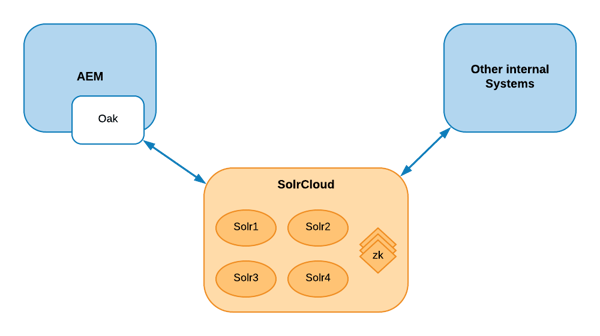
This integration with Solr happens at AEM repository level and is one of the possible indexes that can be plugged into Oak.

The main purpose of the Solr as an Oak index is mainly full-text search but it can also be used to index search by path, property restrictions and primary type restrictions. As such, The Solr index in Oak can be used for any type of JCR query.


Index definition is hosted over nodes in the repository as the rest of the Oak indexes. The Oak Solr index creates one document in the Solr index for each node in the repository, each of these documents usually has at least a field for each property associated with the related node.

For Solr index to work with Oak, we need to setup a connection to able to communicate with a Solr instance/cluster. Apache Solr supports multiple deployment architectures, but the most common for production environments is SolrCloud cluster. This configuration happens also on the repository. For more information regarding how to setup indexes and configure Solr as an Oak index, you can review the official Oak Solr documentation.

To summarize: This integration happens quite fast, since you are plugged in as new indexer to Oak. This means you don’t need to worry about any custom code development and it will also allow developers to use plain JCR queries (transparent for developers).

However, there are some cases in which you might want to have more control over the queries and indexing that happens on the Solr side. For those scenarios this integration may not be the best fit.

2) Solr REST integration for AEM
Solr provides a REST-like API. In which, you index documents via JSON, XML, CSV or binary over HTTP. You can query it via HTTP GET and receive JSON, XML, CSV or binary results.

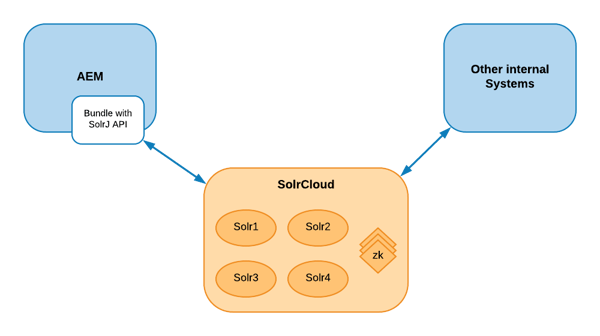
In order to integrate Solr REST API with AEM, you will need to develop JAVA code in your project bundle to be able to “talk” with the Solr API.

There are a couple of bootstrapping projects available online that can help you during development:

Both projects use SolrJ. This is an API that makes it easy for applications to talk to Solr. SolrJ hides a lot of the details of connecting to Solr and allows your application to interact with Solr with simple high-level methods. SolrJ supports most Solr APIs, and is highly configurable.

This method of Solr integration provides a few benefits that the Solr Oak indexing integration does not, such as:
  • Full control over the Solr document model: developers have the ability to design the model that will be indexed in Solr. For example, if we want to index page in Solr the model could be composed with path, title, description, tags, keywords.
  • Control over boosting specific fields in Solr document.
  • Real time indexing is within your control: developers can trigger indexing request to Solr by any type of AEM events as create, delete, activation, deactivation.
  • Comes handy when multiple heterogeneous systems are contributing for indexing.
The only real downside with this type of integration is the time/effort to implement it (which is higher than Solr Oak indexing integration). With that being said, this approach provides far more benefits.


By aem4beginner

May 15, 2020
Estimated Post Reading Time ~

Intro To Dashboard Part – II

In this post, we will discuss the next tab.

Solr Core
With this console, you can perform different operations on the different cores in Apache Solr.

“A core is a collection of different configuration files, indexes, and schema. It can be used by different applications for searching and indexing.”

You can have multiple cores on a single Solr instance & these cores can have their own configurations, indexes, and schema. These core can serve different applications & still have the convenience of a unified administration.


Note: for creating a core first create a folder under Descktop/poc/solr4.7.2/example/solr/ and copy and paste conf folder from collection1 to new core directory into it then restart the server, you will see two core now.


Here you have two cores one is ankur and the second is collection1.


By aem4beginner

Intro to Dashboard Part – III

In this post, we will discuss the next tab.

Java Properties
The Java Properties screen provides easy access to all the properties of the JVM running Solr, including the classpaths, file encodings, operating system, and more. 


Thread Dump
The Thread Dump screen lets you inspect the currently active threads on your server. Each thread is listed and access to the stacktraces is available where applicable. Icons to the left indicate the state of the thread: for example, threads with a green check-mark in a green circle are in a “RUNNABLE” state. On the right of the thread name, a down-arrow means you can expand to see the stack trace for that thread. 


when you take mouse over any of the thread then it will show you the status of that thread i.e. It is in NEW, WAITING, TIMED_WAITING, RUNNABLE, BLOCKED, TERMINATED state.


By aem4beginner

Intro to Dashboard Part – IV

In this post, we will discuss the next tab.

Core Selection
This the part through which we interact with the solr core. Here just select the core “collection1” & you can see some more tabs on your screen like overview, analyze, config etc.


I will discuss these tabs in detail in my coming post. Here I am giving a brief introduction to these tabs.

Analysis
Lets you analyze the data found in specific fields.

Data Import Handler
It will show the details about the current status of the configured data importer for an ex. if you want to connect to the external database such as MySql, Oracle, etc. then you have to configure a data import handler & its information will be displayed in this tab.

Documents
This tab provides you a GUI from where you can directly insert the data in different formats to Apache Solr. This is a testing tab & provides you a facility to index your data directly from the browser.

Files
This tab shows the current core configuration files such as solrconfig.xml and schema.xml.
you can not modify these files from this tab, this tab is only for reading purpose.

Ping
Lets you ping a named core and determine whether the core is active or not.
Plugins/Stats
this tab shows statistics for plugins and other installed components.

Query
This is a very important tab I will discuss it separately in a new post. For an introduction, this tab is used to query the indexed data in Apache Solr. It shows all the formats supported by Apache Solr and all the parameters required or optional for searching text in Apache Solr.

Replication
Shows you the current replication status for the core, and lets you enable/disable replication.

Schema Browser
Displays schema data in a browser window.


By aem4beginner

How to Query Apache Solr

In this post I will show how to query Apache Solr using its Dashboard screen. This query can be done using Java HttpClient lib, curl request as well. But as I am giving intro to Solr dashboard in my last four posts, so I try to fire different kinds of query using it’s dashboard screen. We will do all this stuff using java code as well in my next post.

Let’s update your schema.xml file with given mappings & start your Apache Solr Server –
<?xml version=”1.0″ encoding=”UTF-8″ ?>
<schema name=”example core zero” version=”1.1″>
<fields> <field name=”_version_” type=”long” indexed=”true” stored=”true”/>
<field name=”_root_” type=”string” indexed=”false” stored=”false”/>
<field name=”id” type=”string” indexed=”true” stored=”true” required=”true” />
<field name=”name” type=”string” indexed=”true” stored=”true” />
<field name=”address” type=”string” indexed=”true” stored=”true” />
<field name=”comments” type=”string” indexed=”true” stored=”true” />
<field name=”text” type=”string” indexed=”true” stored=”false” multiValued=”true”/>
<field name=”popularity” type=”long” indexed=”true” stored=”true” multiValued=”false”/>
<field name=”counts” type=”long” indexed=”true” stored=”true” />
<dynamicField name=”*_i” type=”string” indexed=”true” stored=”true” />
</fields> <uniqueKey>id</uniqueKey> <copyField source=”name” dest=”text”/>
<copyField source=”address” dest=”text”/> <copyField source=”comments” dest=”text”/>
<types> <fieldtype name=”string” class=”solr.StrField” sortMissingLast=”true” omitNorms=”true”/>
<fieldType name=”long” class=”solr.TrieLongField” precisionStep=”0″ positionIncrementGap=”0″/>
</types>
</schema>

It’s time to add more records on Apache Solr. Go to –
Solr Dashboard ->Select Collection1-> Documents
& save all of these records one by one.
{
“id”: “Solr101”,
“name”:”Solr version 4.7.2″,
“address”:”House No – 100, LR Apache, 40702″,
“comments”: “Apache Solr It’s Cool.”,
“popularity”:10,
“counts”:140,
“dynamicField_i”: “It is dynamically genrated field.”
}
{
“id”: “Solr102”,
“name”:”Solr SECOND RECORD”,
“address”:”SECOND RECORD ADDRESS”,
“comments”: “RECORDS FOR TESTING PURPOSE”,
“popularity”:10,
“counts”:340,
“dynamicField_i”: “It is dynamically genrated field FOR SECOND RECORD.”
}
{
“id”: “Solr103”,
“name”:”Solr THIRD RECORD”,
“address”:”THIRD RECORD ADDRESS”,
“comments”: “RECORDS FOR TESTING PURPOSE”,
“popularity”:1,
“counts”:40,
“dynamicField_i”: “It is dynamically genrated field FOR THIRD RECORD.”
}
{
“id”: “Solr104”,
“name”:”Solr FOURTH RECORD”,
“address”:”FOURTH RECORD ADDRESS”,
“comments”: “RECORDS FOR TESTING PURPOSE”,
“popularity”:6,
“counts”:400,
“dynamicField_i”: “It is dynamically genrated field FOR FOURTH RECORDS.”
}

Screen Shot –


Go to query tag & click on execute Query you will get-

This screen have lot of text fields, I am going to introduce all of them.

q Field (Stands for Query default *:*)

First * notation denotes the <field Name> &
Second * denotes the text to be search in that field.
Ex. Type id:Solr102 in this textbox and click on Execute Query button, Solr will search “Solr102 “string in <id> field and returns you all the results matching this criteria.

fq Field stands for (Filter Query)
This is used as a query filter & imposes more restriction on the parent query string provided by you. This Filter response is stored in cache separately so if you hit this filter query as a main query then it’s result will be return from the cached output.
fq parameter can be specified multiple times by pressing “+” sign at the right of the text box. Serch response will be generated after the intersection of these multiple parameters. ex.
fq=popularity:10
fq=counts:140

It will fetch the records where popularity is 10 and counts is 140. It can be written into single query is
fq=+ popularity:10+counts:140
as shown below –


In this screen shot top right corner have a link as highlighted in this image just click on this link it will open a new browser tab & show you the result in that tab. It means if you want to get the same result using browser window then no need to go to this Dashboard screen. You directly write your query on the browser window & it will return the result of your query.

Sort
ex. id desc

Note here I am sorting the document on the basic of id.
Note :- syntex for declaration is <fieldName><space><Sorting Order i.e. asc or desc>
you can have multiple sorting order. Let’s consider you have 3 sorting order then second is evaluated only when there ijs conflict in first sorting order and third sorting order will be evaluated only when first and second sorting order produces any conflict.

Start, rows
Starts is from where the fetching of the records should be done. rows means number of records to be fetched. ex.
if start=10, rows=20
then it will fetch records from 10th to 29th.

fl (stands for field list)
It will restrict the number of fields returned from the Apache Solr. These fields can be defined using comma separation.
Ex. name,address

it will show only the name and address field returned from in response.
screen shot –


Name aliasing can also be done as
id,UserName:name
Syntex- <Alias Name> : <fieldName>
here Solr will return the result with two fields one is id and second is UserName which is used as a alias of <name> field.
screen shot-


you can also use * annotation from returning the result as
id,add*
description- It will return id and all those fields which are started from “add” string.


Function in response as
id, reviews:sum(popularity,counts)
description- It will return two fields as id and second is prise which is sum of popularity with itself.


df (Defined Fields)
Here all the fields are separated by comma and this field is used for search purpose. i.e
if you only enter the text in search query section (q section) and defined some fields in df textbox then Solr search that text only in these defined fields not in any other field.
Ex. type Solr104 in q section
and type id in df field will search Solr104 in df field.


omitHeader (default value false)
How to omit header from the response return from the Apache Solr
If omitHeader=true
Ex. hit given URL in your browser’s window you will get a response without addition details.
http://localhost:8983/solr/collection1/select?q=Solr104&df=id&wt=json&indent=true&omitHeader=true


debug(default false)
you can debug your query by using this parameter.


By aem4beginner

May 13, 2020
Estimated Post Reading Time ~

Getting Started with Apache Solr

Step-I :
download solr-4.7.2.zipfrom its official site http://lucene.apache.org/solr/.

Step-II :
extract it on your desired location.
In my case its location is/Desktop/poc/solr-4.7.2.zip.

Apache Solr comes with running examples. i.e. In its working directory, there is a folder named as an example. Just go into that there you see a jar start.jar.

Step-III :
Use java -jar start.jar from your command line, it starts the jetty server and this inbuild example becomes working. 
 
To check it is working or not just hit http://localhost:8983/solr/and you can see its Dashboard screen
Congrats Your first step is completed. 


By aem4beginner

Origin of Apache Solr

In late 2004, CNET Networks starts an in-house search platform project named as “Solar” (with an A).

In January 2006, CNET Networks decided to openly publish the source code by donating it to the Apache Software Foundation under the Lucene top-level project named as “Solr”.

On January 17, 2007, Solr graduated from the Apache Incubator to become a Lucene sub-project.

In March 2010, The Solr and Lucene-java sub-projects merged into a single project.

In 2011, the Solr version number scheme was changed in order to match that of Lucene. After Solr 1.4.1, the next release of Solr was labeled 3.1, in order to keep Solr and Lucene on the same version number.

In October 2012 Solr version 4.0 was released, including the new Solr cloud feature.

The current Solr version relies on is 4.7.2 & it is launched on 15 April 2014.

You can see all Solr version list here
http://projects.apache.org/projects/solr.html

Reference Url
http://wiki.apache.org/solr/FAQ#How_do_you_pronounce_Solr.3F
http://en.wikipedia.org/wiki/Apache_Solr


By aem4beginner

Intro To Dashboard Part – I

Here I will give a brief introduction to Apache Solr Dashboard that we have seen in my last post i.e.

http://versatileankur.blogspot.in/2014/04/getting-started-with-apache-solr.html

Logging
This tab displays the current log information & exists until the server not restarted, as the server restarted this information becomes reloaded. For logging Solr uses Slf4j library & log4j.properties file.
This file is present at /solr4.7.2/example/resource folder & can be customized according to your need.


While this example shows logged messages for only one core, if you have multiple cores in a single instance, they all will be listed with the level for each as shown below-


Here I used the term “Core”, I’ll discuss it separately. In the logging tab, you can select a log level for your package or class. Just go over there in hierarchy & click you will get a list of all available logging level, select any one of them & logging for that particular package or class will start automatically.


By aem4beginner

Using post.jar for posting JSON, CSV, XML data on Solr

In my last few post, I discussed “Dashboard introduction & how to post data on Apache Solr via its dashboard screen” & also provides many examples for the same. In that approach, I can post only one record at a time i.e. I am not able to post data using different files having differently formatted records like JSON, XML, CSV.

Agenda for this post
  • How to post XML data in the form of an XML file using a post.jar file?
  • How to post CSV data in the form of a CSV file using a post.jar file?
  • How to post JSON data in the form of a JSON file using a post.jar file?
How to post XML data in the form of an XML file using a post.jar file?
Apache java comes with an inbuilt jar file for document posting. This file is present at

<parent-directory>/solr-4.7.2/example/exampledocs
This exampledocs directory has many XML files for demo purposes.
How to post XML document files using this jar file.
just create an XML file with given records.

<add>
<doc>
<field name=”id”>Solr105</field>
<field name=”name”>Solr 105</field>
<field name=”address”>House No – 100, LR Apache, 40702</field>
<field name=”comments”>Apache Solr comment 1</field>
<field name=”popularity”>101</field>
<field name=”counts”>1</field>
</doc>
<doc>
<field name=”id”>Solr106</field>
<field name=”name”>Solr 106</field>
<field name=”address”>House No – 100, LR Apache, 40702</field>
<field name=”comments”>Apache Solr comment 2</field>
<field name=”popularity”>100</field>
<field name=”counts”>2</field>
<field name=”dynamicField_i”>It is dynamically genrated field.</field>
</doc>
<doc>
<field name=”id”>Solr107</field>
<field name=”name”>Solr 107</field>
<field name=”address”>House No – 100, LR Apache, 40702</field>
<field name=”comments”>Apache Solr It’s Cool.</field>
<field name=”popularity”>109</field>
<field name=”counts”>3</field>
<field name=”dynamicField_i”>It is dynamically genrated field.</field>
</doc>
</add>


Save this file as dummy.xml under <solr>/example/exampledocs directory.
Go to exampledocs directory using command prompt & execute –
java -jar post.jar dummy.xml

For multiple XML files use –
java -jar post.jar dummy.xml dummy1.xml

For all XML files present in working directory use-
java -jar post.jar *.xml

SimplePostTool version 1.5
Posting files to base url http://localhost:8983/solr/update using content-type application/xml.
POSTing file dummy.xml
1 file indexed.
COMMITting Solr index changes to http://localhost:8983/solr/update.
Time spent: 0:00:00.547

it means your data XML document has been indexed on Apache Solr. just go to your dashboard screen
select collection1 -> query-> Click on Execute Query Button
you will get a screen just like.


Syntax of XML file

<add></add> it behaves a the parent of all the records/entities i.e. Root Element.
<doc><doc> it denotes one record/entity to be added on Apache solr.
<field></field> it denotes the property of a record/entity.

“All required fields mentioned in schema.xml must present for all <doc> element in file”.

Let’s consider, If your second <doc></doc> element doesn’t fully fill this restriction then for the first record will be updated, and then it does nothing with all other records in that file. i.e. after exception it stop reading your document, so be care full with your required fields and document provided to Apache Solr for data updation.

How to post CSV data in the form of a CSV file using a post.jar file?
first create a CSV file at /example/exampledocs/ directory using these records-

id,name,address,comments,popularity,counts,dynamicField_i

“Solr110″,” Solr 110″,” House No – 100, LR Apache”,” Apache Solr comment 1″,110,110,” dynamic solr 110″

“Solr111″,” Solr 111″,” House No – 100, LR Apache”,” Apache Solr comment 1″,111,111,” dynamic solr 111″
“Solr112″,” Solr 112″,” House No – 100, LR Apache”,” Apache Solr comment 1″,112,112,” dynamic solr 112″
“Solr113″,” Solr 113″,” House No – 100, LR Apache”,” Apache Solr comment 1″,113,113,” dynamic solr 113″

save this file as dummy.csv –
Go to /example/exampledocs directory using command prompt & execute

java -Durl=http://localhost:8983/solr/update/csv -Dtype=text/csv -jar post.jar dummy.csv

For multiple CSV files use –
java -Durl=http://localhost:8983/solr/update/csv -Dtype=text/csv -jar post.jar dummy.csv dummy1.csv

For all CSV files present in working directory use-
java -Durl=http://localhost:8983/solr/update/csv -Dtype=text/csv -jar post.jar *.csv

you will get on the console a success message as –
SimplePostTool version 1.5
Posting files to base url http://localhost:8983/solr/update/csv using content-type text/csv.
POSTing file dummy.csv
1 file indexed.
COMMITting Solr index changes to http://localhost:8983/solr/update/csv.
Time spent: 0:00:00.577

it means your data CSV document has been indexed in Apache Solr. just go to your dashboard screen

select collection1 -> query-> Click on Execute Query Button
your screen looks like-

Congrats your CSV document has been posted successfully.

How to post JSON data in form of a JSON file using post.jar file?
first create a JSON file at /example/exampledocs/ directory using these records
[{
“id”:”Solr115″,
“name”:”Solr 115″,
“address”:”House No – 100, LR Apache, 40702″,
“comments”:”Apache Solr comment 1″,
“popularity”:115,
“counts”:115
},
{
“id”:”Solr116″,
“name”:”Solr 116″,
“address”:”House No – 100, LR Apache, 40702″,
“comments”:”Apache Solr comment 1″,
“popularity”:116,
“counts”:116
},
{
“id”:”Solr117″,
“name”:”Solr 117″,
“address”:”House No – 100, LR Apache, 40702″,
“comments”:”Apache Solr comment 1″,
“popularity”:117,
“counts”:117
}]


save this file as dummy.json –
Go to /example/exampledocs directory using command prompt & execute given command

java -Durl=http://localhost:8983/solr/update/json -Dtype=application/json -jar post.jar dummy.json

For multiple JSON files use –
java -Durl=http://localhost:8983/solr/update/json -Dtype=application/json -jar post.jar d1.json d2.json

For all JSON files present in working directory use-
java -Durl=http://localhost:8983/solr/update/json -Dtype=application/json -jar post.jar *.json

you will get on the console a success message as –
SimplePostTool version 1.5
Posting files to base url http://localhost:8983/solr/update/json using content-type application/json.
POSTing file dummy.json
1 file indexed.
COMMITting Solr index changes to http://localhost:8983/solr/update/json.
Time spent: 0:00:00.535

it means your data JSON document has been indexed in Apache Solr. just go to your dashboard screen select collection1 -> query-> Click on Execute Query Button your screen looks like this post.jar file provides you some more parameters with <add> tag in the XML file. I will discuss them in my later posts.


By aem4beginner

Introduction on Apache Solr

Introduction
Apache Solr is a popular open-source enterprise search server, written in Java and runs within a servlet container such as Jetty, Tomcat, etc. by default it comes with the jetty server. It builds on another open-source search technology: Apache Lucene search library for full-text indexing and searching.

Apache Lucene is a high-performance, full-featured text search engine library written entirely in Java.

Apache Solaris easy to use from virtually any programming language. It can be used to increase the performance as it can search all the web content.

You can put documents in it via xml, json, csv, binary formats & query it via GET request and receive search data in xml, json, csv, Python, Ruby, PHP, binary, etc. formats.

Reference Url
http://wiki.apache.org/solr/

Origin of Apache Solr
In late 2004, CNET Networks starts an in-house search platform project named as “Solar” (with an A).

In January 2006, CNET Networks decided to openly publish the source code by donating it to the Apache Software Foundation under the Lucene top-level project named as “Solr”.

On January 17, 2007 Solr graduated from the Apache Incubator to become a Lucene sub-project.

In March 2010, The Solr and Lucene-java sub-projects merged into a single project.

In 2011, Solr version number scheme was changed in order to match that of Lucene. After Solr 1.4.1, the next release of Solr was labeled 3.1, in order to keep Solr and Lucene on the same version number.

In October 2012 Solr version 4.0 was released, including the new Solr cloud feature.

Current Solr version relies is 4.7.2 & it is launched on 15 April 2014.

You can see all Solr version list here
http://projects.apache.org/projects/solr.html

Reference Url
http://wiki.apache.org/solr/FAQ#How_do_you_pronounce_Solr.3F
http://en.wikipedia.org/wiki/Apache_Solr


By aem4beginner

May 2, 2020
Estimated Post Reading Time ~

Getting Started: SOLR Indexing In AEM 6.3

Introduction Code & Theory, we have experience with several indexing solutions such as SOLR, ElasticSearch, and Amazon CloudSearch. We make a recommendation based on client needs, expertise, and stack. On our latest AEM project, we decided to go with SOLR. The main reasons were:
  • Its an Apache project and AEM is built on Apache projects (i.e. Felix, Jackrabbit & Sling)
  • The Java client SolrJ and its dependencies are distributed as OSGi bundles and can be easily deployed to the Felix container.
  • It has a purely REST API giving us the option of querying directly from the front end, or through SolrJ on the backend.
When it comes to indexing AEM content using SOLR, success rests on several factors. A good taxonomy, an extensible suite of OSGi service components, good UX to create components that leverage the indexed data, and a scalable SOLR deployment. At Code & Theory, we do all this for our clients. This how-to, however, is targeted to AEM developers and architects wishing to start integration with SOLR. We’ll use Docker to run SOLR and within just a few minutes you’ll have a SOLR instance up and running, and shortly after that, you’ll be indexing some content. Finally, we’ll point out one little trick we used to index the textual content of a WCM Page.

Prerequisites
  • AEM 6.3 + SP2
  • Docker for your particular platform
  • Maven 3
Create an AEM 6.3 Project
Create a new AEM project using the AEM Maven archetype. I am using version 13 as that is the version that will create an AEM 6.3+SP2 project. Refer to their README if you have another version. Run the following command:


echo Y | \
mvn org.apache.maven.plugins:maven-archetype-plugin:2.4:generate \
 -DarchetypeGroupId=com.adobe.granite.archetypes \
 -DarchetypeArtifactId=aem-project-archetype \
 -Dversion=1.0-SNAPSHOT \
 -DarchetypeVersion=13 \
 -DarchetypeCatalog=https://repo.adobe.com/nexus/content/groups/public/ \
 -DgroupId=org.aem.demo \
 -DartifactId=aem-solr \
 -DappsFolderName=aem-solr \
 -DartifactName=aem-solr \
 -DcomponentGroupName=aem-solr \
 -DconfFolderName=aem-solr \
 -DcssId=aem-solr \
 -DpackageGroup=aem-solr \
 -DsiteName=aem-solr \
 -DcontentFolderName=aem-solr

Run SOLR In Docker
Create docker-compose.yml
Create a file in the aem-solr folder called docker-compose.yml and write the following contents into it. This will create a container using the SOLR Alpine image, creating a new collection, and storing the data on your host drive so that if the container shuts down, you won’t have lost any data. The official SOLR image on Docker Hub is really flexible.

version: "3.3"
services:
    solr:
        image: solr:7.3.1-alpine
        ports:
            - "8983:8983"
        volumes:
            - ./solrdata:/opt/solr/server/solr/mycores
        entrypoint:
          - docker-entrypoint.sh
          - solr-precreate
          - aemsolr

Start SOLR
In the root of the aem-solr folder where you created docker-compose.yml, run this command, and then verify SOLR is up and running by accessing the web console at http://localhost:8983
$ docker-compose up -d

Create a Dependency Content Package
There are a few dependencies that we need that do not ship with AEM. Luckily, these are already distributed as OSGi bundles and all we need to do is deploy them into the Felix container. We need to create a separate content package to do this. Optionally we could embed them directly into our core-bundle but the better practice is to deploy them separately to allow for easier upgrades.

Parent pom.xml dependencyManagement updates
Locate the parent pom.xml under the aem-solr folder and add the following dependencies under the <dependencyManagement> node. Always get in the habit of specifying your dependency versions in the <dependencyManagement> section of the parent POM. It makes for easier maintenance and upgrades.

<!-- SolrJ -->
<dependency>
    <groupId>org.apache.servicemix.bundles</groupId>
    <artifactId>org.apache.servicemix.bundles.solr-solrj</artifactId>
    <version>7.2.1_1</version>
    <scope>provided</scope>
</dependency>
<dependency>
    <groupId>org.apache.servicemix.bundles</groupId>
    <artifactId>org.apache.servicemix.bundles.noggit</artifactId>
    <version>0.8_1</version>
    <scope>provided</scope>
</dependency>
<dependency>
    <groupId>org.apache.zookeeper</groupId>
    <artifactId>zookeeper</artifactId>
    <version>3.4.10</version>
    <scope>provided</scope>
</dependency>

Create dependencies content package Maven project
Create a folder called dependencies under the aem-solr folder. In the dependencies folder, write this pom.xml

<?xml version="1.0" encoding="UTF-8"?>
<project xmlns="http://maven.apache.org/POM/4.0.0" xmlns:xsi="http://www.w3.org/2001/XMLSchema-instance" xsi:schemaLocation="http://maven.apache.org/POM/4.0.0 http://maven.apache.org/maven-v4_0_0.xsd">
    <modelVersion>4.0.0</modelVersion>

    <parent>
        <groupId>org.aem.demo</groupId>
        <artifactId>aem-solr</artifactId>
        <version>1.0-SNAPSHOT</version>
        <relativePath>../pom.xml</relativePath>
    </parent>

    <artifactId>aem-solr.dependencies</artifactId>
    <packaging>content-package</packaging>
    <name>aem-solr - Dependencies</name>
    <description>Dependency bundles package for aem-solr</description>

    <build>
        <plugins>
            <plugin>
                <groupId>com.day.jcr.vault</groupId>
                <artifactId>content-package-maven-plugin</artifactId>
                <extensions>true</extensions>
                <configuration>
                    <verbose>true</verbose>
                    <failOnError>true</failOnError>
                    <group>aem-solr</group>
                    <!-- embed everything which has the same group id -->
                    <!-- nevertheless it only filters from the list of given dependencies. -->
                    <embeddeds>
                        <embedded>
                            <groupId>org.apache.servicemix.bundles</groupId>
                            <target>/apps/system/install</target>
                            <filter>true</filter>
                        </embedded>
                        <embedded>
                            <groupId>org.apache.zookeeper</groupId>
                            <target>/apps/system/install</target>
                            <filter>true</filter>
                        </embedded>
                    </embeddeds>
                </configuration>
            </plugin>
        </plugins>
    </build>

    <dependencies>
        <!-- https://mvnrepository.com/artifact/org.apache.servicemix.bundles/org.apache.servicemix.bundles.solr-solrj -->
        <dependency>
            <groupId>org.apache.servicemix.bundles</groupId>
            <artifactId>org.apache.servicemix.bundles.solr-solrj</artifactId>
        </dependency>
        <!-- https://mvnrepository.com/artifact/org.apache.servicemix.bundles/org.apache.servicemix.bundles.noggit -->
        <dependency>
            <groupId>org.apache.servicemix.bundles</groupId>
            <artifactId>org.apache.servicemix.bundles.noggit</artifactId>
        </dependency>
        <!-- https://mvnrepository.com/artifact/org.apache.zookeeper/zookeeper -->
        <dependency>
            <groupId>org.apache.zookeeper</groupId>
            <artifactId>zookeeper</artifactId>
        </dependency>
    </dependencies>
</project>

Update Parent pom.xml module list
Add the new dependencies project to list of modules in parent pom.xml
<modules>
    <module>dependencies</module>
    <module>core</module>
    <module>ui.apps</module>
    <module>ui.content</module>
    <module>it.tests</module>
    <module>it.launcher</module>
</modules>

Deploy The AEM Project
Now run mvn clean install -PautoInstallPackage -Padobe-public. Access the Felix at http://localhost:4502/system/console/bundles and you will see the 3 bundles have been deployed and started. You can view the sample content by accessing http://localhost:4502/content/aem-solr/en.html.


Index Your First Resource
Update the core bundle’s pom.xml
Now that you will start using SolrJ in Java code you’ll need to update the dependencies of the core bundle. Locate the core project’s pom.xml and add the following dependencies:

<!-- SolrJ -->
<dependency>
    <groupId>org.apache.servicemix.bundles</groupId>
    <artifactId>org.apache.servicemix.bundles.solr-solrj</artifactId>
    <scope>provided</scope>
</dependency>

Create a Sling Servlet
Create a new Sling Servlet in the core bundle. All we are going to do is merely index the resource.

@Component(service = Servlet.class,
           name = "Property Index SOLR Servlet",
           property = { "sling.servlet.methods=" + HttpConstants.METHOD_GET,
                        "sling.servlet.resourceTypes=aem-solr/components/structure/page",
                        "sling.servlet.selectors=property",
                        "sling.servlet.extensions=index" })
public final class PropertyIndexSolrServlet extends SlingSafeMethodsServlet {

    @Override
    protected void doGet(final SlingHttpServletRequest request, final SlingHttpServletResponse response)
            throws
            ServletException,
            IOException {

        final LabeledResource lblResource = request.getResource()
                                                   .adaptTo(LabeledResource.class);
        final SolrInputDocument document = new SolrInputDocument();
        document.setField("id", lblResource.getPath());
        document.setField("title_s", lblResource.getTitle());
        document.setField("description_s", lblResource.getDescription());

        try (SolrClient client = getClient()) {

            new UpdateRequest().add(document)
                               .commit(client, "aemsolr");

        } catch (final SolrServerException e) {
            throw new ServletException(e);
        }
    }

    private static HttpSolrClient getClient() {

        return new HttpSolrClient.Builder().withBaseSolrUrl("http://localhost:8983/solr")
                                           .build();
    }
}

Execute the Servlet & Verify SOLR Index
The servlet will respond to the following url: http://localhost:4502/content/aem-solr/en/jcr:content.property.index.

After running it, verify the SOLR document was created. Go to the SOLR web console at http://localhost:8983/solr/#/aemsolr/query and click on the Execute Query button at the bottom of the query page. You should see your document in the list of results.

Beyond Just Indexing Properties
If you load up the sample content page at http://localhost:4502/content/aem-solr/en.html, you’ll notice that it has some Lorem Ipsum content. Where and how is this content stored? To make a long story short, this page has been implemented by using sling:resourceSuperType=”core/wcm/components/page/v2/page”. Open up the content in CRX/DE to view the structure: http://localhost:6302/crx/de/index.jsp#/content/aem-solr/en/jcr%3Acontent/root. Getting the page’s title and description was simple enough, but how do we index pages that can have an arbitrary number of child components in a responsive grid structure like the one used by the Core WCM Components? At best it would require an intimate knowledge of the taxonomy and a lot of if statements!

We had a similar situation with one of our clients. Their textual content was stored in several child components within a parsys, usually placed there by content authors. To capture the textual content without getting too deep into the taxonomy, we leveraged SlingRequestProcessor to process requests through Sling and get the rendered HTML.

Parent pom.xml dependencyManagement updates
We are going to leverage the Jsoup HTML parser so we can programatically get the textual content out of the HTML we will render. Locate the parent pom.xml under the aem-solr folder and add the following dependencies under the <dependencyManagement> node.

<!-- JSoup -->
<dependency>
    <groupId>org.jsoup</groupId>
    <artifactId>jsoup</artifactId>
    <version>1.11.3</version>
    <scope>provided</scope>
</dependency>

Dependencies pom.xml embeddeds update
Add the following to the <dependencies> node of the dependencies content package project
<!-- https://mvnrepository.com/artifact/org.jsoup/jsoup -->
<dependency>
    <groupId>org.jsoup</groupId>
    <artifactId>jsoup</artifactId>
</dependency>

And the following to the <embeddeds> node
<embedded>
    <groupId>org.jsoup</groupId>
    <target>/apps/system/install</target>
    <filter>true</filter>
</embedded>

Core pom.xml dependencies update
Add the following to the <dependencies> node of the core bundle project
<!-- JSoup -->
<dependency>
    <groupId>org.jsoup</groupId>
    <artifactId>jsoup</artifactId>
    <scope>provided</scope>
</dependency>

Create a Sling Servlet
@Component(service = Servlet.class,
           name = "Rendering Index SOLR Servlet",
           property = { "sling.servlet.methods=" + HttpConstants.METHOD_GET,
                        "sling.servlet.resourceTypes=aem-solr/components/structure/page",
                        "sling.servlet.selectors=rendering",
                        "sling.servlet.extensions=index" })
public final class RenderingIndexSolrServlet extends SlingSafeMethodsServlet {

    @Reference
    private RequestResponseFactory requestResponseFactory;

    @Reference
    private SlingRequestProcessor requestProcessor;

    @Override
    protected void doGet(final SlingHttpServletRequest request, final SlingHttpServletResponse response)
            throws
            ServletException,
            IOException {

        final Resource resource = request.getResource();
        final SolrInputDocument document = new SolrInputDocument();
        document.setField("id", resource.getPath());
        document.addField("body_s", ImmutableMap.of("set", getText(resource)));

        try (SolrClient client = getClient()) {

            new UpdateRequest().add(document)
                               .commit(client, "aemsolr");

        } catch (final SolrServerException e) {
            throw new ServletException(e);
        }
    }

    private String getText(final Resource resource)
            throws
            ServletException,
            IOException {

        final String uri = String.format("%s.html", resource.getPath());
        final HttpServletRequest request = this.requestResponseFactory.createRequest(HttpConstants.METHOD_GET, uri);
        WCMMode.DISABLED.toRequest(request);
        try (ByteArrayOutputStream out = new ByteArrayOutputStream()) {
            final HttpServletResponse response = this.requestResponseFactory.createResponse(out);
            final ResourceResolver resourceResolver = resource.getResourceResolver();
            this.requestProcessor.processRequest(request, response, resourceResolver);
            final String html = out.toString("UTF-8");
            return Jsoup.parse(html)
                        .text();
        }
    }

    private static HttpSolrClient getClient() {

        return new HttpSolrClient.Builder().withBaseSolrUrl("http://localhost:8983/solr")
                                           .build();
    }
}

In the core bundle project, create the following servlet. In this servlet we are leveraging the SlingRequestProcessor to render the resource as HTML, and the Jsoup parser to get the text only content from the HTML. We are also using SOLR’s partial updates feature to update the existing document that would of been created by the previous servlet. Otherwise we would of had to fetch it, update it, and save it. Or completely recreate it.

Execute the Servlet & Verify SOLR Index
The servlet will respond to the following url: http://localhost:4502/content/aem-solr/en/jcr:content.rendering.index.

After running it, verify the SOLR document was created. Go to the SOLR web console at http://localhost:8983/solr/#/aemsolr/query and click on the Execute Query button at the bottom of the query page. You should see your document in the list of results.

Conclusion
The examples given used servlets as a quick way to illustrate how to index a resource. In practice there are a multitude of ways to accomplish this. In our previous projects we encapsulated the Resource to SolrInputDocument mapping into an AdapterFactory, with a suite of supporting OSGi service components to control what and how content got indexed. 

Then we adapted resources to SolrInputDocument within event handlers, work flow processes and Sling jobs. But why stop at resources? Other content we’ve indexed include PDFs and yes, even images. With the index data in place our UX team designed page components to do things from site search to recirculation of article and news pages.

You can find the completed project on GitHub.


By aem4beginner

April 24, 2020
Estimated Post Reading Time ~

Adobe Experience Manager Commerce with Solr Search: The We.Retail Case - PART 1


In this series, we talk about how we extend Adobe’s We.Retail store to add enterprise search to the base AEM commerce experience using a Solr.

The Back Story
In the past few months, we’ve been working on an integration between AEM and Magento2 using the AEM eCommerce Integration Framework. We are pretty happy with the results so far, Adobe and Magento have announced a partnership and our connector has become the official AEM/Magento integration for eCommerce.

The integration follows the eCommerce Integration Frameworks’ best practice and provides the features that go along with it: Product import, Catalog Blueprint import, and most importantly, Catalog Blueprint Rollout mechanism to create the actual catalog site. The connector was built to work with Adobe’s new eCommerce reference site We.Retail.

What Is We.Retail?


About a year ago Adobe started to write We.Retail which is now the AEM 6.2 reference implementation for the retail industry. It is really geared toward Experience-Driven Commerce and in my opinion, it is a major step forward in reference implementations using the AEM eCommerce Integration Framework for several reasons:

  • It is simple
  • It is visually rich (design using a responsive grid, strong and big hero creatives, nice theme)
  • It demonstrates interesting personalization/targeting stories
  • It demonstrates an actual implementation of the framework (still JCR based)
  • It is open source
  • Production caliber components
Nice, But How About Enterprise Search?
Out of the box We. Retail is a full AEM retail commerce site with a standard commerce experience based on browsing categories and subcategories.
The section or category pages (see screenshot below) work well but are based on cached category pages and don’t have some of the advanced search and sort facilities we have come to expect from retail sites like Amazon and Nike.
we.retail category page


We wanted to add some dynamic search features to the standard We.Retail site:

  • Replace the product grid currently driven by page structure with a fully dynamic grid driven by an search index
  • Add facets alongside the product grid to help filter on color or size for instance
  • Add sorting of products in the grid
  • Display the hierarchy of categories of the catalog above the filters
  • Pre-filter the product grid based on the section page it is being placed on (i.e Men, Women, Equipement)
Apache Solr was a good fit for the project and since we experince implementing on on both in AEM and Magento it was a sensible choice for implementation.
So there is the plan!

In the next blog post, we’ll go over how we decided to model products in Apache Solr to match AEM product and variant structure in order to support this plan. Stay tuned.


By aem4beginner

April 14, 2020
Estimated Post Reading Time ~

Integrating SOLR with Adobe Experience Manager 6.4

You can integrate SOLR with Adobe Experience Manager 6.4 to use searching. Solr is the popular, blazing-fast, open-source enterprise search platform built on Apache Lucene. Solr is highly reliable, scalable and fault-tolerant, providing distributed indexing, replication, and load-balanced querying, automated fail-over and recovery, centralized configuration and more. Solr powers the search and navigation features of many of the world's largest internet sites. For more information, see Solr.

The following illustration video shows the integration between AEM and SOLR.

NOTE:
This article uses OSGi R6 Annotations.

The previous video shows We Retail pages indexed with SOLR. 


To read this development article, click https://helpx.adobe.com/experience-manager/using/aem_solr64.html.


By aem4beginner