Showing posts with label Oak. Show all posts

March 30, 2021
Estimated Post Reading Time ~

Scripting AEM Oak Compaction

Offline compaction is still the Adobe recommended way of compacting Oak. Below is a script to help automate the entire process. Please keep in mind that you will need to download a version of Oak Run that matches your repository version.
  1. Shutdown AEM
  2. Find Old Checkpoints
  3. Remove Unreferenced Checkpoints
  4. Compact Oak
  5. Restart AEM
Each step will log basic information into a file using the current date. The stop and start processes specifically write the exact time they were kicked off.

Note: I've taken the liberty of adding a few arguments to the compaction process to help with memory issues. You can read about tar memory mapping here.

#!/bin/bash
now="$(date +'%d-%m-%Y')"
logfile="compact-$now.log"
installfolder="/data/aem"
aemfolder="$installfolder/crx-quickstart"
oakrun="$installfolder/help/oak-run-1.0.18.jar"

## Shutdown AEM
printf "Shutting down AEM.\n"
$aemfolder/bin/stop
now="$(date)"
echo "AEM Shutdown at: $now" >> $installfolder/help/logs/$logfile

## Find old checkpoints
printf "Finding old checkpoints.\n"
java -Dtar.memoryMapped=true -Xms8g -Xmx8g -jar $oakrun checkpoints $aemfolder/repository/segmentstore >> $installfolder/help/logs/$logfile

## Delete unreferenced checkpoints
printf "Deleting unreferenced checkpoints.\n"
java -Dtar.memoryMapped=true -Xms8g -Xmx8g -jar $oakrun checkpoints $aemfolder/repository/segmentstore rm-unreferenced >> $installfolder/help/logs/$logfile

## Run compaction
printf "Running compaction. This may take a while.\n"
java -Dtar.memoryMapped=true -Xms8g -Xmx8g -jar $oakrun compact $aemfolder/repository/segmentstore >> $installfolder/help/logs/$logfile

## Report Completed
printf "Compaction complete. Please check the log at:\n"
printf "$installfolder/help/logs/$logfile\n"

## Start AEM back up
now="$(date)"
printf "Starting up AEM.\n"
$aemfolder/bin/start
echo "AEM Startup at: $now" >> $installfolder/help/logs/$logfile


By aem4beginner

March 22, 2021
Estimated Post Reading Time ~

How to Analyze Queries and create OAK Index definitions in AEM

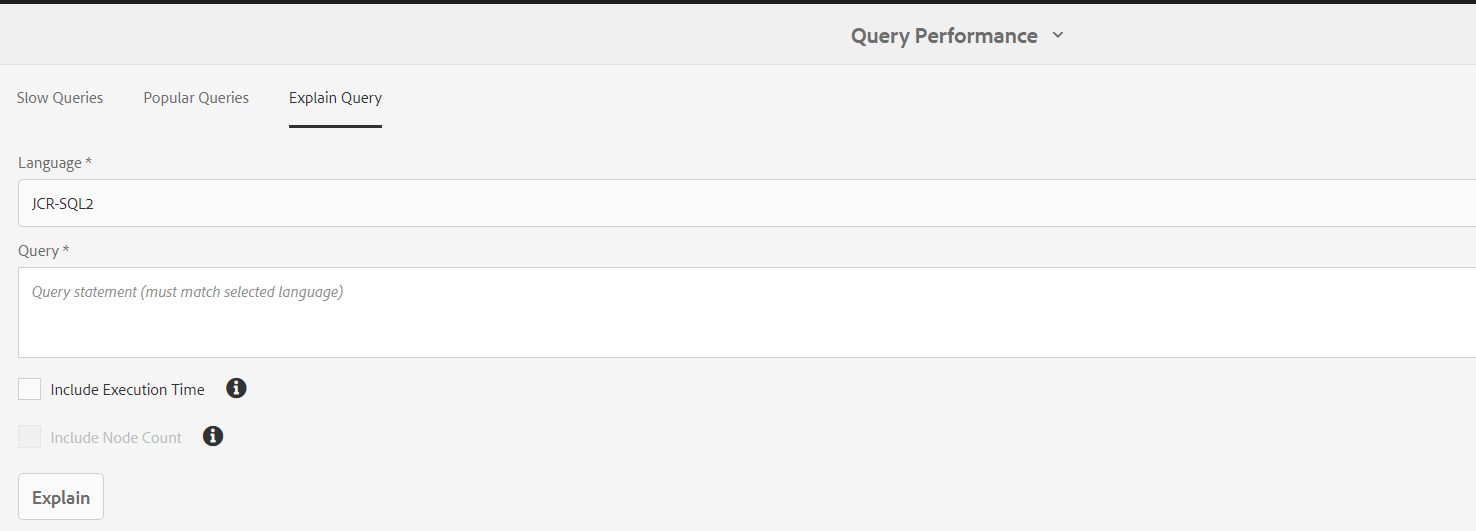
In AEM there are many tools to diagnosis the AEM repository. Query performance manager is one of them. By using this tool, we can find both slow and popular queries. And, it will explain the given query which index it is being used, how much time will take to run. This will explain the JCR-SQL2, SQL, XPath, and Query Builder queries.

To open the Query performance Manager tool. From AEM start page Navigate to Tools --> Operations --> Diagnosis --> Query Performance


Navigate to Query performance tool. Where you can see the Slow queries and Popular Queries. you can select any query and click on the explain query to see which index definition used and how much time it took to execute.


When your query executes, you will see the warning logger messages like below
*WARN* [sling-default-4-com.sony.sie.scheduler.ActivatePageSchedulerUS:05e1d8c7-d160-4ac5-8133-7d63c940ac1b] org.apache.jackrabbit.oak.query.QueryImpl Traversal query (query without index): <your query> consider creating an index

Or you in Query performance tool you will find the slow queries. To optimize those, you can create Oak Index Definition to index content for your queries.

How to create Oak Index Definition for your Query
In AEM there few OOTB index definitions that are created under “/oak:index”. You can create your own index definition under this path. You create the two types of indexes property index or Lucence Index. Oak Index Definition Generator will help you to create Oak index definitions based on your queries. You can input your query it will generate the Index definition format as Text/ JSON / XML. For AEM choose XML format. After generating the XML compare it with any OOTB definition and make sure the property types are matching or not? You may see the below warning messages if the property definition is not configured properly. For property, definitions refer to the documentation.

“org.apache.jackrabbit.oak.plugins.index.property.PropertyIndexLookup Expected 'NAMES' as type of
property 'propertyNames' but found 'STRING'. Node - '{ jcr:primaryType = oak:QueryIndexDefinition,
jcr:createdBy = Ensure Oak Index, declaringNodeTypes = [cq:AuditEvent], propertyNames = cq:time,
jcr:created = 2020-06-03T17:52:47.983Z, type = property, reindex = false, reindexCount = 3,
:index = { ... } }'

Refer documentation when to use the Lucence index and Property index.


By aem4beginner

January 2, 2021
Estimated Post Reading Time ~

Increasing Desired Search Results with Oak Indexing Analyzer

Oak Index Analyzer provides attributes that help in boosting search to get the desired results. The way it works is that each of the indexes can be defined with analyzer nodes with properties defined on them. When the re-index happens, the analyzer nodes control the way the indexes are created and help the queries fetch more accurate results.

Stemming
In JCR Query, any full-text search uses the equivalent match for the given word. This may not deliver all the desired results a user wants to see, even though the content is present in the repository. Stemming helps to avoid that by providing a linguistic-like search based on the words given. For example: When stemming is provided on the index, the word “sleeve” will fetch results that have words like “sleeved.”

Before applying PorterStem, the search for the word “sleeve” fetches five results. It only fetches nodes matching the exact word “sleeve.” See the result below image.


(Click images to enlarge them)

After applying PorterStem, the search for the same word “sleeve” fetches nine results. It fetches nodes that match both words “sleeve” and “sleeved.” See the result below image.


Synonyms
Computer search results will display only the text with an exact match in the full-text search. This may not be the desired result for companies to make the end-user stay on the website. This technical difficulty is eliminated by the Synonyms configuration on the index. In the configuration, we can map two words to be synonymous with each other; when a search is done with one word, it will return combined results for both words.

See the below image for a search of the word “Jacket” before configuration.


See the below image for a search of the word “Jacket” after synonym configuration, which results both “jacket” and “coat.”


Stop Word
In the real world, there are situations where don’t have to index for blacklisted words, thus avoiding them from the search results. Mostly like profanity words. Stop Word configuration on index helps us to do this.

See the below image, assuming the word “retail” as a blacklisted word before stop word configuration.


See the below image, assuming the word “retail” as a blacklisted word, after Stop Word configuration.


By aem4beginner

Rebuild Indexes in AEM with OAK Index Manager

Looking to rebuild indexes in Adobe Experience Manager? Need to boost query performance? Apart from optimized code, indexing plays a very important role in an application running smoothly. If you have more queries, you need to index your nodes in order to quickly get a response.

In a recent project, I found a problem related to performance. The issue occurred when I was querying AEM, and the server responded slowly.

Before AEM 6, Jackrabbit was used, and it would index content by default. AEM 6.0 and onward, OAK repository is used, and indexes need to be created when necessary.

If you see a warning message in logs like the one below, it means indexing needs to be done for those nodes:

WARN Traversed 1000 nodes with filter Filter(query=select …) consider creating an index or changing the query

You can use the following tool to define the index for a query: http://oakutils.appspot.com/generate/index

If nodes are not indexed, it can create problems in production systems, making the system VERY slow. I faced this issue with one of my clients, where we had a large number of DAM assets, and searching for assets through Asset Search in AEM was making the system incredibly slow – sometimes even bringing the server down.

To solve this problem, we found that DAM asset nodes need to be indexed. This allows the query to respond much faster.

Below are the steps we followed to index DAM nodes:
  • In CRXDE, open this node: /oak:index/damAssetLucene
  • Make sure that in /oak:index/damAssetLucene/jcr:content, there is a property: evaluatePathRestrictions = true
  • Create properties under “/oak:index/damAssetLucene/indexRules/dam:Asset/properties,” which can be used for searching assets in DAM. See screenshot below.
  • Go to /oak:index/damLucene and change reindex property to true
  • After saving the change, the indexing will be triggered immediately
You can monitor the process in the AEM log. For example, in the terminal, use the following command to monitor whether the index has finished:

tail -f /apps/aem/crx-quickstart/logs/error.log|grep “Reindexing (async) completed”

When the index is done, you will see the following message.


How to Reindex
If a reindex is needed in the future, you can use the following approaches.
Approach 1: Reindex using CRXDE Lite
Change the reindex property to true
Save the change

The reindex will trigger immediately. After re-indexing is complete, the reindex property will automatically change back to false.

Approach 2: Reindex using OAK Index Manager
  • Download and install OAK Index Manager through https://adobe-consulting-services.github.io/acs-aem-commons/
  • Access OAK Index Manager through http://host:port/etc/acs-commons/oak-index-manager.html
  • Reindex
Any other tips around this topic, or questions? Feel free to leave a comment below


By aem4beginner

May 15, 2020
Estimated Post Reading Time ~

Revealing Hidden Oak Nodes/Properties

Did you know there are properties you can’t see in your Apache Sling / Adobe Experience Manager repository? Jackrabbit OAK includes the concept of hidden nodes and properties. Hidden nodes and properties are prefixed with a colon and are not visible to consuming applications.

Examples include nestedCugs and:topCugCnt which are used to store the state of Jackrabbit Closed User Groups.

If you are lucky, you will never have to deal with hidden properties, but if you do, you should know that the Oak Run JAR includes a couple of very helpful utilities for revealing these properties.
  • Oak Run Console – Interactive CLI console for traversing down through the Jackrabbit Oak repository
  • Oak Run Explore – Java GUI tool for exploring the current state of the Jackrabbit repository
Both of these tools have similar functions but operate quite similarly. In my experience, the console is quicker whereas the GUI is easier to use.
Getting Oak Run
The first step to getting Oak Run is to find the version required for your Apache Sling / AEM instance. You can find it by checking the version of the Oak Core bundle:

http://localhost:4502/system/console/bundles?filter=(Bundle-SymbolicName=org.apache.jackrabbit.oak-core)


From there, you can download the correct version of the Oak Run jar from Maven:
https://search.maven.org/search?q=g:org.apache.jackrabbit%20AND%20a:oak-run&core=gav

Using Oak Run Console / Explore
Once you have the Jar downloaded copy it into the installation directory and then run the commands as such:

AEM: java -jar oak-run-[version].jar [command] crx-quickstart/repository/segmentstore

Sling CMS / Apache Sling: java -jar oak-run-[version].jar [command] sling/repository/segmentstore

Running the commands you will get a screen like the following.
Oak Run Explore


A few nice things you’ll notice in the explore GUI:
Tree view of the Oak repository
ALL nodes and properties including the hidden ones
Repository size by node tree
Oak Run Console


The console allows you to navigate the Oak repository like a filesystem and has a number of nifty commands. You can find out more by entering :h or :help.


By aem4beginner

April 24, 2020
Estimated Post Reading Time ~

OakPAL Build Validations

OakPAL was released in 2018 as a library and maven plugin to apply acceptance criteria to content-package artifacts. In 2019, OakPAL was awarded the top prize at the AEM Rock Star 2019 competition. OakPAL works by installing the content-package built by the maven project source code into a temporary Oak repository, using “Checks” to verify that the package is constructed in a way that follows best practices and avoids common mistakes.

ACS AEM Commons has adopted OakPAL for validating its own content-package and has published checklists for integrators to use to verify sustainable use of ACS Commons features in their own packages.

Use Cases
Acceptance Testing of The ACS AEM Commons Content Packages
The primary use of OakPAL in ACS AEM Commons is to maintain the quality of the content-package structure across multiple supported versions of AEM. This level of quality is defined by the “acs-internal” checklist, which enforces rules regarding access control handling, allowed content paths, and OSGi imported packages.

Compatibility Testing of Packages by Third-Party Integrators
If you deploy ACS AEM Commons to your own AEM website, you may be interested in applying the acs-commons-integrators checklist to ensure that your own code packages don’t conflict with assumptions that ACS AEM Commons features may have about the JCR repository structure after installation, such as checking for user and group naming conflicts and recommending the use of features like Ensure Authorizable and Ensure Oak Index when it detects statically defined nodes.

Checking Conformance with AEM Content Classifications for Sustainable Upgrades
Other checks that are performed for the ACS AEM Commons content package are also recommended for other AEM users at large, even for those who don’t use any ACS AEM Commons features. Use the content-class-aem64 and content-class-aem65 checklists to be sure that your code package isn’t extending or overlaying AEM features that may be changed by the next upgrade.

How to Use
It’s simple to use OakPAL if you are already using the content-package-maven-plugin or the filevault-package-maven-plugin. Just add this plugin description to your content-package pom.xml file:
<plugin>
    <groupId>net.adamcin.oakpal</groupId>
    <artifactId>oakpal-maven-plugin</artifactId>
    <version>1.3.1</version>
    <configuration>
            <checklists>
                    <checklist>basic</checklist>
                    <checklist>acs-commons-integrators</checklist>
                    <checklist>content-class-aem65</checklist>
            </checklists>
    </configuration>
    <dependencies>
            <dependency>
                    <groupId>com.adobe.acs</groupId>
                    <artifactId>acs-aem-commons-oakpal-checks</artifactId>
                    <version>4.2.2</version>
            </dependency>
    </dependencies>
    <executions>
            <execution>
                    <goals>
                        <goal>scan</goal>
                        <goal>verify</goal>
                    </goals>
            </execution>
    </executions>
</plugin>

Learn More

To learn more about OakPAL, visit the project website, and browse the source code here.


By aem4beginner

April 23, 2020
Estimated Post Reading Time ~

Set the Oak Login token session expiration

Statement: Apache jackrabbit oak TokenConfiguration
Environment: AEM 6.3

Solution:
- Go to System/console/ConfigMgr
- Search for Apache jackrabbit oak TokenConfiguration
- set the token expiration value to 1 hr or 60000 seconds
- Save the changes. That's it!.


By aem4beginner

How to set the Oak login token session expiration

Statement: set the Oak Login token expiration
Environment: AEM 6.3

Please follow the below URL:
https://helpx.adobe.com/experience-manager/kb/How-to-set-token-session-expiration-AEM.html


By aem4beginner

April 22, 2020
Estimated Post Reading Time ~

Oak Query Engine Optimization Parameters and how to set these parameters in JMX console in AEM

Statement - Query engine Optimization parameters
Environment - AEM 6.3 GA

Solution:
Go to the Felix console URL: http://localhost:4502/system/console/jmx/org.apache.jackrabbit.oak%3Aname%3Dsettings%2Ctype%3DQueryEngineSettings
below are the QueryEngine parameters and set the values based on need.
Attributes
 
Attribute NameAttribute Value
LimitInMemory500000
LimitReads100000
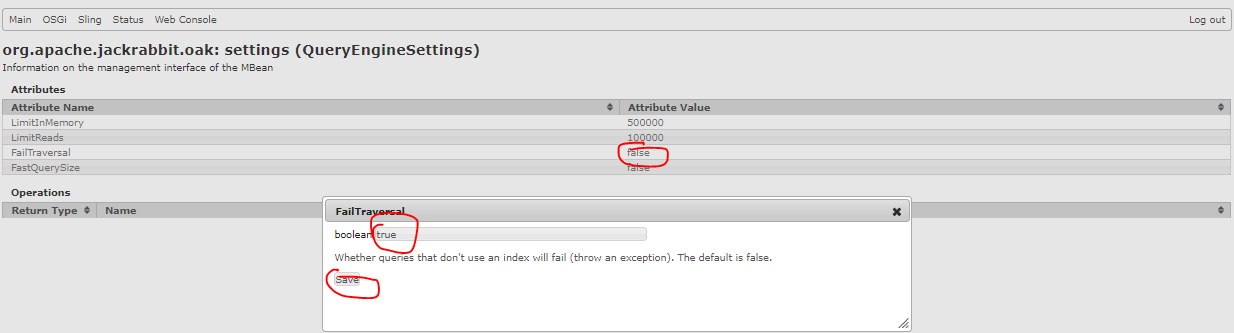
FailTraversalTRUE
FastQuerySizeFALSE

Click on each of these attribute value to increase/decrease as shown in below.


To return the query result size should return an estimation for large queries set the FastQuerysize to True

Set FailTraversal to True Whether queries that don't use an index will fail (throw an exception) as shown in below screenshot.

That's it!


By aem4beginner

April 19, 2020
Estimated Post Reading Time ~

Indexing via Oak-run jar in AEM 6

URL:
https://helpx.adobe.com/experience-manager/6-4/sites/deploying/using/indexing-via-the-oak-run-jar.html#IndexConsistencyChecks


By aem4beginner

Oak queries and Indexing in AEM with embedded Solr configurations

URL:

https://helpx.adobe.com/experience-manager/6-4/sites/deploying/using/queries-and-indexing.html#Configuringtheindexes


By aem4beginner

Troubleshooting Oak indexes in AEM

URL:

https://helpx.adobe.com/experience-manager/6-4/sites/deploying/using/troubleshooting-oak-indexes.html#InitialDetection


By aem4beginner

OakAccess0000: Access denied

Issue/Problem statement :
avax.jcr.AccessDeniedException: OakAccess0000: Access denied
at org.apache.jackrabbit.oak.api.CommitFailedException.asRepositoryException(CommitFailedException.java:232) [org.apache.jackrabbit.oak-api:1.10.6]
at org.apache.jackrabbit.oak.api.CommitFailedException.asRepositoryException(CommitFailedException.java:213) [org.apache.jackrabbit.oak-api:1.10.6]
at org.apache.jackrabbit.oak.jcr.delegate.SessionDelegate.newRepositoryException(SessionDelegate.java:669) [org.apache.jackrabbit.oak-jcr:1.10.6]
at org.apache.jackrabbit.oak.jcr.delegate.SessionDelegate.save(SessionDelegate.java:495) [org.apache.jackrabbit.oak-jcr:1.10.6]
at org.apache.jackrabbit.oak.jcr.session.SessionImpl$8.performVoid(SessionImpl.java:424) [org.apache.jackrabbit.oak-jcr:1.10.6]
at org.apache.jackrabbit.oak.jcr.delegate.SessionDelegate.performVoid(SessionDelegate.java:273) [org.apache.jackrabbit.oak-jcr:1.10.6]
at org.apache.jackrabbit.oak.jcr.session.SessionImpl.save(SessionImpl.java:421) [org.apache.jackrabbit.oak-jcr:1.10.6]
at com.adobe.granite.repository.impl.CRX3SessionImpl.save(CRX3SessionImpl.java:208) [com.adobe.granite.repository:1.6.28]
at com.adobe.granite.workflow.core.WorkflowSessionImpl.persist(WorkflowSessionImpl.java:1789) [com.adobe.granite.workflow.core:2.0.240.CQ650-B0014]
at com.adobe.granite.workflow.core.job.JobHandler.process(JobHandler.java:393) [com.adobe.granite.workflow.core:2.0.240.CQ650-B0014]
at org.apache.sling.event.impl.jobs.JobConsumerManager$JobConsumerWrapper.process(JobConsumerManager.java:502) [org.apache.sling.event:4.2.12]
at org.apache.sling.event.impl.jobs.queues.JobQueueImpl.startJob(JobQueueImpl.java:293) [org.apache.sling.event:4.2.12]
at org.apache.sling.event.impl.jobs.queues.JobQueueImpl.access$100(JobQueueImpl.java:60) [org.apache.sling.event:4.2.12]
at org.apache.sling.event.impl.jobs.queues.JobQueueImpl$1.run(JobQueueImpl.java:229) [org.apache.sling.event:4.2.12]
at java.util.concurrent.ThreadPoolExecutor.runWorker(ThreadPoolExecutor.java:1149)
at java.util.concurrent.ThreadPoolExecutor$Worker.run(ThreadPoolExecutor.java:624)
at java.lang.Thread.run(Thread.java:813)
Caused by: org.apache.jackrabbit.oak.api.CommitFailedException: OakAccess0000: Access denied
at org.apache.jackrabbit.oak.security.authorization.permission.PermissionValidator.checkPermissions(PermissionValidator.java:239) [org.apache.jackrabbit.oak-core:1.10.6]
at org.apache.jackrabbit.oak.security.authorization.permission.PermissionValidator.propertyAdded(PermissionValidator.java:108) [org.apache.jackrabbit.oak-core:1.10.6]

Solution:
1. Above error messages due to DAM Assets Update workflow execution on upload to the AEM, Assign the admin privileges to the workflow-service user. /etc, /content..etc
2. Upload the images and observe the log files.


By aem4beginner

April 14, 2020
Estimated Post Reading Time ~

Creating an external OAK Login Module for Adobe Experience Manager

You can create a custom OAK Login Module for Adobe Experience Manager (AEM) that is called when a user logs in to AEM from a 3rd party authentication system such as LDAP. To create a custom OAK Login Module, you use the javax.security.auth.spi.LoginModule interface. One use case for writing a custom OAK login module is to add custom application logic to a callback. That is, when a user logs in from LDAP, a callback is invoked.


A custom OAK login module is implemented as an OSGi bundle. To read this development article, click https://helpx.adobe.com/experience-manager/using/oak-login.html.

Note; For information about using LDAP with AEM 6.x, see Configuring Adobe Experience Manager 6 to use Apache Directory Service.


By aem4beginner

April 1, 2020
Estimated Post Reading Time ~

Notes on the Oak Observation Queue

Deke Smith has written up a blog entry on JCR Observation here. JMX performance metrics on how the Jackrabbit Oak observation subsystem is performing can be obtained from /system/console/jmx (click on Oak Repository Statistics):

An explanation of these stats are available here.

During a single-threaded asset ingestion of JPG images, I observed the following (all values ‘per second’, with the highest value chosen):

SessionCount (number of active sessions) : 242
SessionReadCount (number of session read operations) : 12,557
SessionReadDuration (duration (nanoseconds) of session read operations) : 81,000,000
SessionReadAverage (average duration (nanoseconds) of session read operations) : 8,288
SessionWriteCount (number of session write operations) :1,438
SessionWriteDuration (duration (nanoseconds) of session write operations) : 203,000,000
SessionWriteAverage (average duration (nanosecondss) of session write operations) : 159,504
ObservationEventCount (Number of observation Event instances delivered) : 984
ObservationEventDuration (time (nanoseconds) spent processing observation events) : 12,637,302
ObservationEventAverage (average time (nanoseconds) spent processing observation events) : 14,530
ObservationQueueMaxLength : 6


According to Jackrabbit engineer Chetan Mehrotra - “…by default, the queue size is 1,000. If it crosses 1000, local events would be collapsed and converted to external events. If you have observation listeners marked to listen only for local changes, it would miss out on those events.”


By aem4beginner

Useful Oak oak-run Commands

See this for details.

Start a Java UI to explore the AEM Repository and determine which tar file contains which piece of content

java -Xmx4g -jar oak-run-1.6.0.jar explore --segment=true G:\AEM_6.2\Author\crx-quickstart\repository\segmentstore

Perform a consistency check (details here) (AEM should be shut down)
java -Xmx4g -jar oak-run-1.6.0.jar check --segment=true --path G:\AEM_6.2\Author\crx-quickstart\repository\segmentstore --bin -1 --deep 0

AEM 6.4

java -Xmx8g -jar oak-run-1.8.2.jar check G:\AEM_6.4\author\crx-quickstart\repository\segmentstore

Debug the repository (AEM should be shut down)
java -Xmx4g -jar oak-run-1.6.0.jar debug --segment=true G:\AEM_6.2\Author\crx-quickstart\repository\segmentstore

AEM 6.4

java -Xmx8g -jar oak-run-1.8.2.jar debug G:\AEM_6.4\author\crx-quickstart\repository\segmentstore

List checkpoints
java -Xmx4g -jar oak-run-1.6.0.jar checkpoints --segment=true G:\AEM_6.2\Author\crx-quickstart\repository\segmentstore

Compact the repository (AEM should be shut down)
java -Xmx4g -Dtar.memoryMapped=true -Dcache=1024 -Dcompaction-progress-log=10000 -jar oak-run-1.6.0.jar compact --segment=true G:\AEM_6.2\Author\crx-quickstart\repository\segmentstore

Check the Data Store and report missing BLOBs (AEM should be shut down)

java -Xmx4g -Dtar.memoryMapped=true -jar oak-run-1.6.0.jar datastorecheck --consistency --segment=true --store G:\AEM_6.2\Author\crx-quickstart\repository\segmentstore --fds G:\AEM_6.2\Author\crx-quickstart\install\org.apache.jackrabbit.oak.plugins.blob.datastore.FileDataStore.cfg --dump G:\TEMP

To get the Data Store consistency check to work on oak-run-1.6.1 against AEM 6.3, an additional trick is needed (will be fixed in oak-run-1.6.2) - G:\AEM_6.3\org.apache.jackrabbit.oak.plugins.blob.datastore.FileDataStore.config should contain one line pointing to the Data Store:

path=“G:\AEM_6.3\author\crx-quickstart\repository\datastore”

java -Xmx4g -Dtar.memoryMapped=ytue -jar oak-run-1.6.1.jar datastorecheck –consistency –store G:\AEM_6.3\author\crx-quickstart\repository\segmentstore –fds G:\AEM_6.3\org.apache.jackrabbit.oak.plugins.blob.datastore.FileDataStore.config –dump G:\TEMP

AEM 6.4

java -Xmx8g -jar oak-run-1.8.2.jar datastorecheck –consistency –fds G:\AEM_6.4\author\crx-quickstart\install\org.apache.jackrabbit.oak.plugins.blob.datastore.FileDataStore.config –repoHome G:\AEM_6.4\author\crx-quickstart\repository –store G:\AEM_6.4\author\crx-quickstart\repository\datastore


By aem4beginner