Showing posts with label Remote Assets. Show all posts

September 22, 2020
Estimated Post Reading Time ~

How to start AEM in debug mode?

There are multiple approaches to start or tune AEM instance in debug mode. we will cover a few of them in this tutorial.
  1. We could start AEM using the command prompt by using the below command line.
  2.  java -jar aem63-author-p4502.jar -debug <port#>
  3. Another way to start tune AEM instance in debug mode is we could update the start.bat file and start AEM by clicking on the start.bat file in the crx-quickstart folder. To do so we have to do the following.
  • First we need to update the start file; go to \crx-quickstart\bin\start.bat and append this command "-debug -Xnoagent -Djava.compiler=NONE -Xrunjdwp:transport=dt_socket,server=y,suspend=n,address=<port#>" with line 25, default JVM options.
  • Save the file
  •  Now double click on the start.bat file to start your AEM instance.
    After changes, your start.bat file will look like the following.
    @echo off
    :: This script configures the start information for this server.
    ::
    :: The following variables may be used to override the defaults.
    :: For one-time overrides the variable can be set as part of the command-line; e.g.,
    ::
    ::     SET CQ_PORT=1234 & ./start.bat
    ::
    setlocal

    ::* TCP port used for stop and status scripts
    if not defined CQ_PORT set CQ_PORT=4502

    ::* hostname of the interface that this server should listen to
    :: if not defined CQ_HOST set CQ_HOST=

    ::* runmode(s)
    ::* will not be used if repository is already present
    if not defined CQ_RUNMODE set CQ_RUNMODE=author

    ::* name of the jarfile
    :: if not defined CQ_JARFILE set CQ_JARFILE=

    ::* default JVM options
    if not defined CQ_JVM_OPTS set CQ_JVM_OPTS=-Xmx2048m -XX:MaxPermSize=512M -Djava.awt.headless=true -debug -Xnoagent -Djava.compiler=NONE -Xrunjdwp:transport=dt_socket,server=y,suspend=n,address=30303

    ::* ------------------------------------------------------------------------------
    ::* authentication
    ::* ------------------------------------------------------------------------------
    ::* when using oak (crx3) authentication must be configured using the
    ::* Apache Felix JAAS Configuration Factory service via the Web Console
    ::* see http://jackrabbit.apache.org/oak/docs/security/authentication/externalloginmodule.html

    ::* use jaas.config (legacy: only used for crx2 persistence)
    :: if not defined CQ_USE_JAAS set CQ_USE_JAAS=true

    ::* config for jaas (legacy: only used for crx2 persistence)
    if not defined CQ_JAAS_CONFIG set CQ_JAAS_CONFIG=etc\jaas.config

    ::* ------------------------------------------------------------------------------
    ::* persistence mode
    ::* ------------------------------------------------------------------------------
    ::* the persistence mode can not be switched for an existing repository
    set CQ_RUNMODE=%CQ_RUNMODE%,crx3,crx3tar
    :: set CQ_RUNMODE=%CQ_RUNMODE%,crx3,crx3mongo

    ::* settings for mongo db
    :: if not defined CQ_MONGO_HOST set CQ_MONGO_HOST=127.0.0.1
    :: if not defined CQ_MONGO_PORT set CQ_MONGO_PORT=27017
    :: if not defined CQ_MONGO_DB   set CQ_MONGO_DB=aem6

    ::* ------------------------------------------------------------------------------
    ::* do not configure below this point
    ::* ------------------------------------------------------------------------------

    chdir /D %~dp0
    cd ..
    if exist conf\controlport del conf\controlport
    if not defined CQ_JARFILE     for %%X in (app\*.jar) do set CQ_JARFILE=%%X
    for %%* in (.) do set CurrDirName=%%~n*
    cd ..

    set START_OPTS=start -c %CurrDirName% -i launchpad
    if defined CQ_PORT            set START_OPTS=%START_OPTS% -p %CQ_PORT%
    if defined CQ_RUNMODE         set CQ_JVM_OPTS=%CQ_JVM_OPTS% -Dsling.run.modes=%CQ_RUNMODE%
    if defined CQ_HOST            set CQ_JVM_OPTS=%CQ_JVM_OPTS% -Dorg.apache.felix.http.host=%CQ_HOST%
    if defined CQ_HOST            set START_OPTS=%START_OPTS% -a %CQ_HOST%
    if defined CQ_MONGO_HOST      set START_OPTS=%START_OPTS% -Doak.mongo.host=%CQ_MONGO_HOST%
    if defined CQ_MONGO_PORT      set START_OPTS=%START_OPTS% -Doak.mongo.port=%CQ_MONGO_PORT%
    if defined CQ_MONGO_DB        set START_OPTS=%START_OPTS% -Doak.mongo.db=%CQ_MONGO_DB%
    if defined CQ_USE_JAAS        set CQ_JVM_OPTS=%CQ_JVM_OPTS% -Djava.security.auth.login.config=%CQ_JAAS_CONFIG%
    set START_OPTS=%START_OPTS% -Dsling.properties=conf/sling.properties

    if exist newTaskList.txt del newTaskList.txt
    if exist oldTaskList.txt del oldTaskList.txt
    tasklist /FI "IMAGENAME eq java.exe" /NH > oldTaskList.txt
    start "CQ" cmd.exe /C java %CQ_JVM_OPTS% -jar %CurrDirName%\%CQ_JARFILE% %START_OPTS%

    :: removing the delay until CQ-4202186 is solved
    :: timeout /T 1 /NOBREAK >nul

    tasklist /FI "IMAGENAME eq java.exe" /NH > newTaskList.txt
    java -cp %~dp0 GetProcessID oldTaskList.txt newTaskList.txt java.exe > %CurrDirName%\conf\cq.pid
    if exist newTaskList.txt del newTaskList.txt
    if exist oldTaskList.txt del oldTaskList.txt

    Once you have done with the above changes and started your AE in debug mode then you have to configure debugger in your IDE (Eclipse or IntelliJ). To configure the debugger with your local AEM instance please follow this article. Remote debugger in eclipse


    By aem4beginner

    April 24, 2020
    Estimated Post Reading Time ~

    Unveiling AEM Remote Assets


    Adobe Experience Manager (AEM) Remote Assets is finally here! With the Generally Available release of AEM 6.5, Adobe has released their own flavor of our in-demand Remote Assets feature branded “Connected Assets” (which they also term “remote assets” in their documentation – go figure!). But that’s not why I’m excited. The release of Connected Assets acknowledges the critical gap that Remote Assets solve, and what I am truly excited by is that ACS AEM Commons has released Bounteous’ version of Remote Assets, the winner of the 2018 AEM Rock Star contest.

    If you’re new to the concept of Remote Assets, a quick recap of use cases covered on my Adobe blog article include:
    • AEM Sites management with assets from a separate enterprise assets (DAM) server
    • Synchronization of assets to non-production (Dev/QA/Stage) environments
    • Access to assets on websites copied to local development servers
    The basic concept is that Remote Assets allows you to search, find, and use assets from a remote server within your AEM Sites instance, syncing only the assets you need on-demand. [View a full demonstration of ACS AEM Commons Remote Assets.]

    Shouldn’t I Use Connected Assets with AEM Sites?
    With AEM now supporting Connected Assets, shouldn’t we all just use that to satisfy our remote asset needs? Absolutely, if your use case applies. I strongly believe in using the tools any framework (in this case AEM) provides rather than a custom solution. If your use case is enterprise assets and you’re running an AEM Assets DAM on Adobe Managed Services (AMS), look no further than AEM’s Connected Assets solution.

    However, there are times when an out of the box solution is limited for your particular use case. Sometimes those limitations may even be purposeful, and thus not even on Adobe’s roadmap to resolve. The out of the box solution is great, but only if you “fit the box.”

    What If I Don’t Fit The Box?
    There are many reasons you might not “fit the box,” for Connected Assets and require a more customized solution. Perhaps your AEM Assets server is hosted on-premise and Connected Assets is not an option for you, as described by Tad Reeves in his article covering Connected Remote AEM Assets Instances. Or maybe you’re looking at other use cases, supporting auto-sync to non-production and development server instances where Connected Assets doesn’t really apply. Or maybe, just maybe (shhhhhh…) your assets are in a system other than AEM (Don’t worry, your secret is safe with us!).

    For any and all of these reasons, Remote Assets in ACS Commons exists for you.

    My Assets Aren’t in AEM
    When we created Remote Assets, it’s always been on our mind how the feature could lower the barrier of entry for new customers to AEM Sites. If your company’s assets are stored in a non-AEM DAM or PIM solution, there’s currently no great solution for using those assets in AEM Sites, and that can be a real drawback of using AEM. Don’t get me wrong, AEM Sites has a lot of upsides too, so much so that we see countless clients choose AEM anyway, but there has to be a better way to use existing assets other than finding them in the remote system and manually copying them into AEM.

    What if Remote Assets could automatically sync assets from your corporate Box or DropBox accounts? Or maybe your Canto or Bynder DAM? What if the bulk of your marketing assets are already in AEM, but you also want access to your product assets from your Akeneo or inRiver PIM? Wouldn’t it be great to have AEM work “with” these systems rather than have to “replace” these systems that are already serving critical business needs? That’s Bounteous’ vision for Remote Assets.

    Is "Remote Assets" The Solution I’ve Been Looking For?
    I don’t know, you tell me. Our first cut of Remote Assets contributed to ACS Commons solves the simpler use cases of syncing assets from one AEM server to another, in cases where Connected Assets isn’t a viable option. Going beyond these use cases, especially those concerning non-AEM asset sources, leaves us standing at a fork in the road with a hundred ways to turn, and that’s where we need you.

    Should we build support for pulling assets from shared file drives? Integrate with MediaValet DAM or Salsify PIM? Or maybe you need Bounteous simply to further harden the solution into a production worthy alternative to Connected Assets for your on-prem AEM DAM. Whatever would be specifically helpful to you, let us know. We’ve seen tons of interest in Remote Assets, and frankly, our head is spinning on which direction to go next!


    By aem4beginner

    Remote Assets

    This tool allows site builders on Adobe Experience Manager (AEM) to search, access, and use assets from a dedicated Digital Asset Manager (DAM) on a separate server. Remote Assets is currently built to support AEM Assets, with intentions to support alternative DAM or PIM products in the future.

    Remote Assets was voted the winner of the 2018 Adobe Summit AEM Rock Star competition and was the first publicly available implementation allowing assets from a remote server to be leveraged effectively from AEM Sites.


    Use Cases
    One of the most obvious and attractive use cases for this feature is using assets from an enterprise DAM or PIM from AEM Sites in a seamless fashion. A side note here is that if your remote DAM is AEM Assets and your AEM Sites instance is hosted with Adobe Managed Services, Adobe’s follow-on “Connected Assets” feature (which I talk about in the article Unveiling AEM Remote Assets) may be a fit for you.

    Assuming Adobe’s implementation or inherent limitations of AMS hosting and AEM Assets leave you searching for an alternative solution, here are some of the use cases that Remote Assets was designed to solve:

    • Keeping Dev/QA/Stage AEM servers up to date with current assets
    • Allowing developers to work locally, automatically pulling in assets as-needed
    • Leveraging assets directly from a non-Adobe DAM or PIM (future)
    In the video at the bottom, I walk through an example using AEM Remote Assets for local development of the `we-retail` website, where a developer has copied the site content but not the assets since there’s no easy way without copying the entire DAM. This example can be extrapolated to an AEM website where the remote server is perhaps a Dev or Stage server and the DAM potentially includes many gigabytes (or even terabytes) of assets making full sync to the local development server infeasible.

    How to Use
    1. (DO NOT SKIP) Configure DAM Workflow Launchers
    Do not pass GO, do not collect $200 without first performing this step! Seriously, skipping this step will at best result in Remote Assets performing poorly, and at worst overload your AEM server.

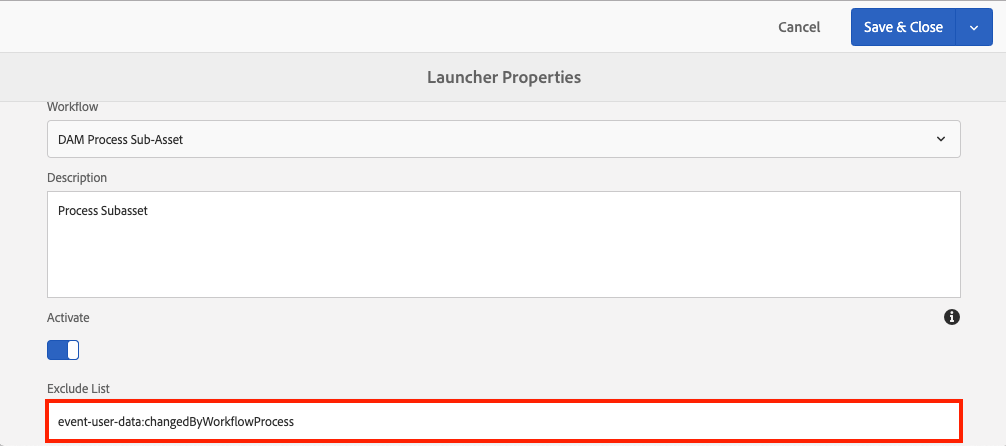
    Configure all Workflow Launchers in AEM that act upon DAM paths to ignore activities that contain `event-user-data:changedByWorkflowProcess`, which is stamped into events triggered by Remote Assets. To do this, go to the admin page for Workflow Launchers in AEM (`/libs/cq/workflow/admin/console/content/launchers.html`), open each launcher that operates on a path that contains `/content/dam`, and update the “Exclude List” field to contain `event-user-data:changedByWorkflowProcess`.

    Note that some launchers will already have this in place out-of-the-box (OOTB), and thus not require updating. Others may have `event-user-data:<someOtherThing>` in which case you would append `,changedByWorkflowProcess`, resulting in a value like `event-user-data:<someOtherThing>,changedByWorkflowProcess`.


    2. Configure the Remote Assets Feature
    Give AEM the connection details of the remote server, what paths to include (both tags and assets), and any additional options by configuring the `com.adobe.acs.commons.remoteassets.impl.RemoteAssetsConfigImpl` service. You can do this from the admin console in AEM, or by deploying a `sling:OsgiConfig` node from your codebase.


    3. Configure the Remote Asset Resource Decorator
    Enable AEM to listen for requests to remote asset placeholders so that the asset binary files (i.e. the “real” assets) can be synced to the server “just-in-time” by deploying a blank OSGi configuration of the `com.adobe.acs.commons.remoteassets.impl.RemoteAssetDecorator` service, which you can include in your codebase as an empty `sling:OsgiConfig` node.


    4a. Trigger a Manual Sync of Remote Asset Placeholders
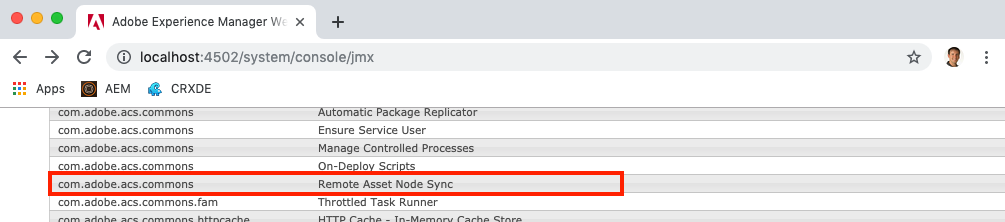
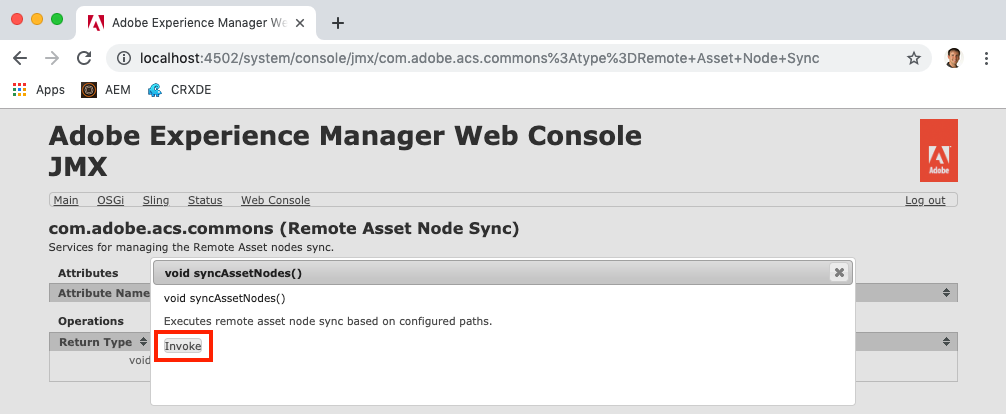
    Synchronize tags and the DAM node structure (using small placeholder assets to minimize disk usage) by triggering sync from the JMX admin console at `/system/console/jmx`, opening the “Remote Asset Node Sync” service, and invoking the `syncAssetNodes()` operation.


    Depending on the size of the DAM you are using remote assets for, this can take anywhere from a few seconds to a few hours.

    4b. Schedule a Repeating Sync of Remote Asset Placeholders
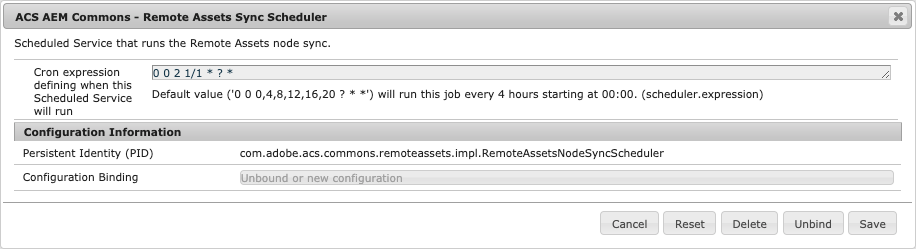
    To keep your asset node structure up to date with changes in the remote DAM without requiring periodic manual syncs, configure the sync to occur automatically on a scheduled basis by providing an OSGi config for the `com.adobe.acs.commons.remoteassets.impl.RemoteAssetsNodeSyncScheduler` service, which consumes a standard cron expression for scheduling. Similar to other configs, this can be done by deploying a `sling:OsgiConfig` node from your codebase or directly via the admin console in AEM.

    Example config scheduling Remote Assets node sync every morning at 2:00 a.m.:


    5. Use the Assets Like They Are Real!
    The last step to using Remote Assets actually takes care of itself. As a non-admin user accessing assets, “remote” assets become “real” assets as you use them in your everyday tasks. Whether you are viewing a page, searching the DAM, or navigating DAM folders, any assets for which binary files have not yet been synced to your AEM Sites server will be pulled in “just-in-time” as they are requested, giving you the impression that the assets were “real” the entire time.

    It’s one thing to read this step and think, “that sounds kinda cool” but truthfully you need to experience the “magic” of Remote Assets yourself by watching the Remote Assets video demonstration (starting at 4:48 if you want to cut to the exciting stuff!).


    Learn More
    For additional implementation guidance including configuration options and troubleshooting, visit the official documentation.


    By aem4beginner

    April 19, 2020
    Estimated Post Reading Time ~

    Connected Remote Assets on AEM 6.5 – Setup & Caveats

    One of the new interesting features of AEM 6.5 is the ability to set up a connected AEM Assets environment, such that you could browse & use assets from a remote AEM Assets instance on your local AEM Sites instance.

    Now that I’ve gotten a chance to set this up and watch it go, I wanted to give a brief overview of how to set it up, as well as caveats on what it can & can’t do.

    Table of Contents
    • AEM Connected Assets Architecture Overview
    • Diagram
    • Features and Limitations
    • What this Connected Assets feature allows you to do
    • Connected Assets Feature Limitations
    • Setting up Connected Assets
    • What it Looks Like In Action
    • Hope for the Future
    AEM Connected Assets Architecture Overview
    What this new Connected Assets topology allows you to do, is to separate out your DAM repository from your AEM Sites author, so that your Assets instance can specifically be built around handling bulk assets, and your sites author can be optimized around a great authoring & publishing experience.
    Diagram

    Here’s how it looks in a very crude diagram: 
    Diagram of AEM 6.5 Connected Assets instances
    Basically, all you need is two AEM 6.5 Author instances, hosted either in the cloud, on-premise, or at Adobe Managed Services. Adobe says in their documentation that it will only work on an Assets instance that’s hosted in AMS, but it will in fact work anywhere.

    Once set up, one can author a page on the AEM Sites instance, and then when pulling in assets for a page, one can select either to browse assets hosted in the local AEM instance, or to optionally browse the connected DAM instance and search for assets there.

    Features and Limitations
    What this Connected Assets feature allows you to do:
    Connect as many Sites Authors as you want to a single Assets author
    On a Sites Author, one can browse & search image assets on a remote Assets author
    One can then drag & drop assets from the remote Assets author onto your page, which will automatically download them onto the Sites Author

    Connected Assets Feature Limitations
    This feature supports images only. It will not allow you to sync video assets, PDFs, content fragments, experience fragments, dynamic media and the like. So, realize that if the driver for using this feature involves video or PDF assets, this feature isn’t written to support this use case at this time.
    Local assets on the AEM Sites instance don’t get synchronized with the original assets on the remote Assets instance. Any edits, deletions, or revoking of permissions on the DAM instance are not propagated back downstream – they would only get saved to the local copy.
    Local asset copies on the Sites instance are meant to be read-only copies. Only non-destructive edits are permitted that are allowed by the Sites components.
    Locally fetched assets are available for authoring purposes only. Asset update workflows cannot be applied and metadata cannot be edited. That work is meant to be done on the original Assets Author.
    All Sites Authors have read permissions on the fetched copies, even if they do not have access to the remote DAM instance.
    There is presently no API support to customize the Connected Assets integration.

    Setting up Connected Assets
    This page on Adobe’s helpx site describes how to set up Connected Assets.

    The only caveat is that it notes on the documentation that it requires that the Assets Author be hosted in Adobe Managed Services, which it does not. The screenshots & data below were done on a local development environment, so it does entirely work on self-hosted installations as well.

    What it Looks Like In ActionSearching remote assets, this time including my family’s trip to Mt. St. Helens.
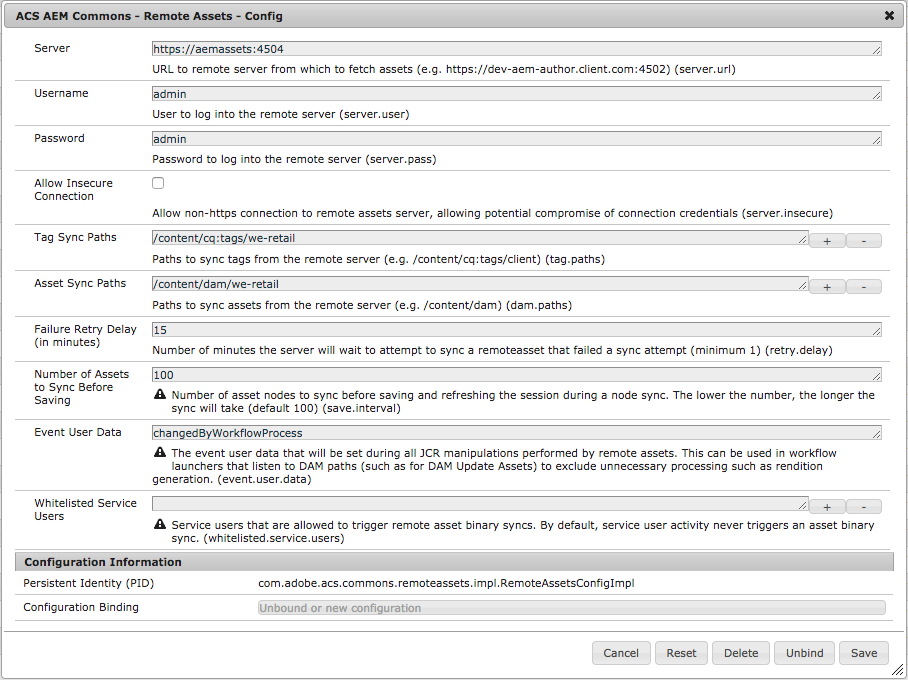

    The screenshot above shows an AEM 6.5 Sites instance that has been connected to an AEM 6.5 Assets instance. I’ve uploaded & manually tagged a few hundred assets in the AEM 6.5 Assets instance, and then created a page in the We.Retail sample site. Clicking on the “Cloud” icon in the sidebar will connect to the remote Assets instance and start displaying images from the remote instance.

    The images are simply fetched & displayed on the page, but are not persisted locally at this point. However, as soon as you select an image and click & drag it into a container on the page, you’ll see this in the logs:

    20.06.2019 10:40:57.640 INFO [10.0.0.169 [1561052457600] POST /libs/dam/remoteassets/fetch.html HTTP/1.1] com.adobe.cq.remotedam.internal.assetfetch.services.impl.AssetFetchServiceImpl Fetching [/content/dam/test-assets/IMGP1574.JPG] without original
    20.06.2019 10:40:57.876 INFO [10.0.0.169 [1561052457600] POST /libs/dam/remoteassets/fetch.html HTTP/1.1] com.adobe.cq.remotedam.internal.assetfetch.proxy.impl.RemoteDAMProxyService Successfully fetched package for [/content/dam/test-assets/IMGP1574.JPG]
    20.06.2019 10:40:58.110 INFO [10.0.0.169 [1561052457600] POST /libs/dam/remoteassets/fetch.html HTTP/1.1] com.adobe.cq.remotedam.internal.assetfetch.services.impl.AbstractFetchAsset Streamed 421783 bytes of content-package to FetchedAssetsArtifacts9413781294683832586.zip
    20.06.2019 10:40:59.080 INFO [10.0.0.169 [1561052457600] POST /libs/dam/remoteassets/fetch.html HTTP/1.1] com.adobe.cq.remotedam.internal.assetfetch.servlets.FetchAssetServlet Fetching [/content/dam/test-assets/IMGP1574.JPG] without original rendition; size of original rendition: 10719663 bytes

    Then, once it’s fetched a content package of the image renditions it needs for the Asset, you’ll then be able to see the asset persisted locally in the repository as a read-only copy under /content/dam/connectedassets/

    This asset will then be what is activated with the page when it gets Published.

    Hope for the Future
    This is a very exciting new feature, and I have great hope that Adobe will continue to develop it, and add in other asset types aside from images. The ultimate use case for this would be to be able to fully offload 100% of your Asset processing to a heavy-lifting Asset author, which could then be able to deal with all of your I/O heavy Asset content.

    Please let me know if or how you plan to use this feature in your deployments!


    By aem4beginner

    April 8, 2020
    Estimated Post Reading Time ~

    Remote Assets

    Purpose
    (RECOMMENDED FOR NON-PRODUCTION USE ONLY)

    Remote Assets allows you to configure an AEM server to automatically sync in the assets from another, remote AEM server, on an as-needed basis. Remote Assets does not require anything to be installed on the remote AEM server.
    For a quick overview of this feature, read this Blog Post on Remote Assets or watch this video demonstration of Remote Assets.

    Why do I need Remote Assets?
    Pulling down a copy of the production site pages to a local or otherwise non-production server is simple. But, pulling down all of the assets associated with that site? Not so much. A simplistic, brute-force solution might be to use AEM’s package manager to bundle up the entire DAM, copy it down to your server, and call it a day, right? Not exactly. Copying the entire DAM can be problematic in terms of disk space, network transfer, and package size. How can this be done in a way that leaves behind assets that are not applicable to the site? And even if you can do it manually, how do you keep up to date when assets on the remote server change?
    In short, you need a solution that achieves all of the following objectives:
    • Access to all remote AEM Assets from another AEM Sites instance
    • Remote AEM Assets nodes stored locally in AEM Sites for seamless authoring w/OOTB features
    • Copies of just the required remote AEM Assets binary files, not binaries for the entire DAM
    • All accomplished in an automated fashion
    How does Remote Assets Work?
    The mentality of Remote Assets is “sync what you need, when you need it.” To accomplish this goal, Remote Assets syncs assets from the remote system in a two-step process to optimize sync time and disk usage on the local server.

    The first step for sync’ing assets is a “node sync,” where the full node trees for assets (and tags) configured by an admin or developer are sync’d to the local server. When the node sync takes place, the binary files of sync’d assets are replaced with placeholder binary files that are much smaller than typical “real” assets. This allows the entire set of assets to be sync’d to the local server at a fraction of the disk space and sync time needed if instead the entire set of assets were transferred as a content package. Having the entire node structure present on the local server allows assets to be searched and accessed as if they are fully present on the local server, supporting all OOTB functionalities.

    The second step for sync’ing assets is a “binary sync,” which occurs on an individual asset basis. This sync is triggered whenever a non-admin user references a “remote” asset in any way. Here are just a few events that can trigger a binary sync:
    • Author executes an asset search where a remote asset is in the search results
    • Author opens a folder in the DAM, revealing remote assets within
    • Author views remote assets via the asset finder on the page editor interface
    • End user views a page where a remote asset is referenced
    When any of these (or similar) actions take place by a non-admin user, the system detects that the requested asset is a “remote” asset that doesn’t yet have its binary files sync’d from the remote server, and in real time while the current request is processing, syncs the binary files into the local DAM “just in time.”

    Once an asset has completed sync of its binary files to the local server, it is no longer considered a “remote” asset, and from that point forward there is no performance penalty in accessing the asset as it is now a “real” asset the same as if it were uploaded directly to the server. A “real” asset can once again become a “remote” asset during a subsequent node sync, but only if it has been updated on the remote server since the last node sync.

    Use Cases
    • Keeping Dev/QA/Stage servers and websites (author and/or publish) up to date with Production assets
    • Dynamically pulling assets as-needed to localhost servers used for development or other business purposes
    Disclaimers/Warnings
    The Remote Assets feature should be considered a beta feature for non-production use only. It’s a very useful feature, but does come with some potential pitfalls that should be understood before using this feature. We look forward to future pull requests that help put more “guard rails” around this feature.
    • DAM workflow launchers can be triggered by Remote Assets, resulting in poor performance and possibly even server crashes. This is avoided by following Step 1 in the “How to Use” section.
    • There is no limit to how many assets a single request can trigger a binary sync for. Binary sync is, however, disabled for the admin user and for all service users to help avoid unintended syncs of large numbers of assets.
    • There is no size limit on assets that can trigger a binary sync. If you have extremely large assets in a certain part of your DAM, you may wish to avoid sync’ing that part of the DAM.
    • Sync of binaries is executed as a synchronous operation to provide the “magical” experience of assets being present on first request. In most cases, this results in the best user experience. However, a request involving remote assets may take significant time to complete if the connection between the local and remote server is slow, the requested assets are large, and/or the number of requested assets is very high. A high speed connection between the local and remote server will help mitigate this issue, and once remote asset binary files are sync’d for a set of assets there is no longer a delay in requesting those assets again.
    • A server configured with remote assets will likely grow in size over time as more and more asset binary files are sync’d from the remote server. You may wish to manually purge assets from time to time.
    • For use cases where the DAM is using a shared document store (e.g. Amazon S3) for the binaries, the benefits of Remote Assets would be limited. As such, Remote Assets does not currently support this use case.
    PLEASE USE REMOTE ASSETS WITH CARE
    How to Use
    1. (VERY IMPORTANT) Configure DAM Workflow Launchers to Ignore Remote Assets Updates
    2. Enable and Configure the Remote Assets Feature
    3. Manually Trigger or Schedule an Asset Node Sync
    4. Experience On-Demand Asset Binary Syncs
    Configure DAM Workflow Launchers to Ignore Remote Assets Updates
    By default, and on most AEM installations, there are numerous workflows that execute for creates and updates of assets under the /content/dam path. Since Remote Assets will likely be sync’ing assets to this path, it is extremely important that you configure these workflows to ignore activity from the Remote Assets feature, otherwise asset sync activities may trigger numerous workflows. 

    These unnecessary workflow executions can significantly slow the local AEM server down, and in extreme situations can even crash the local AEM server.

    Preventing workflow issues is as simple as updating all workflow launchers that execute on paths below /content/dam. To do this…
    1. Navigate to AEM Workflow Launchers at http://localhost:4502/libs/cq/workflow/admin/console/content/launchers.html
    2. Open up Properties for each workflow with a path that starts with /content/dam
    3. Ensure the Exclude List field contains the value event-user-data:changedByWorkflowProcess
    • NOTE #1: Some launchers will already have other values inside Exclude List. In those cases, be sure to add a , before event-user-data:changedByWorkflowProcess.
    • NOTE #2: Some launchers will already have event-user-data:changedByWorkflowProcess in place. For those launchers, no update is needed.
    Enable and Configure the Remote Assets Feature
    • Remote Assets requires two OSGi service configurations to be fully enabled.
    • The first required OSGi service configuration is simply a blank OSGi configuration file for the RemoteAssetDecorator service, which is responsible for sync’ing a remote asset’s binary file the first time it is requested by a non-admin user.
    • This is done via the Felix console or by deploying a blank OSGi configuration file from your project deployment.
    /apps/mysite/config/com.adobe.acs.commons.remoteassets.impl.RemoteAssetDecorator.xml 
    <?xml version="1.0" encoding="UTF-8"?> 
     jcr:primaryType="sling:OsgiConfig"/>

    The second required OSGi service configuration involves all of the main configuration values for the Remote Assets feature, which is configured within the RemoteAssetsConfigImpl service.


    server.url
    • Fully qualified URL to the remote AEM server from which to sync assets
    • Should be https, but http supported if server.insecure is set to true (see applicable warnings)
    server.user
    • Username for logging into the remote AEM server
    • This can be any user that has permissions to view assets and tags on the remote server - write permissions are not required
    server.pass
    • Password for logging into the remote AEM server
    server.insecure
    • Whether or not to allow server.url to use the unsecure http protocol, potentially exposing the authentication traffic with the remote AEM server
    • It is recommended to only set server.insecure to true for traffic within a private network, where the risk of exposing login credentials for the remote AEM server is reduced
    tag.paths
    • An array of JCR paths for which to recursively sync tags from the remote server to the local server
    dam.paths
    • An array of JCR paths for which to recursively sync assets from the remote server to the local server
    retry.delay
    • Number of minutes to wait to sync the binaries for a remote asset in the case of a 
    • failed attempt
    • It is recommended to use a higher value in cases where the local server does not have regular network access to the remote server (e.g. local development server that requires VPN to access the remote server)
    save.interval
    • Number of asset nodes to sync before saving and refreshing the session during node sync (default: 100)
    • The lower the number, the longer the sync will take
    event.user.data
    • The event user data string that will be set during all JCR manipulations performed by remote assets (default: changedByWorkflowProcess)
    • This is used in the Exclude List of workflow launchers that listen to DAM paths (e.g. DAM Update Assets) to avoid unnecessary asset workflow processing
    whitelisted.service.users
    • An array of service user names (default: empty) that are allowed to trigger remote asset binary syncs
    • By default, service user activity never triggers an asset binary sync
    Example Remote Assets configuration:
    /apps/mysite/config/com.adobe.acs.commons.remoteassets.impl.RemoteAssetsConfigImpl.xml 

    <?xml version="1.0" encoding="UTF-8"?> <jcr:root xmlns:sling="http://sling.apache.org/jcr/sling/1.0" xmlns:jcr="http://www.jcp.org/jcr/1.0
     jcr:primaryType="sling:OsgiConfig" 
     server.url="https://aemassets:4504
     server.user="admin" 
     server.pass="admin" 
     server.insecure="{Boolean}false" 
     tag.paths="[/content/cq:tags/we-retail]" 
     dam.paths="[/content/dam/we-retail]" 
     retry.delay="{Long}15"/>

    Manually Trigger or Schedule an Asset Node Sync
    Once Remote Assets is configured, you’ll then need to execute node sync. You can either execute the sync manually or schedule the node sync to happen on a regular schedule.

    Manual node sync
    To execute manual node sync, go to the JMX console at http://localhost:4502/system/console/jmx and open the Remote Asset Node Sync service.


    Simply click the syncAssetNodes() function and Invoke it. Depending on how big the folders you have configured to sync are, this process can take anywhere from a few seconds to a few hours. Assuming the return value of the function is null the sync has completed successfully.

    Note that executing manual node sync will not automatically trigger future node syncs, so you may wish to periodically execute the sync to keep up to date with new assets and tags.

    Scheduled node sync
    To schedule node sync to happen on a regular basis, you can configure the RemoteAssetsNodeSyncScheduler service via the Felix console or by deploying an OSGi configuration file with a cron scheduler string from your project deployment.

    Example config for scheduling a Remote Assets node sync once per week, on Tuesday nights starting at 8:00PM:

    /apps/mysite/config/com.adobe.acs.commons.remoteassets.impl.RemoteAssetsNodeSyncScheduler.xml 

    <?xml version="1.0" encoding="UTF-8"?> 
     jcr:primaryType="sling:OsgiConfig" 
     scheduler.expression="0 0 20 ? * TUE *"/>

    Experience On-Demand Asset Binary Syncs
    Once you’ve completed the configuration of Remote Assets and executed your first node sync you can now experience Remote Assets by accessing assets in AEM as any user other than admin. If Remote Assets is working correctly, and you’re logged in as someone other than admin, you should never see an asset’s “temporary” binary (often stamped with the words “REMOTE ASSET”) but rather should see assets in their “true” form.

    Refer to the video demonstration of Remote Assets for what you should be experiencing with Remote Assets, and if you aren’t then referring to the Troubleshooting section below.

    Troubleshooting
    As this feature is meant for non-production use and involves important activities to have full visibility of, it is recommended that you set the log level of the com.adobe.acs.commons.remoteassets package at all times to DEBUG. This is a good first step in debugging any issues.

    If you are unable to diagnose your problem with increased logging or the help of the scenarios outlined below, please feel free to reach out to the author of the original feature at brett.birschbach@bounteous.com.

    Slow node sync
    If executing node sync is going slower than 100+ assets per minute…
    • Double-check that you’ve configured all DAM asset workflows to ignore remote asset activities - see Step 1 in “How to Use”
    • Verify that you have a fast network connection between the local and remote servers.
    Asset sync is missing tags
    If an asset node sync is not setting tags on the sync’d assets, ensure you’ve configured the appropriate tag paths to sync from the remote server. Tags must be present on the local server in order for the node sync to apply them to sync’d assets.

    Asset binary files not sync’ing, assets showing as “REMOTE ASSET”
    If you’ve executed node sync successfully, but all assets in the DAM are showing up with the temporary binary files denoting “REMOTE ASSET,” this can be caused by a few different scenarios:
    • You are logged in as the admin user. Because of the admin user is used for some back-end process in AEM, Remote Assets does not sync asset binary files for the admin user. To resolve, log in as a non-admin user.
    • Your browser has cached temporary binary file versions of these assets from viewing them as the admin user. This is a very easy “gotcha” and resolved with a simple browser cache clear.
    • The RemoteAssetDecorator service is not configured. This service is configured with a simple blank OSGi config file, as covered in the “How to Use” section.
    • Connection from the local server to the remote AEM server is failing. If binary asset sync experiences a network failure, the asset will load with the temporary binary.
    • The previous sync of the asset’s binary files failed, and the configured “Failure Retry Delay” has not yet expired. In this situation, ensure your local server is able to connect to the remote AEM server, and once the “Failure Retry Delay” has expired the binary sync should work on the next request for that asset.


    By aem4beginner