Showing posts with label Tool. Show all posts

December 21, 2022
Estimated Post Reading Time ~

Here are 9 tips that you'll wish you knew sooner about Google Drive

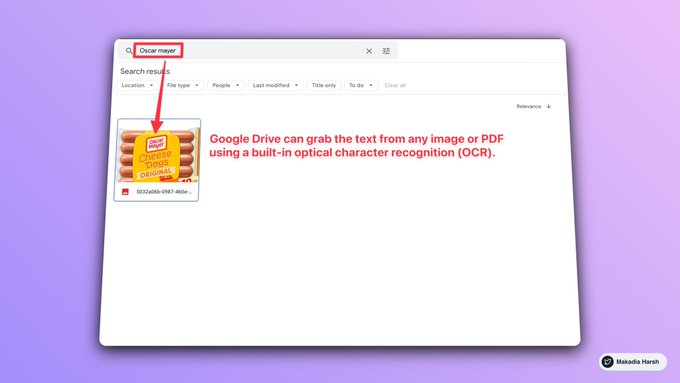
1. Search within images 
A simple search for word image has, it will fetch you appropriate images. It even recognizes the text in images.


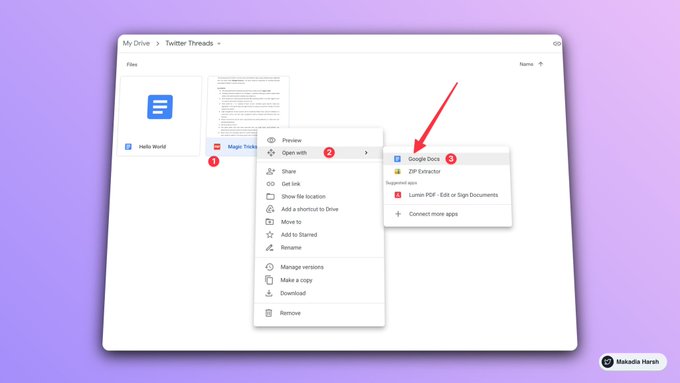
2. Open PDF and text images as a text document
It is annoying when you get documents that you have to edit in PDF formats. A hidden Google Drive hack solves this problem. Upload the PDF or image file in Google Drive and open it with Google Docs.


3. Use the activity pane to get a history of all the changes
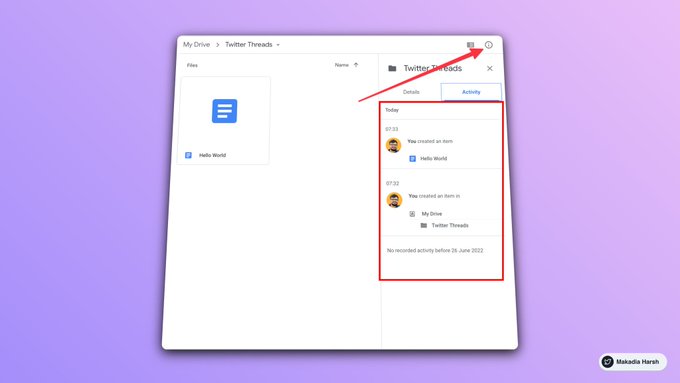
The activity pane allows you to keep an eye on all the changes made to a file by anyone. To view this, select the file or folder and press ‘i’ on your keyboard or the ‘i’ icon on the top left of the home screen.


4. Create a force copy link
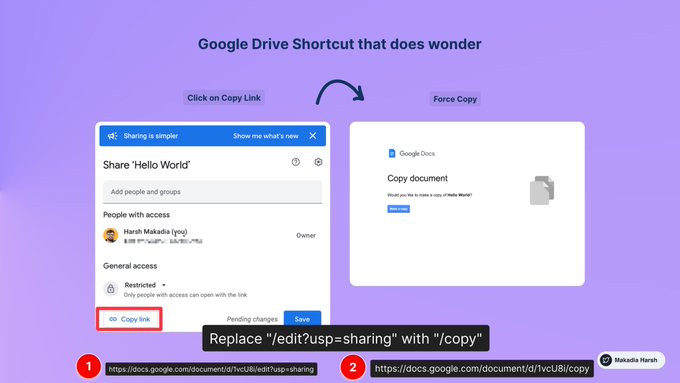
Force copy link enables the copy of the file to retain the source file in its original location. All you need to do is copy the link to the original file in the browser. Replace the text after the last slash with the word "copy"


5. Install ‘Drive File Stream’ 
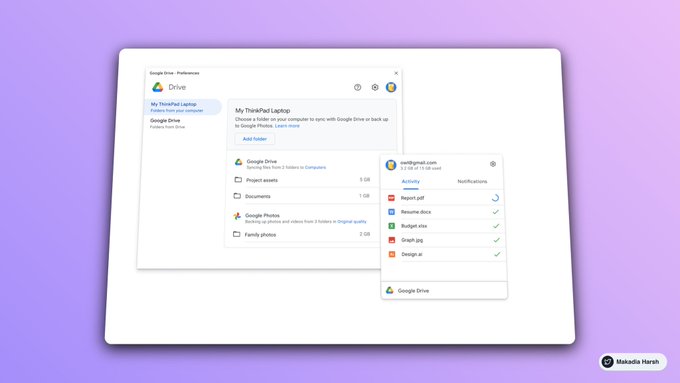
http://google.com/drive/download/ This app lets you sync your Google Drive files onto your local disks. You can access and edit these files using native apps like MS Word and Photoshop.


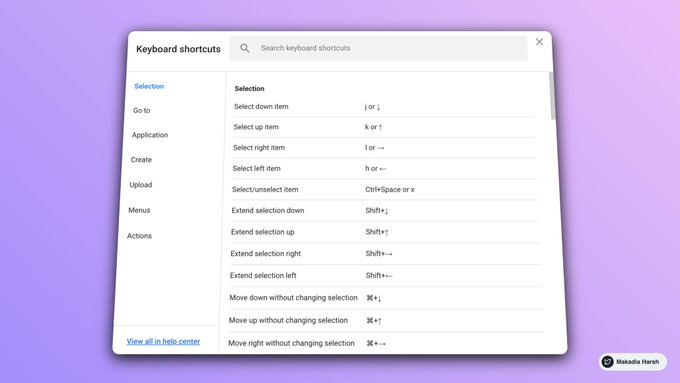
6. Whizz through Drive-by learning keyboard shortcuts 
Leverage shortcuts to 10X your productivity.


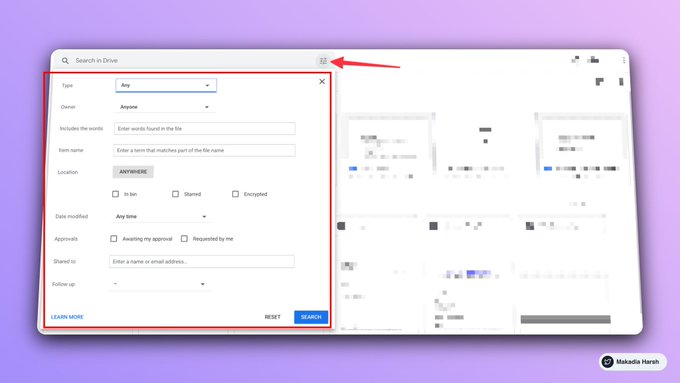
7. Narrow down your searches 
Google Drive’s advanced search tool enables users to filter searches based on the type of file, the owner of the file, the folder in which it is in, and its date of creation.


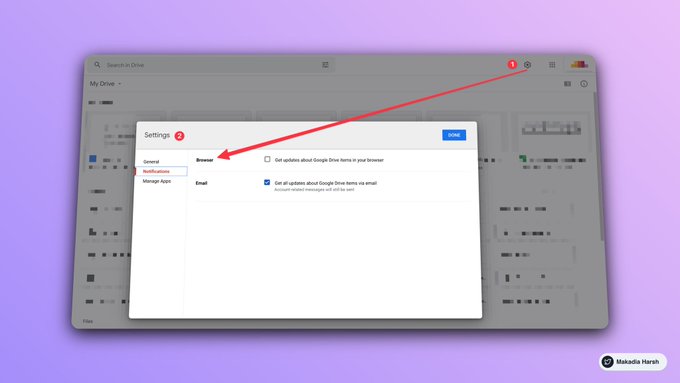
8. Turn on push notifications to save time 
Turning on browser notifications can be very useful. You can keep up with who is working on what, make edits quickly, view comments in real-time, and more.


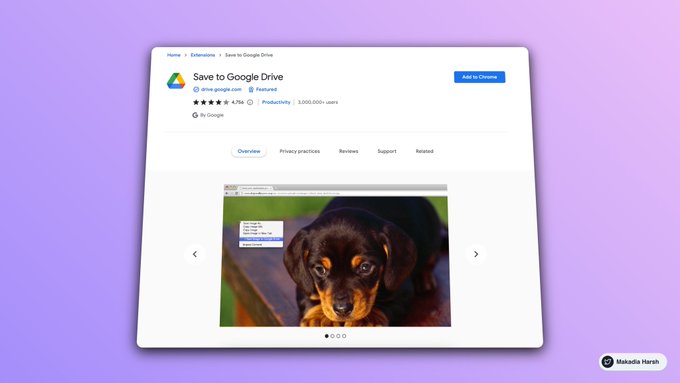
9. Save the webpage directly to your Drive 
The Save to Google Drive plugin provides a speedy way to add images, documents, as well as HTML5-based videos and audio. https://chrome.google.com/webstore/detail/save-to-google-drive/gmbmikajjgmnabiglmofipeabaddhgne…


By aem4beginner

9 Killer Chrome Extensions For Web Developers & Designers

9 Killer Chrome Extensions For Web Developers & Designers

1. ScribeHow
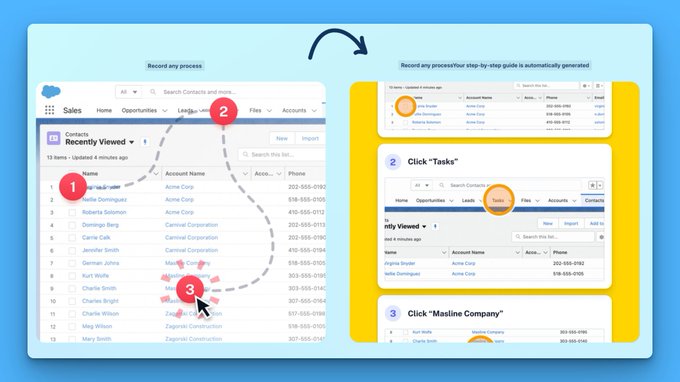
@ScribeHow] ➪ Screen recording extension that turns any process into a guide instantly. ➪ Perfect for: developers, designers, freelancers, and more.  https://getscribe.how/chrome

2. BrowserStack 
EditThisCookie is a cookie manager. You can add, delete, edit, search, protect and block cookies!  https://editthiscookie.com

4. Wappalyzer
Identify web technologies  https://wappalyzer.com

5 Quick Javascript
Switcher Quick way to enable/disable Javascript 

chrome.google.com
Quick Javascript Switcher
Quick way to enable/disable Javascript


6. Dark Reader 


By aem4beginner

8 Chrome Extensions every developer should use

8 Chrome Extensions every developer should use:

> LastPass
> Behind The Overlay
> Clear Cache
> Email This
> Holmes
> Octotree - Github code tree
> React developer tools
> Honey - auto coupons


By aem4beginner

December 20, 2022
Estimated Post Reading Time ~

Top 10 CRAZY tools for developers you never knew about

1. sourceai.dev

sourceai.dev
SourceAI | AI-Powered Code Generator
SourceAI is an AI-powered tool that can generate code in any programming language from any human language description. It can also simplify, find errors and fix them and debug your code.


2. https://locofy.ai


By aem4beginner

Chrome Dev Tools Tip

Chrome Dev Tools Tip 
How to test if the frontend is handling API request failure scenario correctly or not? Here is a quick tip to do that without relying on the backend server


By aem4beginner

5 Free Tools for Web Developers you have to know about:

5 Free Tools for Web Developers you have to know about:

1. WebGradients 
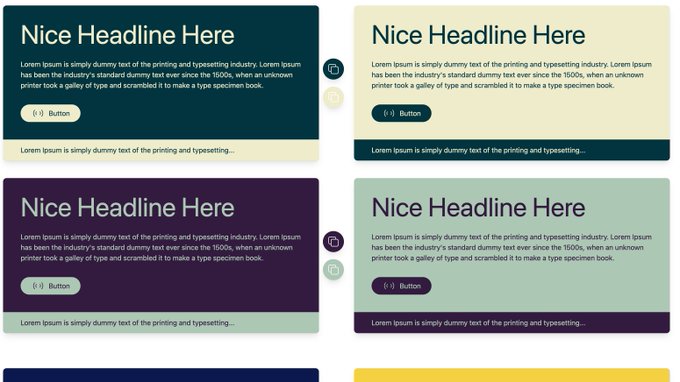
180 beautiful linear gradients in CSS3, Photoshop and Sketch. This collection is curated by top designers and free.


webgradients.com
The Best Gradients Collection
Free Gradients Collection: Sketch/Photoshop/CSS


2. Carbon 
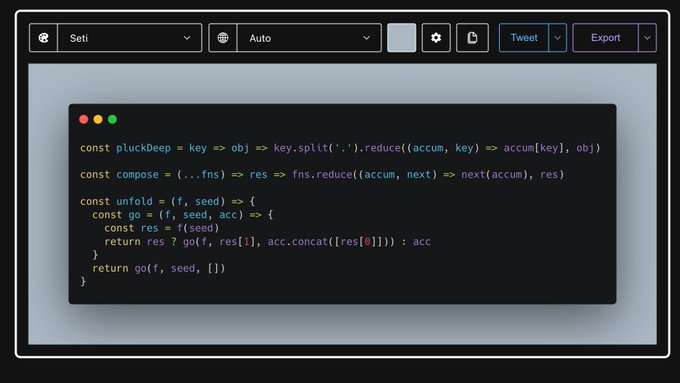
Carbon is the easiest way to create and share beautiful images of your source code. https://carbon.now.sh


3. Responsively 
A dev-tool that aids faster and more precise responsive web development.


responsively.app
A Web Developer's Browser
A dev-tool that aids faster and precise responsive web development.


4. Can I use 
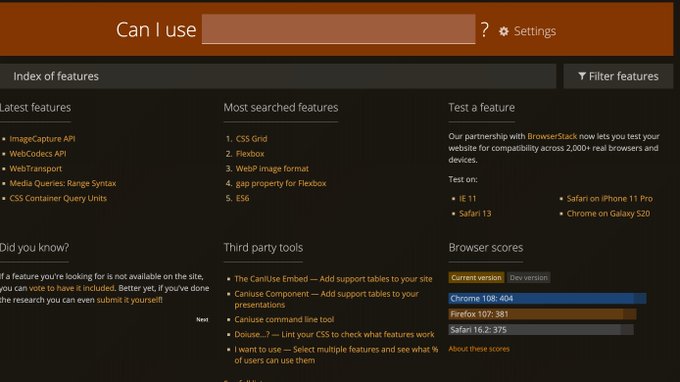
It provides up-to-date browser support tables for support of front-end web technologies on desktop and mobile web browsers. https://caniuse.com


5. 2 Color Combinations Two-color combination palettes for your next project https://2colors.colorion.co


Source


By aem4beginner

16 Excellent websites I discovered in 2022

16 Excellent websites I discovered in 2022 (that are extremely useful) :

1. Scribe How
Screen recording extension that instantly converts any process into a guide. 93% less time spent documenting and sharing processes http://scribe.how/chrome


2. Writesonic
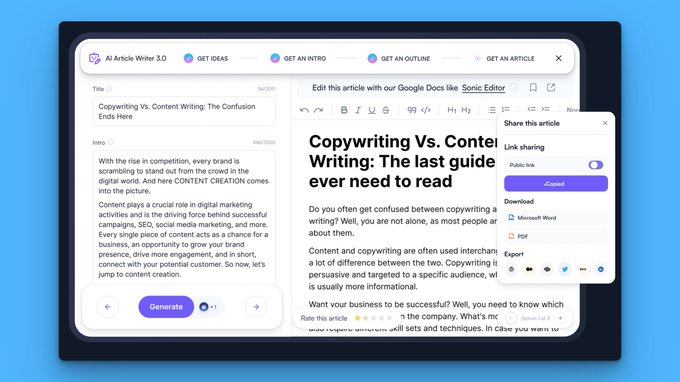
Your writing AI assistant. The only AI writer in the world that can help you write SEO-optimized, long-form (up to 1500 words) blog posts, and articles in 15 seconds. Explore Chatsonic - Like ChatGPT but with superpowers. http://writesonic.com


3. Dotcomkings
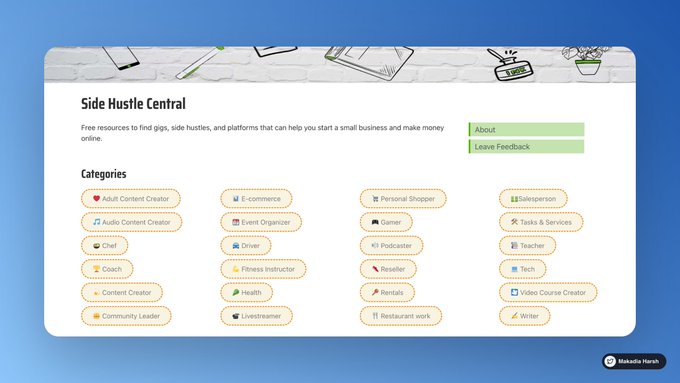
Free resources to find gigs, side hustles, and platforms that can help you start a small business and make money online. http://dotcomkings.com


4. Quillbot
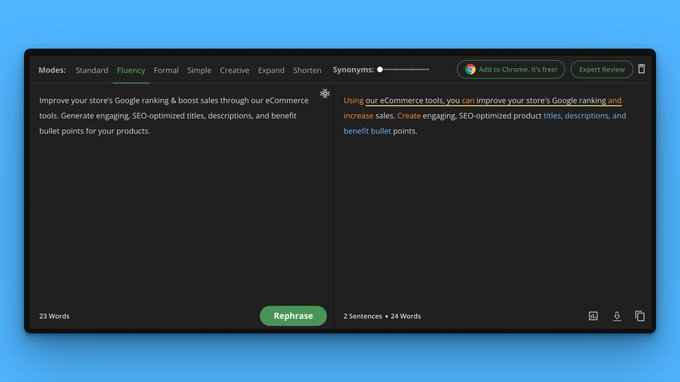
Using cutting-edge AI, QuillBot's paraphrasing tool assists millions of people in rewriting and improving any sentence, paragraph, or article. http://quillbot.com


5. ColorHunt
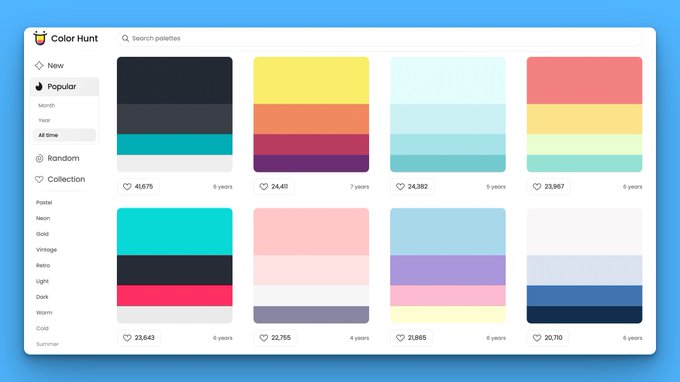
Discover Color Hunt's newest hand-picked color palettes. Get color inspiration for your design and art projects. http://colorhunt.co


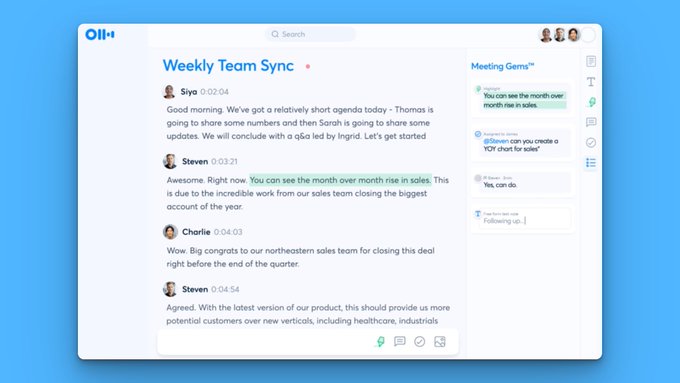
6. Otter AI
Otter makes real-time transcription meeting notes that are shareable, searchable, accessible, and secure using artificial intelligence. It’s so accurate that it will track your meetings seamlessly. http://otter.ai


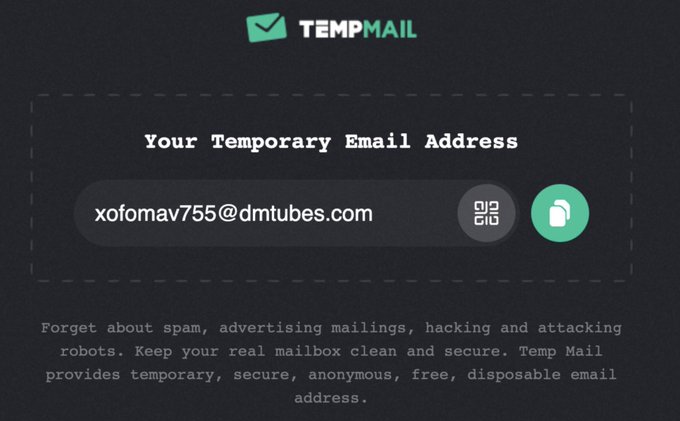
7. Temp Mail
Temp Mail provides temporary, secure, anonymous, free, disposable email addresses. Forget about spam, advertising mailings, hacking, and attacking robots. You can use this to create an account on some websites for one time.  http://temp-mail.org


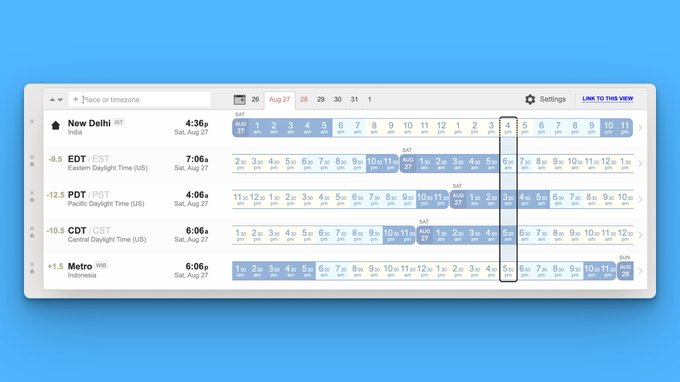
8. World Time Buddy
An easy-to-use world clock, time zone converter, and online meeting planner. It's one of the best online productivity tools for those who need access to international time.  http://worldtimebuddy.com


9. Mixkit
Free assets for your next video project. Awesome Stock Video Clips, Stock Music, Sound Effects & Video Templates. All are available for free! http://mixkit.co


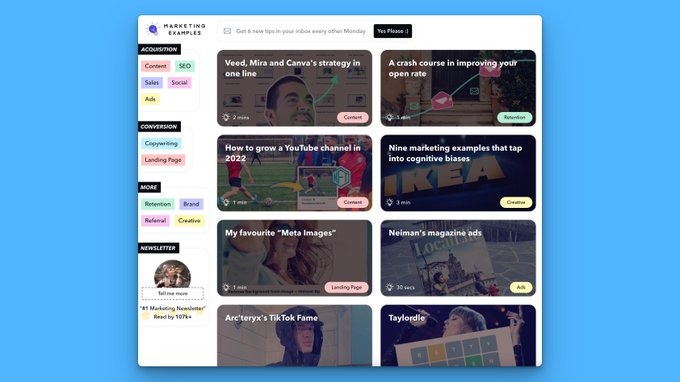
10. Marketing Examples
A collection of real-world marketing examples from successful businesses. Want to improve your cold emailing, referrals, or SEO? http://marketingexamples.com


11. TinyWow
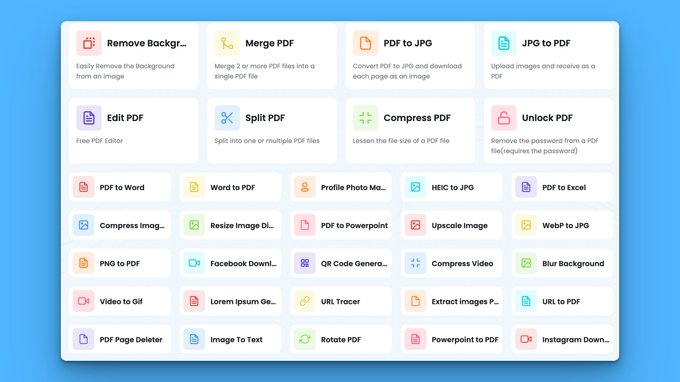
Tools to Help You Solve Your Files Issue. Files are deleted 15 minutes after they are created. http://tinywow.com


12. Make
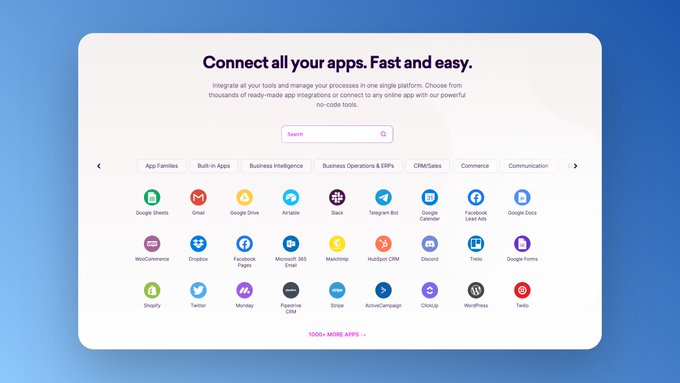
Build and automate anything in one powerful visual platform, from tasks and workflows to apps and systems. http://make.com


13. Magic Eraser

Use artificial intelligence to remove unwanted elements from images in seconds. Upload an image, mark the area that needs to be removed, and then download the corrected image. http://magiceraser.io


14. AppSumo
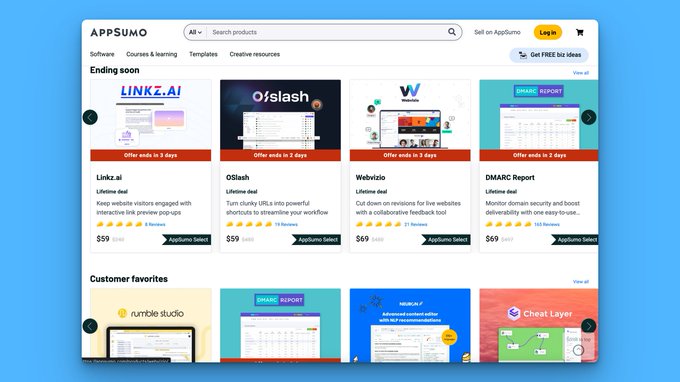
Stop overpaying for software. Discover, buy, and sell the digital products you need to start a business you're passionate about. http://appsumo.com


15. Locofy
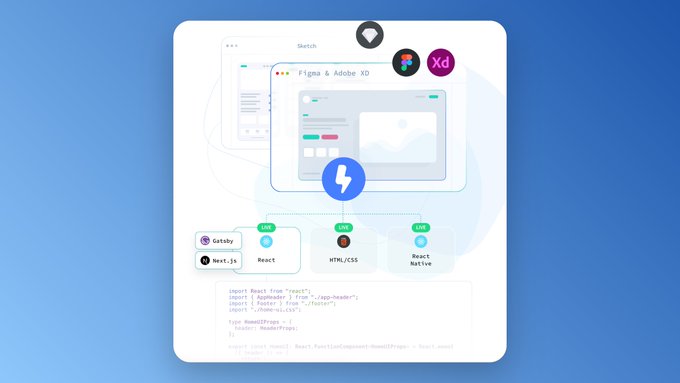
Locofy integrates seamlessly to go from Designs to Code to Deploy. With Locofy you'll automatically get a live, responsive prototype that runs on code, without writing code. http://locofy.ai


16. 12 Feet Wall
Prepend http://12ft.io to the URL of any paywalled page and get access to the link for free. See the cached, unpaywalled version of the page. http://12ft.io


Source:
Harsh Makadia
@MakadiaHarsh


By aem4beginner

January 5, 2021
Estimated Post Reading Time ~

Getting Started With Apache Sling Repo Init

At times, setting up the initial state of the AEM repository may appear cumbersome, especially when we have to set up multiple things beforehand such as:

1. Creating service users
2. Creating user groups
3. Setting up ACLs/permissions for these users
4. Base content structure inside /conf or /content

That said, it’s just not about the content, it could be configurations as well. Creating and setting up these configurations manually may lead to mistakes. Also, this doesn’t just apply to remote environments; it is much needed for a developer’s local instance as well. To overcome all these issues, Apache Sling Repository Initialization (otherwise known as Repo Init) comes in very handy.

How Repo Init works?
Repo Init is a set of instructions/scripts which help us in creating JCR structures, service users, and groups. There are no explicit permissions needed in order to run these scripts. These scripts are executed early in the deployment process so that all required configuration/content exists in the system before the code is executed.

This article is based and tested on AEM 6.5.5.0 with the below bundle versions:

org.apache.sling.jcr.repoinit – 1.1.8
org.apache.sling.repoinit.parser – 1.2.2


Benefits of Repo Init:
  • Keep all environments in-sync in terms of initial/basic configuration.
  • Speeds up local environment setup for developers.
  • No lag between the code deployment and basic setup of the AEM repository. By the time code is deployed, Repo Init instructions are already executed.
Configuring Repo Init:
These scripts are stored as a factory OSGi configuration of type “org.apache.sling.jcr.repoinit.RepositoryInitializer”. Being an OSGi configuration, it is easy to have different set of scripts for author and publish run-modes along with different environments such as Stage and Production. For e.g. config.author, config.publish, config.author.prod, config.publish.stage etc.

Below is a sample Repo Init OSGi configuration with jcr:primaryType “sling:OsgiConfig”:

/apps/myproject/config/org.apache.sling.jcr.repoinit.RepositoryInitializer-demo.xml

scripts = “[
    create service user demo-service-user,
    create path /conf/demo(nt:folder)/token(sling:Folder),
    set ACL for demo-service-user

        allow jcr:read,rep:write on /conf/demo/token

    end
]”


Tip: In order to save this OSGi configuration as repository configuration, we had to use ASCII encoded value “
” for the new-line character.

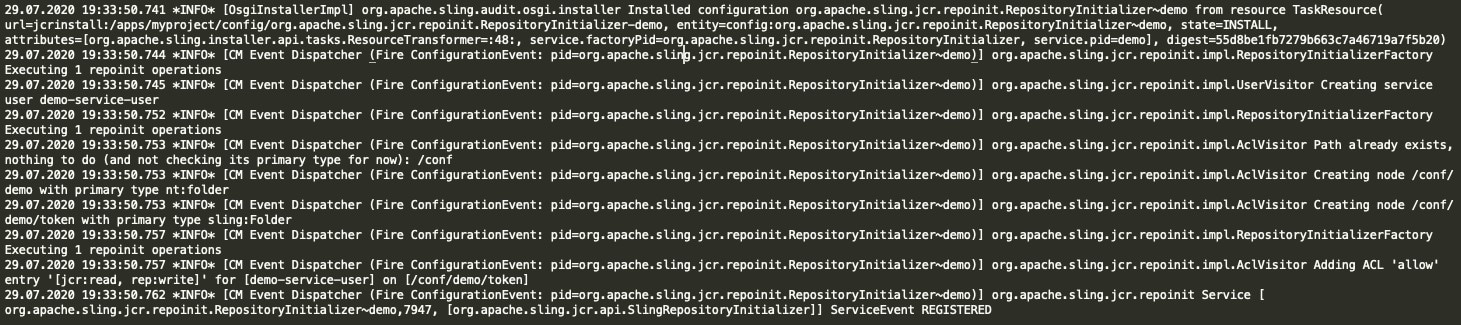
During deployment, we see log statements like below in error.log file where we see each and every command is executed line-by-line.


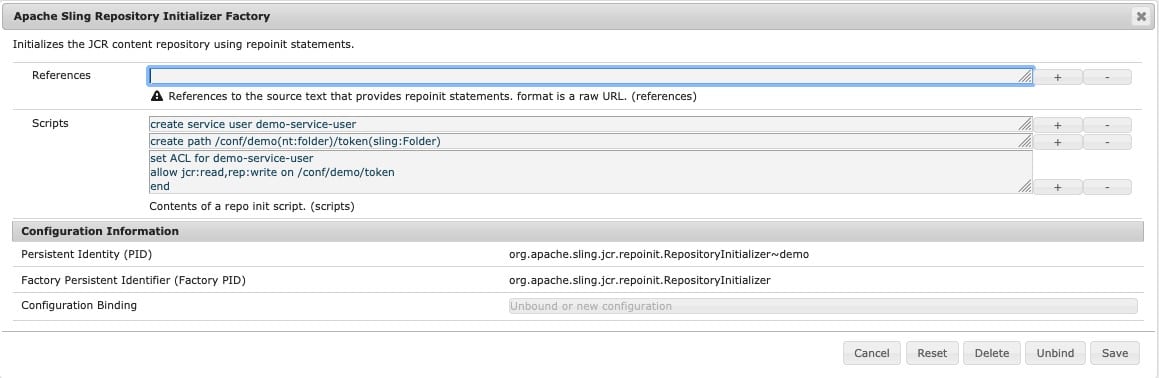
Post-deployment, you can also see the Repo Init configurations in the OSGi console:

There are other ways as well for initializing a repository but Repo Init consolidates them all in one tool making the configurations easy to implement and manage. Also, Apache Sling Repo Init is compatible with AEM as a Cloud Service.


By aem4beginner

January 4, 2021
Estimated Post Reading Time ~

Build automation with Gradle

As all the world knows, inside CI/CD exists an automated building. This concept is so important in DevOps because here you build your package and run automate tests (depends on the result if you are continuous or abort the next phases). I know that already there is a lot of documentation about this topic, but I will write about my concerns and opinions.

Gradle works with a few CI tools, such as Jenkins, Travis, and TeamCity. Its ideal for a lot of languages, even, it can be extended by plugins (developed mainly by the community). Another feature that I like is its simplicity. All commands and use are logical, so, you no need a lot of memory in your head to remember how it works and extend its functionality.

Installation in RedHat/Centos/Fedora distributions
Firstly, you need to install a JDK, for me, OpenJDK is the best option because It is into the repositories.

sudo [yum|dnf] install unzip java-1.8.0-openjdk -y

Create the home directory for Gradle.
sudo mkdir /opt/gradle
sudo chown gradleuser: /opt/gradle

Download the binary from the official site.
wget -O ~/gradle-6.5-bin.zip https://services.gradle.org/distributions/gradle-6.5-bin.zip

Uncompress the archive file.
unzip -d /opt/gradle/ gradle-6.5-bin.zip
sudo vi /etc/profile.d/gradle.sh

Add this variable declaration in the afore-mentioned file.
export GRADLE_HOME=/opt/gradle/gradle-6.5export PATH=$PATH:$GRADLE_HOME/bin

Logout from your current session and login again.

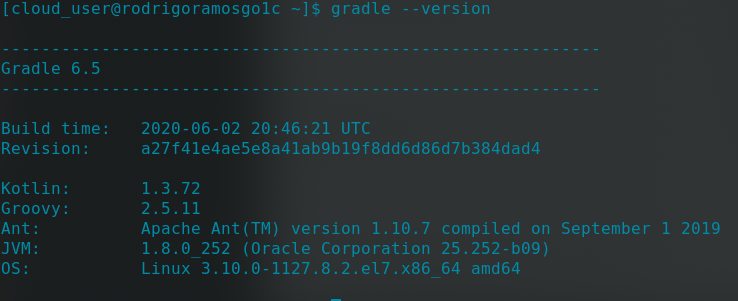
Test your installation.
gradle --version

Output

Gradle Basics
You have to put it into your project directory. So, once there, you must initialize with the following command. Be free to put where you want, surely you will discover a better way.

cd $MYPROJECTDIRECTORY/
gradle init

After that, some files would be generated.


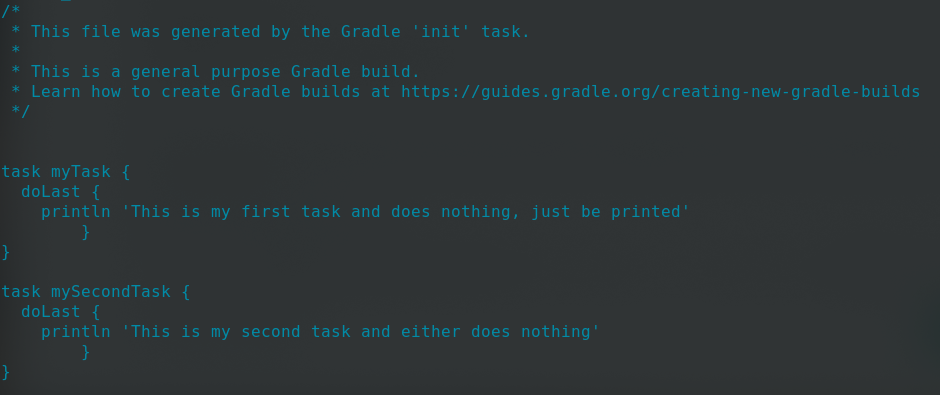
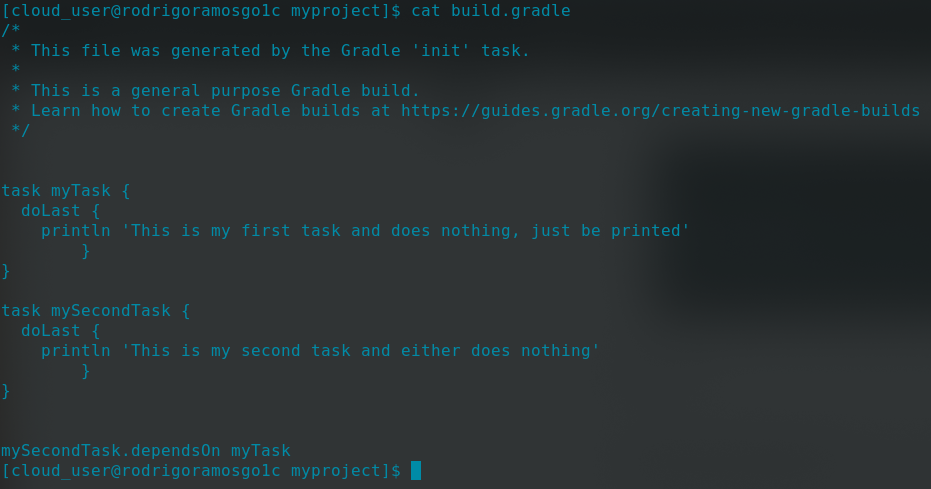
The file named build.gradle must contain all tasks to build our packages. In this example as the project does not exist yet, I will not build a package, I just only show how to use this file. In the next posts, I will use real examples.

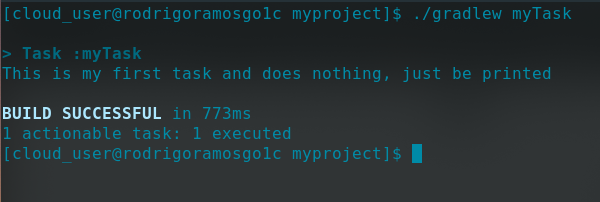
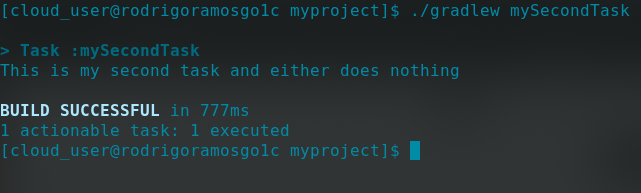
I write two tasks and both just print a message.


Then, I test them../gradlew myTask


Second test../gradlew mySecondTask


Surely at one moment, we will structure our build having dependencies inside the file between tasks.


The last line of the picture is where I have declared my dependency. “mySecondTask depends on myTask”. We will see.


By aem4beginner

Setting up Jenkins with Git repository

This post introduces you to the steps to setup Jenkins (Continuous Integration Server) with the Git repository.


Continues Integration is a must for every Perficient GDC project. Setting up a Jenkins server and connect it with the Perficient GDC Git repository is the first step for setting up a complete CI environment. After helping more than three people with how to set it up, I decided to write it down for future reference.

I got a fresh Ubuntu 14.04 VM server from IT service team, then I installed a Tomcat7 on it. After downloading the latest Jenkins.war file from the official Jenkins site, I deployed Jenkins through the tomcat admin page without any problem. You need to have a Jenkins instance up and running to continue with the following steps:

Step 1. Install Git
Shell> sudo apt-get install git

Step 2. Install the Git Plugin in Jenkins
Go to “Manage Jenkins>>Manage Plugins”, open the “Available” tab and search for “Git plugin”, click on install button wait until the installation is done.

Step 3. Create ssh key pair
Go to the “Manage Jenkins>>System Info” page (http://your-jenkins-server/jenkins/systemInfo).

Search for “user.home”, you have the following information


Keep a note on the value of “user.home” and “user.name”, it indicates under which account your Jenkins server is deployed.

Now you get everything you need for generating the ssh keypairs.

#Create a .ssh folder to hold your ssh keys
Shell> mkdir /usr/share/tomcat7/.ssh

#Generate ssh key pairs
# The –f option is to specify which file to save the key

Shell> ssh-keygen -t dsa -f /usr/share/tomcat7/.ssh/id_dsa

Just leave the pass phrase empty, you will get the following output:


You will find two new files are generated:


Step 4. Get the content of ~/.ssh/id_dsa.pub file
Enter the following command

#please replace the user home with your won value
Shell> vi /usr/share/tomcat7/.ssh/id_dsa.pub

You will get something like this: (the following key string is not complete, so don’t even think of using it to hack my account : ) )


Step 5. Setup the ssh key in Git
Login to Perficient GDC Git and then go to “profile settings” page, click on the “SSH Keys” link on the top navigation bar, click “Add SSH Key” button.


You will get the following form to paste your public key content.


Now try to build your Jenkins job, you will find in the console log that all your source code are ready under Jenkins job workspace.


By aem4beginner