Showing posts with label Touch UI. Show all posts

March 30, 2021
Estimated Post Reading Time ~

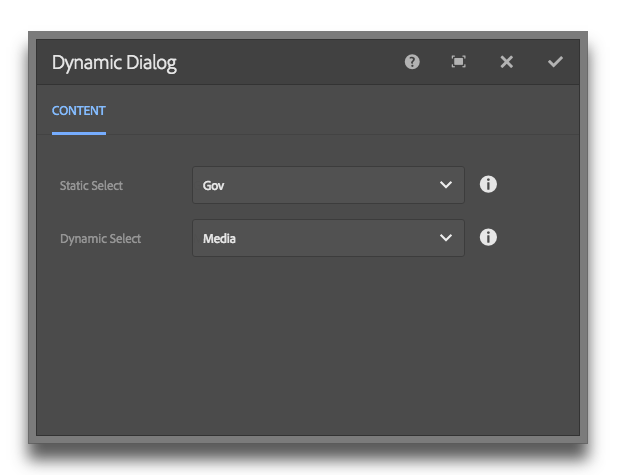
Display dynamic content in a Touch UI (Granite) Dialog Select Field

Update: I've added a proper GitHub project here.

In classic UI, it was easy to specify the options property on a selection xtype.

This made getting dynamic data into a dropdown very easy. Simply point the options property to /path/to/resource.infinity.json and you were done. In Granite, things don't work this easy.

There are two approaches that I found. 1) Use a listener. 2) Use ACS Commons GenericList / Datasource solution.

The ACS commons solution works great, but it's a bit rigid on the data structure. I used it as my starting point for the solution below.

My solution is a 3 step process, requires no JS and no external dependencies.

Step 1
Make a data source component. It only needs to have one JSP file in it...

<%@page session="false" import="
org.apache.sling.api.resource.Resource,
org.apache.sling.api.resource.ResourceUtil,
org.apache.sling.api.resource.ValueMap,
org.apache.sling.api.resource.ResourceResolver,
org.apache.sling.api.resource.ResourceMetadata,
org.apache.sling.api.wrappers.ValueMapDecorator,
java.util.List,
java.util.ArrayList,
java.util.HashMap,
java.util.Locale,
com.adobe.granite.ui.components.ds.DataSource,
com.adobe.granite.ui.components.ds.EmptyDataSource,
com.adobe.granite.ui.components.ds.SimpleDataSource,
com.adobe.granite.ui.components.ds.ValueMapResource,
com.day.cq.wcm.api.Page,
com.day.cq.wcm.api.PageManager"%><%
%><%@taglib prefix="cq" uri="http://www.day.com/taglibs/cq/1.0" %><%
%><cq:defineObjects/><%

request.setAttribute(DataSource.class.getName(), EmptyDataSource.instance());
Locale locale = request.getLocale();
Resource datasource = resource.getChild("datasource");
ResourceResolver resolver = resource.getResourceResolver();
ValueMap dsProperties = ResourceUtil.getValueMap(datasource);
String genericListPath = dsProperties.get("path", String.class);

// What fields and values do we want from the children resources? This should be inside the component dialog.
String value = dsProperties.get("value", String.class);
String text = dsProperties.get("text", String.class);

// If the path isn't null, get the resource and loop through the children.
if (genericListPath != null) {

Resource parentResource = resourceResolver.getResource(genericListPath);

// Create a list to stuff our values
List<Resource> fakeResourceList = new ArrayList<Resource>();

// Grab the children and get their properties.
for(Resource child : parentResource.getChildren()){

ValueMap vm = new ValueMapDecorator(new HashMap<String, Object>());

ValueMap childProperties = ResourceUtil.getValueMap(child);

vm.put("value", childProperties.get(value, String.class));
vm.put("text", childProperties.get(text, String.class));

fakeResourceList.add(new ValueMapResource(resolver, new ResourceMetadata(), "nt:unstructured", vm));
}

// Create a new data source from iterating through our fakedResourceList
DataSource ds = new SimpleDataSource(fakeResourceList.iterator());

// Add the datasource to our request to expose in the view
request.setAttribute(DataSource.class.getName(), ds);
}
%>


Step 2
Add a data source node to your dialog property. Read the gist for pertinent info.

<dropdown
jcr:primaryType="nt:unstructured"
sling:resourceType="granite/ui/components/foundation/form/select"
fieldLabel="Dropdown"
name="./dropdown"
rootPath="/content">
<!-- Params: value, text, path -->
<datasource
jcr:primaryType="nt:unstructured"
sling:resourceType="myapp/components/utilities/datasource"
value="value"
text="text"
path="/apps/myapp/components/content/snippets/statsbar/dialog/articleLabels/articleLabelsSelect/options" />
</dropdown>

Step 3
Profit.

By aem4beginner

How to create an AEM 6.2 Admin Console for Touch UI

Introduction

Building an AEM Admin interface, also known as a console, is not a trivial task at first glance. This post describes how to create an admin console for AEM 6.2 to list, sort, create, and delete centralised data.

Source Code: available here

What are we building?

A method to create content in centralised location that can be shared across many different sites and locales. In our case, we will be creating calendar entries to convey data center uptime for our Pug Ranch's Live Video Feed.

Why are we building this?

Typically components get localised across many locales. This creates live copies of data across our Oak repository. Our data does not need to be localised because our data center uptime covers all locales. By centralising the data, we remove it from the localisation process and remove unnecessary localised nodes.

High-Level Design

The design can be broken down into three high-level pieces.

  1. Admin Console Menu Item
  2. Admin Console Content, Components, and Clientlibs
  3. Servlet to handle creating and editing of data

Creating Console Menu Item

Below is the structure of our menu item. It's important to know that we need to overlay the existing libs/cq/core/content/nav/tools/operations nodes. 

Notes:

  • The id corresponds to the consoleId (defined later)
  • Icon should be labeled with a corresponding Coral UI icon name.
  • Href should point to the location of your console (defined later)


The full uptime menu item JCR node description:

<?xml version="1.0" encoding="UTF-8"?>
<jcr:root xmlns:jcr="http://www.jcp.org/jcr/1.0" xmlns:sling="http://sling.apache.org/jcr/sling/1.0"
xmlns:nt="http://www.jcp.org/jcr/nt/1.0" xmlns:rep="internal"
jcr:primaryType="nt:unstructured"
jcr:title="Data Center Uptime"
jcr:description="Manage uptime entries"
id="cq-tools-operations-uptime"
href="/apps/pugranch/admin/ext/uptime/content/admin.html"
icon="project"/>

Once you have made the above nodes, you will be able navigate to AEM (1) Tools (2) Operations (3) and Data Center Uptime (4).

Admin Console Content, Components, and Clientlibs

The next piece we need to build is the actual console and the components within the console. This is the most complex piece, so let's break this down further:

  1. Content
    1. Admin - This is the main view to list our entries. It's defined by a .content.xml
    2. createEntry - This is the create view. It's is also defined by a .content.xml
    3. editEntry - This is the edit view. Surprise, also defined by a .content.xml
  2. Components
    1. Datasource - This is a JSP that provides data (our entries) to our list.
    2. Uptimeentry - As we iterate through our list of entries, this defines the view for each entry.
    3. Uptimeform - This handles both create and edit operations.
  3. Clientlibs - This single JS will provide:
    1. A Granite Delete Confirmation Dialog
    2. AJAX Call to delete an entry. It leverages the SlingPostServlet for simplicity.
    3. Pass a path parameter to our editEntry page.


Content / Admin

This file is huge, so go take a look here. If you've ever worked with ui.content this file should feel familiar as we're declaring almost all of our layout in XML.

Notes:

  • consoleId should match our Menu Item "id" we created above.
  • The clientlibs node allows us to include clientlibs. In our case, Coral 3 and our own uptime clientlib.
  • Our list and datasource are what pull in the list of entries. The datasource component will be covered later.
  • itemResourceType is used to display each entry. It will also be covered later.
  • Within actions, the selection nodes (delete, edit) are used when selecting an item in the list. 
  • Within actions, the secondary action always shows and is used for create. It's uses a plain href property since no params need to be passed.

Content / createEntry & Content / editEntry

You can find createEntry here. You can find editEntry here.

Notes:

  • These files are identical with the exception of one line: the text property of the title node.
  • The content node that has a property of granite/ui/components/coral/foundation/form. This has a property of action that submits to our servlet, /bin/pugranch/uptimeEntry which will be defined later.
  • The node uptimeform has a sling:resourceType of pugranch/admin/ext/uptime/components/uptimeform which we will build later using Sightly, Coral, and HTML.

Components / datasource

This component is not a typical front-end style component. We only need the folder and the JSP. You can find the source here.

Notes:

  • The goal of the data source is to find resources, and build an iterable list of those resources.
  • It's important to know that for any value you want exposed, you must add that to the ValueMap of the child. You cannot rely on typical resource methods I.E. resource.getPath, resource.getName if you do not include those values in the datasource.
  • Working in JSP is not fun, but it's a bit more direct than Sightly + Java.

Components / uptimeentry

This component takes the entries from our data source and uses the values provided to display each entry. Source here.

Notes:

  • Again, it's important to know that the only values we have available to us are coming directly from the datasource. Typical methods you would use to get values from a resource are not available here.
  • Note data-id and data-path. Our Javascript will be acting on these properties as needed.
  • A lot of the Coral UI classes and naming conventions are using 6.2 conventions. Your mileage may very.

Components / uptimeform

This component is the inside of our createEntry and editEntry form. In the case of editEntry, we have a use class to provide additional logic to pull in information. Source here.

Notes:

  • We're again using some Coral Kung Fu to create our form elements.
  • We are using a Sling convention, :redirect to provide our servlet with the location we want to be redirected to upon successful entry creation.
  • Remember, our form action and method were declared in our content nodes, so the do not need to be declared here.
  • The step value (.01) seems to have a bug with rouding, so we fix this in our servlet.

Clientlibs / pugranch.uptime

The client library only contains on Javascript file. It's relatively straight-forward with only four functions. The source is here.

Functions to Note:

  • Register the buttons during a selection change.
  • Toggle the Delete Dialog when "Delete" is clicked.
  • Handle the Confirm Deletion - Uses an AJAX call and Sling Post Servlet conventions to delete the node.
  • Handle the "Edit" action - Passes the path to the editEntry.

Servlet


UptimeEntryServlet.java

The Uptime Entry Servlet Performs the functions listed below. Source code here.

  1. Create an uptimeCalendar sling:OrderedFolder if needed.
  2. Create or update an uptime entry. The naming convention is YEAR-Month.
  3. Redirect to the location based on :redirect.

Conclusion

In the end, you should have something that resembles the screenshot below. It can seem daunting at first, but if you walk through each piece, creating an admin console can be very similar to a lot of core AEM concepts.

Resources


By aem4beginner

March 22, 2021
Estimated Post Reading Time ~

How to read custom Touch UI multifiled values in Sightly

Global java implementation for sightly to read TOUCH UI custom multifield values which are stored in Json format
Sample storage of Custom multifield values in repository
{
jcr:primaryType: "nt:unstructured",
products: ["{"productImagePath":"path1","productImgAltText":"altText","cssClass":"test-class"}",
"{"productImagePath":"productImagePath2","productAltText":"","altText2":"test-class2"}"],
jcr:createdBy: "admin",
jcr:lastModifiedBy: "admin",
jcr:created: "Mon Feb 20 2017 20:36:27 GMT+0530",
jcr:lastModified: "Thu Mar 02 2017 18:02:01 GMT+0530",
sling:resourceType: "<component-path>"
}


Crete a class multiFieldJsonHelper
import java.util.ArrayList;
import java.util.HashMap;
import java.util.Iterator;
import java.util.List;
import java.util.Map;
import org.apache.sling.api.resource.Resource;
import org.apache.sling.api.resource.ValueMap;
import org.apache.sling.commons.json.JSONException;
import org.apache.sling.commons.json.JSONObject;
import org.slf4j.Logger;
import org.slf4j.LoggerFactory;
import com.adobe.cq.sightly.WCMUsePojo;
public class MultiFieldJsonHelper extends WCMUsePojo {
private String[] json;
private static final Logger LOG = LoggerFactory.getLogger(MultiFieldJsonHelper.class);
@Override
public void activate() throws Exception {
String resPath = get("resPath", String.class);
String prop = get("prop", String.class);
if (resPath != null && prop != null) {
Resource res = getResourceResolver().getResource(resPath);
ValueMap vm = res.getValueMap();
json = vm.get(prop, String[].class);
}
}
public List<Map<String, String>> getValues() {
List<Map<String, String>> results = new ArrayList<Map<String, String>>();
if (json != null) {
for (String value : json) {
Map<String, String> column = parseItem(value);
if (column != null) {
results.add(column);
}
}
}
return results;
}
private Map<String, String> parseItem(String value) {
Map<String, String> columnMap = new HashMap<String, String>();
JSONObject parsed;
try {
parsed = new JSONObject(value);
for (Iterator<String> iter = parsed.keys(); iter.hasNext();) {
String key = iter.next();
String innerValue = parsed.getString(key);
columnMap.put(key, innerValue);
}
return columnMap;
} catch (JSONException e) {
LOG.info("JSONException occured {}", e.getMessage());
}
return null;
}
}

Reading in HTL (Sighlty) Component
<ul data-sly-use.multiFieldJsonHelper="${'MultiFieldJsonHelper' @resPath=resource.path,prop='products'}"> <sly data-sly-list.product="${multiFieldJsonHelper.values}">
<li class="${product['cssClass']} col-lg-6 col-xs-6">
<img src="${product['productImagePath']}" alt="${product['productImgAltText'] @ i18n}" />
</li>
<sly>
</ul>


By aem4beginner

January 15, 2021
Estimated Post Reading Time ~

AEM User Guide for Touch UI

How to pull Contently content onto a new AEM page using Touch UI

These instructions are intended for teams that use AEM's Touch UI. If you need instructions for how to pull Contently content onto a new AEM page using Classic UI, visit the AEM User Guide for Classic UI instead.


Prerequisite
To pull Contently content onto a new AEM page, you will need the Integration name and Story ID from Contently. There are two ways to retrieve this information:

If you have a Contently login: Log into Contently and navigate to the story page for the completed piece of content you want to pull into AEM. Click the "Push to CMS" button. A dialogue will appear with the Integration name and Story ID that you will need.

Note: The "Push to CMS" button will only appear for users with certain permissions once the piece of content is complete.

If you do not have a Contently login: Ask someone who has access to Contently to log in and follow the above instructions. On the dialogue described above, there is an option to email the Integration name and Story ID to someone on their team. Have them enter your email address and click "Send Email." You will receive an email with the details you need to pull the content onto a new AEM page.

To save your email address for next time, your team member can visit the Integrations page in their Publication Settings on Contently. Have them edit the AEM integration and add your email address to the email list. Each time they complete a piece of content on Contently, they can click the "Push to CMS" button and send an email to notify you that a new piece of content is ready to be pulled into AEM. This email will include the details you need for that piece of content.

Using Contently's AEM Integration

1. To pull Contently content onto a new AEM page, choose the "Contently Page" option in the "Create" dropdown in AEM.


2. Select an AEM template and click "Next."

Note: Make sure you have created a sample page and mapping for the AEM template that you choose. If you choose a template that does not have a mapping associated with it, you will get an error when you try to create the new page.

3. On the "Create Contently Page" dialogue, fill in the "Title" field.

4. You will notice a special section called "Contently Options." Fill in the Contently Story ID and Contently Integration fields for the piece of content you want to pull in from Contently.
  • Contently Story ID: The Contently Story ID is a numeric ID tied to your piece of content in Contently. You can only enter a Story ID for completed pieces of content.
  • Contently Integration: Each Contently integration has its own API key and is tied to a separate cloud configuration in AEM. If your integration does not appear in the drop-down, return to the ‘Set up your Contently Cloud Service Configuration’ section in the AEM Install Guide. You will only need more than one integration if you need to create multiple sample pages/mappings per the AEM template. Most teams will only have one integration in this list.


5. Click the "Create" button to create your new page.

6. Click "Open" to view your new page. Your Contently content will automatically appear on your new page. Depending on the settings you chose when you set up your mapping — and the content associated with the Contently Story ID you entered — your body content will appear on the page including any embedded assets. Your page property fields and component fields will also be filled in for you. Any assets from Contently — including embedded images and images or videos from your custom fields — will have also been uploaded to your AEM DAM at the path you specified in your mapping. If you mapped Contently tags to an AEM tags field, all AEM tags with the same tag title as the Contently tags will appear. The tags have to exist in AEM first — and match the tag names in Contently — for this to work.


By aem4beginner

January 4, 2021
Estimated Post Reading Time ~

Search/Filter Touch UI Dialog Dropdown in AEM

Sometimes we have a requirement that needs to populate the dynamic list in the touch UI dialog dropdown. We can achieve populating the dynamic list in dialog easily for example https://helpx.adobe.com/experience-manager/using/creating-granite-datasource.html but what if the list is too long, assume we need to create a dialog dropdown to choose color and color list having approximate 148 items (https://www.w3schools.com/colors/colors_names.asp )
So it’s quite tough for the content author to scroll the dropdown to select the appropriate value.

What can be done to reduce efforts for content author:
Is it possible to have a kind of In-place search dropdown where the content author can type the character and the drop-down list will only show relevant value?
The answer is Yes, It is possible.

How:
This can be achieved by modifying the existing dropdown node:

Replacing sling:resourceType value from ‘select’ to 'autocomplete' component (/libs/granite/ui/components/coral/foundation/form/autocomplete)
Create ‘options’ nodes parallel to ‘datasource’ node and create sling:resourceType property with granite/ui/components/coral/foundation/form/autocomplete/list value for ‘options’ node

That’s it. Find more info about the autocomplete component at Autocomplete

Example dialog:
<?xml version="1.0" encoding="UTF-8"?>
<jcr:root xmlns:sling="http://sling.apache.org/jcr/sling/1.0" xmlns:cq="http://www.day.com/jcr/cq/1.0" xmlns:jcr="http://www.jcp.org/jcr/1.0" xmlns:nt="http://www.jcp.org/jcr/nt/1.0"
jcr:primaryType="nt:unstructured"
jcr:title="Promo Box"
sling:resourceType="cq/gui/components/authoring/dialog">
<content
jcr:primaryType="nt:unstructured"
sling:resourceType="granite/ui/components/coral/foundation/container">
<items jcr:primaryType="nt:unstructured">
<tabs
jcr:primaryType="nt:unstructured"
sling:resourceType="granite/ui/components/coral/foundation/tabs">
<items jcr:primaryType="nt:unstructured">
<contentdata
jcr:primaryType="nt:unstructured"
jcr:title="Content"
sling:resourceType="granite/ui/components/coral/foundation/fixedcolumns">
<items jcr:primaryType="nt:unstructured">
<column
jcr:primaryType="nt:unstructured"
sling:resourceType="granite/ui/components/coral/foundation/container">
<items jcr:primaryType="nt:unstructured">
<heading
jcr:primaryType="nt:unstructured"
sling:resourceType="granite/ui/components/coral/foundation/form/textfield"
fieldDescription="Enter Promo Box Heading"
fieldLabel="Heading"
name="./heading"/>
<background
jcr:primaryType="nt:unstructured"
sling:resourceType="granite/ui/components/coral/foundation/form/autocomplete"
emptyText="---- Please Select a Value -----"
fieldDescription="Select Background colour from Dropdown"
fieldLabel="Select or type background colour from Dropdown"
name="./bg-color"
required="{Boolean}true">
<datasource
jcr:primaryType="nt:unstructured"
sling:resourceType="/apps/blog/dailog/dropdown"/>
<options
jcr:primaryType="nt:unstructured"
sling:resourceType="granite/ui/components/coral/foundation/form/autocomplete/list"/>
</background>
</items>
</column>
</items>
</contentdata>
</items>
</tabs>
</items>
</content>
</jcr:root>


Dropdown with all items


Dropdown with Filter/Search


By aem4beginner

January 3, 2021
Estimated Post Reading Time ~

Touch UI - RTE HTML Element Selector, Custom Style Plugin & Color Picker Plugin

Touch UI RTE is always a challenging topic because of a lack of documentation to create or customize plugins, There are great articles at http://experience-aem.blogspot.com/2013/08/in-blog-experiencing-adobe-experience.html which talk about RTE plugins. I got the idea from the ColorPicker plugin and tried to create a new Style Picker plugin that may help the AEM community to achieve more from RTE.

This blog covers :
HTML DOM Navigation and HTML element selector inside RTE Editor
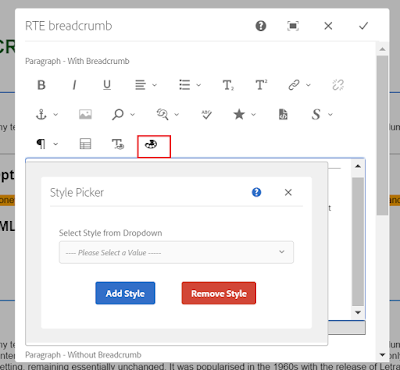
Custom Style(Style Picker) Plugins
Color Picker Plugin

HTML DOM Elements Navigator extension:
  • Shows selected/current HTML element's DOM structure in RTE
  • Allows selecting an exact HTML element in RTE to apply settings using RTE plugins.
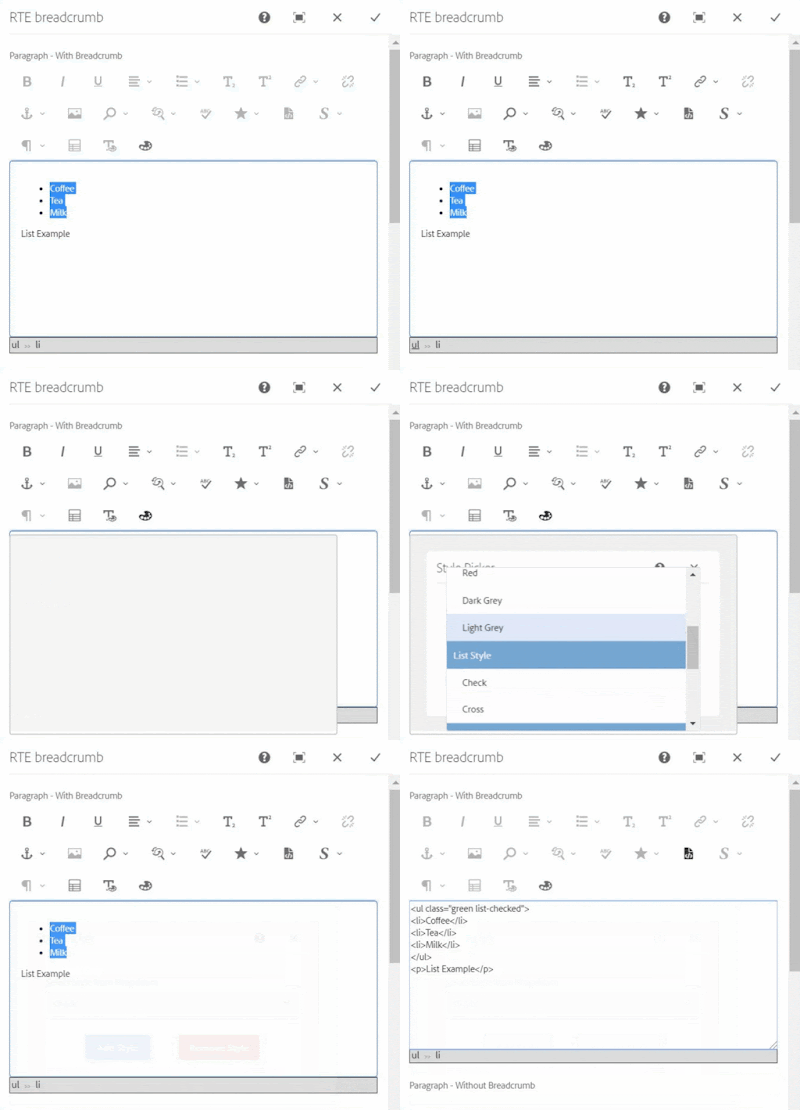
Style Picker Plugins apply a class attribute to selected HTML elements unlike the OOTB style plugin to create a span tag. The exact HTML element can be selected from the DOM navigator e.g. ul, ol, hr, p, div, img, etc. These elements can be selected by DOM Element Navigator and class can be applied to them.
The Color Picker Plugin as the same as ColorPicker Plugin from http://experience-aem.blogspot.com but I modified it to work with all AEM version from 6.3+

Color Picker, Style Picker Plugins, and HTML DOM navigation


RTE Element Selection from DOM navigation


Applying class to ul element using Style Picker

When the selected item already has existing styles, the style will be pre-selected in the dropdown, If another style is chosen, the new class will be added and the existing class will also remain, this will allow applying multiple styles to a single element.

In case of applying a different style or a single style to an element then an existing style should be chosen and removed using the Remove Style button. 

Pre-selected style


Applying another style to list


Removing style from the list

If only a text is selected for applying the style using this custom style picker plugin, the style will be added to its parent's node. If you want to apply a style to text using a span tag, use the OOTB style plugin.

Style is added to P tag


OOTB style plugin, style added with a span tag

Note: If multiple HTML items are selected then the style will be applied to only one element.

Code
You can install the below packages from GitHub to use these plugins in AEM 6.3+
Packages contain:
Details
1. DOM Elements Navigation and Selector inside RTE Editor

In RTE, the element tree breadcrumb is created at the bottom section of RTE, which shows the DOM navigation and allows a user to select a particular HTML element in RTE by clicking on breadcrumb items.

RTE Navigation will only be shown for the RTE which has showBreadcrumb property with true.
ShowBreadcrumb property in RTE item node


RTE DOM Tree
Although navigation can be enable for all the RTEs by changing below line in /apps/commons/rte/rte-breadcrumb/js/rte-breadcrumb.js file
replace
$('.coral-RichText[data-showbreadcrumb="true"]').each(function() {
$(this).parent().find(".rte-sourceEditor").after(breadcrumbItem);
});

with
$('.coral-RichText').each(function() {
$(this).parent().find(".rte-sourceEditor").after(breadcrumbItem);
});

The DOM navigation extension is independent of the style plugin and can be used with other plugins as well to select, cut, copy, etc.

2. Custom Style Picker Plugins

StylePicker Plugin in RTE toolbar

After installing the package you can find the Style Picker Plugins files at:

Plugins JS and CSS at
/apps/commons/rte/plugins/clientlibs/js/style-picker.js
/apps/commons/rte/plugins/clientlibs/css/style-picker.css

Plugins popover dialogs
/apps/commons/rte/plugins/popovers/style-picker

Plugin Popover Dialog - dropdown option datasource and JSON at
/apps/commons/rte/plugins/popovers/style-picker/datasource
/apps/commons/rte/plugins/popovers/style-picker/options.json

Datasource is a JSP file which read json specified in options property and populates dropdown option for Style Picker plugin.
JSON file should have an array of elements in the below format:

If want to show as Heading/Category use the below format(value could be anything)
{"text": "Background Color","value": "BTC","heading": "true"}

If Option

{"text": "White","value": "white"}

Example: /apps/commons/rte/plugins/popovers/style-picker/options.json

[
{"text": "Background Color","value": "BTC","heading": "true"},
{"text": "White","value": "white"},
{"text": "Black","value": "black"},
{"text": "Green","value": "green"},
{"text": "Orange","value": "orange"},
{"text": "Light Grey","value": "lightgrey"},
{"text": "List Style","value": "LS","heading": "true"},
{"text": "Check","value": "list-checked"},
{"text": "Cross","value": "list-crossed"},
{"text": "Link Style","value": "LS","heading": "true"},
{"text": "Primary","value": "btn-primary"},
{"text": "Secondary","value": "btn-secondary"}
]


List Style and List Style are the Category and can't be selected

Plugin configuration in RTE
create 'styleformat' child node of rtePlugins node and create features property in it with * value as shown in below screenshot.

Add 'styleformat#styles' in the toolbar property on the inline node as shown in the below screenshot.


3. Color Picker Plugin
ColorPicker Plugin in RTE toolbar

After installing the package you can find the ColorPicker Plugins files at :

Plugins JS and CSS at
/apps/commons/rte/plugins/clientlibs/js/color-picker.js
/apps/commons/rte/plugins/clientlibs/css/color-picker.css

Plugins popover dialogs
/apps/commons/rte/plugins/popovers/color-picker

Plugin configuration in RTE

create 'colorformat' child node of rtePlugins node and create features property in it with * value as shown in below screenshot.

Add 'colorformat#colorPicker' in the toolbar property on the inline node as shown in the below screenshot.


Sample Components
Sample Test Component package contains a sample component (/apps/mfHTL63/components/content/simple-rte)

This component can be referred for ColorPicker and StylePicker Plugins configurations.

References
http://experience-aem.blogspot.com/2017/06/aem-63-touch-ui-rte-rich-text-editor-color-picker-plugin-inplace-dialog-edit.html


By aem4beginner