Showing posts with label Tags. Show all posts

May 27, 2020
Estimated Post Reading Time ~

AEM Tags are not resolving/ showing / null after upgrading to 6.4

While upgrading to AEM 6.4 you should upgrade tags as well. On AEM 6.4 onwards tags will store under /content/cq:tags whereas in the earlier versions they will store under /etc/tags.

Resolving the issue.
you should move your tags under /etc/tags to /content/cq:tags and removed /etc/tags folder
Via the AEM Web Console, restart the Day Communique 5 Tagging OSGi bundle at http://serveraddress:serverport/system/console/bundles/com.day.cq.cq-tagging for AEM to recognize the New Location contains content and should be used.
Adobe Documentation link


By aem4beginner

May 10, 2020
Estimated Post Reading Time ~

Tag Libraries in CQ5/AEM

CQ Tag Library
<%@taglib prefix="cq" uri="http://www.day.com/taglibs/cq/1.0" %>

The CQ tag library contains helpful functions.

To use the CQ Tag Library in your script, the script must start with the following code:
When you develop the jsp script of a AEM component, it is recommended to include following code at the top of the script:
Code samples are intended for illustration purposes only.
It declares the sling, cq and jstl taglibs and exposes the regularly used scripting objects defined by the tag. This shortens and simplifies the jsp code of your component.

The tag is a convenience tag that outputs component text in a JSP.
It has the following optional attributes:

property: Name of the property to use. The name is relative to the current resource.

Value: Value to use for output. If this attribute is present, it overwrites the use of the property attribute.

OldValue: Value to use for diff output. If this attribute is present, it overwrites the use of the property attribute.

EscapeXml: Defines whether the characters , &, ‘ and ” in the resulting string should be converted to their corresponding character entity codes. Default value is false. Note that the escaping is applied after the optional formatting.

Format: Optional java.text.Format to use for formatting the text.

NoDiff: Suppresses the calculation of a diff output, even if a diff info is present.

TagClass: CSS class name of an element that will surround a non-empty output. If empty, no element is added.

TagName: Name of the element that will surround a non-empty output. It defaults to DIV.

Placeholder: Default value to use for null or empty text in edit mode, i.e. the placeholder. Please note that the default check is performed after the optional formatting and escaping, i.e. it is written as-is to the output. It defaults to:

default: Default value to use for null or empty text. Note that the default check is performed after the optional formatting and escaping i.e. it is written as-is to the output.

Some examples how the tag can be used in a JSP:

<cq:text property="jcr:title" tagName="h2"/>
<cq:text property="jcr:description" tagName="p"/>

<cq:text value="<%= listItem.getTitle() %>" tagName="h4" placeholder="" />
<cq:text value="<%= listItem.getDescription() %>" tagName="p" placeholder=""/>

<cq:text property="jcr:title" value="<%= title %>" tagName="h3"/><%
} else if (type.equals("link")) {
%><cq:text property="jcr:title" value="<%= "\u00bb " + title %>"tagName="p" tagClass="link"/><%
} else if (type.equals("extralarge")) {
%><cq:text property="jcr:title" value="<%= title %>" tagName="h1"/><%
} else {
%><cq:text property="jcr:title" value="<%= title %>" tagName="h2"/><%

<cq:text property="jcr:description" placeholder="" tagName="small"/>

<cq:text property="tableData"
escapeXml="false"
placeholder="<img src=\"/libs/cq/ui/resources/0.gif\" class=\"cq-table-placeholder\" alt=\"\">"
/>

<cq:text property="text"/>

<cq:text property="image/jcr:description" placeholder="" tagName="small"/>
<cq:text property="text" tagClass="text"/>


Code samples are intended for illustration purposes only.

The tag creates an i18n localization context and stores it in thejavax.servlet.jsp.jstl.fmt.localizationContext configuration variable.
It has the following attributes:

language
The language of the locale for which to retrieve the resource bundle.
source
The source where the locale should be taken from. It can be set to one of the following values:
static: the locale is taken from the language attribute if available, otherwise from the server default locale.
page: the locale is taken from the language of the current page or resource if available, otherwise from thelanguage attribute if available, otherwise from the server default locale.
request: the locale is taken from the request locale (request.getLocale()).
auto: the locale is taken from the language attribute if available, otherwise from the language of the current page or resource if available, otherwise from the request.
If the source attribute is not set (as it was the case until CQ 5.3):
If the language attribute is set, the source attribute defaults to static.
If the language attribute is not set, the source attribute defaults to auto.
The “content bundle” can be simply used by standard JSTL tags. The lookup of messages by keys is two-fold:
  1. First, the JCR properties of the underlying resource that is currently rendered are searched for translations. This allows you to define a simple component dialog to edit those values.
  2. If the node does not contain a property named exactly like the key, the fallback is to load a resource bundle from the sling request (SlingHttpServletRequest.getResourceBundle(Locale)). The language or locale for this bundle is defined by the language and source attributes of the tag.
The tag can be used as follows in a jsp.
For pages that define their language:

... %><cq:setContentBundle source="page"/>
<div class="error"><fmt:message key="Hello"/>
</div> ...


Code samples are intended for illustration purposes only.
For user personalized pages:

... %><cq:setContentBundle scope="request"/>
<div class="error"><fmt:message key="Hello"/>
</div> ...
Code samples are intended for illustration purposes only.

The tag includes a resource into the current page.
It has the following attributes:

flush
A boolean defining whether to flush the output before including the target.

path
The path to the resource object to be included in the current request processing. If this path is relative it is appended to the path of the current resource whose script is including the given resource. Either path and resourceType, or script must be specified.

resourceType
The resource type of the resource to be included. If the resource type is set, the path must be the exact path to a resource object: in this case, adding parameters, selectors and extensions to the path is not supported.
If the resource to be included is specified with the path attribute that cannot be resolved to a resource, the tag may create a synthetic resource object out of the path and this resource type.
Either path and resourceType, or script must be specified.

script
The jsp script to include. Either path and resourceType, or script must be specified.
ignoreComponentHierarchy
A boolean controlling whether the component hierarchy should be ignored for script resolution. If true, only the search paths are respected.

Example:
<%@taglib prefix="cq" uri="http://www.day.com/taglibs/cq/1.0" %><%
%><div class="center">
<cq:include path="trail" resourceType="foundation/components/breadcrumb" />
<cq:include path="title" resourceType="foundation/components/title" />
<cq:include script="redirect.jsp"/>
<cq:include path="par" resourceType="foundation/components/parsys" />
</div>
Code samples are intended for illustration purposes only.

Should you use or to include a script?
The directive informs the JSP compiler to include a complete file into the current file. It is as if the contents of the included file were pasted directly into the original file.
With the tag, the file is included at runtime.

Should you use or ?
When developing AEM components, Adobe recommends that you use .
allows you to directly include script files by their name when using the script attribute. This takes component and resource type inheritance into account, and is often simpler than strict adherence to Sling’s script resolution using selectors and extensions.

The tag Includes a AEM html client library, which can be a js, a css or a theme library. For multiple inclusions of different types, for example js and css, this tag needs to be used multiple times in the jsp. This tag is a convenience wrapper around the com.day.cq.widget.HtmlLibraryManager service interface.
It has the following attributes:

categories
A list of comma-separated client lib categories. This will include all Javascript and CSS libraries for the given categories. The theme name is extracted from the request.
Equivalent to: com.day.cq.widget.HtmlLibraryManager#writeIncludes

theme
A list of comma-separated client lib categories. This will include all theme related libraries (both CSS and JS) for the given categories. The theme name is extracted from the request.
Equivalent to: com.day.cq.widget.HtmlLibraryManager#writeThemeInclude

js
A list of comma-separated client lib categories. This will include all Javascript libraries for the given categories.
Equivalent to: com.day.cq.widget.HtmlLibraryManager#writeJsInclude

css
A list of comma-separated client lib categories. This will include all CSS libraries for the given categories.
Equivalent to: com.day.cq.widget.HtmlLibraryManager#writeCssInclude

themed
A flag that indicates of only themed or non themed libraries should be included. If omitted, both sets are included. Only applies to pure JS or CSS includes (not for categories or theme includes).
The tag can be used as follows in a jsp:

<cq:includeClientLib categories="cq.wcm.edit" />
<cq:includeClientLib js="cq.collab.calendar, cq.security" />
<cq:includeClientLib theme="cq.collab.calendar, cq.security" />
<cq:includeClientLib css="cq.collab.calendar, cq.security" />

Code samples are intended for illustration purposes only.

The tag exposes the following, regularly used, scripting objects which can be referenced by the developer. It also exposes the objects defined by the tag.

componentContext
the current component context object of the request (com.day.cq.wcm.api.components.ComponentContext interface).

component
the current AEM component object of the current resource (com.day.cq.wcm.api.components.Component interface).

currentDesign
the current design object of the current page (com.day.cq.wcm.api.designer.Design interface).

currentPage
the current AEM WCM page object (com.day.cq.wcm.api.Page interface).

currentStyle
the current style object of the current cell (com.day.cq.wcm.api.designer.Style interface).

designer
the designer object used to access design information (com.day.cq.wcm.api.designer.Designer interface).

editContext
the edit context object of the AEM component (com.day.cq.wcm.api.components.EditContext interface).

pageManager
the page manager object for page level operations (com.day.cq.wcm.api.PageManager interface).

pageProperties
the page properties object of the current page (org.apache.sling.api.resource.ValueMap).

properties
the properties object of the current resource (org.apache.sling.api.resource.ValueMap).

resourceDesign
the design object of the resource page (com.day.cq.wcm.api.designer.Design interface).

resourcePage
the resource page object (com.day.cq.wcm.api.Page interface).
It has the following attributes:

requestName
inherited from sling

responseName
inherited from sling

resourceName
inherited from sling

nodeName
inherited from sling

logName
inherited from sling

resourceResolverName
inherited from sling

slingName
inherited from sling

componentContextName
specific to wcm

editContextName
specific to wcm

propertiesName
specific to wcm

pageManagerName
specific to wcm

currentPageName
specific to wcm

resourcePageName
specific to wcm

pagePropertiesName
specific to wcm

componentName
specific to wcm

designerName
specific to wcm

currentDesignName
specific to wcm

resourceDesignName
specific to wcm

currentStyleName
specific to wcm

Example
<%
%><%
%><%@taglib prefix="cq" uri="http://www.day.com/taglibs/cq/1.0" %><%
%><cq:defineObjects/>

The tag writes the current request URL to the JspWriter. The two tags and and may be used inside the body of this tag to modify the current request URL before it is written.
It allows you to create links to the current page with varying parameters. For example, it enables you to transform the request:
mypage.html?mode=view&query=something into mypage.html?query=something.
The use of addParam or removeParam only changes the occurrence of the given parameter, all other parameters are unaffected.
does not have any attribute.

Examples:
<a href="<cq:removeParam name="language"/></cq:requestURL>">remove filter</a>
<a title="filter results" href="<cq:addParam name="language" value="${bucket.value}"/></cq:requestURL>">${label} (${bucket.count})</a>

The tag adds a request parameter with the given name and value to the enclosing tag.
It has the following attributes:

name
name of the parameter to be added

value
value of the parameter to be added

Example:
<a title="filter results" href="<cq:addParam name="language" value="${bucket.value}"/></cq:requestURL>">${label} (${bucket.count})</a>

The tag removes a request parameter with the given name and value from the enclosing tag. If no value is provided all parameters with the given name are removed.
It has the following attributes:

name
name of the parameter to be removed

Example:
<a href="<cq:removeParam name="language"/></cq:requestURL>">remove filter</a>

Sling Tag Library
The Sling tag library contains helpful Sling functions.
When you use the Sling Tag Library in your script, the script must start with the following code:

<%@ taglib prefix="sling" uri="http://sling.apache.org/taglibs/sling/1.0" %>

Code samples are intended for illustration purposes only.

The tag includes a resource into the current page.
It has the following attributes:

flush
A boolean defining whether to flush the output before including the target.

resource
The resource object to be included in the current request processing. Either resource or path must be specified. If both are specified, the resource takes precedence.

path
The path to the resource object to be included in the current request processing. If this path is relative it is appended to the path of the current resource whose script is including the given resource. Either resource or path must be specified. If both are specified, the resource takes precedence.

resourceType
The resource type of the resource to be included. If the resource type is set, the path must be the exact path to a resource object: in this case, adding parameters, selectors and extensions to the path is not supported.
If the resource to be included is specified with the path attribute that cannot be resolved to a resource, the tag may create a synthetic resource object out of the path and this resource type.

replaceSelectors
When dispatching, the selectors are replaced with the value of this attribute.

addSelectors
When dispatching, the value of this attribute is added to the selectors.

Examples:
<div class="item"><sling:include path=""/></div>
<sling:include resource=""/>
<sling:include addSelectors="spool"/>
<sling:include resource="" resourceType=""/>
<sling:include replaceSelectors="content" />

The tag exposes the following, regularly used, scripting objects which can be referenced by the developer:

slingRequest
SlingHttpServletRequest object, providing access to the HTTP request header information – extends the standard HttpServletRequest – and provides access to Sling-specific things like resource, path info, selector, etc.

slingResponse
SlingHttpServletResponse object, providing access for the HTTP response that is created by the server. This is currently the same as the HttpServletResponse from which it extends.request
The standard JSP request object which is a pure HttpServletRequest.response
The standard JSP response object which is a pure HttpServletResponse.

resourceResolver
The current ResourceResolver object. It is the same as slingRequest.getResourceResolver()

.sling
A SlingScriptHelper object, containing convenience methods for scripts, mainly sling.include(‘/some/other/resource’) for including the responses of other resources inside this response (eg. embedding header html snippets) and sling.getService(foo.bar.Service.class) to retrieve OSGi services available in Sling (Class notation depending on scripting language).

resource
the current Resource object to handle, depending on the URL of the request. It is the same as slingRequest.getResource().

currentNode
If the current resource points to a JCR node (which is typically the case in Sling), this gives direct access to the Node object. Otherwise this object is not defined.

log
Provides an SLF4J Logger for logging to the Sling log system from within scripts, eg. log.info(“Executing my script”).
It has the following attributes:
requestName
responseName
nodeName

logName resourceResolverName
slingName

Example:
<%
%><%
%><%@taglib prefix="sling" uri="http://sling.apache.org/taglibs/sling/1.0" %><%
%><sling:defineObjects/>
Code samples are intended for illustration purposes only.

JSTL Tag library
The JavaServer Pages Standard Tag Library contains a lot of useful and standard tags. The core, formatting and functions taglibs are defined by the /libs/foundation/global.jsp as shown in the following snippet.
Extract of /libs/foundation/global.jsp

<%@taglib prefix="c" uri="http://java.sun.com/jsp/jstl/core" %>
<%@taglib prefix="fmt" uri="http://java.sun.com/jsp/jstl/fmt" %>
<%@taglib prefix="fn" uri="http://java.sun.com/jsp/jstl/functions" %>

Code samples are intended for illustration purposes only.
After importing the /libs/foundation/global.jsp file as described before, you can use the c, fmt and fn prefixes to access to those taglibs. The official documentation of the JSTL is available at The Java EE 5 Tutorial – JavaServer Pages Standard Tag Library.


By aem4beginner

May 5, 2020
Estimated Post Reading Time ~

AEM and JSP Custom Tag Library

Today we just want to show how to create and use a custom tag library in AEM in a simple 3 steps walkthrough. We don’t want to get into the general details of how to actually write a JSP Custom Tag Library. For more information on writing JSP Custom Tag Libraries, you can see the JavaEE 5 Tutorial – Custom Tags in JSP Pages documentation.

Why creating a custom tag library?
One of the best practice on how to write jsp, is do not mix presentation logic with business logic. This should mean to minimise or do not use scriptlets at all. Instead you should use a combination of EL expressions and Custom Tag Libraries (including the JSTL).

Sometimes scriptlets are just faster for reaching your goal and we are not purist to say never use scriplets, just try to find your right balance in coding without adding a lot of business logic inside your components jsp.

Step 1. Add your Tag Library Descriptor
Create your Tag Library Descriptor file inside of the META-INF directory within your OSGi Bundle (e.g. my-custom-tag-library.tld).

<?xml version="1.0" encoding="UTF-8" standalone="yes"?>
<taglib xmlns="http://java.sun.com/xml/ns/javaee" version="2.1">
<tlib-version>1.0.0-SNAPSHOT</tlib-version>
<short-name>shortname</short-name>
<uri>http://codebay-innovation.com/my-custom-taglib</uri>
<tag>
<name>myCustomTag</name>
<tag-class>com.codebay.examples.taglib.MyCustomTag</tag-class>
                <info>Just a sample taglib</info>
</tag>
</taglib>

IMPORTANT: In your Tag Library Descriptor (.tld file), for the value of the tag, you must specify a full and unique URL to identify your Tag Library within the CQ environment. If you only specify a relative URI, CQ often fails to find your library.

Step 2. Create your Tag Library class
Just create your tag library class as normal.

package com.codebay.examples.taglib;

import java.io.IOException;
import javax.servlet.jsp.JspException;
import javax.servlet.jsp.tagext.TagSupport;

/**
 * Just a Taglib example.
 * @author CodeBay Innovation
 */
public class MyCustomTag extends TagSupport {
  
  @Override
  public int doEndTag() throws JspException {   
    try {
      pageContext.getOut().print("Hello from JSP!");
    } catch (IOException e) {
      throw new JspException(e.toString());
    }
    return EVAL_PAGE;
  }

}

Step 3. Use your custom tag library from jsp
Once you have deployed your custom tag library into your AEM instance, you can just use it into your components jsp with the standard mechanism.

<%@ taglib uri="https://aemcorner.com/my-custom-taglib" prefix="myUtils" %>
<myUtils:myCustomTag/>


By aem4beginner

April 27, 2020
Estimated Post Reading Time ~

How to include custom meta tag headers from AEM Tags

This post explains the approach to include custom meta tag headers from AEM/CQ5 Tags.

Customize the page properties dialog:Customize the page properties dialog to add the field to select custom tags

Copy /libs/foundation/components/page/dialog and /libs/foundation/components/page/tab_basic under custom page rendering component e.g. /apps/training/components/page-content/

Create a node of type cq:widget under tab_basic with the following properties

Name.                 Type.         Value

-----------------------------------------
allowBlank         Boolean     true
fieldLabel          String       Page Type
name                String      ./page-type
namespaces      String[]      page-type
type                 String         tags


Refer https://www.albinsblog.com/2017/03/how-to-customize-page-properties-dialog-dynamic-dropdownlist-aem-cq5-in-touchui-classicui.html for more details on customizing the page properties dialog.

Define new tag namespace & tags:Create new tag namespace(page-type) through http://localhost:4502/tagging


Create required tags under page-type namespace


Override the the head.jsp if the page component is inhering from foundation/components/page. Add required logic in head.jsp to include the custom metatags from AEM tags.
e.g.
<%
%><%@ include file="/libs/foundation/global.jsp"%><%
%><%@ page contentType="text/html; charset=utf-8" import="com.albinsblog.samples.core.TagsUtil,com.day.cq.tagging.*"%><%

TagManager tagManager = resourceResolver.adaptTo(TagManager.class);
String[] pageTypeTags = properties.get("./page-type", String[].class);
String pageTypes = TagsUtil.getTagTitles(tagManager, pageTypeTags);
%><head>
<cq:include script="/libs/wcm/core/components/init/init.jsp"/>
<meta name="page-types" content="<%= pageTypes %>" />
</head>

TagsUtil.java - util class to fetch the tag titles and convert the titles to required formats.

import com.day.cq.tagging.Tag;
import com.day.cq.tagging.TagManager;
public class TagsUtil {
public static String getTagTitles(TagManager tagManager, String[] typeTags) {
StringBuffer typeBuffer = new StringBuffer();
if (typeTags != null) {
for (String typeTagId : typeTags) {
Tag typeTag = tagManager.resolve(typeTagId);
if (typeTag != null) {
String tagPath = typeTag.getTitlePath();
String[] splitTags = tagPath.split(":");
String tagName = splitTags[1];
if (typeTag != null)
typeBuffer.append(tagName + ";"); }
}
if (typeBuffer.length() != 0)
typeBuffer.deleteCharAt(typeBuffer.length() - 1);
}
return typeBuffer.toString();
}
}

Configure required tags in the page properties dialog


The defined meta tag will be added to the page


By aem4beginner

Taxonomy/Tag issue after upgrading to Adobe Experience Manager(AEM) 6.1

Taxonomy/Tags are used for search purpose. These tags are used by external search tool to provide the details.

Issue being discussed here is about the Meta tags not being displayed.


This issue is expected to be seen after upgrading the environment to Adobe Experience Manager(AEM) 6.1 version and the root cause is due to change in the user permission.

To resolve this issue provide the required permissions, go to Useradmin. Give permission (Read, Modify, Create, Delete, and Replicate) to /etc/tags folder for the group everyone.

Only Read access is sufficient for publisher instance.


Soon after the permission is given the Issue will be resolved, and you can see the tags appearing as shown in the screenshot.


By aem4beginner

April 26, 2020
Estimated Post Reading Time ~

AEM Tag field validation

AEM6 uses the Coral UI framework for touch UI rendering. So if you need to implement field validation, you should register a validator on that field supported by Coral UI.

To implement validation on the tag input field you can use the following sample code.

1. In your tagspicker input field add one property- tagsMessage (Set value to the validation message). Look at the screenshot below-


2. Create a clientLibs Folder with category- "cq.authoring.dialog" and add a JS file having the following code-

;(function($, $document) {
"use strict";
$document.on("dialog-ready", function() {
//Register Tag Field Validator
$.validator.register({
selector: "input.js-coral-pathbrowser-input",
validate: function(el) {
var field = el.parent().parent();
var message = field.attr("data-tagsMessage");
if (message) {
var taglist = field.parent().find("ul[data-init~=taglist] li");
var length = taglist.length;
if (length == 0) {
var message = field.attr("data-tagsMessage") + "";
return message;
}
}
}
});

// Register to listent custom event 'custom-tagpicker-tag-selected'
$("input.js-coral-pathbrowser-input").on('custom-tagpicker-tag-selected', function(event) {
var el = $(this);
el.checkValidity();
el.updateErrorUI();
});

});


//Below code triggers a custom event when a new tag is selected from tag browser so that field can be revalidated
$(document).on("foundation-contentloaded", function(event) {
var rel = ".js-cq-TagsPickerField",
rel2 = ".tagspicker";

var $target = $(event.target);
var $pathBrowser = $target.find(".js-cq-TagsPickerField.coral-PathBrowser");
$pathBrowser.each(function() {
var tagBrowser = $(this).data("pathBrowser");
var $input = tagBrowser.inputElement;
// Handle selections from the PathBrowser picker
tagBrowser.$picker.on("coral-pathbrowser-picker-confirm.tagspicker", function(e) {
$input.val("");
$input.trigger('custom-tagpicker-tag-selected');
});
//Handle keypress event
tagBrowser.inputElement.off("keypress" + rel2).on("keypress" + rel2, function(e) {
var $pathBrowser = $(this).closest(rel + ".coral-PathBrowser");
if (e.keyCode === 13) {
e.preventDefault();
$input.trigger('custom-tagpicker-tag-selected');
}
});

// Handle type-in from the PathBrowser textfield
tagBrowser.dropdownList.on("selected" + rel2, function(e) {
var $pathBrowser = $(this).closest(rel + ".coral-PathBrowser");
jQuery.get(e.selectedValue + ".tag.json", {},
function(data) {
if (data !== undefined) {
$input.trigger('custom-tagpicker-tag-selected');
}
},
"json");

});

});
});
//Register Tag Validator ENDS

})($, $(document));


Once you have added this JS to your page, you can call it in any number of fields. You just need to add the one property to the fields(as mentioned in Step 1 above) where you want tag validation.


By aem4beginner

April 14, 2020
Estimated Post Reading Time ~

Developing HTL Components that search for Adobe Experience Manager 6.4 Content Tags

You can create a custom Adobe Experience Manager 6.4 (AEM) HTL component that searches for AEM content tags. Tags are a quick and easy method of classifying content within your website. In technical terms, a tag is a piece of metadata assigned to a content node within AEM (usually a page).

Within the OSGi component, the AEM Tag Manager is used to search for the content tags. For information about this API, see AEM TagManager.
The following video shows this HTL component displaying tags.

To read this article, click https://helpx.adobe.com/experience-manager/using/tagmanager-api-htl64.html.


By aem4beginner

Developing an AEM HTML Template Langauge Component that searches for AEM Content Tags

You can create a custom Adobe Experience Manager (AEM) HTL (formally Sightly) component that searches for AEM content tags. Tags are a quick and easy method of classifying content within your website. In technical terms, a tag is a piece of metadata assigned to a content node within AEM (usually a page). A custom tag library uses an OSGi component. Within the OSGi component, the AEM Tag Manager is used to search for the content tags, For information about the API, see TagManager API.

After you develop the AEM HTL component, you can invoke its actions from an AEM component. For example, the component can display information about a content tag, as shown in the following illustration.

This article steps you through how to build this HTL component that searches for tags. To read this development article, click https://helpx.adobe.com/experience-manager/using/tagmanager-api-htl.html.

NOTE: The class com.adobe.cq.sightly.WCMUse is depreciated. This article shows the use of WCMUsePojo.

NOTE: This article shows you how to build the Tag Search component using Sightly. 

For information on how to build this Tag Search component using JSP, see https://aem4beginner.blogspot.com/2020/04/using-custom-tag-libraries-to-search.html


By aem4beginner

Searching for Adobe Experience Manager Tags using the TagManager API

You can develop an Adobe Experience Manager (AEM) OSGi bundle that uses the Tag Manager API to create application logic that searches for tags. Tags are a quick and easy method of classifying content within your website. In technical terms, a tag is a piece of metadata assigned to a content node within AEM (usually a page). For information about the API, see TagManager API.

Consider the following illustration that shows defined tags.

In this example, the name of the tag is Color and the Tag Id is properties:style/color. Using the Tag Manager API, you can create Java application logic to search for this tag and specify all AEM JCR locations where this tag is used.

To read this development article, click https://helpx.adobe.com/experience-manager/using/tagmanager-api-search-tags.html.


By aem4beginner

Using Custom Tag Libraries to search for AEM Content Tags

You can create custom tag libraries for Adobe Experience Manager (AEM) and use them to search for AEM content tags. Tags are a quick and easy method of classifying content within your website. In technical terms, a tag is a piece of metadata assigned to a content node within AEM (usually a page). A custom tag library uses an OSGi component. Within the OSGi component, the AEM Tag Manager is used to search for the content tags, For information about the API, see TagManager API.

A custom tag library is implemented as an OSGi bundle that contains a Java class that extends TagSupport. For information, see Class TagSupport.

You also need to define a tag library descriptor (TLD) file and bundle that within the OSGi bundle. For information, see Tag Library Descriptors.

After you develop an AEM custom tag library, you can invoke its actions from an AEM component. For example, the component can display information about content, as shown in the following illustration.


To read this development article, click https://helpx.adobe.com/experience-manager/using/customtags1.html.


By aem4beginner

Creating Custom Tag Libraries for Adobe Experience Manager

You can create custom HTML tags for Adobe Experience Manager (AEM) components. After you develop an AEM custom tag, you can invoke its actions from an AEM component, such as a text component. That is, its actions can be called from HTML using XML syntax. A custom tag builds for AEM is implemented as an OSGi bundle that contains a Java class. You also need to define a tag library descriptor (TLD) file and bundle that within the OSGi bundle.

The following illustration shows the output of a custom tag defined within this development article.


This development article walks you through how to build custom tags for AEM.

To read this development article, click https://helpx.adobe.com/experience-manager/using/customtags.html.


By aem4beginner

Creating Adobe Experience Manager Components that use Standard Tag Libraries

You can create an Adobe Experience Manager (AEM) components that use the JSP Standard Tag Library (JSTL). JSP tags let you integrate core functionality common to applications. For example, using JSP tags, you can perform tasks such as iterating through collections, parsing XML documents, performing SQL operations, and so on. For more information, see JSP - Standard Tag Library.

This development article walks you through how to build an AEM component that uses JSP tags to display information, including an image from the AEM DAM. The following illustration shows the output of an AEM component that uses JSP tags.


To read this development article, click https://helpx.adobe.com/experience-manager/using/jstl.html.


By aem4beginner

April 11, 2020
Estimated Post Reading Time ~

When to use JSP include directive and jsp:include a tag?

The JSP include directive includes static content at compile-time and jsp:include includes static or dynamic content at run time.

1) Use the include directive
a. if the file includes static text
b. if the file is rarely changed (the JSP engine may not recompile the JSP if this type of included file is modified)
c. if you have a common code snippet that you can reuse across multiple pages (e.g. headers and footers)
d. Static includes are faster than dynamic includes

2) Use jsp:include
a. for content that changes at runtime
b. to select which content to render at runtime (because the page and src attributes can take runtime expressions)
c. for files that change often
d. dynamic include can accept a parameter


By aem4beginner

April 9, 2020
Estimated Post Reading Time ~

Tags Exporter

Tags to CSV Exporter
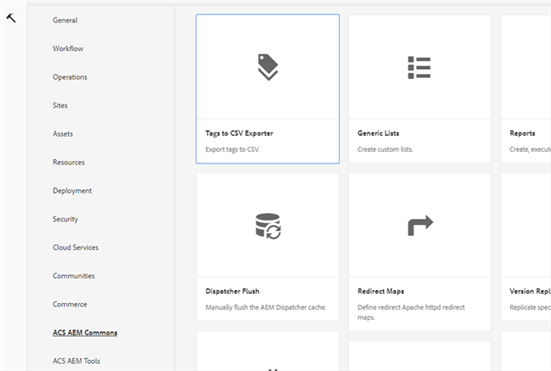
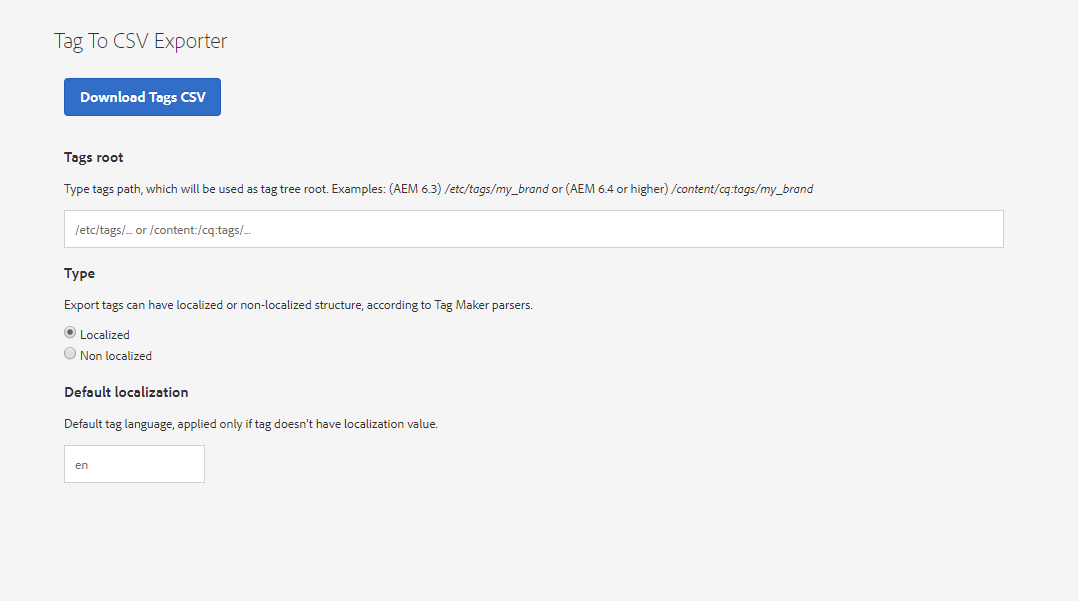
Tags to CSV Exporter gives the possibility to export Tags as CSV in one of two formats supported by the Tag Maker tool from ACS Tools. Navigate to Tools -> ACS AEM Commons -> Tags to CSV Exporter


Or just simply click on the link: http://localhost:4502/etc/acs-commons/exporters/tag-to-csv-exporter.html


  • Define the path to Your tag root, where You want to start exporting
    • Examples: /etc/tags/my_brand (AEM 6.3), /etc/cq:tags/my_brand (AEM 6.4 and higher)
  • Choose type:
    • Localized: Tag structure including tag titles in different languages (if applicable), or default language
    • Non localized: Tag structure including only one, main, tag title without data about language
  • Default localization:
    • If You export tags as localized, You can specify here default language (used if the tag does not contain ane language explicit)
  • Click Download Tags CSV to download the CSV with tags, which can be easily imported via Tag Maker from ACS Tools


By aem4beginner

April 7, 2020
Estimated Post Reading Time ~

Creating Adobe Experience Manager Components that use Standard Tag Libraries

You can create an Adobe Experience Manager (AEM) components that use the JSP Standard Tag Library (JSTL). This library lets you integrate core functionality common to applications. For example, using JSTL, you can perform tasks such as iterating through collections, parsing XML documents, performing SQL operations, and so on. For more information, see JSP – Standard Tag Library.

I have shared article @adobecommunity: https://helpx.adobe.com/experience-manager/using/custom_columns.html


By aem4beginner

Populate Tags based on Selection in Pathfield – Classic UI

This simple use case has been taken from AEM community, I thought an article for this would really help people who are looking for this or may need in future.

Component Overview

We have two field, one is pathfield (which helps to browse repository) and another a tag input field. Author selects an asset from pathfield and based on the the selection Tag input field is populated with tags available for selected assets.

Authoring Experience

Component dialog


Select an asset from pathfield


Select different asset from pathfield, tags gets updated.


Code Look Up

To make this work, you simply need to add a widget listener to the asset pathfield. Listener will listen for event dialogclose which means when you select an asset from pathfield browse asset dialog and click ‘Ok’ will cause the event to trigger.


In above image it can be seen that dialog close listener has been added to asset pathfield.

Javascript which gets the tags
function(d) {
 path = this.value + "/jcr:content/metadata.json";
 var x = CQ.shared.HTTP.eval(path);
 var tags = [];
 tags = x['cq:tags'];
 dialog = this.findParentByType('dialog');
 field = dialog.getField('./tags');
 field.setValue(tags);
}

We simply create a complete path where tags are present for a particular asset and get the response on JSON. In complete JSON response, we have many properties values and one of them is our property name cq:tags. Inline we are getting the value for cq:tags and setting this value to tag input field.


By aem4beginner

April 3, 2020
Estimated Post Reading Time ~

How to create and use a custom taglib - part 3 use your tag

The final step is to use your tag.

In the component of your choice, add the following to a jspx file:

<?xml version="1.0" encoding="UTF-8"?>
<jsp:root xmlns="http://www.w3.org/1999/xhtml"
xmlns:jsp="http://java.sun.com/JSP/Page"
xmlns:btes="http://btes.com.au/tagexample"
version="2.1">
<jsp:directive.include file="/apps/cqblueprints-example/components/global.jspx"/>
<p>No tag left behind!</p>
<btes:customTag content="Custom tag engaged" isHeading="true"/>
</jsp:root>


Now you should see the text "Custom tag engaged" rendered out as a heading. If you change the isHeading boolean to false, you should see it render as a paragraph.

Note that code complete should be fully functional with this example.


By aem4beginner

How to create and use a custom taglib - part 2 create and set up your TLD

The next step is to create your .tld directory.

In the taglib project, you will see under src/main/resources, that you have a META-INF directory.

In this directory, create a file named ProjectTaglib.tld

Add the following to this file:


<?xml version="1.0" encoding="UTF-8" standalone="yes"?>
<taglib xmlns="http://java.sun.com/xml/ns/javaee" version="2.1">
<tlib-version>5.4.0-SNAPSHOT</tlib-version>
<short-name>btes</short-name>
<uri>http://btes.com.au/tagexample</uri>
<tag>
<name>customTag</name>
<tag-class>au.com.btes.tagexample.CustomTag</tag-class>
<body-content>empty</body-content>
<attribute>
<name>content</name>
<required>true</required>
</attribute>
<attribute>
<name>isHeading</name>
<required>true</required>
</attribute>
</tag>
</taglib>


By aem4beginner

How to create and use a custom tagLib - part 1 create a custom tag.

The Problem You want to create a custom taglib and to have code completion in your target JSP file.

The Solution In your taglib project, Add a new file called TestHeading.java, and include the following code:

package au.com.btes.tagexample;

import java.io.IOException;

import javax.servlet.jsp.JspException;

import com.cqblueprints.taglib.CqSimpleTagSupport;

/**
* Example custom tag to show either content wrapped within a heading, or content wrapped within
* a paragraph
* @author bportier
*
*/
public class CustomTag extends CqSimpleTagSupport {
private String content;
private boolean isHeading;

@Override
public void doTag() throws JspException, IOException {
String tagString="";

if(isHeading) {
tagString="h2";
}
else {
tagString="p";
}
String message="";
message=message.concat("<").concat(tagString).concat(">");
message=message.concat(content);
message=message.concat("</").concat(tagString).concat(">");
getJspWriter().write(message);
}

public String getContent(){
return content;
}

/**
* Defines the content that the tag will display
* @param content
*/
public void setContent(String content){
this.content=content;
}

public boolean getIsHeading(){
return isHeading;
}

/**
* Defines whether to display a heading (true) or a paragraph (false)
* @param isHeading
*/
public void setIsHeading(boolean isHeading){
this.isHeading=isHeading;
}
}

This has now created your custom tag.


By aem4beginner

April 2, 2020
Estimated Post Reading Time ~

Import JSTL Custom tags to Adobe CQ5

Steps to add JSTL 2.0 custom tags to Adobe CQ5:

1. Create custom tag
Create your own custom tag at location say /apps/myproject/taglibs/foo.tag and the contents of the tag are as below:

<%@ attribute name="greeting" required="true" %>
<%@ attribute name="name" required="true" %>
<h1>Im a custom taglib [${greeting}, ${name}]</h1>

2. Use tags in a html or jsp page:
To use Custom Tag Lib Files within CQ5 and you can just add a tag file somewhere on the JCR and reference it via

<%@ taglib tagdir="/WEB-INF/tags/apps/myproject/taglibs" prefix="ctags" %>
<ctags:foo greeting="Hello" name="CQ User"/>
Note that the “/WEB-INF/tags/” need to be prefixed the path where the tag libs exist.

3. Add below code to the maven-assembly plugin
<assembly>
....
<filesets>
<fileSet>
<directory>src/main/content/jcr_root</directory>
<outputDirectory>jsp-dependencies/jcr_root/WEB-INF/tags</outputDirectory>
<includes>
<include>**/*.tag</include>
</includes>
</fileSet>
</filesets>
....
</assembly>  

The output directory filter needs to be created for the tag as the custom tags need to be copied from /apps/myproject/taglibs to WEB-INF/tags/apps/myproject/taglibs.


By aem4beginner