Showing posts with label Maven. Show all posts

January 2, 2021
Estimated Post Reading Time ~

AEM with Front-end Technologies Like Grunt

This post will demonstrate how to use Grunt and Grunt plugins with AEM archetype projects. The purpose of front-end technologies integrated with AEM projects is to automate various tasks like Sass lint, compile Sass into CSS, minify CSS, merge JS files, JS error checking, and minify JS.

With the use of front-end technologies like Node, Grunt with an AEM project comes into the picture when a design team wants to write an entirely new dialect of JavaScript like Coffee Script. They might use different JavaScript testing libraries to unit test their code. Before handing over the code to an AEM developer, they will try to use task runners like Gulp or Grunt to compile and minify the code. This code is often so optimized it becomes difficult to read, difficult to edit, and difficult to debug. An inadvertent consequence of this process is that the AEM developer becomes dependent on the design team for even the smallest change.

What if instead of taking compiled, minified code from the design team, we did the compilation, minification in our build process? What if we receive the raw Sass, Less, or Coffee Script file right from the front-end developers? Rather than making the integration process more complicated, we can afford to learn a few more programming languages that’d make the process smooth for the entire development team.

Code demonstration:
For the demonstration, we’re going to build a site based on a sample template. We will use the “AEM project archetype” as a starting point for AEM projects. With the help of the AEM eclipse plugin, it indeed becomes a piece of cake to create an AEM project. You can download the base project from here.

The next steps will require having Node.js installed, but in the case of an AEM project, Maven will download a local copy of Node.js. This will allow the project to run on machines where Node.js is not installed.

As a next step, in the ui.apps pom.xml, add dependencies to download Node and Grunt.
<plugin>
<groupId>com.github.eirslett</groupId>
<artifactId>frontend-maven-plugin</artifactId>
<version>1.4</version>
<executions>
<execution>
<id>install node and npm</id>
<goals>
<goal>install-node-and-npm</goal>
</goals>
<configuration>
<nodeVersion>v6.11.0</nodeVersion>
<npmVersion>3.10.10</npmVersion>
</configuration>
</execution>
<execution>
<id>npm install</id>
<goals>
<goal>npm</goal>
</goals>
<configuration>
<arguments>install</arguments>
</configuration>
</execution>
<execution>
<id>grunt build</id>
<goals>
<goal>grunt</goal>
</goals>
</execution>
</executions>
</plugin>


Note: Make sure to copy/paste this code in ui.apps pom.xml under the “VAULT PACKAGE PLUGIN” section.

Once the dependencies are added to your pom file, run “mvn clean install” from the root of ui.apps under-sample. The “front-end-maven-plugin” will download Node.js and NPM in parallel to sample.ui.apps (if they are not already there) and run Node.js and NPM from this directory. Node.js will install the dependencies indicated in the package.json file and run the Grunt task. The beauty of this solution is Node.js and NPM do not have to be installed on the machine where this build is running. More information on this great plugin can be found here.

Expand project under sample.ui.apps and create the following files.
  • package.json – this file holds various metadata relevant to the project. The file is used to give information to npm that allows it to identify the project as well as handle the project’s dependencies.
  • Gruntfile.js – Grunt is a JavaScript task runner, a tool used to automatically perform frequently used tasks such as minification, compilation, unit testing, linting, etc. It uses a command-line interface to run custom tasks defined in a file (known as a Gruntfile). 
  • Dependencies added in package.json
{
{
"name": " sample ",
"version": "1.0.0",
"dependencies": {

},
"devDependencies": {
"grunt": "^1.0.1",
"grunt-cli": "^1.2.0",
"grunt-contrib-clean": "^1.1.0",
"grunt-contrib-jshint": "^1.1.0",
"grunt-sass": "^2.0.0"
}
}


Tasks defined in Gruntfile.js
module.exports = function(grunt) {
// Project configuration.
grunt.initConfig({
pkg: grunt.file.readJSON('package.json'),
clean: ['src/**/main.js'],
sass: { // Task
dist: { // Target
options: { // Target options
style: 'expanded'
},
files: { // Dictionary of files
'src/main/content/jcr_root/etc/designs/sample/clientlib-site/css/main.css': 'src/**/main.scss' // 'destination': 'source'
}
}
},
jshint: {
all: ['Gruntfile.js', 'src/**/*.js']
}
});
// Load required modules
grunt.loadNpmTasks('grunt-sass');
grunt.loadNpmTasks('grunt-contrib-clean');
grunt.loadNpmTasks('grunt-contrib-jshint');

// Task definitions
grunt.registerTask('default', ['clean', 'sass', 'jshint']);
};


Adding the Scss and js files.
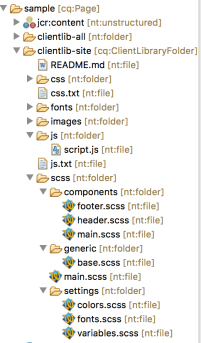
Create folders named scss and js under “src/main/content/jcr_root/etc/designs/sample/clientlib-site”

Download the SaaS and JS files from here. Unzip downloaded folders and copy/paste SaaS and JS folders from the filesystem to project (in Eclipse) under client-site.

Path for clientlib-site where SaaS/Js folders requires to be added “src/main/content/jcr_root/etc/designs/sample/clientlib-site”


Build a Sample Page Template.
Let’s create a template to show for demo purposes. Usually, I break the HTML into components, but since it’s for demonstration, we will use it as it is. Open up “apps/sample/components/structure/page/partials/body.html” and add the following content:

<!DOCTYPE html>
<html lang="en">
<head>
<meta charset="UTF-8">
<meta name="viewport" content="width=device-width, initial-scale=1.0">
<meta http-equiv="X-UA-Compatible" content="IE=edge">
<title> - POC Workflow Sample</title>
<link href="./main.css" rel="stylesheet">
<link rel="stylesheet" type="text/css" href="https://cloud.typography.com/7901534/7014552/css/fonts.css" />
</head>
<body>
<!-- Google Tag Manager -->
<noscript><iframe src="//www.googletagmanager.com/ns.html?id=GTM-N58S75&gtm_auth=4Z8z1P62GrTwxM_4TZaFag&gtm_preview=env-6&gtm_cookies_win=x"
height="0" width="0" style="display:none;visibility:hidden"></iframe></noscript>
<script>(function(w,d,s,l,i){w[l]=w[l]||[];w[l].push({'gtm.start':
new Date().getTime(),event:'gtm.js'});var f=d.getElementsByTagName(s)[0],
j=d.createElement(s),dl=l!='dataLayer'?'&l='+l:'';j.async=true;j.src=
'//www.googletagmanager.com/gtm.js?id='+i+dl+'&gtm_auth=4Z8z1P62GrTwxM_4TZaFag&gtm_preview=env-6&gtm_cookies_win=x';f.parentNode.insertBefore(j,f);
})(window,document,'script','dataLayer','GTM-N58S75');</script>
<!-- End Google Tag Manager -->
<header>
<ul>
<li><a href="#">Maecenas faucibus</a></li>
<li><a href="#">Euismod Venenatis</a></li>
<li><a href="#">Praesent</a></li>
<li><a href="#">Donec id elit</a></li>
<li><a href="#">Donec ullamcorper</a></li>
<li><a href="#">Duis mollis</a></li>
</ul>
</header>
<main>
<div>
<h1>Sample Page</h1>
<p>Vestibulum id ligula porta felis euismod semper. Cum sociis natoque penatibus et magnis dis parturient montes, nascetur ridiculus mus. Fusce dapibus, tellus ac cursus commodo, tortor mauris condimentum nibh, ut fermentum massa justo sit amet risus. Duis mollis, est non commodo luctus, nisi erat porttitor ligula, eget lacinia odio sem nec elit. Integer posuere erat a ante venenatis dapibus posuere velit aliquet. Integer posuere erat a ante venenatis dapibus posuere velit aliquet. </p>
<p>Sed posuere consectetur est at lobortis. Donec sed odio dui. Etiam porta sem malesuada magna mollis euismod. Morbi leo risus, porta ac consectetur ac, vestibulum at eros. </p>
<p>Vivamus sagittis lacus vel augue laoreet rutrum faucibus dolor auctor. Fusce dapibus, tellus ac cursus commodo, tortor mauris condimentum nibh, ut fermentum massa justo sit amet risus. Morbi leo risus, porta ac consectetur ac, vestibulum at eros. Maecenas sed diam eget risus varius blandit sit amet non magna. Sed posuere consectetur est at lobortis. </p>
<p>Lorem ipsum dolor sit amet, consectetur adipiscing elit. Integer posuere erat a ante venenatis dapibus posuere velit aliquet. Cras justo odio, dapibus ac facilisis in, egestas eget quam. Lorem ipsum dolor sit amet, consectetur adipiscing elit. Vivamus sagittis lacus vel augue laoreet rutrum faucibus dolor auctor. Nulla vitae elit libero, a pharetra augue. </p>
</div>
</main>
<footer>
<ul>
<li><a href="#">sample footer link</a></li>
<li><a href="#">another footer link</a></li>
<li><a href="#">more footer link</a></li>
<li><a href="#">yup, footer link</a></li>
</ul>
</footer>
<!-- jQuery -->
<script src="./jquery.min.js"></script>
<script src="./script.js"></script>
</body>
</html>


Build the sample project now:
mvn clean install -PautoInstallPackage

The “ui.apps” package should be successfully installed. Once the build is successfully done, expand the client-site folder. Under the CSS folder, main.css file has been successfully generated as per the task defined in Gruntfile.js. On the page load, main.css styles will apply on-page.

Navigate to http://localhost:4502/sites and create a page using the “Sample Site Content Page” template. Your page should match the following screenshot:


By aem4beginner

The Java Commons Annotations Was Removed in JDK 11

The Java Common Annotations Module java.xml.ws.annotation was deprecated in Java version 9 and was removed in java version 11. So what does this mean for your AEM 6.5 project running on JDK 11?

AEM 6.5 and JDK 11
As of AEM 6.5, JDK 11 is supported alongside JDK 8. As such, Devs will begin developing and testing AEM on JDK 11 you can check the technical requirements and see Adobe’s notes on JDK 11. You should also read the Oracle/Adobe License Agreement. also read Dan’s post on the matter here.

The Java Common Annotations Module
As an AEM dev, you probably did not realize it, but you were using this module all along. The @PostConstruct annotation used by sling models is part of that module. The removal of that module from JDK 11 means that you’ll get a compile error on any classes that use that annotation.

Including the Java Common Annotations Dependency in Your Project
The solution to this problem, as it turns out, is pretty simple: Include the dependency yourself in your maven project.

see: [1] and [2]
<!-- https://mvnrepository.com/artifact/javax.annotation/javax.annotation-api -->
<dependency>
    <groupId>javax.annotation</groupId>
    <artifactId>javax.annotation-api</artifactId>
    <version>1.3.2</version>
    <scope>provided</scope>
</dependency>


You might be wondering, what about the OSGi container? Doesn’t it run on the same JDK? well, yes! but it uses a different dependency! go to http://localhost:4502/system/console/depfinder and look for javax.annotations.*

and you’ll see it uses this dependency:
<dependency>
    <artifactId>geronimo-annotation_1.3_spec</artifactId>
    <version>1.0</version>
    <groupId>org.apache.geronimo.specs</groupId>
    <scope>provided</scope>
</dependency>

You can use whichever dependency works for you, so long as you have it in your project!


By aem4beginner

December 28, 2020
Estimated Post Reading Time ~

WCMUsePojo “aQute.bnd.annotation.ConsumerType not found” (fix)

On rare occasions, when developing a Java class that extends WCMUsePojo class, you will get the error of “class file for aQute.bnd.annotation.ConsumerType not found“.


This problem can be easily solved by adding the dependency to your parent-pom.xml and core-pom.xml as shown below:

//parent-pom.xml
<!-- https://mvnrepository.com/artifact/biz.aQute.bnd/bndlib -->
<dependency>
    <groupId>biz.aQute.bnd</groupId>
    <artifactId>bndlib</artifactId>
    <version>2.4.0</version>
    <scope>provided</scope>
</dependency>


//core-pom.xml
<dependency>
    <groupId>biz.aQute.bnd</groupId>
    <artifactId>bndlib</artifactId>
</dependency>


Summary:
The latest AEM maven archetype-20 comes pre-configured with this dependency.

During the time of development, an AEM engineer may have removed this maven dependency. https://github.com/adobe/aem-project-archetype/tree/aem-project-archetype-20


By aem4beginner

December 10, 2020
Estimated Post Reading Time ~

content-package-maven-plugin:1.0.2 could not be resolved

Error on installing project via maven command.
Unresolveable build extension: Plugin com.day.jcr.vault:content-package-maven-plugin:1.0.2 or one of its dependencies could not be resolved: Failure to find com.day.jcr.vault:content-package-maven-plugin:jar:1.0.2 in https://repo.maven.apache.org/maven2 was cached in the local repository, resolution will not be reattempted until the update interval of central has elapsed or updates are forced -> [Help 2]

[ERROR] Unknown packaging: content-package @ com.abc.aem.dam:abc.ui.content:[unknown-version], C:\Users\aanchalsikka\Projects\ABC\abc-dam\ui.content\pom.xml, line 34, column 16

Fix:
Use profile adobe-public in your maven command.Example: mvn clean install -PautoInstallPackage,adobe-public

A best practice is to add an adobe-public profile to your Maven settings.xml file in order to automatically add repo.adobe.com to the maven build process.

For details on how to configure settings.xml visit the link


By aem4beginner

October 13, 2020
Estimated Post Reading Time ~

Resolve dependencies by converting Jar to Bundle - AEM 6.5.5

Many a times we come across such scenarios when we have to use some dependencies which are not resolved by our AEM server. In that case our project bundle doesn’t gets resolved and we see the dependency errors marked in red.

org.apache.oltu.oauth2.client,version=[1.0,2) — Cannot be resolved

In this case we will download the dependency Jar from the maven repository and convert it into OSGI bundle and deploy it to the AEM server.

Process to convert Jar to Bundle:
1. Go to File –> New –> Other –> Plug-in from existing JAR Archives


Click next and the add the JAR that we downloaded using the option Add External JAR and click next and provide the following configuration as per the requirement. And then click next and finish.


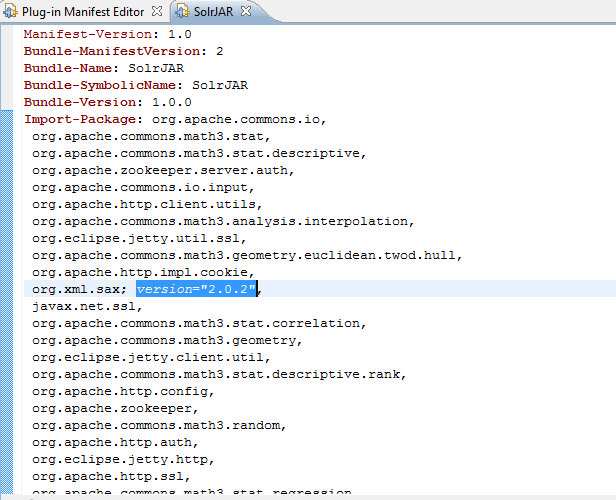
Now go to MANIFEST.MF file and remove the version from the imported packages as shown below.

Remove versions

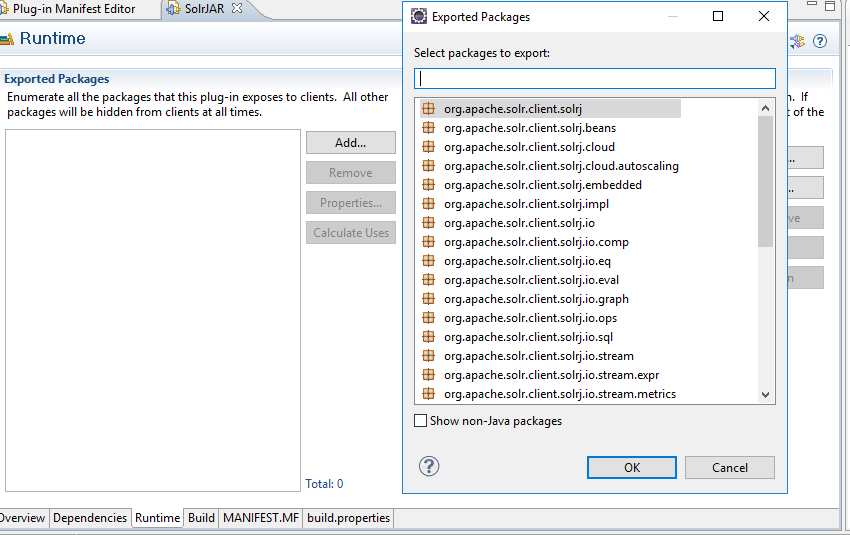
Now switch to Runtime tab and click on add in Export packages column to add the packes and dependency that we want to export as part of this bundle. These are the same dependencies which were not getting resolved as bundle.
Exporting packages

Don’t forget to save the changes after updating the MANIFEST.MF file.

Now right click on the plugin project created in package explorer and click on Export and select Deployable plug-ins and fragments


Now provide the path where you want to save the deployable bundle locally and click on finish. Now go to the specified location and you will find the deployable bundle.

Installing directly on felix console is not the best way to resolve the dependency so we will deploy it as part of embed code.

Now create a install folder in your local code-base at ../apps/<project-name>/install/<Bundle.jar>
And now embed the code in ui.apps POM.xml

<embedded>
    <groupId>org.apache.solr</groupId>
    <artifactId>solr-solrj</artifactId>
    <target>/apps/<project-name>/install</target>
<embedded>


Now when the code is built, this bundle gets deployed on the Felix console and when we go and check the dependency it will be resolved as our project bundle is now importing the dependency from the created bundle’s exported packages.


By aem4beginner

AEM Maven Archetype 24 loaded with CIF


Some good news for the developers using CIF in AEM. Adobe has recently released the maven archetype 24 which solves your problem of installing CIF core components over your project archetype. Let’s understand what we have got in the new archetype 24 with respect to CIF.

It includes the latest CIF Core Components and everything else we need to kickstart our Commerce-enabled AEM on-prem and AEMaaCS projects. For reference, you can refer to the sample project created by adobe at Venia storefront.

Maven archetype command:
mvn -B archetype:generate \ 
 -D archetypeGroupId=com.adobe.aem \  
 -D archetypeArtifactId=aem-project-archetype \ 
 -D archetypeVersion=24 \ 
 -D aemVersion=cloud \ 
 -D appTitle="My Company" \ 
 -D appId="mycompany" \ 
 -D groupId="com.mycompany" \ 
 -D frontendModule=general \ 
 -D includeExamples=n \ 
 -D includeCommerce=y

Note that the archetypeArtifactId is now updated to com.adobe.aem from com.adobe.granite.archetypes. And you have to select the inculeCommerce option as y to generate the CIF enable aem project.

In this archetype, it provides you an option to generate the project for AEMaaCs or AEM on-prem using aemVersion.

So once your project gets generated then you just need to build and deploy and start using the commerce API as all the CIF enabled core components gets deployed along with this archetype.

Using AEM Archetype 24 with AEMaaCS:
We need to follow the below steps to get our Commerce console on AEMaaCs as currently, it doesn’t come as part of SDK:
1. Download the CIF addon from the Adobe Software Distribution portal.
2. You will get a zip file that contains the CIF add-on as the Sling Feature archive.

NOTE: Access to the SDK and Addons is limited to those with AEMaaCs license.
3. Unpack your AEM SDK jar
java -jar <jar name> -unpack
4. Create an install folder inside crx-quickstart.
5.Copy the Sling Feature archive file (.far) in the install folder based on the author/publish mode.
6. Set the local OS environment variable with the following command.
set COMMERCE_ENDPOINT=https://demo.magentosite.cloud/graphql

Now you can start your AEM instance and verify the CIF add-on related bundles at http://localhost:4502/system/console/osgi-installer.

Also, the configuration to sync the data in AEMaaCs is moved to the below location (Reference via project):
http://localhost:4502/libs/cif/shell/content/configuration.html/conf/venia/settings/cloudconfigs/commerce

Below are some more features and enhancements made in the latest Archetype 24:
  • AMP Support.
  • Data Layer.
  • Selenium-based UI testing project.
  • Integration Testing.
  • Core Components 2.11.0 support.
You can refer archetype latest release notes for the latest features added up with this Archetype 24.


By aem4beginner

July 23, 2020
Estimated Post Reading Time ~

How to add AEM Dependency that is missing from public repository

So you just updated to the nice and shiny AEM 6.1, looking at new functionality and exploring around. Then you decide to tap into the new api documentation. Then reality comes back in, the boss wants to connect a new product in to AEM 6.1. Too easy! I'll use a custom cloud configuration. Google to the rescue... Adobe documentation here I come. Oh no! The documentation is a CRXDE Lite tutorial.

Following the tutorial and testing it out, the screen explodes into a torrent of letters and characters...stack trace! Who would have thought...

Turns out ConfigurationManager is turned off by default for security reasons http://localhost:4502/system/console/configMgr/com.day.cq.wcm.webservicesupport.impl.ConfigurationManagerImpl. Well I could enable it then the tutorial would work, but those Adobe guys probably have good reason to disable it.

I found that it is possible to get a ConfigurationManager instance through the ConfigurationManagerFactory. Well, I could put this into the tutorial but who likes scriptlets not Center of Excellence, he wrote this article on how to avoid using scriptlets.

After some changes and making the cloud configuration conform to sightly and connect to a WCMUse backend.

Using depfinder http://localhost:4502/system/console/depfinder to make sure I have the correct dependency for ConfgurationManagerFactory. The package is com.day.cq.wcm.webservicesupport and version 5.8.44. Get everything set up and attempt to build the project to AEM.

No dice! Maven yelling at me!

Turns out the Adobe public repo is missing that version. The highest version at the time of this article was 5.6.4
So now What? 
I found this nice article about how to add jars to the local maven repository (.m2 folder)
Okay, so I know what to do but how do I get the jar?

How to get a jar from an AEM instance
  1. Go to http://localhost:4502/system/console/bundles
  2. Search for webservice, click Day Communique 5 WCM Webservice Support
  3. Notice Bundle Location copies the path after jcrinstall:
  4. Open CRXDE Lite and add the copied path. You should see the name of the jar inside that path
  5. Now that the location is confirmed. Go to the terminal and vlt down the jar. In my case this is what I used: 
vlt --credentials admin:admin co --force http://localhost:4502/crx/-/jcr:root/libs/wcm/webservice-support/install

How to add missing AEM Dependency
This will add the jar to the local maven repository
   6. Now that we have the jar, drill down to the jar and use the maven in the terminal to add it to your local repo. In my case this is what I used. 

mvn install:install-file -Dfile=cq-wcm-webservice-support-5.8.44.jar -DgroupId=com.day.cq.wcm \ -DartifactId=cq-wcm-webservice-support -Dversion=5.8.44 -Dpackaging=jar

Don't feel like dealing with the details: check out lazy mode toward the bottom of the page Rebuilding the project now worked.

Hopefully, this will be useful to you and now you know why you should not always rely on public repositories.


By aem4beginner

May 28, 2020
Estimated Post Reading Time ~

Step by step guide to set up a Local AEM Development Environment

This article is a guide to establish a local advancement for Adobe Experience Manager(AEM). We intend to cover essential subjects of local instalment, Apache Maven, integrated development environment, and debugging/troubleshooting. Development with #, CRXDE Lite, Visual Studio Code, and IntelliJ will be discussed.

Overview
Setting up a local development environment is the very first step when establishing an Adobe Experience Manager or AEM. Invest an ample amount of time to establish a high-quality development environment to increase your performance and write better and quicker code. We can break an AEM local development environment into four areas:
  • Local AEM instances
  • Apache Maven project
  • Integrated Development Environment (IDE)
  • Troubleshooting
Install local AEM Instances.
When we describe a local AEM scenario, we are speaking about a copy of Adobe Experience Manager that is running on a developer’s system. All AEM development must begin by writing and running code against local AEM circumstances.

If you are new to AEM, two basic run settings can be installed: Author and Publish. The Author’s run mode is the environment that digital marketing experts will make use of to create and also handle the content. When developing the majority of the time you will be releasing code to an Author instance. This permits you to create new pages, include, and setup elements. AEM Sites is a WYSIWYG authoring CMS and for that reason, most of the CSS, and JavaScript, can be tested versus authoring circumstances.

It is also a vital test code against a local Publish instance. The Publish scenario is the AEM environment that visitors to your website will connect with. While the Publish instance is the same technology stack as the Author instance, there are some major differences between configurations and approvals. The code should constantly be examined against a local Publish instance before being promoted to higher-level environments.

Steps.
1.Make sure Java is set up.
Prefer Java JDK 11 for AEM 6.5+.
Java JDK 8 for AEM versions before AEM 6.5.

2. Get a copy of AEM QuickStart Jar and a [license.properties]

3. Create a folder structure in your computer system like the following:
~/aem-sdk
/author
/publish

4. Relabel the # JAR to aem-author-p4502. jar and place it beneath the/ author directory. Include the license.properties submit below the/ author directory site.

5. Make a copy of the QuickStart JAR, rename it to aem-publish-p4503. jar and place it beneath the/ publish directory. Add a copy of the license.properties file beneath the/ publish directory.

~/aem-sdk
/author
+ aem-author-p4502.jar
+ license.properties

/publish
+ aem-publish-p4503.jar
+ license.properties

6. Double-click the aem-author-p4502. jar data to set up the Author instance. This will certainly start the author instance, running on port 4502 on the local computer.

Double-click the aem-publish-p4503. jar file to set up the Publish instance. This will certainly start the Publish instance, operating on port 4503 on the local computer.

NOTE: Depending on your development machine’s hardware it might be hard to have both an Author and Publish instances operating at the same time. Rarely do you require to run both simultaneously on a local setup.

Install Apache Maven
Apache Maven is a tool to handle the building and deployment of Java-based projects. AEM is a Java-based system and Maven is the standard method to handle code for an AEM job. When we say AEM Maven Project or just your AEM Task, we are describing a Maven project that includes all the customized code for your website.

All AEM projects must be developed off the latest version of the AEM Project Archetype: https://github.com/Adobe-Marketing-Cloud/aem-project-archetype The AEM Project Archetype will create a bootstrap of an AEM task with some example code and content. The AEM Project Archetype also consists of AEM WCM Core components configured to be used on your project.

CAUTION: When beginning a new task it is an ideal method to use the most recent version of the archetype. Bear in mind that there are multiple versions of the archetype and not all versions work with older versions of AEM.
Steps.

1.Download And Install Apache Maven.

2. Set Up Apache Maven and ensure that the installation has been contributed to your command-line COURSE. macOS customers can install Maven utilizing Homebrew.

3. Confirm that Maven is installed by opening a new command line terminal and implementing the following:

$ mvn –version

Apache Maven 3.3.9

Maven home: /Library/apache-maven-3.3.9

Java version: 1.8.0_111, vendor: Oracle Corporation

Java home: /Library/Java/JavaVirtualMachines/jdk1.8.0_111.jdk/Contents/Home/JRE

Default locale: en_US, platform encoding: UTF-8

4. Add the adobe-public profile to your Maven settings.xml file to automatically include repo.adobe.com to the Maven build process.

5. Create a file named settings.xml at ~/. m2/settings. XML if it doesn’t exist currently.

6. Add the adobe-public profile to the settings.xml file based upon the directions below.

An example settings.xml is listed below.

Note, the naming convention of settings.xml and the positioning beneath the users. m2 directory site is very important.

<settings xmlns=”https://maven.apache.org/SETTINGS/1.0.0″
xmlns:xsi=”https://www.w3.org/2001/XMLSchema-instance”
xsi:schemaLocation=”https://maven.apache.org/SETTINGS/1.0.0
https: //maven.apache.org/xsd/settings-1.0.0.xsd”>
<profiles>

<!– =========================================== –>
<!– A D O B E P U B L I C P R O F I L E –>
<!– =========================================== –>

<profile>
<id>adobe-public</id>
<activation>
<activeByDefault>true</activeByDefault>
</activation>
<properties>
<releaseRepository-Id>adobe-public-releases</releaseRepository-Id>
<releaseRepository-Name>Adobe Public
Releases</releaseRepository-Name>
<releaseRepository-URL>https://repo.adobe.com/nexus/content/groups/public</releaseRepository-URL>

</properties>
<repositories>
<repository>
<id>adobe-public-releases</id>
<name>Adobe Public Repository</name>
<url>https://repo.adobe.com/nexus/content/groups/public</url>
<releases>
<enabled>true</enabled>
<updatePolicy>never</updatePolicy>
</releases>
<snapshots>
<enabled>false</enabled>
</snapshots>
</repository>
</repositories>
<pluginRepositories>
<pluginRepository>
<id>adobe-public-releases</id>
<name>Adobe Public Repository</name>
<url>https://repo.adobe.com/nexus/content/groups/public</url>
<releases>
<enabled>true</enabled>
<updatePolicy>never</updatePolicy>
</releases>
<snapshots>
<enabled>false</enabled>
</snapshots>
</pluginRepository>
</pluginRepositories>
</profile>
</profiles>
<activeProfiles>
<activeProfile>adobe-public</activeProfile>
</activeProfiles>
</settings>

7. Verify that the adobe-public profile is active by running the following command:
$ mvn help:effective-settings
…
<activeProfiles>
<activeProfile>adobe-public</activeProfile>
</activeProfiles>
<pluginGroups>
<pluginGroup>org.apache.maven.plugins</pluginGroup>
<pluginGroup>org.codehaus.mojo</pluginGroup>
</pluginGroups>
</settings>

[INFO] ————————————————————————-
[INFO] BUILD SUCCESS
[INFO] –———————————————————————–

[INFO] Total time: 0.856 s

If you do not see the adobe-public it is an indication that the Adobe repo is not effectively referenced in your ~/. m2/settings. XML data. Please take another look at the earlier steps and validate that the settings.xml documents reference the Adobe repo.

Establish an Integrated Advancement Setting
An integrated development environment or IDE is an application that incorporates a full-screen editor, syntax support, and build-tools. Relying on the kind of development you are doing, one IDE may be better over another. Regardless of the IDE, it will certainly be necessary to be able to regularly push code to a local AEM instance to check it. It will also be important to periodically pull configurations from a local AEM instance into your AEM task to continue to a source-control administration system like Git.

Eclipse IDE
The [Eclipse] IDE is one of the preferred IDEs for Java development, in large part because it is open source and free! Adobe provides a plugin, [AEM Developer Tools], for Eclipse to enable simpler development with a good GUI to integrate code with local AEM circumstances. The Eclipse IDE is recommended for developers new to AEM in huge part as a result of the GUI support by AEM Developer Tools.

Installation and Set-Up.
Download and install the Eclipse IDE for Java EE Developers: https://www.eclipse.org

Follow the instructions to set up the AEM Designer Tools plugin: https://eclipse.adobe.com/aem/dev-tools/

IntelliJ Concept
The IntelliJ IDEA is an effective IDE for professional Java development. IntelliJ IDEA comes in two variations, a free community version, and a commercial (paid) Ultimate version. The free Community version of IntelliJ IDEA is sufficient for AEM development, nonetheless the Ultimate expands its capacity set.

Installation and Setup
Download and install the IntelliJ IDEA: https://www.jetbrains.com/idea/download

Set up Repo (command-line tool): https://github.com/Adobe-Marketing-Cloud/tools/tree/master/repo

Visual Studio Code
Visual Studio Code has quickly become the preferred tool for most front-end developers with improved JavaScript support, Intellisense, and browser debugging support. Visual Studio Code is open resource, free, with many effective extensions. Visual Studio Code can be set up to integrate with AEM with the help of an Adobe device, repo. Several community-supported extensions can be set up to integrate with AEM.

Visual Studio Code is a fantastic choice for front-end developers who will be creating CSS/LESS and JavaScript code to develop AEM client libraries. This tool might not be the most effective choice for new AEM developers given that node definitions(dialogues, components) will certainly require to be modified in raw XML. There are numerous Java extensions available, however, if primarily doing Java development Eclipse IDE or IntelliJ might be preferred.

Important links
Download the Visual Studio Code.
repo – FTP-like tool for JCR web content.
aemfed – Quicken your AEM front-end operations.
AEM Sync – Community sustained * extension for Visual Studio Code.
CRXDE Lite
CRXDE Lite is a browser-based view of the AEM repository. CRXDE Lite is embedded in AEM and permits a designer to do standard development tasks like editing and enhancing files, specifying elements, dialogues, and templates. CRXDE Lite is not meant to be a full development setting yet is extremely reliable as a debugging tool. CRXDE Lite serves when expanding or merely recognizing product code beyond your codebase. CRXDE Lite provides a powerful view of the repository and a way to effectively check and manage permissions.

CRXDE Lite should constantly be utilized in conjunction with other IDEs to evaluate and debug code but never as the key development tool. It has restricted phrase structure support, no auto-complete abilities, and minimal integration with source control management systems.

Troubleshooting
Help! My code isn’t functioning! Similar to all development, there will certainly be times (most likely many), where your code is simply not functioning as expected. AEM is an effective platform, but with great power … comes terrific intricacy. Below are a few high-level starting points when it comes to fixing and tracking down problems(yet far from an extensive listing of points that can go wrong):.

Verify Code deployment
A good first step, when experiencing a problem is to confirm that the code has actually been released and installed efficiently to AEM.
Examine Bundle Manager to make sure that the code package has been submitted and set up: http://localhost:4502/crx/packmgr/index.jsp. Inspect the time stamp to validate the bundle has been set up recently.
If doing incremental data updates using a tool like Repo or AEM Developer Tool, check CRXDE Lite that the file has been pushed to the local AEM instance and that the file components are updated: http://localhost:4502/crx/de/index.jsp.
Inspect whether the bundle is uploaded if facing any problems related to Java code in an OSGi package. Open the Adobe Experience Manager Web Console: http://localhost:4502/system/console/bundles and search for your bundle. Ensure that the package has an Active standing. See below for more information on troubleshooting a bundle in the installed state

Check the Logs
AEM is a chatty system and logs a lot of beneficial data in the error.log. The error.log can be discovered where AEM has been installed: < AEM-installation-folder >/ CRX-quickstart/logs/error. log.

A useful method for finding issues is to include log statements in your Java Code:

import org.slf4j.Logger;
import org.slf4j.LoggerFactory;
…
public class MyClass {
private final Logger log = LoggerFactory.getLogger(getClass());
…

String myVariable = “My Variable”;
log.debug(“Debug statement of myVariable {}”, myVariable);
log.info(“Info statement of myVariable {}”, myVariable);
}

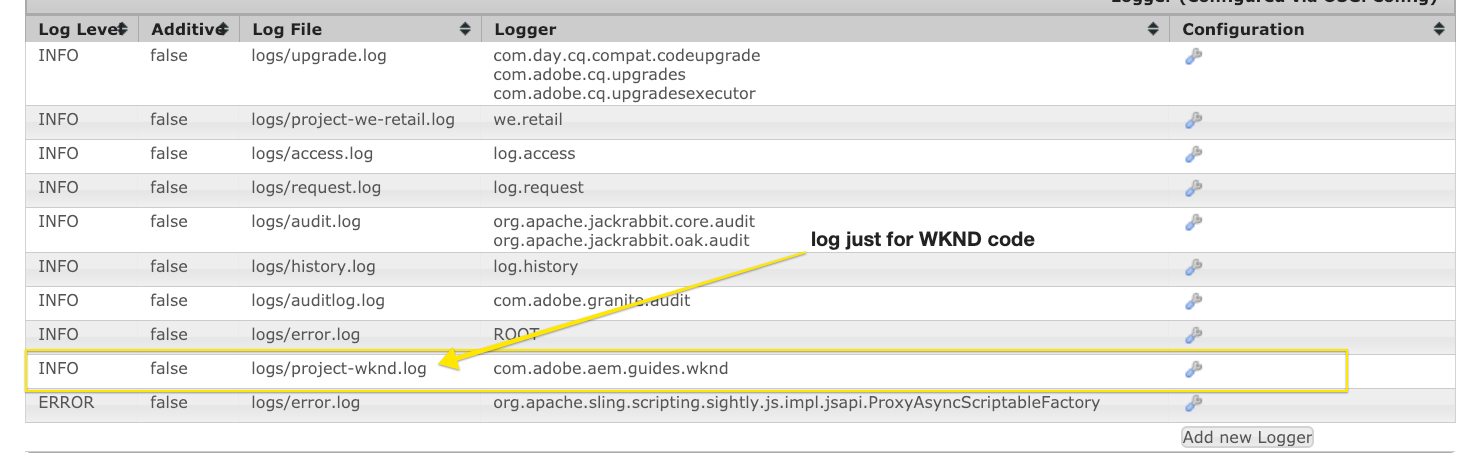
By default, the error.log is configured to log INFO statements. If you intend to change the log level you can do so by going to Log Support: http://localhost:4502/system/console/slinglog. You might also locate that the error.log is also chatty. You can use the Log Support to configure log statements for just a specified Java plan. This is an ideal technique for projects, to conveniently separate custom-made code issues from OOTB AEM system issues.


The bundle is in an Installed state
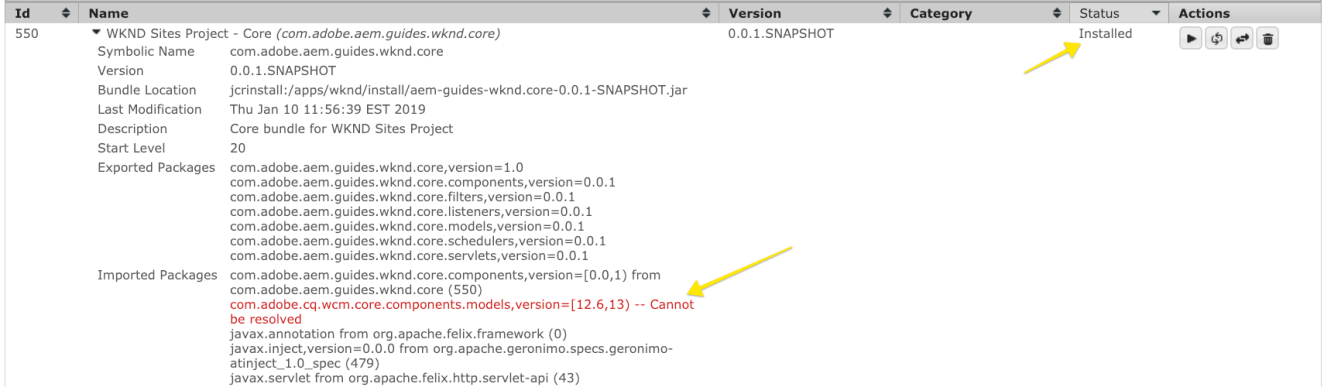
All packages (excluding Fragments) should remain in an Active state. If you see your code bundle in the installed state then there is a problem that issues that must be fixed. Many times this is a dependency concern:

In the above screenshot, the WKND Core bundle is in the installed state. This is because the bundle is expecting a different version of com.adobe.cq.wcm.core.components.models than the one that is readily available on the AEM instance.

A useful tool that can be used is the Dependency Finder: http://localhost:4502/system/console/depfinder. Include the Java package name to check what variation is offered on the AEM circumstances:

Proceeding with the above example, we can see that the version set up on the AEM circumstances is 12.2 vs 12.6 that the bundle was expecting. From there you can function backward and see if the Maven dependency on AEM matches the Maven dependencies in the AEM project. In the above instance, Core Components v2.2.0 is installed on the AEM instance but the code bundle was built with a dependency on v2.2.2, this is the reason for the dependency problem.

Validate Single model Registration
AEM components must constantly be backed by a Single Model to encapsulate any kind of service reasoning and ensure that the HTL providing manuscript remains clean. If experiencing issues where the Sling Model can not be discovered it might be handy to examine the Sling version from the console: http://localhost:4502/system/console/status-slingmodels. This will certainly inform you if your Sling Version has been signed up and which source type (the component course) it is linked to.

Shows the registration of a Sling model, BylineImpl that is tied to a component source sort of wknd/components/content/ byline.

CSS or JavaScript Issues
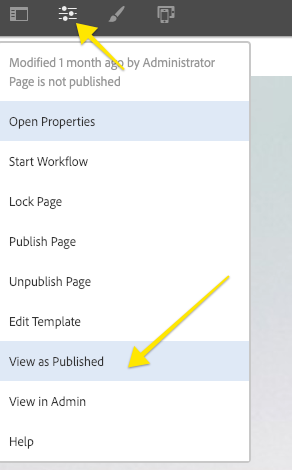
For the majority of CSS and JavaScript issues, making use of the browser’s development tools is the most efficient method to troubleshoot. To narrow down the issue when developing against an AEM author instance it is useful to view the page “as Published”.


Open Up the Page Feature menu selection and click View as Published. This will certainly open up the page without the AEM editor and with an inquiry, parameter readied to wcmmode=disabled. This will successfully disable the AEM authoring UI and make troubleshooting/debugging front-end problems much easier.

An additional commonly experienced problem when developing front-end code is old or outdated CSS/JS being filled. As a first step, ensure the browser history has been cleared and if necessary, start an incognito browser or fresh session.

Debugging Customer Libraries
With different approaches of categories and embeds to add multiple client libraries, it can be cumbersome to repair. AEM reveals several tools to help with this. One of the most important tools is to Rebuild Client Libraries which will certainly follow AEM to re-compile any LESS data and create the CSS.

Dump Libs – Lists every one of the customer libraries signed up in the AEM instance. <host>/ libs/granite/ui/ content/dumplibs. html.

Test Output– allows a customer to see the anticipated HTML result of clientlibs includes based upon the category. <host>/ libs/granite/ui/ content/dumplibs. test.html.

Libraries Dependency Validation– highlights any type of dependencies or ingrained classifications that can not be found. <host>/ libs/granite/ui/ content/dumplibs. validate.html.

Rebuild Client Libraries – allows an individual to force AEM to restore every one of the customer libraries or revoke the cache of customer libraries. This tool is specifically effective when establishing with LESS as this can force AEM to re-compile the produced CSS. As a whole, it is more effective to Revoke Caches and thereafter carry out a web page refresh versus rebuilding all of the libraries. <host>/ libs/granite/ui/ content/dumplibs. rebuild.html.

NOTE: If you are constantly revoking the cache using the Rebuild Client Libraries tool it may be worth doing a one time rebuild of all customer libraries. This might take around 15 mins, however, it commonly gets rid of any type of caching problem in the future.


By aem4beginner

May 27, 2020
Estimated Post Reading Time ~

Maven Plugin to Install Bundle Directly Into OSGI in AEM

Use the following plugin in your POM to install bundle directly into the OSGI console.

<plugin>
    <groupId>org.apache.sling</groupId>
    <artifactId>maven-sling-plugin</artifactId>
     <version>2.1.0</version>
    <executions>
       <execution>
           <id>install-bundle</id>
          <goals>
                 <goal>install</goal>
         </goals>
       </execution>
    </executions>
    <configuration>
             <slingUrl>http://localhost:8080/system/console/install</slingUrl>
     <user>admin</user>
     <password>admin</password>
    </configuration>
</plugin>


By aem4beginner

How to setup Maven in your development environment

You can use Maven to build an OSGi bundle. Maven manages required JAR files that a Java project needs in its classpath. Instead of searching the Internet trying to find and download third-party JAR files to include in your project’s classpath, Maven manages these dependencies for you.

You can download Maven 3 from the following URL:
  1. Unzip the distribution archive, i.e. apache-maven-3.1.1-bin.zip to the directory you wish to install Maven 3.1.1. These instructions assume you chose C:\Program Files\Apache Software Foundation. The subdirectory apache-maven-3.1.1 will be created from the archive
  2. Add the M2_HOME environment variable by opening up the system properties (WinKey + Pause), selecting the "Advanced" tab, and the "Environment Variables" button, then adding the M2_HOME variable in the user variables with the value C:\Program Files\Apache Software Foundation\apache-maven-3.1.1. Be sure to omit any quotation marks around the path even if it contains spaces. Note: For Maven 2.0.9, also be sure that the M2_HOME doesn't have a '\' as last character.
  3. In the same dialog, add the M2 environment variable in the user variables with the value %M2_HOME%\bin.
  4. Optional: In the same dialog, add the MAVEN_OPTS environment variable in the user variables to specify JVM properties, e.g. the value -Xms256m -Xmx512m. This environment variable can be used to supply extra options to Maven.
  5. In the same dialog, update/create the Path environment variable in the user variables and prepend the value %M2% to add Maven available in the command line.
  6. In the same dialog, make sure that JAVA_HOME exists in your user variables or in the system variables and it is set to the location of your JDK, e.g. C:\Program Files\Java\jdk1.5.0_02 and that %JAVA_HOME%\bin is in your Path environment variable.
  7. Open a new command prompt (Winkey + R then type cmd) and run mvn --version to verify that it is correctly installed.


By aem4beginner

Create an Adobe CQ Maven archetype project

To create an Adobe CQ archetype project, perform these steps:

1. Open the command prompt and go to your working directory (D:\smaple-cq-project).
2. Run the following Maven command:
mvn archetype:generate -DarchetypeGroupId=com.day.jcr.vault -DarchetypeArtifactId=multimodule-content-package-archetype -DarchetypeVersion=1.0.0 -DarchetypeRepository=adobe-public-releases
3. When prompted for additional information, specify these values:
groupId: com.test
artifactId: cq-test-project
version: 1.0-SNAPSHOT : 1.0.0
package: com.aem.coe
appsFolderName: AEM-Training
artifactName: AEM Training
packageGroup: AEM
confirm: Y
4. Once done, you will see a message like:


By aem4beginner

May 26, 2020
Estimated Post Reading Time ~

How to Resolve a Maven-scr-Plugin Error in AEM

The idea for this article on resolving a Maven-scr-Plugin Error in AEM came about while building an AEM project using the Maven command. When we encountered this problem, we decided to explain the cause and the way to solve this error.

mvn clean install -P <Profile Name>

The Maven-scr-plugin error description is as shown below
[ERROR] Failed to execute goal org.apache.felix:maven-scr-plugin:1.7.4:scr (generate-scr-descriptor) on project blog-bundle: SCR Descriptor parsing had failures (see log) -> [Help 1]
[ERROR] 
[ERROR] To see the full stack trace of the errors, re-run Maven with the -e switch.
[ERROR] Re-run Maven using the -X switch to enable full debug logging.
[ERROR] 
[ERROR] For more information about the errors and possible solutions, please read the following articles:
[ERROR] [Help 1] http://cwiki.apache.org/confluence/display/MAVEN/MojoFailureException
[ERROR] 
[ERROR] After correcting the problems, you can resume the build with the command

[ERROR]   mvn <goals> -rf :blog-bundle

Cause of Maven-scr-Plugin error
Most of the time this Maven-scr-pugin error occurs when you use the following two annotations together –
@SlingServlet and @Component same class.
For Example, if your coding syntax is
@SlingServlet(path="/bin/blog" extension="html")
@Component
Class TestServlet extends SlingSafeMethodsServlet { /*  ----------------------- */ }

In this case you will get that error, because @SlingServlet has “generateComponent” property and by default its value is “true” so ideally you don’t provide the @Component annotation.

How to resolve this Maven issue
There are two ways to resolve this issue –
Remove @Component annotation while creating Sling Servlet.
The issues with the first solution are –
Unable to activate this Sling Servlet immediately: The timing of activation of this Sling Servlet is totally dependent on Felix implementation. This means it may or may not be in active state after deploying the package.
We are not able to use immediate, enabled metatype and other properties provided by @Component.

The preferred way to use these annotations is
@SlingServlet(path="/bin/blog" extension="html", generateComponent=false)
@Component
Class TestServlet extends SlingSafeMethodsServlet { /*  ----------------------- */ }


By aem4beginner

Maven Dependencies Version Issue in AEM

In this post, I will explain package version issues for AEM package dependencies. Here is the scenario where I got this issue:

[av_heading heading=’Issue Description’ tag=’h2′ style=” size=” subheading_active=” subheading_size=’15’ padding=’10’ color=” custom_font=”][/av_heading]
In one of my projects, I had to create a tool for AEM that supports AEM5.6.1 and AEM6.x versions. For some dependencies, these AEM version instances (CQ5.6.1, AEM6.0, AEM6.1, and AEM6.2) needed to use different versions of dependencies.

If I used an older version of these dependencies then my bundle did not work in AEM6.2 and remains in installed state. If I used the higher version of these dependencies then my code was not working for the older versions of AEM (CQ5.6.1, AEM6.0, AEM6.1).

[av_heading heading=’Underlying Reason’ tag=’h2′ style=” size=” subheading_active=” subheading_size=’15’ padding=’10’ color=” custom_font=”][/av_heading]
Versions available for these package dependencies in OSGi containers are not the same as required by my bundle.
For example, lets take the case of cq-commons dependency.

<dependency>
    <groupId>com.day.cq</groupId>
    <artifactId>cq-commons</artifactId>
    <version>x.x.x</version>
    <scope>provided</scope>
</dependency>
AEM6.2 supports 5.9.22 version of cq-commons dependency.
AEM6.1 supports 5.8.32 version of cq-commons dependency.
AEM6.0 supports 5.7.12 version of cq-commons dependency.
AEM5.6.1 supports 5.6.4 version of cq-commons dependency.

Because of these different versions some of my java packages (com.day.commons.jcr) were not getting resolved.

[av_heading heading=’Solution’ tag=’h2′ style=” size=” subheading_active=” subheading_size=’15’ padding=’10’ color=” custom_font=”][/av_heading]

Here is the list of steps, I followed, to resolve this issue.

[av_heading heading=’Step 1′ tag=’h3′ style=” size=” subheading_active=” subheading_size=’15’ padding=’10’ color=” custom_font=”][/av_heading]
I have chosen the lowest version of available dependency i.e. 5.6.4 and added a dependency entry in the parent pom.xml file.

<dependency>
   <groupId>com.day.cq</groupId>
   <artifactId>cq-commons</artifactId>
   <version>5.6.4</version>
   <scope>provided</scope>
</dependency>
[av_heading heading=’Step 2′ tag=’h3′ style=” size=” subheading_active=” subheading_size=’15’ padding=’10’ color=” custom_font=”][/av_heading]
I defined a property in <properties> section in my parent pom.xml file as mentioned below.

<bundle.dynamicImport.package>com.day.cq.commons.jcr</bundle.dynamicImport.package>
Note: – you can use whatever tag name you want but to make it readable I used this name.

[av_heading heading=’Step 3′ tag=’h3′ style=” size=” subheading_active=” subheading_size=’15’ padding=’10’ color=” custom_font=”][/av_heading]
I have updated my <maven-bundle-plugin> as shown below-

<plugin>
   <groupId>org.apache.felix</groupId>
   <artifactId>maven-bundle-plugin</artifactId>
   <version>2.3.7</version>
   <inherited>true</inherited>
   <extensions>true</extensions>
   <configuration>
       <instructions>
           <DynamicImport-Package>${bundle.dynamicImport.package}</DynamicImport-Package>
       </instructions>
   </configuration>
</plugin>
Here I have used <DynamicImport-Package> tag. Now I have built my project for different AEM versions and it works fine for me in all AEM versions.

[av_hr class=’default’ height=’50’ shadow=’no-shadow’ position=’center’ custom_border=’av-border-thin’ custom_width=’50px’ custom_border_color=” custom_margin_top=’30px’ custom_margin_bottom=’30px’ icon_select=’yes’ custom_icon_color=” icon=’ue808′ font=’entypo-fontello’]

Here is the list of questions that may come in your mind:

Q1). What exactly <DynamicImport-Package> tag do?
It will add an entry in MANIFEST.MF file for the packages you mentioned in <bundle.dynamicImport.package> tag. MANIFEST.MF file entry is-

DynamicImport-Package: com.day.cq.commons.jcr
Q2). How bundle start working after using the <DynamicImport-Package> tag?
For answering this question-
First, we need to know about, How OSGi container works?
So, When you deploy your bundle into AEM OSGi container then first OSGi container checks that the available Java Packages versions are compatible with the versions of packages listed in Import-Package tag of your bundle MANIFEST.MF file. If version of Import-Package is not present then you will get an error as written below-

"com.day.cq.commons.jcr,version=[5.7,6) -- Cannot be resolved".
But if you defined these packages in <DynamicImport-Package> tag then OSGi container will not perform the versions checking for these packages and provides the available package definitions to your bundle at runtime.
i.e. using <DynamicImport-Package> is a kind of hack that short-circuits OSGi version checking process.

Note:- It is not recommended to use <DynamicImport-Package> with OSGi container.

Q3). Could we add multiple entries in <bundle.dynamicImport.package> tag?
Yes, you can add multiple packages using comma( “,”) delimiter. for ex.

<bundle.dynamicImport.package>
   com.day.cq.replication,
   com.day.cq.commons.jcr
</bundle.dynamicImport.package>


By aem4beginner

May 19, 2020
Estimated Post Reading Time ~

Project structure in CQ5 and its Importance

The structure of the project is very important in cq5 as the software allows overriding of the base(foundation) functionalities easily by replicating the structure inside your project.

The commonly used structure is as shown in the below diagram


These are some of the folders present in the root of the CQ's tree.

The libs folder as the name says is the library folder of the software. It contains the code for most of CQ's functionality; most important from a developer's point of view among the folders is the FOUNDATION folder.

The foundation folder contains all the OOTB components and is often used by developers to extend the components.

The etc folder holds the designs, the common 'CSS' and design level configurations go into this folder.

The apps folder contains all the projects. The subfolders of a project are structured as shown inside the apps rectangle [/apps/your project/components, install, and so on].

template-->holds the templates of the website
components-->this folder holds all the custom components you make. It often contains subfolders like the page, global, common, etc.. The convention is to put components that render your templates into the page folders. the ones you use throughout the site globally. You can go on to create separate folders for particular sections of your website for better organization.
src-->The OSGI bundles(java classes for back end functionality)are created in this folder.
install-->The compiled classes of the bundles in src get stored in this folder.

The content folder contains the pages you make for the website using the templates. All the data in the components you add to the page are stored under the page's node in the content folder.

The names of folder and structure are critical in cq5 because when you want to override a specific part of the library with this set up all you do is create the exact same structure within your app folder of apps. Copy the library folder and modify it to suit your situation. The cq software will give this definition more priority and override the library definitions within that project.

This can be carried out multiple times within a project, the innermost definition will override others; similar to function overriding of OOPS allowing you to modify default behavior for each section of your website.


By aem4beginner

Creating a maven project in CQ5

CRXDE Lite is a nice little IDE for creating UI stuff like templates and dialogs. The browser-based interface cannot match up to IDE's like Eclipse. Also writing Java code (Bundles) in crxde lite is a major pain. Adobe has a solution for this, they have defined a Maven archetype that creates a maven project independent of IDE's. With maven plugins for Apache Sling and Apache Felix writing code is a lot simpler.

The sample maven command to create a cq5 project is

mvn archetype:generate -DarchetypeRepository=http://repo.adobe.com/nexus/content/groups/public/ -DarchetypeGroupId=com.day.jcr.vault -DarchetypeArtifactId=multimodule-content-package-archetype -DarchetypeVersion=1.0.2 -DgroupId= aem4beginner -DartifactId=myCqMavenproject -Dversion=1.0-SNAPSHOT -Dpackage=com.blogspot. aem4beginner -DappsFolderName=myCqMavenproject -DartifactName="my Cq Maven project" -DcqVersion="5.6.1" -DpackageGroup="com.blogspot.aem4beginner"

Run this MVN command and import it as a Maven project into eclipse.[ If you get Mojo failure exception when running the command, try deleting the jar mentioned in an error message from the M2 repository and re-running the command]. After the command is successfully executed import the project into Eclipse. You'll see three folders viz, the main folder (same name as your artifactId), content folder, and the bundle folder.

The project is divided into two modules
1) Content: This will have all the UI elements like templates, template renders, components, client libraries, and so on. The apps folder of your project will be in this module. You can also include etc and other folders. The content folder maps with jcr:root of the repository hence you can use the vault tool to import and export data from eclipse to your repository. Since the repository is made of nodes this is translated into xml files and folders to convert them to the native file systems in eclipse.

2)Bundle: Since Cq5 uses OSGI architecture all your java classes will be written as OSGI components and services, these are then packaged in a bundle which exports the functionality to be used in the UI elements. All your Servlets, filters, schedulers, taglibs will be written inside this folder.

The project will have three POM's the parent POM in the main folder and a POM each for content and bundle.

The main folder will have both modules in it. The other two folders separated copies of content and bundle. Any changes you make in the content or bundle folder are automatically reflected in the main folder.

The content module has a bundled module added as a dependency. So when you build the main folder the bundle jar is included in the content jar. Install maven goal converts the apps and other folders into nodes and stores it under jcr:root of your cq instance. The bundle is uploaded into Felix console.

The paths and passwords to your author and publish are configured in the <properties> section of parent pom.

The pom declares few plugins, maven-scr-plugin is one of them. This a very important plugin that is responsible for converting annotated classes into OSGI components and services (uses Felix scr annotations library) and generates two xml files that can be found in the target folder of Bundle.

If you want to send select files from eclipse to the repository without building the project you can use Vaulteclipse plugin. The settings for this can be configured in the META-INF/vault folder of Content.

The paths you want to be able to export to eclipse must be updated in the filter.xml file. To add a path add <filter> tag inside <workspaceFilter> tag.

Ex: <filter root="/etc/designs/myCqProject">
</filter>


In case you want to exclude certain specific paths add <exclude> tag the corresponding filter tag. You can use regular expressions in the patterns.

References: http://docs.adobe.com/docs/en/cq/aem-how-tos/development/how-to-build-aem-projects-using-apache-maven.html

NOTE: If you get No compiler found error when building, add your JDK as a compiler in maven run configurations.


By aem4beginner

May 13, 2020
Estimated Post Reading Time ~

Maven-Scr-Plugin Error in AEM

In this blog, I will explain an error occurred when we build an AEM project using
mvn clean install -P <Profile Name>, maven command.

The error description is as shown below
[ERROR] Failed to execute goal org.apache.felix:maven-scr-plugin:1.7.4:scr (generate-scr-descriptor) on project blog-bundle: SCR Descriptor parsing had failures (see log) -> [Help 1]
[ERROR]
[ERROR] To see the full stack trace of the errors, re-run Maven with the switch.
[ERROR] Re-run Maven using the -X switch to enable full debug logging.
[ERROR]
[ERROR] For more information about the errors and possible solutions, please read the following articles:
[ERROR] [Help 1] http://cwiki.apache.org/confluence/display/MAVEN/MojoFailureException
[ERROR]
[ERROR] After correcting the problems, you can resume the build with the command
[ERROR] mvn <goals> -rf :blog-bundle

Cause of this error
Most of the time this error occur because of the use of these two annotations –
@SlingServlet & @Component in the same class.

For Example, If your coding syntax is –
@SlingServlet(path=”/bin/blog” extension=”html”)
@Component
Class TestServlet extends SlingSafeMethodsServlet { /* ———————– */ }

In this case, you will get that error because @SlingServlet has a property “generateComponent” by default its value is “true” so ideally, you don’t provide the @Component annotation.

How to Resolve this issue
There are two ways to resolve this issue
1). Remove @Component annotation while creating Sling Servlet.
2). The issue with the first solution is
2.1). We are not able to activate this Sling Servlet immediately, It is totally dependent on Felix implementation when it will activate this Sling Servlet. i.e. it may or may not be the inactive state after deploying the package.
2.2). We are not able to use immediate, enabled metatype & other properties provided by @Component

preferred way to use these annotations is
@SlingServlet(path=”/bin/blog” extension=”html”, generateComponent=false)
@Component
Class TestServlet extends SlingSafeMethodsServlet { /* ———————– */ }


By aem4beginner

ui.apps

The ui.apps package is your core application, it is deployed into AEM as a bundle either as part of an all deployment, or on it's own

pom.xml

The following is an example of a standard ui.apps pom
<?xml version="1.0" encoding="UTF-8"?>
<project xmlns="http://maven.apache.org/POM/4.0.0" xmlns:xsi="http://www.w3.org/2001/XMLSchema-instance"
xsi:schemaLocation="http://maven.apache.org/POM/4.0.0 http://maven.apache.org/maven-v4_0_0.xsd">
<modelVersion>4.0.0</modelVersion>
<!-- ====================================================================== -->
<!-- P A R E N T P R O J E C T D E S C R I P T I O N -->
<!-- ====================================================================== -->
<parent>
<groupId>com.sample</groupId>
<artifactId>base</artifactId>
<version>1.0.0-SNAPSHOT</version>
<relativePath>../pom.xml</relativePath>
</parent>
<!-- ====================================================================== -->
<!-- P R O J E C T D E S C R I P T I O N -->
<!-- ====================================================================== -->
<artifactId>sample.ui.apps</artifactId>
<packaging>content-package</packaging>
<name>Sample - UI apps</name>
<description>UI apps package for Sample App</description>
<!-- ====================================================================== -->
<!-- B U I L D D E F I N I T I O N -->
<!-- ====================================================================== -->
<build>
<resources>
<!-- define the resources that will go into the package -->
<resource>
<!-- we want to keep some of the META-INF files and not configure everything in the plugin. -->
<directory>${basedir}/src/main/content/META-INF</directory>
<targetPath>../vault-work/META-INF</targetPath>
</resource>
<resource>
<directory>${basedir}/src/main/content/jcr_root</directory>
<excludes>
<!-- exclude .vlt control files in the package -->
<exclude>**/.vlt</exclude>
<exclude>**/.vltignore</exclude>
<exclude>**/.gitignore</exclude>
<exclude>**/*.iml</exclude>
<exclude>**/.classpath</exclude>
<exclude>**/.project</exclude>
<exclude>**/.settings</exclude>
<exclude>**/.DS_Store</exclude>
<exclude>**/target/**</exclude>
<exclude>**/pom.xml</exclude>
</excludes>
</resource>
</resources>
<plugins>
<plugin>
<groupId>org.apache.maven.plugins</groupId>
<artifactId>maven-surefire-plugin</artifactId>
<version>2.17</version>
<configuration>
<skipTests>true</skipTests>
</configuration>
</plugin>
<plugin>
<artifactId>maven-resources-plugin</artifactId>
<!-- ensure that the empty directories are copied -->
<configuration>
<includeEmptyDirs>true</includeEmptyDirs>
</configuration>
<executions>
<execution>
<id>copy-metainf-vault-resources</id>
<phase>generate-resources</phase>
<goals>
<goal>copy-resources</goal>
</goals>
<configuration>
<outputDirectory>${project.build.directory}/vault-work/META-INF</outputDirectory>
<resources>
<resource>
<directory>${basedir}/META-INF</directory>
<filtering>false</filtering>
</resource>
</resources>
</configuration>
</execution>
</executions>
</plugin>
</plugins>
</build>
<profiles>
<profile>
<id>default</id>
<activation>
<activeByDefault>true</activeByDefault>
</activation>
<build>
<plugins>
<!-- ====================================================================== -->
<!-- V A U L T P A C K A G E P L U G I N -->
<!-- ====================================================================== -->
<plugin>
<groupId>com.day.jcr.vault</groupId>
<artifactId>content-package-maven-plugin</artifactId>
<extensions>true</extensions>
<configuration>
<filterSource>${basedir}/META-INF/vault/filter.xml</filterSource>
<verbose>true</verbose>
<failOnError>true</failOnError>
<group>${project.groupId}</group>
<embeddeds>
<embedded>
<groupId>${project.groupId}</groupId>
<artifactId>toolbox.core</artifactId>
<target>/apps/toolbox/install</target>
</embedded>
<embedded>
<groupId>${project.groupId}</groupId>
<artifactId>sample.sling.dev</artifactId>
<target>/apps/toolbox/install.publish.dev</target>
</embedded>
<embedded>
<groupId>${project.groupId}</groupId>
<artifactId>sample.sling.test</artifactId>
<target>/apps/toolbox/install.publish.test</target>
</embedded>
<embedded>
<groupId>${project.groupId}</groupId>
<artifactId>sample.sling.prod</artifactId>
<target>/apps/toolbox/install.publish.prod</target>
</embedded>
</embeddeds>
</configuration>
</plugin>
</plugins>
</build>
</profile>
</profiles> <!-- ====================================================================== -->
<!-- D E P E N D E N C I E S -->
<!-- ====================================================================== --> <dependencies>
<dependency>
<groupId>${project.groupId}</groupId>
<artifactId>sample.core</artifactId>
<version>${project.version}</version>
</dependency>
<dependency>
<groupId>${project.groupId}</groupId>
<artifactId>sample.sling.dev</artifactId>
<version>${project.version}</version>
<type>content-package</type>
</dependency>
<dependency>
<groupId>${project.groupId}</groupId>
<artifactId>sample.sling.test</artifactId>
<version>${project.version}</version>
<type>content-package</type>
</dependency>
<dependency>
<groupId>${project.groupId}</groupId>
<artifactId>sample.sling.prod</artifactId>
<version>${project.version}</version>
<type>content-package</type>
</dependency>
</dependencies>
</project>
This pom is a bit more unusual to your standard java pom, for starters it is not a jar pom
<packaging>content-package</packaging>
This makes it an AEM content package so there are no compilation tasks available to the project, which means that virtually everything in the project is actually a resource, either html, css, js or xml files for configuring AEM.
We store the resources in 2 places
<resources>
<!-- define the resources that will go into the package -->
<resource>
<!-- we want to keep some of the META-INF files and not configure everything in the plugin. -->
<directory>${basedir}/src/main/content/META-INF</directory>
<targetPath>../vault-work/META-INF</targetPath>
</resource>
<resource>
<directory>${basedir}/src/main/content/jcr_root</directory>
<excludes>
<!-- exclude .vlt control files in the package -->
<exclude>**/.vlt</exclude>
<exclude>**/.vltignore</exclude>
<exclude>**/.gitignore</exclude>
<exclude>** /*.iml</exclude>
<exclude>**/ .classpath</exclude>
<exclude>**/.project</exclude>
<exclude>**/.settings</exclude>
<exclude>**/.DS_Store</exclude>
<exclude>**/target /**</exclude>
<exclude>**/ pom.xml</exclude>
</excludes>
</resource>
</resources>
The configuration in /src/main/content/META-INF is the configuration for the vault plugin which allows deployment to AEM itself and configures what will be deployed once the package is installed in AEM.
The second area is the content that will be installed into the jcr:repository, note the excludes, this is a tidyup so that we don't put content into the jcr:repository that is just boilerplate for our project, or those hidden files that appear on the file system because of your IDE or code repository
The maven-resources-plugin is configured to move the first resource into the correct place in the zip file that gets generated
While you don't need to put vault plugin onto a profile, I do this so that I can put in different profiles for different environments if I want to.
The vault plugin is the main one for an aem app project
<plugin>
<groupId>com.day.jcr.vault</groupId>
<artifactId>content- package -maven-plugin</artifactId>
<extensions> true </extensions>
<configuration>
<filterSource>${basedir}/META-INF/vault/filter.xml</filterSource> <verbose> true </verbose>
<failOnError> true </failOnError>
<group>${project.groupId}</group>
<embeddeds>
<embedded>
<groupId>${project.groupId}</groupId>
<artifactId>toolbox.core</artifactId>
<target>/apps/toolbox/install</target>
</embedded>
<embedded>
<groupId>${project.groupId}</groupId>
<artifactId>sample.sling.dev</artifactId>
<target>/apps/toolbox/install.publish.dev</target>
</embedded>
<embedded>
<groupId>${project.groupId}</groupId>
<artifactId>sample.sling.test</artifactId>
<target>/apps/toolbox/install.publish.test</target>
</embedded>
<embedded>
<groupId>${project.groupId}</groupId>
<artifactId>sample.sling.prod</artifactId>
<target>/apps/toolbox/install.publish.prod</target>
</embedded>
</embeddeds>
</configuration>
</plugin>
While the content-package-maven-plugin has a lot of options available to it, not many of them are used in most cases. To see all of the options go to the adobe documentation.
The main pieces that i think are important are
  • failOnError
    • defaults to false
    • causes the build to fail if the plugin finds any issues
  • verbose
    • defaults to false
    • outputs more debug on any issues that it sees
  • filterSource
    • The location of the vault filter document (explained later)
  • group
    • The group of the generated package
  • embeddeds
    • A list of other dependencies to embed in the package
    • All embeds must be in the dependancy tree of the project
    • embedded
      • groupId
        • The groupId of the package to embed
      • artifactId
        • The artifact id of the package to embed
      • target
        • Where in the jcr:repository the file should be placed
  • subPackages
    • Similar to embeddeds, however the package will just be installed along with the current deployment and not left to AEM to decide if it needs to be deployed
    • subPackage
      • groupId
        • The groupId of the package to embed
      • artifactId
        • The artifact id of the package to embed
      • filter
        • If the object should be added to the filter source

All Deployment

While not specifically necessary, I don't like deploying multiple parts to AEM so i build an all project which is simply the pom and combines all of the sub packages into it, and it will use the subPackages notation.
<plugin>
<groupId>com.day.jcr.vault</groupId>
<artifactId>content- package -maven-plugin</artifactId>
<extensions> true </extensions>
<configuration>
<filterSource>${basedir}/META-INF/vault/filter.xml</filterSource>
<verbose> true </verbose>
<failOnError> true </failOnError>
<group>${project.groupId}</group>
<embeddeds>
<embedded>
<groupId>${project.groupId}</groupId>
<artifactId>toolbox.core</artifactId>
<target>/apps/toolbox/install</target>
</embedded>
<embedded>
<groupId>${project.groupId}</groupId>
<artifactId>sample.sling.dev</artifactId>
<target>/apps/toolbox/install.publish.dev</target>
</embedded>
<embedded>
<groupId>${project.groupId}</groupId>
<artifactId>sample.sling.test</artifactId>
<target>/apps/toolbox/install.publish.test</target>
</embedded>
<embedded>
<groupId>${project.groupId}</groupId>
<artifactId>sample.sling.prod</artifactId>
<target>/apps/toolbox/install.publish.prod</target>
</embedded>
</embeddeds>
</configuration>
</plugin>
As you can see the all project brings the ui.app and ui.content content packages together as subPackage's, this makes a single deployable package which includes all parts of the application.
The content-package-maven-plugin plugin has multiple purposes. The first as described above is to create the content package, but it also has the ability to deploy the content package into AEM. For this, you have to provide a few extra parameters
  • targetURL
    • The url of the server that you want to deploy
  • userId
    • The user id to login to aem as for the deploy
    • defaults to admin
  • password
    • The password to login to aem with for the deploy
    • defaults to admin

Structure

An aem deployment is just putting content into the jcr:repository, while this is exactly the same for the ui.content and sling projects we try and make each of the apps specific to their purpose.
For applications the structure is
App Folder Structure
While again, this is the structure that I use, some parts are not necessarily required I will explain what each of the bits is for.
Applications in AEM are always put in the apps folder in the jcr:repository, you can have multiple apps in a single deployment, while not recommended, there are times that you will need to do this, especially when adding additional functionality to core AEM functions.
  • components
    • Again a component doesn't have to be within the components folder, however, it provides a clean structure
    • content
      • This is an area for content-based components.
      • Each component will be built so that it is independent and will sit inside a parsys, or fixed to a page
      • The component should only have the html required for its own display
    • structure
      • This is an area for page-based components
      • Each page will be referenced by a template if an editor can add a page of this type
      • The page should encompass all of the html that the page requires
      • While in the AEM world a page is not talked about as a component, it has all of the same functionality
  • config
    • The location for any OSGI configuration files that are applied to the entire platform
    • The configuration is installed on both the author and publisher
  • config.runmodes
    • Is a server-specific configuration the same structure as the config folder
    • You can have many different runmodes, and hence different configuration folders
      • examples:
        • config.publish
          • only on the publisher
        • config.author
          • only on the author
        • config.dev
          • on both author and publisher, but only when the environment also has the runmode dev
        • config.publish.dev
          • on the publisher when the environment also has the runmode dev
        • config.dev.primary.bigserver
          • on both the author and publisher when the environment has the runmodes dev, primary and big server
  • install
    • The location for any OSGI packages that should be installed as part of this package
  • install.runmodes
    • Is a server-specific OSGI package installations
    • Is the OSGI install version of config.runmodes
  • i18n
    • This is the location of the internationalization files
    • Each file describes a single language
  • templates
    • This is the location for AEM page templates.
    • Each template defines where a page can be used and which page component is created for it
  • widgets
    • This is the location I use for client libs that are specifically for the editorial UI
The second part of the deployment is the design. The design is the css, javascript and base images
One thing to note is when I say base images I mean images that shouldn't be modified, all editorial images should be stored in the content DAM
As I mentioned in the Repository Structure page, it is possible to have multiple designs. You could think of these as themes that you might allow the editors to choose for the site they are creating with your components.
The only thing mandated in the design is the top-level, everything else inside the design including where assets and client libs are stored is up to you, I say this so you understand how flexible it is but I always recommend using a standard structure as shown in the diagram above.
To me, the design has 2 specific tasks

Template definition

in the .content.xml file for the node (viewable in crx/de as jcr:content)
The template definition defines what is available under certain node types, this is generally where you define which components/component groups are available to be selected from a parsys
<?xml version= "1.0" encoding= "UTF-8" ?>
<jcr:root xmlns:sling= "http://sling.apache.org/jcr/sling/1.0" xmlns:cq= "http://www.day.com/jcr/cq/1.0" xmlns:jcr= "http://www.jcp.org/jcr/1.0" xmlns:nt= "http://www.jcp.org/jcr/nt/1.0"
jcr:primaryType= "cq:Page" >
<jcr:content
cq:lastModified= "{Date}2017-04-13T15:23:04.018Z"
cq:lastModifiedBy= "admin"
jcr:primaryType= "nt:unstructured"
jcr:title= "Design"
sling:resourceType= "wcm/core/components/designer" >
<advanced-page jcr:primaryType= "nt:unstructured" >
<widgets jcr:primaryType= "nt:unstructured" >
<parwidgets
jcr:lastModified= "{Date}2016-05-24T12:57:50.596+01:00"
jcr:lastModifiedBy= "admin"
jcr:primaryType= "nt:unstructured"
sling:resourceType= "wcm/foundation/components/parsys"
components= "[group:Sample Widgets]" >
<newslist jcr:primaryType= "nt:unstructured" >
<items
jcr:lastModified= "{Date}2016-05-24T12:57:50.596+01:00"
jcr:lastModifiedBy= "admin"
jcr:primaryType= "nt:unstructured"
sling:resourceType= "wcm/foundation/components/parsys"
components= "[group:Sample News Items]" >
<acl
jcr:lastModified= "{Date}2016-05-24T12:57:50.596+01:00"
jcr:lastModifiedBy="admin
jcr:primaryType= "nt:unstructured"
sling:resourceType= "wcm/foundation/components/parsys"
components= "[group:Sample Access Control]" >
<section jcr:primaryType= "nt:unstructured" />
</acl>
</items>
<acl
jcr:lastModified= "{Date}2016-05-24T12:57:50.596+01:00"
jcr:lastModifiedBy= "admin"
jcr:primaryType= "nt:unstructured"
sling:resourceType= "wcm/foundation/components/parsys"
components= "[group:Sample Access Control]" >
<section jcr:primaryType= "nt:unstructured" />
</acl>
</newslist>
</parwidgets>
</widgets>
</advanced-page>
<editorial-page jcr:primaryType= "nt:unstructured" >
<par
jcr:lastModified= "{Date}2016-05-24T12:57:50.596+01:00"
jcr:lastModifiedBy= "admin"
jcr:primaryType= "nt:unstructured"
sling:resourceType= "wcm/foundation/components/parsys"
components= "[group:General,group:Adaptive Form,group:Address,group:Castrol components,group:Columns,group:Commerce,group:Communities,group:Document Services]" >
<section jcr:primaryType= "nt:unstructured" />
</par>
</editorial-page>
</jcr:content>
</jcr:root>
The above example is a bit extensive, but I will try and explain what we have here.
First let me explain that in the jcr:repository .content.xml is a node definition, however as you can see it can also install multiple nodes below it. This is the easiest way of installing content into the jcr:repository in your package
So let's break the xml file down a bit, firstly you can see that the root node is defined as jcr:primaryType="cq:Page", each node has a jcr:primaryType which tells aem what the node represents, in this case, it is telling the aem that this represents a page in aem. The page structure will always have a jcr:content node underneath it that contains it's settings, which you can see is the next node defined. You can see that it's jcr:primaryType="nt:unstructured" is which means it isn't a special type of node and will always just resolve to a Resource. I won't go into much about what types of jcr:primaryType there are the most commonly used are cq:page and nt:unstructured.
The next set of nodes define page types, each has it's own definition of how the page is structured. I will explain the most complex
<advanced-page jcr:primaryType= "nt:unstructured" >
<widgets jcr:primaryType= "nt:unstructured" >
<parwidgets
jcr:primaryType= "nt:unstructured"
sling:resourceType= "wcm/foundation/components/parsys"
components= "[group:Sample Widgets]" >
<newslist jcr:primaryType= "nt:unstructured" >
<items
jcr:primaryType= "nt:unstructured"
sling:resourceType= "wcm/foundation/components/parsys"
components= "[group:Sample News Items]" > <acl
jcr:primaryType= "nt:unstructured"
sling:resourceType= "wcm/foundation/components/parsys"
components= "[group:Sample Access Control]" >
<section jcr:primaryType= "nt:unstructured" />
</acl>
</items> <acl
sling:resourceType= "wcm/foundation/components/parsys"
components= "[group:Sample Access Control]" >
<section jcr:primaryType= "nt:unstructured" />
</acl>
</newslist>
</parwidgets>
</widgets>
</advanced-page>
So what do we see, this set of nodes is defining a page type "advanced-page" in the pages section I will explain more about how pages are defined. For now, all you need to know is that the advanced-page will always have a content item called widgets below it, this will be a component that is on the page.
For any item below this, the logic is always the same. Each node is defining what will be allowed within a node of its name. The name of the node will represent a component defined to be in a node of the same name.
Just to give you an idea of what that would look like in the html (we will go through this later)
<div class="sample-widgets"data-sly-resource="${@path='widgets', resourceType='sample/components/content/widgets'}">
As you can see in this piece of sightly html we can add a resource with the path widgets that are of type sample/components/content/widgets so in the template where we see widgets we know it is the sample/components/content/widgets component it is talking about. There isn't much configuration to the widgets node other than a child node so we can assume in the widgets component there is a reference to the resource parwidgets, you can see this is defined as type wcm/foundation/components/parsys. A parsys is an editorial control that comes with AEM that allows an editor to drag and drop other components into it. By default, a parsys allows all components that are not in the .hidden group (I will discuss groups in the components section)
This is really the main part of the template, defining what components the editor can add to a parsys. As I mentioned by default you can add all of them, but if you have a specific page layout you are after and only want the editor to be able to put specific components into the parsys you can add the components attribute. In this example, we are putting in a group Sample Widgets which means that any component that has been defined in the Sample Widgets group will be available to add to the parsys. You can add individual components by their name, or an entire group by putting group: before it. Again if you don't know the proper names, you can go into design mode in the console and select what is available. If your design has been associated with your page then it will be saved into the designs jcr:content node and can be exported in the package manager.
AEM component selector
As can be seen in the above example of the editorial component selector, this has the group Geometrix Outdoors available to it.
Adding sub-nodes to a parsys, you need to know how the component will name itself. i.e. we have a component in the Sample Widgets group called news list, it doesn't matter if you add multiple new list items to the parsys the individual configuration will apply to all of them.
By nesting the components that you can have below it you can define the editorial journey and what is available, however as you could imagine if you have a lot of components that have parsys in them it will become very complex, and as can be seen in the example you may well end up with some duplication. In the advanced-page, we can see that the ACL component is usable in both the news list as well as below the items node.
Configuring the template of what can and can't be seen in parsys is a complex task, and while it can be done purely in the codebase I recommend using the design mode in AEM's editor to do it, this would, of course, mean you need to add every possible combination of components to get a full view. If you can, avoid repetition of components availability.
i.e. you have composed a that has a parsys that can take components b and c, and components b and c both have a parsys that can take components a,b and c. While this sort of repetition is possible to define, it is very complex and well above the level of discussion we are having.

Client Libs

This is the first, but not the last time I will mention client libs. The client lib functionality in AEM is a very powerful way of allowing a page to have access to a single css or js file that contains all of the css or js of the required components.
Defining a client lib is pretty simple from the codebase
Client libs
The folder structure while again is not fixed, this is the recommendation
The .content.xml file, as usual, defines the node of the clientLib, the main folder name can be whatever you want it to be as you will probably have multiple client libs available to your app, I tend to name them based on the page type they are for.
<?xml version="1.0"encoding="UTF-8"?>
<jcr:root xmlns:cq= http://www.day.com/jcr/cq/1.0" xmlns:jcr=http://www.jcp.org/jcr/1.0"
jcr:primaryType="cq:ClientLibraryFolder"
categories="[sample.applications]"
embed="[sample.folderPage]"/>
As you can see a client lib node is of type cq:ClientLibraryFolder, AEM will be able to find your client libs only if it is of this type
There are only 2 values of importance that can be put into a client lib's definition
  • categories
    • This is how you find a client lib, you can add it into multiple categories so that it can be found with different names
  • embed
    • This is a list of the other client libs that you want to become part of this client lib.
      • i.e When you make a call for this clientlib, it will go off and find all of the client libs with the category of sample.folderPage and will pull in the css/js into the single file that will be downloaded for this client lib's reference
To reference a clientlib in the html you would put in the following code
<sly data-sly-use.clientLib="/libs/granite/sightly/templates/clientlib.html"data-sly-call="${clientLib.css @ categories='sample.applications'}" data-sly-unwrap/>
The above will add the css tags into your html for this client lib while putting clientLib.js will add the javascript tags.
As you can see the client lib can embed other client libs into it, but it can also have it's own css and javascript, this is done via the css.txt and js.txt files. These lists the scripts that are included as part of the clientlib.
While I put the css and js in their own folder, it is not required, again it is just for making the code base tidy.
Both the css.txt and js.txt have the same format
#base=js
jquery.waypoints.min.js
responsive.bootstrap.toolkit.js
moment.min.js
stickyKit.js
The comment #base=js defines where the base folder is so that it knows that all of the files listed below it are in the js folder.


By aem4beginner