Showing posts with label Admin Password. Show all posts

September 19, 2020
Estimated Post Reading Time ~

AEM user password violates password constraint

When we try to create a user in Adobe Experience Manager(AEM), then we receive below password violation error message. This message is not user friendly and because of that we keep struggling to set new password.

Here is the description of this exception; what does it means and what kind of password AEM is expecting from user.

ERROR javax.jcr.nodetype.ConstraintViolationException: Password violates password constraint ((?=.*\d.*)(?=.*[a-z].*)(?=.*[A-Z].*)(?=.*[@#%\*\-+=~\[\]{}<>\?].*).{12,}).

Description: 

Your password should be minimum 12 characters, and should have at least one block letter, one small letter, one digit and one special character.

  • One special character !@$%
  • One digit 0-9
  • One small and block letter a-z A-Z
  • Minimum characters 12

You may also face this issue while migrating the users and groups. Please refer this document for resolution. https://helpx.adobe.com/in/experience-manager/kb/OakConstraint0027-error-when-migrating-users-and-groups-in-AEM.html

We also face issue while creating the user using useradmin console of AEM and didn't put the right password which matches the above regex. We submit the form of user creation and didn,t see any error message, and then we thought user has been successfully created in the system. But when we search that newly created user then we didn't find that user in system. This is all because the password which we have set for user is not valid, hence system rejected that user.

How to enable/disable or change the constraint? 

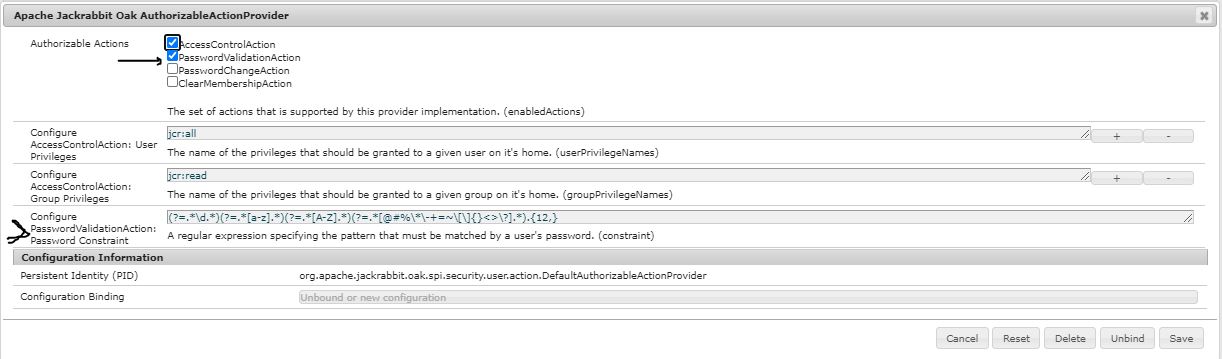
In AEM config manager we have a configuration which helps us to enable or disable this service and also change the password constraint(regex). Below is the screenshot and detail of available options.

Configuration name: Apache Jackrabbit Oak AuthorizableActionProvider

Authorizable Actions: PasswordValidationAction should checked to apply this constraint to AEM user's password.

Configure PasswordValidationAction/Password Constraint: A regular expression specifying the pattern that must be matched by a user's password.
How to create a new regex?

You may use any online tool to generate the regex pattern of password which you want to sent in the AEM users password policy and constraint. e.g. https://regex101.com/


By aem4beginner

May 19, 2020
Estimated Post Reading Time ~

How to change admin password in AEM

Step:1
login to Aem instance with you default id and password {admin:admin}

Step:2


Click on the icon on the right top corners marked with arrow 1 and a drop down menu will show up.

Step: 3
Click "profile" option as shown in the image

Step: 4

select the option and change password. enter your new password and confirm it

Step 5: save

Step 6: close


By aem4beginner

May 15, 2020
Estimated Post Reading Time ~

Reset the forgotten password

In this post, I am going to explain “How will you reset your AEM password if you have forgotten your password.”

The default password for administrator user admin is admin. If the password was changed to something else, to reset your password to admin you have to follow some steps which are mention below:


Start AEM instance.
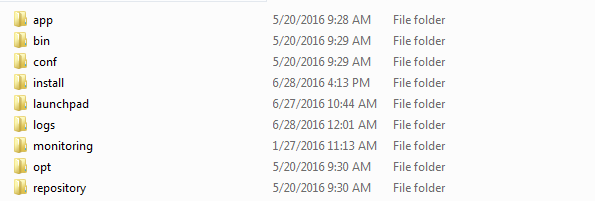
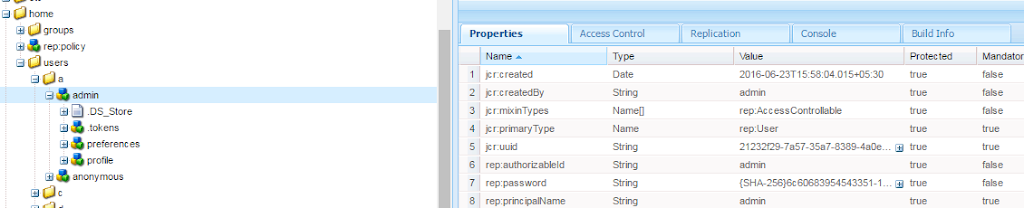
Package should have installed. It contains /home/user/a/admin/.content.xml with rep:password set to text admin encrypted.


Login as admin/admin.


By aem4beginner

May 8, 2020
Estimated Post Reading Time ~

How to change User Password On AEM When “PasswordValidationAction” is Enabled in OSGi “AuthorizableActionProvider”

This document details the process and requirements to change a user password on AEM.

On AEM, by default we can assign any password to a user. But we can restrict this and force users to strict password validation rules.

Enable Advanced Password Rules
Enable “PasswordValidationAction” in OSGI “AuthorizableActionProvider“, as below. And based on the regex, users will have to set specific passwords.

AEM AuthorizableActionProvider Enabled

Step-by-step guide
1. Login to AEM > Tools > Security > Search for a User
2. On the User details page, select “Change password”
  • New Password and Retype Password: <New password>
  • Current Password: <Current password that you would like to change>
  • AEM Change Password
3. Password requirements:
  • At least 12 characters length
  • At least 1 Upper
  • At least 1 Lower,
  • At least 1 Number/Digit
  • At least 1 Special Character out of this subset: @#%*-+=~[]{}<>?
Note: The above are specifically set in the “Configure” section of the OSGI property AuthorizableActionProvider.


By aem4beginner

May 4, 2020
Estimated Post Reading Time ~

How to Disable the “Change Password” Button in AEM

We had a customer ask us how to disable the “Set Password” (Classic UI) and “Change Password” (Touch UI) features for a user who doesn’t have permission to change a given password. The default behavior in Adobe Experience Manager is to show the link, but issue an error when you actually try to set it. This code package, which you can download, makes some small modifications to the UI to simply disable or hide the control if the user doesn’t have permissions to perform the operation.


Change Password visible in Touch UI


Change Password disabled in Touch UI

Set Password visible in Classic UI

Set Password disabled in Classic UI


By aem4beginner

April 20, 2020
Estimated Post Reading Time ~

Configure/Setup the Admin Password on Installation in AEM 6.3

Overview
Since version 6.3, AEM allows the admin password to be set using the command line when installing a new instance.
With earlier versions of AEM, the password for the admin account, along with the password for various other consoles had to be changed after installation.
This feature adds the facility of setting a new administrator password for the repository and the Servlet Engine during the installation of an AEM instance, thus eliminating the need to do it manually afterwards.

Caution:
Please note that feature does not cover the Felix Console, for which the password needs to be changed manually. For more information, see the relevant Security Checklist section.

How Do I Use It?
This feature will trigger automatically if you choose to install AEM via the command line, as opposed to double clicking the JAR from a filesystem explorer.
The general synthax for running an AEM instance from the command line is:

java -jar aem6.3.jar

Upon running the instance from the command line, you will be presented with the option to change the admin password during the installation process:


Note:
The prompt to change the admin password will only appear during the installation of a new AEM instance.

Using the -nointeractive Flag
You can also choose to specify the password from a properties file. This is done by using the -nointeractive flag combined with the the -Dadmin.password.file system property.
Below is an example:

java -Dadmin.password.file =/path/to/passwordfile.properties -jar aem6.3.jar -nointeractive
The password inside the passwordfile.properties file needs to have the below format:

admin.password = 12345678

Note:
If you simply use the -nointeractive parameter without the -Dadmin.password.file system property, AEM will use the default admin password without asking you to change it, essentially replicating behavior from earlier versions. This non-interactive mode can be used for automated installations using the command line in an installation script.


By aem4beginner

April 3, 2020
Estimated Post Reading Time ~

How to change the admin password

The Problem
You want to change the cq5.6/AEM admin password on the publish and server instance.

The Solution
Go to: (Or whatever the address/port of your admin instance is)
http://localhost:4502/libs/granite/security/content/admin.html

Double click on the admin user, scroll down, click on the pencil icon, and change the admin user. 

NOTE: the first password is the new password, and the second password in the current password. So, for a fresh install, put in the new password first, followed by admin as the second password.

Repeat for
http://localhost:4503/libs/granite/security/content/admin.html or equivalent.


By aem4beginner

How to change Admin password for Cq 5.6 using Curl

If you want to set the admin password using curl then you can use this command to do it.

curl -u admin:<OLD PASSWORD> -Fplain=<NEW PASSWORD> -Fverify=<NEW PASSWORD> -Fold=<OLD PASSWORD> -FPath=/home/users/a/admin http://HOST:PORT/crx/explorer/ui/setpassword.jsp


If you want to set it from interface then you can do it by going to

http://localhost:4503/libs/granite/security/content/userEditor.html. In search box search for Admin. You will change the password after you select the user. Change the password as required.


By aem4beginner

April 2, 2020
Estimated Post Reading Time ~

How to set a unique and strong password for a site

It is becoming a challenge to set different/unique password for each of the websites for login purposes. Some times we end up having same password for most of the login accounts like an email(gmail/yahoo/hotmail), office logins, bank logins, linked etc etc.

I found an interesting way of solving this issue:
{special-charater(s)}{Upper-Case-Letter(s)}{Login-site-Name}{Numeric-number-sequence}

example password for linked-in: $%Sundaylinkedin1245

example password for gmail: $%Sundaygmail1245

example password for a bank login: $%Sundaymybank1245

So in above examples though the password is unique it is but easy to remember as the text marked in bold is different (based on login site) and rest of the character will remain same.

Also, it satisfies the condition of having a special-character, alpha-numeric, upper case; and most importantly it is unique for a given site.


By aem4beginner

Reset forgot admin password in Day/Adobe CQ5.4

The below text is directly taken from dev.day.com web site:

“System administration ‘admin’ account is the member of the administrator group, with full access rights.
This account is used for the connection between CQ WCM and CRX.
As such its configuration cannot be edited – with the exception of the password.”

They forgot or lost admin password can be restored to default in /crx-quickstart/server/etc/server.xml file. Replacing below lines will help to change password back to admin.
<admin>
<crypt>adpexzg3FUZAk</crypt>
</admin>

* adpexzg3FUZAk is equivalent crypt text of admin password.

Note: This is applicable to only CQ 5.4 and older versions; as the directory structure seems to be changed in CQ 5.5.


By aem4beginner

April 1, 2020
Estimated Post Reading Time ~

Code snippet to change-password

In JSP:

String userName = request.getUser();
Session userSession = request.getResourceResolver.adaptTo(Session.class);
JackrabbitSession jrSession = (JackrabbitSession) userSession;
UserManager um = jrSession.getUserManager();
User u = (User) um.getAuthorizable (userName);
u.changePassword ("myNewPassword");

In java:
import org.apache.jackrabbit.api.security.user.Group;
import org.apache.jackrabbit.api.security.user.User; import org.apache.jackrabbit.api.security.user.UserManager;
import org.apache.sling.jcr.base.util.AccessControlUtil;

UserManager userManager = AccessControlUtil.getUserManager(jcrSession); Authorizable authorizable = userManager.getAuthorizable(name);
if (authorizable instanceof User) { user = (User)authorizable;
user.changePassword("new password");
}
if (authorizable instanceof Group) { user = (Group)authorizable; }


By aem4beginner

March 14, 2020
Estimated Post Reading Time ~

How To Change Default Admin Password

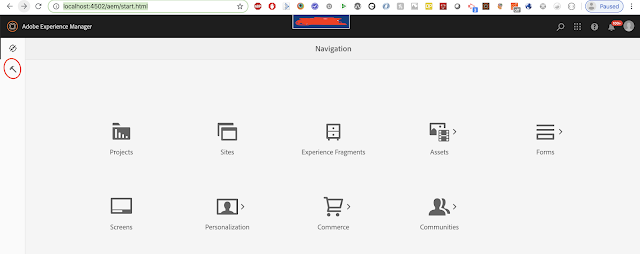
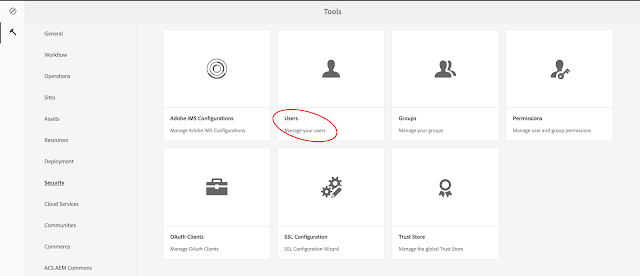
1. Open the welcome screen. (http://localhost:4502/aem/start.html).


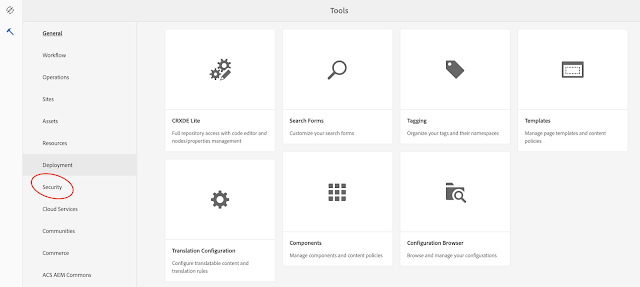
2. Click on the Tools. You will get the below screen.


3. Now click on Security.


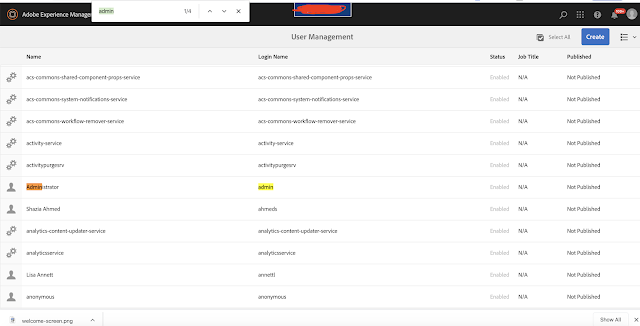
4. Now search for the Administrator and click on the link and find the account settings.


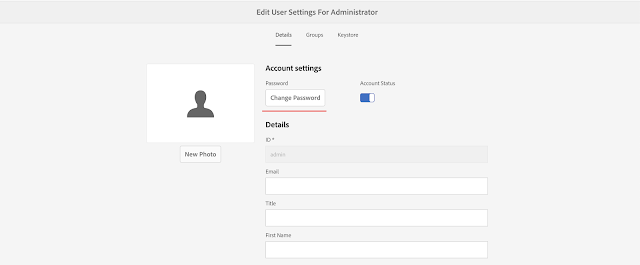
5. Click on the change password.


Fill the form and click the OK button,


By aem4beginner