Showing posts with label Fragments. Show all posts

January 23, 2021
Estimated Post Reading Time ~

Unable to create content fragment model in AEM 6.5 throws server error

I'm unable to create content fragment model in one of our environments even when i'm logged in with admin. It throws server error.
Attaching screenshot and stack trace in the comments below.


22.05.2020 04:23:03.064 *ERROR* [10.30.60.206 [1590139383053] POST /mnt/overlay/dam/cfm/models/console/content/createmodelwizard.html/conf/dam/cfm/models/console/content/createmodelwizard/_jcr_content HTTP/1.1] org.apache.sling.engine.impl.SlingRequestProcessorImpl service: Uncaught SlingException

java.lang.NullPointerException: null

at org.apache.jsp.apps.cq.Page.POST_jsp._jspService(POST_jsp.java:208)

at org.apache.sling.scripting.jsp.jasper.runtime.HttpJspBase.service(HttpJspBase.java:70) [org.apache.sling.scripting.jsp:2.3.6]

at javax.servlet.http.HttpServlet.service(HttpServlet.java:725) [org.apache.felix.http.servlet-api:1.1.2]

at org.apache.sling.scripting.jsp.jasper.servlet.JspServletWrapper.service(JspServletWrapper.java:502) [org.apache.sling.scripting.jsp:2.3.6]

at org.apache.sling.scripting.jsp.jasper.servlet.JspServletWrapper.service(JspServletWrapper.java:449) [org.apache.sling.scripting.jsp:2.3.6]

at org.apache.sling.scripting.jsp.JspScriptEngineFactory.callJsp(JspScriptEngineFactory.java:339) [org.apache.sling.scripting.jsp:2.3.6]

Troubleshoot
You need to do two things
1) If you have installed the Service pack recently-There might possibilities that you core package affected and its not Active state. Please verify it and try to restart the AEM.

2) If the issue persist, then uninstall the SP and install it again with other browser except chrome and see all bundles are getting Active state or not.

Once your all bundles are active then you good to go.


By aem4beginner

January 5, 2021
Estimated Post Reading Time ~

Adding a Custom Field to the AEM Content Fragment Model Editor

Content Fragment Models are built with elements from various out-of-the-box data types, including single-line text, multi-line text, number, boolean (only for checkboxes), date/time, enumeration (only for static dropdown values), tags, and content reference.

Adding a Custom Field to the AEM Content Fragment Model Editor

After investigating the structure of the Content Fragment Model form builder configuration inside CRXDE,  I found that we can easily add most other data types (there are some restrictions for a few datatypes). To extend and customize this form builder configuration of Content Fragment Model Editor, we need to overlay the Content Fragment form builder resource.

In our client’s case, we needed to set the requirement to add the Color Picker field in the Content Fragment Model in AEM 6.5. In this post, I’m going to show you how extended the functionality of the Content Fragment Model to set the Color Picker data type.

How to Set the Color Picker Data Type:

  1. First, open the CRXDE Lite console http://localhost:4502/crx/de/index.jsp
  2. Enter the following path in the search bar and hit enter. /libs/settings/dam/cfm/models/formbuilderconfig/datatypes/items
  3. Right-click on the items node. This will open a pop-up menu.
  4. Click on Overlay Node Option from the pop-up menu. This will open another model dialog. Then click on select the Match Node Types option. Make sure the model dialog contains the following values.
    Path: /libs/settings/dam/cfm/models/formbuilderconfig/datatypes/items
    Overlay Location: /apps/
    Match Node Types: checked
  5. After verifying the above properties and values, click “OK.” This will overlay the location of /libs/settings/dam/cfm/models/formbuilderconfig/datatypes/items path inside /apps/ folder.
  6. Now go to /apps/settings/dam/cfm/models/formbuilderconfig/datatypes/items.
  7. Create one child node inside the items node with the name color-picker.
  8. Set the following properties on /apps/settings/dam/cfm/models/formbuilderconfig/datatypes/items/color-picker node.
    fieldIcon (String)=”colorPalette”
    fieldProperties (String [])=”[labelfield,maptopropertyfield,placeholderfield,textvaluefield,requiredfield]”
    fieldPropResourceType (String)=”dam/cfm/models/editor/components/datatypes/field”
    fieldResourceType (String [])=”[granite/ui/components/coral/foundation/form/colorfield]”
    fieldTitle (String)=”Color Picker”
    listOrder (String)=”9″
    renderType (String)=”text”
    valueType (String [])=”[string]”
  9. Color-picker Node xml should look like as follows
<?xml version="1.0" encoding="UTF-8"?> 
<jcr:root xmlns:jcr="http://www.jcp.org/jcr/1.0"    xmlns:nt="http://www.jcp.org/jcr/nt/1.0" jcr:primaryType="nt:unstructured"> <items jcr:primaryType="nt:unstructured"> 
<color-picker 
jcr:primaryType="nt:unstructured" 
fieldIcon="colorPalette" 
fieldProperties="[labelfield,maptopropertyfield,placeholderfield,textvaluefield,requiredfield]" fieldPropResourceType="dam/cfm/models/editor/components/datatypes/field" fieldResourceType="[granite/ui/components/coral/foundation/form/colorfield]" fieldTitle="Color Picker" 
listOrder="9" 
renderType="text" 
valueType="[string]"/> 
</items> 
</jcr:root>

Now you are successfully done with the node overlay and AEM customization process.

  1. In order to see the changes, we need to create a configuration for the Content Fragment Model. Go to AEM Start Menu > Tools > General > Configuration Browser and create a configuration for the Content Fragment Model. You can also use the OOTB global configuration if you don’t want to create a custom configuration (it depends upon your requirement). Here I am using AEM OOTB configuration with the name “Global.”
  2. Once you are done with the configuration steps, go to AEM Start Menu > Tools > Assets > Content Fragment Model > Global (or go to your custom configuration).
    Then create a new custom Content Fragment Model (In this case, I have created a model with the name “Color Picker CFM“) and click on open. Now, take a look at Data Types inside the sidebar. There you will see a new Data type is appearing with the name “Color Picker.
  3. To create your custom Content Fragment Model, drag and drop color picker data type in editor block, and set some properties on the color picker field. I set the following properties.
    Field Label: Set Color
    Property Name: color

Once you are done with this click on Save  Button.
  1. Now go to AEM Start Menu > Navigations > Assets > <any Folder> and Create a Content Fragment using Color Picker CFM model. Once it is created, click on the Open button. You will notice the Content Fragment has the color picker field with the label “Set Color.” Now you can select any predefined color from the color palette, or you can create your own color using a color mixer.

You can use these same steps to extend the functionality of the Content Fragment Model whenever you get such a requirement for other data types as well!

Download this package for reference, and don’t forget to drop a comment if you need more help on this.


By aem4beginner

January 4, 2021
Estimated Post Reading Time ~

Content Fragment with Component

Browse and use Content fragment inside the custom component
AEM introduced Content Fragment with 6.2 and now almost everyone knows about Content Fragments and How to create and use them.

But we are restricted to use Content Fragments inside page only via Content Fragment components (WCM core content fragment and foundation Content Fragment components)

What if we need to use Content Fragments like other assets e.g. images using PathField or PathBrowser in the component.

There is a possibility to achieve this and Content Fragment can be browsed and used from any component. Content Fragments variations can also be added from the component.

Content Fragment(without variation)
  • In the component, dialog creates a PathField to browse Content Fragment.
  • In HTL, use JAVA API to read HTML content from content fragments master variation node's jcr:data property.


Example :
Component Dailog:

<?xml version="1.0" encoding="UTF-8"?>
<jcr:root xmlns:sling="http://sling.apache.org/jcr/sling/1.0" 
xmlns:cq="http://www.day.com/jcr/cq/1.0" xmlns:jcr="http://www.jcp.org/jcr/1.0"
xmlns:nt="http://www.jcp.org/jcr/nt/1.0"
jcr:primaryType="nt:unstructured"
jcr:title="CF Test Dialog"
sling:resourceType="cq/gui/components/authoring/dialog">
<content
jcr:primaryType="nt:unstructured"
sling:resourceType="granite/ui/components/foundation/container">
<layout
jcr:primaryType="nt:unstructured"
sling:resourceType="granite/ui/components/foundation/layouts/fixedcolumns"/>
<items jcr:primaryType="nt:unstructured">
<column
jcr:primaryType="nt:unstructured"
sling:resourceType="granite/ui/components/foundation/container">
<items jcr:primaryType="nt:unstructured">
<heading
jcr:primaryType="nt:unstructured"
sling:resourceType="granite/ui/components/foundation/form/textfield"
fieldLabel="Heading"
name="./heading"
required="{Boolean}true"/>
<cf-field
jcr:primaryType="nt:unstructured"
sling:resourceType="granite/ui/components/coral/foundation/form/pathfield"
fieldDescription="Browse CF"
fieldLabel="Browse CF"
name="./cfdata"
rootPath="/content/dam"/>
</items>
</column>
</items>
</content>
</jcr:root>


HTL:
<h2>Content Fragment Test Component</h2>
<h3>${properties.heading}</h3>
<div data-sly-use.cf="${'com.aem.community.core.components.ContentFragmentContent' @ cfInput=properties.cfdata}">
${cf.content @ context='html'}
</div>


JAVA:
Above com.aem.community.core.components.ContentFragmentContent java code is available at GitHub
ContentFragmentContent.java

Content Fragment(with variation)

  • In the component, dialog creates a PathField to browse Content Fragment.
  • Create dropdown with options to populate content fragment variation
  • Create a hidden field item to store content fragment variation value on dialog submit. this value will be used to set the preselected variation option in the dropdown when the dialog will be loaded again.
  • In HTL, use JAVA API to read HTML content from content fragments master or selected variation node's jcr:data property.
  • Create clientlibs with category 'cq.authoring.dialog', add Javascript to populate dropdown option for component variations, variations can be retrieved by making an ajax call to browsed Content Fragment with cfm.info selectors and with JSON extension e.g. http://localhost:4502/content/dam/we-retail/en/experiences/arctic-surfing-in-lofoten/arctic-surfing-in-lofoten.cfm.info.json?ck=0.8366689055424192&_=1535814701363 . Below is the response to the above request, variations can be read and dialog variations dropdown options can be created.
{"name":"arctic-surfing-in-lofoten","title":"Arctic Surfing in Lofoten","description":"Surfing in Northern Norway","path":"/content/dam/we-retail/en/experiences/arctic-surfing-in-lofoten/arctic-surfing-in-lofoten","elements":[{"name":"main","title":"Main","contentType":"text/html"}],"variations":[{"name":"master","title":"Master","description":"Represents the original content fragment"},{"name":"teaser","title":"Teaser","description":""}]}

sample javascript created for demo at cf-variation-handler.js

Example :
Component Dailog:

<?xml version="1.0" encoding="UTF-8"?>
<jcr:root xmlns:sling="http://sling.apache.org/jcr/sling/1.0" xmlns:cq="http://www.day.com/jcr/cq/1.0" xmlns:jcr="http://www.jcp.org/jcr/1.0" xmlns:nt="http://www.jcp.org/jcr/nt/1.0"
jcr:primaryType="nt:unstructured"
jcr:title="CF Test Dialog"
sling:resourceType="cq/gui/components/authoring/dialog">
<content
jcr:primaryType="nt:unstructured"
sling:resourceType="granite/ui/components/foundation/container">
<layout
jcr:primaryType="nt:unstructured"
sling:resourceType="granite/ui/components/foundation/layouts/fixedcolumns"/>
<items jcr:primaryType="nt:unstructured">
<column
jcr:primaryType="nt:unstructured"
sling:resourceType="granite/ui/components/foundation/container">
<items jcr:primaryType="nt:unstructured">
<heading
jcr:primaryType="nt:unstructured"
sling:resourceType="granite/ui/components/foundation/form/textfield"
fieldLabel="Heading"
name="./heading"
required="{Boolean}true"/>
<cf-field
jcr:primaryType="nt:unstructured"
sling:resourceType="granite/ui/components/coral/foundation/form/pathfield"
fieldDescription="Browse CF"
fieldLabel="Browse CF"
name="./cfdata"
rootPath="/content/dam"/>
<variation
jcr:primaryType="nt:unstructured"
sling:resourceType="granite/ui/components/coral/foundation/form/select"
emptyText="Select"
fieldLabel="Variation"
name="./variation"/>
<varhidden
jcr:primaryType="nt:unstructured"
sling:resourceType="granite/ui/components/foundation/form/hidden"
name="./selectVariation"/>
</items>
</column>
</items>
</content>
</jcr:root>


HTL:
<h2>Content Fragment Test Component</h2>
<h3>${properties.heading}</h3>
<div data-sly-use.cf="${'com.aem.community.core.components.ContentFragmentContent' @ cfInput=properties.cfdata, variation=properties.variation}">
${cf.content @ context='html'}
</div>


JAVA:
Same java code is compatible with both ContentFragmentContent.java


By aem4beginner

January 2, 2021
Estimated Post Reading Time ~

Adding a Color Picker to the AEM Content Fragment Model Editor

Recently, one of our clients looked to add a custom field in the Adobe Experience Manager (AEM) Content Fragment Model Editor. If you’re wondering what AEM Content Fragments are, check out Dan Klco’s post, as he does a great job explaining.

Content Fragment Models are built with elements from various out-of-the-box data types, including single-line text, multi-line text, number, boolean (only for checkboxes), date/time, enumeration (only for static dropdown values), tags, and content reference.

Adding a Custom Field to the AEM Content Fragment Model Editor
After investigating the structure of the Content Fragment Model form builder configuration inside CRXDE, I found that we can easily add most other data types (there are some restrictions for a few datatypes). To extend and customize this form builder configuration of Content Fragment Model Editor, we need to overlay the Content Fragment form builder resource.

In our client’s case, we needed to set the requirement to add the Color Picker field in the Content Fragment Model in AEM 6.5. In this post, I’m going to show you how extended the functionality of the Content Fragment Model to set the Color Picker data type.

How to Set the Color Picker Data Type:
  1. First, open the CRXDE Lite console http://localhost:4502/crx/de/index.jsp
  2. Enter the following path in the search bar and hit enter. /libs/settings/dam/cfm/models/formbuilderconfig/datatypes/items
  3. Right-click on the items node. This will open a pop-up menu.
  4. Click on Overlay Node Option from the pop-up menu. This will open another model dialog. Then click on select the Match Node Types option. Make sure the model dialog contains the following values.
Path: /libs/settings/dam/cfm/models/formbuilderconfig/datatypes/items
Overlay Location: /apps/
Match Node Types: checked

After verifying the above properties and values, click “OK.” This will overlay the location of /libs/settings/dam/cfm/models/formbuilderconfig/datatypes/items path inside /apps/ folder.

5. Now go to /apps/settings/dam/cfm/models/formbuilderconfig/datatypes/items.
6. Create one child node inside the items node with the name color-picker.
7. Set the following properties on /apps/settings/dam/cfm/models/formbuilderconfig/datatypes/items/color-picker node.

fieldIcon (String)=”colorPalette”
fieldProperties (String [])=”[labelfield,maptopropertyfield,placeholderfield,textvaluefield,requiredfield]”
fieldPropResourceType (String)=”dam/cfm/models/editor/components/datatypes/field”
fieldResourceType (String [])=”[granite/ui/components/coral/foundation/form/colorfield]”
fieldTitle (String)=”Color Picker”
listOrder (String)=”9″
renderType (String)=”text”
valueType (String [])=”[string]”


8. Color-picker Node xml should look like as follows

<?xml version="1.0" encoding="UTF-8"?>
<jcr:root xmlns:jcr="http://www.jcp.org/jcr/1.0" xmlns:nt="http://www.jcp.org/jcr/nt/1.0"
jcr:primaryType="nt:unstructured">
<items jcr:primaryType="nt:unstructured">
<color-picker
jcr:primaryType="nt:unstructured"
fieldIcon="colorPalette"
fieldProperties="[labelfield,maptopropertyfield,placeholderfield,textvaluefield,requiredfield]"
fieldPropResourceType="dam/cfm/models/editor/components/datatypes/field"
fieldResourceType="[granite/ui/components/coral/foundation/form/colorfield]"
fieldTitle="Color Picker"
listOrder="9"
renderType="text"
valueType="[string]"/>
</items>
</jcr:root>


Now you are successfully done with the node overlay and AEM customization process.

9. In order to see the changes, we need to create a configuration for the Content Fragment Model. Go to AEM Start Menu > Tools > General > Configuration Browser and create a configuration for the Content Fragment Model. You can also use the OOTB global configuration if you don’t want to create a custom configuration (it depends upon your requirement). Here I am using AEM OOTB configuration with the name “Global.”
10. Once you are done with the configuration steps, go to AEM Start Menu > Tools > Assets > Content Fragment Model > Global (or go to your custom configuration).

Then create a new custom Content Fragment Model (In this case, I have created a model with the name “Color Picker CFM“) and click on open. Now, take a look at Data Types inside the sidebar. There you will see a new Data type is appearing with the name “Color Picker.“

11. To create your custom Content Fragment Model, drag and drop color picker data type in editor block, and set some properties on the color picker field. I set the following properties.

Field Label: Set Color
Property Name: color


Once you are done with this click on Save Button.

12. Now go to AEM Start Menu > Navigations > Assets > <any Folder> and Create a Content Fragment using Color Picker CFM model. Once it is created, click on the Open button. You will notice the Content Fragment has the color picker field with the label “Set Color.” Now you can select any predefined color from the color palette, or you can create your own color using a color mixer.


You can use these same steps to extend the functionality of the Content Fragment Model whenever you get such a requirement for other data types as well!

Download this package for reference, and don’t forget to drop a comment if you need more help on this.


Source:


By aem4beginner

Experience Fragments and Content Fragments - High level differences

For reusing content, we have two great implementations available in AEM - Experience Fragments(XF) and Content Fragments(CF).

It is important to understand the differences between the two which will help us arrive at when to use what based on our project/content set up.
Experience FragmentsContent Fragments
Composed of one or more AEM componentsComposed of structured/form-based data elements

The content part of XF is any AEM components as such - Text, Image, or any custom component part of our project.
ie. Presentation-centric 
The content part of CF is text/image content in the form of direct text type/RTE/Date type/Dropdown/Reference type for referencing any asset
ie. Content-centric
Created using Editable templates, implemented/treated as an AEM PageCreated using Content Fragment Model, implemented/treated as an AEM Asset
List of allowed components in XF can be controlled via policies in Editable templatesContent in CF can be configured as different elements in the Content Fragment Model.
Different elements refer to -> Textfield, Multiline text/RTE, Date field, Dropdown field, reference field, etc.
Eg: The header/footer of a page can be designed as an XF page where the logo/image component + Navigation component can be part of it. Eg: Event details content can be designed as CF where we can configure Event Title(Textfield), Event Description(RTE), Event Date(Datefield), Any asset related to Event(reference field), Event Venue (Dropdown field)
Variations can be created out of Master XF -
  • Standalone variation by associating different Editable templates.
  • Variation as a Live Copy 
Variations can be created out of Master CF.
No Live copy action. However, there exists a Synchronization option for a variation to sync the master content -
  • This will work only for Multiline text type element/RTE + 
  • Changes will flow from Master -> Variation only
Usage: 
  • Can be used in site pages via AEM core XF component
  • Can be exposed as a plain HTML using ".plain" selector in XF URL
  • Can be exported to Adobe Target as an HTML/JSON
Usage: 
  • Can be used in site pages via AEM core CF component
  • Can be used in XF page if content fragment component is allowed via policies in the respective editable template
  • Can be exposed as a JSON via AEM content services for 3rd party consumption.


By aem4beginner

January 1, 2021
Estimated Post Reading Time ~

Custom xfpage component/template for Experience fragment

Experience fragment(XF) is a page in AEM like we have our project site pages of the type cq:Page.

Given that it is a page, it is backed by a template and hence a page component.

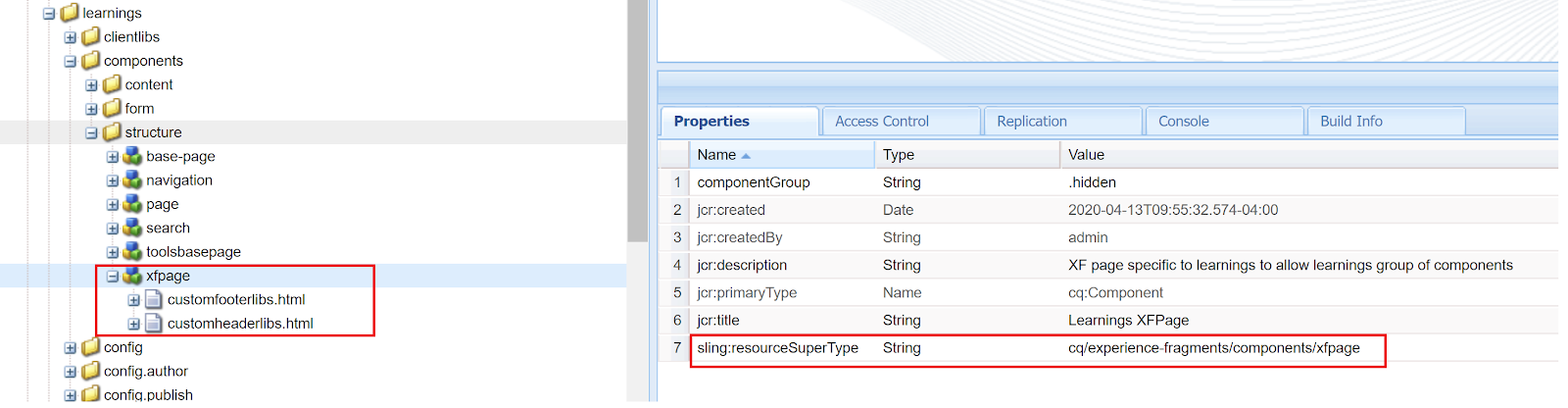
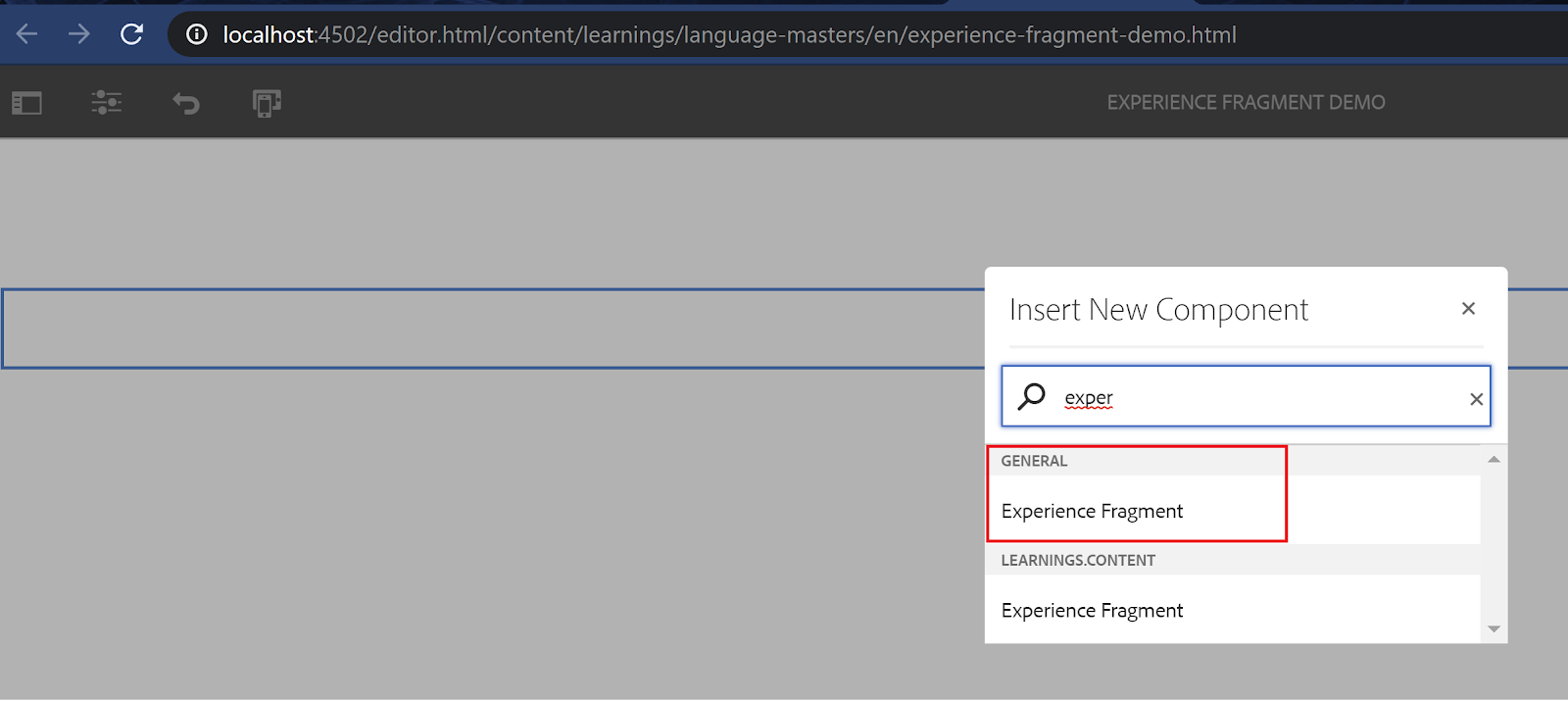
Site specific XF Page component(inheriting from OOB xfpage component) -> Template Type -> Editable Template -> XF page -> Use in site pages via OOB "Experience fragment" component(from the componentGroup - General)

When we develop a new site, we do create page component with supertype as OOB page component(wcm/foundation/components/page) or core v1/v2 page component(core/wcm/components/page)
Likewise, for XF specific to our site, we are creating one inheriting from the OOB XF page component.

OOB XF page component : /libs/cq/experience-fragments/components/xfpage.

Site-specific XF page component:
Create a component with super type being /libs/cq/experience-fragments/components/xfpage.
We need to override two files customheaderlibs.html and customfooterlibs.html as we need to use our project clientlibs. (We can use the same that we already have in the page component used for site pages)
Other than this, if it calls for any other customizations, we can override the respective files accordingly.


Site-specific XF page template:
Creating template type, an editable template, defining policies are detailed in separate posts. It is the same thing we do for our site pages. Below highlights the slight change specific to XF.
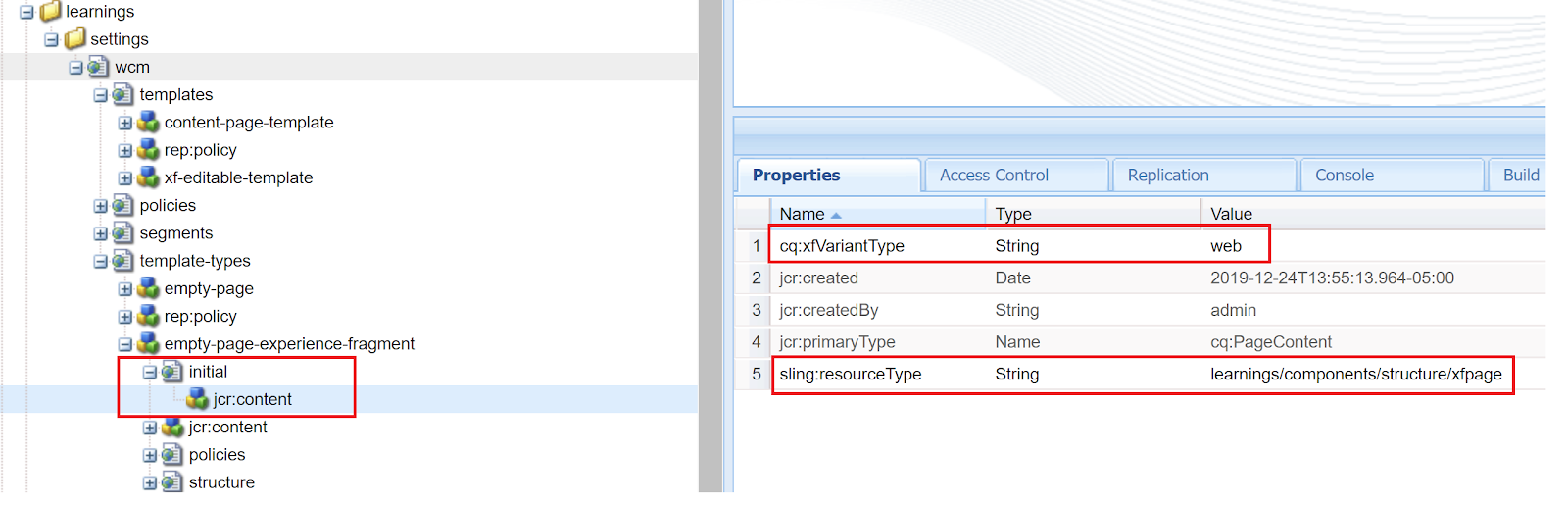
  • While creating template type for XF page component, initial/jcr:content and structure/jcr:content will point to xf page component that we created above specific to the site.
  • Additionally, add a property named "cq:xfVariantType" of type "String" with value "web" on initial/jcr:content node.
  • This property will then be available in all XF pages that we create out of this. It indicates our XF page variation to be of the type of web variation.
  • The reason for adding the same is explained a little later as we proceed below.


XF creation :
  • Navigate to General -> Experience Fragments -> create project-specific folder.
  • In order to use the newly created editable template for XF creation, allow this template in the XF folder. (Allow at root project-specific folder.
  • Eg. /content/experience-fragments/learnings-xf-pages)
  • We can create meaningful folders under the main project folder with respect to the project content structure.
  • I have created two more folders named "language-masters" and "en"
  • Being on the desired folder("en" in this case), Click Create -> Experience fragment -> Newly created XF editable template should be available.
  • Select and then create. (In this case, Title is given for XF: XF Header)
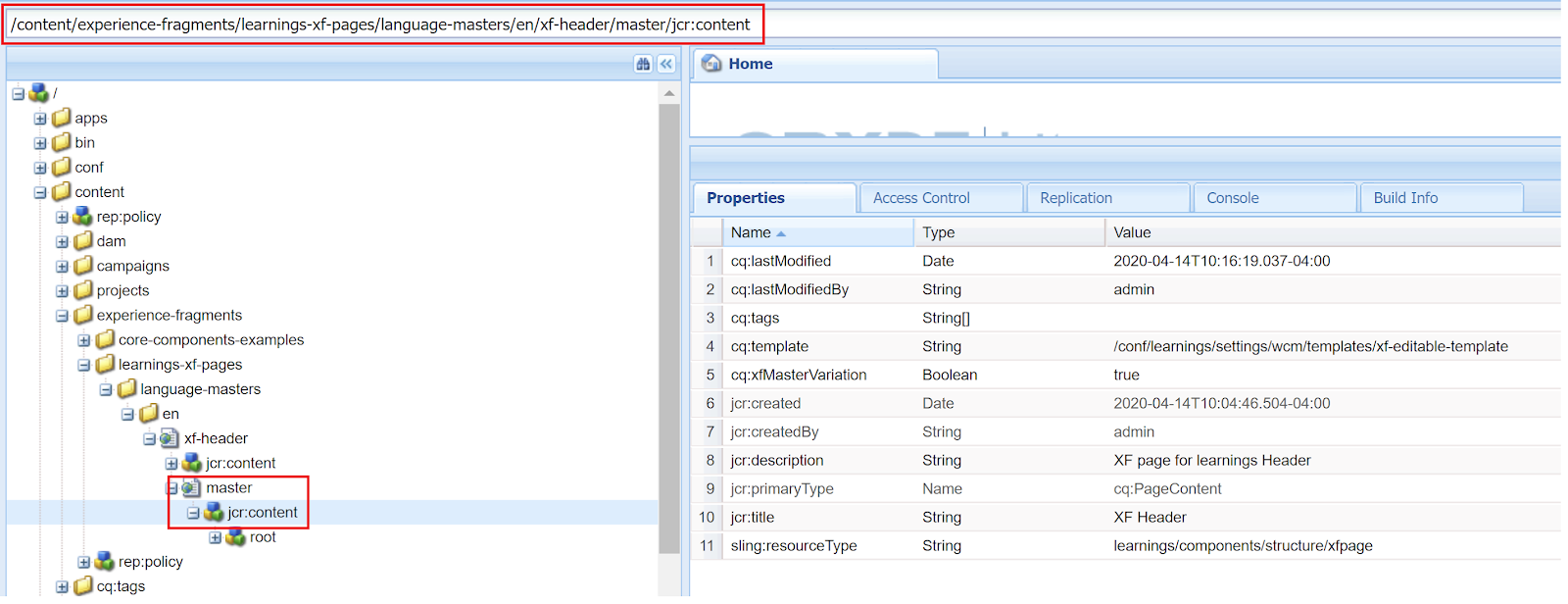
  • As we create the XF page, the page that we land in is considered as a "master" variation as evident from the URL - /content/experience-fragments/learnings-xf-pages/language-masters/en/xf-header/master.html. 


With this, we are done with XF creation using project-specific xfpage component/template. We are good to author site-specific components as desired to be part of XF(site-specific components would have already been allowed while defining policies, as part of editable template creation.)

Usage on a page.
  • We have a component titled "Experience Fragment" from componentGroup "General". We can make use of the same or we do have one from core components(core/wcm/components/experiencefragment) -> Can create a proxy component out of it and use it in site pages.
  • The component has the option to let us provide XF page variation.


Need for cq:xfVariantType property inclusion:
  • Experience Fragment component from "General" group(/libs/cq/experience-fragments/editor/components/experiencefragment) has a dialog field named "Variation" which looks like a pathfield whose resource is /libs/cq/experience-fragments/editor/components/xffield (supertype as Coral UI 3 pathfield)
  • If we observe this dialog field, it has a property named "variant" with a value of "web"
  • As we select the pathfield, it has to display all the XFs available under the root "/content/experience-fragments" along with its variation. Per the above property, pathfield will list all the XFs variation which has the variant type to be "web"
  • In the example we considered, the master will be displayed only if we have cq:xfVariantType(web variant property), Else, it will display paths till "/xf-header"
  • /content/experience-fragments/learnings-xf-pages/language-masters/en/experience-fragment-content-components/master.html. 


(Property that we added in template type will be available in master variation)


XF variation availability in pathfield picker.


Use case:
Most common is for the Header and Footer of the site (Site logo component + Navigation and related components can be part of XF)
Other related screenshots for reference:

We can cross-check by removing this property at the XF variant level and observe the behavior in pathfield picker.

cq:xfVariantType property is removed from master variation.


master variation is not available in pathfield picker.


By aem4beginner

Content Fragments in AEM - High level pointers

Content Fragments(CF), an implementation for re-using content across multiple locations/channels, a means for headless-CMS.
jcr:primaryTypeContent Fragments(CF) is of asset type - dam:Asset to hold mixed-media content - Text and Assets.
Types
  • Simple Fragment, Created out of Fragment Template named "Simple Template" OOB
  • Structured Fragment, Created out of Content Fragment Model(CFM)
Note:  Per 6.5 Adobe docs, it is recommended to create CF using CFM.
Simple TemplateDefines a single "Multiline text" element.
Content Fragment Model(CFM)Offers different data types to define the type of content. (Single line, Multiline text, Date field, Numberfield, dropdown, and so on OOB and an option to render each of this in the multifield format as well. )
ElementsEach of these data types that we define as part of CFM is referred to as Elements in CF
Multiline Text element
  • It is available in 3 types/formats
    • Rich Text, text/html
    • Plain Text, text/plain
    • Markdown, text/x-markdown
  • It has options to switch between above said types, Text Statistics(data about the content like No. of words, characters, sentences), Import Content(Option to locate plain ".txt" file to include content), Sync with Master(Copy changes from Master to Variation and not vice-versa)
Note:  Assets cannot be included in Plain text mode. Markdown can have reference to Assets per its syntax. 
VariationsWe can create as many Variations out of Master which in turn has options to "Rename, Delete, Sync with Master".
Note: Sync with Master is enabled only for Multiline Text element/data type.
Associated ContentAn option in CF lets us add related Collections to the fragment which will help list related assets when including CF in site pages.
Note: We can add CF itself to be part of the same collection for easy tracking. 
Inclusion in site pagesCreated CF can then be added to pages via Content Fragment and Content Fragment List component from General group or creating proxy out of core components.
In-between contentWhen included on the page, we will have the means to add "in-between" content which can be
  • Component
  • Asset
  • Associated content.
Note: These are part of the page content and not the fragment content. (as it is authored at page level after locating content fragment)
API/Access programmaticallyBelow mentioned interfaces are available for accessing content fragments/templates/elements/variations and its related from com.adobe.cq.dam.cfm.*
Pre-requisites(before creating CFM/CF)CFM is part of the configuration and hence the same needs to be enabled in /conf via Configuration Browser. (General -> Configuration Browser)
  • Eg. Sample CFM for project named "learnings" - /conf/learnings/settings/dam/cfm/models/events
  • In this case, CFM should be allowed at the learnings folder level (Folder properties)
As CF is an asset and is to be created using CFM (which acts as a template for creating CF), the same needs to be allowed at the desired DAM folder level.
  • Eg. If CF is to be created for project "learnings" then at /content/dam/learnings -> Properties -> Cloud services -> Cloud Configuration field -> Locate respective "/conf" path (/conf/learnings)
Use cases:
  • Content related to events, news articles, press releases, product details can be part of CF where we can define structured content via CFM.
  • Single multiline content scenarios like privacy, terms, and conditions can be part of CF, defined at the project level can be used across locales. (by leveraging translation)
Related screenshots for reference:


By aem4beginner

December 29, 2020
Estimated Post Reading Time ~

How AEM Experience Fragments will empower your CX

The truth is, you want your customers to experience your brand in a consistent and personalized way across all channels. And you want your brand’s content to stand out from competitors.

Omnichannel customer experiences have become table stakes for a brand’s success, and brands are constantly looking for new, efficient ways to meet their audiences’ expectations with personalized content that helps them stand out from competitors. But unifying the customer journey across devices is not a simple software development task, especially when adding content authoring infrastructure for marketing or product teams. Enter Experience Fragments in Adobe Experience Manager (AEM) that have streamlined the process of developing unique content for each customer, delivering more meaningful omnichannel experiences at scale. This guide will help you understand, build, and use AEM Experience Fragments to empower personalized customer experiences.

What is an Experience Fragment?
Experience Fragments are content pieces that can be used anywhere, whether by themselves (e.g., in an email or social media post) or as part of a web page.

For example, you see a small advertisement on a website. It has a background image and some text on top. This content can be built as an Experience Fragment to be used on a web page and then, with just a few clicks, as part of an email or social media post.

Why do we need Experience Fragments?
If you want to build and scale omnichannel customer experiences, you’ll need to have a robust digital infrastructure that allows content to be used across different types of media on multiple devices. Marketing teams have found AEM to be a sophisticated content management system that can help them do just that.

Before Experience Fragments were introduced, the only options were AEM Content Fragments or responsive web pages built in Sites. But making them reusable was complex and required a lot of modifying by both developers and content authors. Now Experience Fragments are filling this gap, opening up a vast array of possibilities for new types of content-based experiences through authoring.

How are Experience Fragments organized?
An Experience Fragment is built using a template, which defines its look and feel. These templates are built using template types. Template types allow flexibility for developers to build several templates and for content authors to build Experience Fragments so they can be used across several platforms. Some example template types in AEM that we commonly see are web, mobile, and emails.

As an analogy, the frame/chassis for SUVs is usually the same for different models. For example, Toyota uses the same body-on-frame (template type) for its 4Runner, Cruiser, Lexus GX, and Lexus LX models (templates).

Templates and template types
Here are three crucial guidelines for ensuring Experience Fragments can be used on different experiences built on AEM:
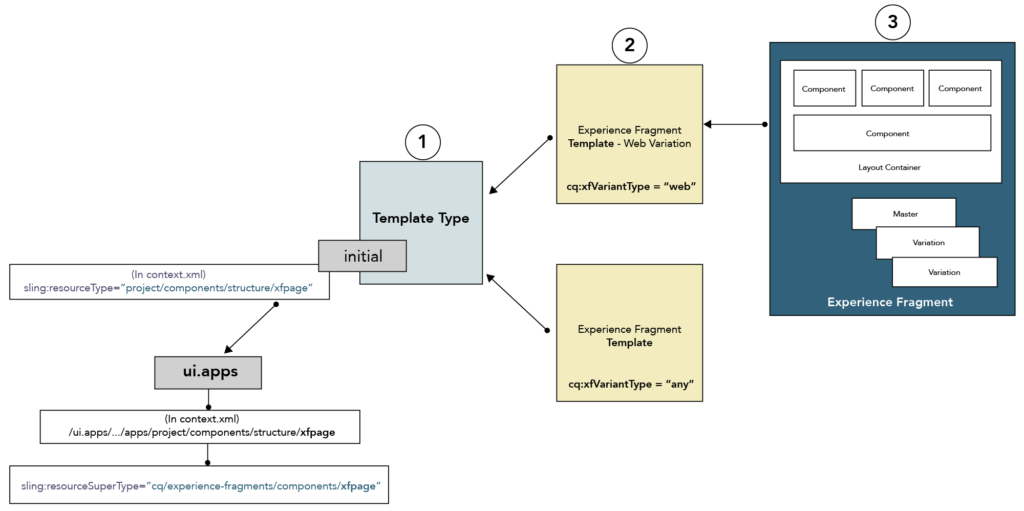
  1. A template type needs to be coded and must use an xfpage component. If this is missing, add it to the following path: /ui.apps/../content/components/structure/xfpage
  2. An Experience Fragment template (editable) should be built using a template type (as above), and the name should have the prefix Experience Fragment xxx.
  3. The property, cq:xfVariantType, must be set on Template-Type or XF Template.
The above is as of this writing (January 2020) on both AEM 6.4 and 6.5.

How to build Experience Fragments
For developers

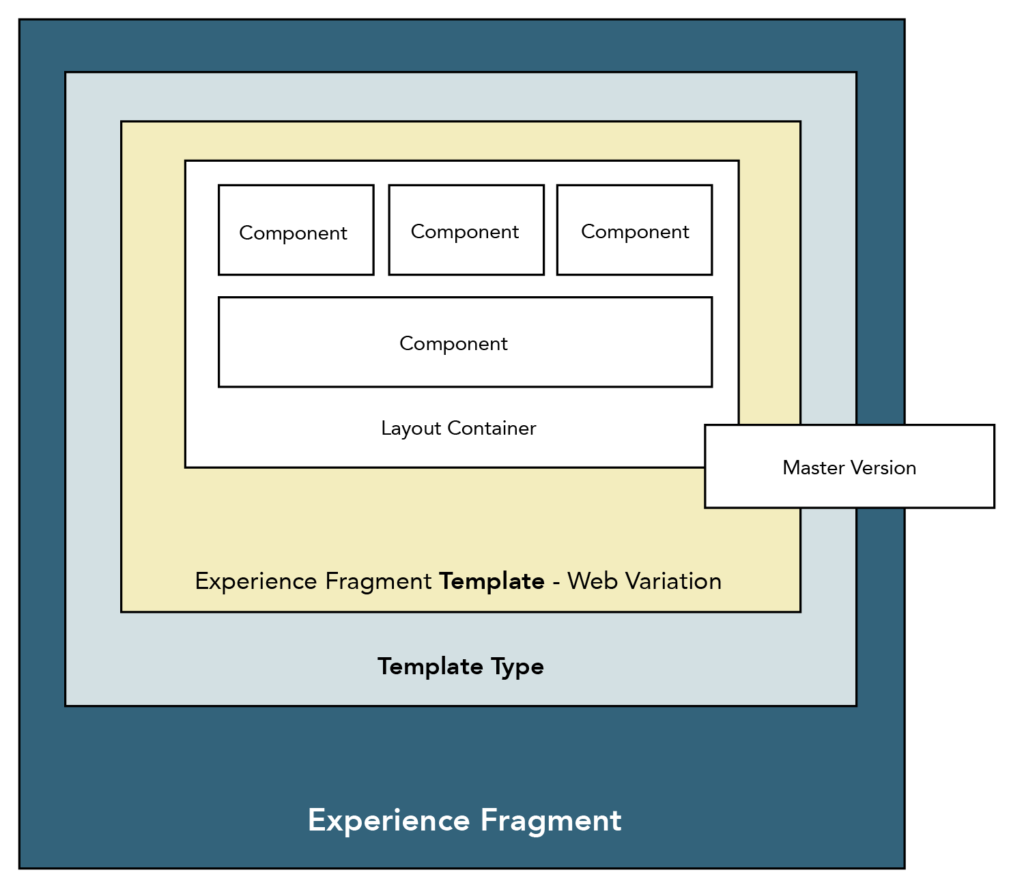
The diagram above sums up what you need to know as a developer about Experience Fragments.

The breakdown:
  • An Experience Fragment can be built using an (editable) template.
  • The name of the template being used to build an Experience Fragment should have a prefix of “Experience Fragment <name>”. And AEM internally saves it as “experience-fragment-name”.
For example:

  • The template being used should be built using a TEMPLATE TYPE. And this template type should use an xfpage component.
Unless a Template-Type is built using code, content authors will not be able to build Experience Fragments.

For content authors
  1. The process for content authors to build an Experience Fragment is:
  2. AEM Tools menu > Templates > Create. Then choose to create either a folder or an Experience Fragment.
  3. When you choose Experience Fragment, you’ll have to choose a template to build the Experience Fragment.
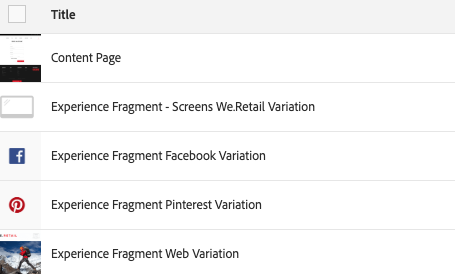
Note: You may choose any template that appears, but there is a catch. Unless you choose the template types built specifically for Experience Fragments, the Experience Fragments you build will not show the Variation option, and these cannot be used on-site pages.

To simplify the above, usually, you can use an Experience Fragment on a regular site page. AEM has a built-in feature that allows you to create Variations of the Experience Fragment. All of this works only if the Experience Fragment is initially built using a template type built specifically for Experience Fragments.

How to use Experience Fragments
Variations

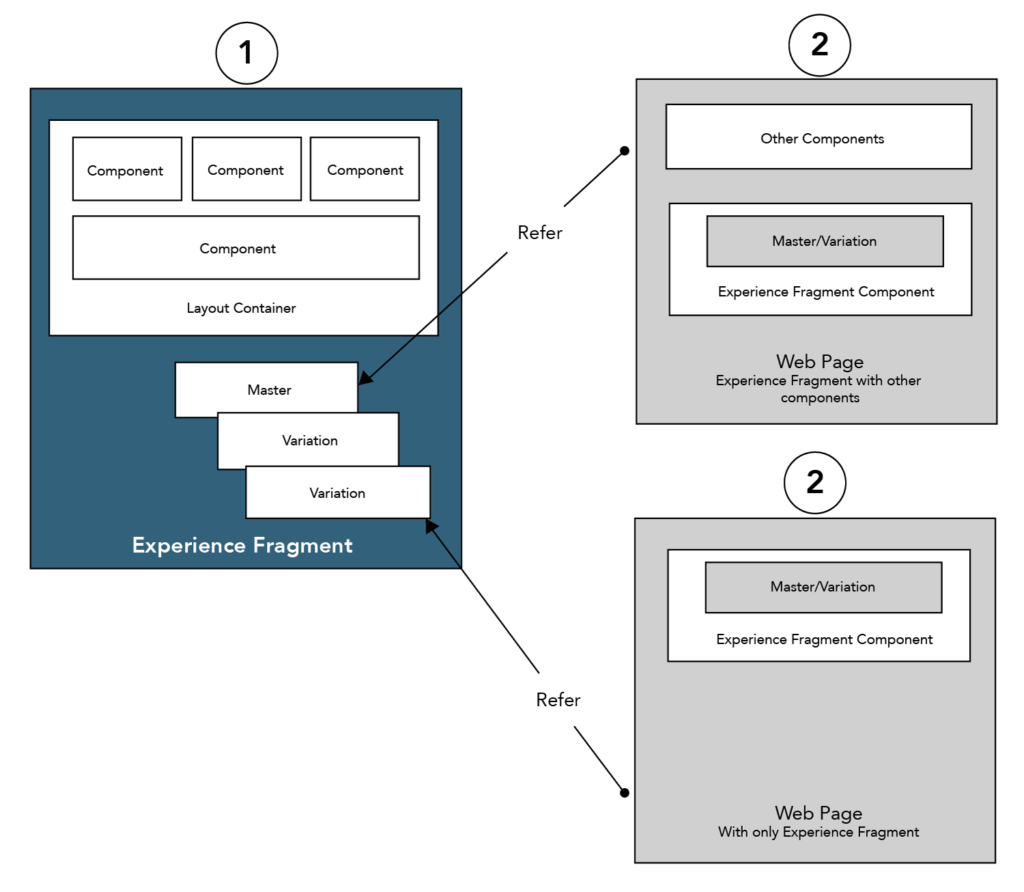
AEM offers the option to create Variations for an Experience Fragment. These help authors to manage and use copies of the original/master version.

For content authors, this can be a great feature for iterating and testing Variations of your content without updating the original/master. There are two types of Variations:
  1. Variation as a Live Copy of the master: Any updates to the parent/master are pushed to this variation. Authors cannot make changes to this version, but they can choose how this copy gets updated from the master version (e.g., during each update or at a specific time).
  2. Variation as a Copy but with inheritance broken: A variation is created as a copy of the master. Using the Break Inheritance option, this copy becomes a stand-alone version, which means updates to the master or the copy do not affect each other.
Each of the above Variations, as well as the master version itself, can be used on any web page or email.

Using on-site pages


Using externally
Experience Fragments are delivered in plain HTML format. This allows them to be used by AEM and third-party channels. Along with HTML, AEM also allows the same content to be delivered in JSON format.
  • Can be integrated with Adobe Target to be used in offers and other personalized experiences.
  • Can be embedded by using iframe or web components.
  • Can be embedded in an email template within AEM.
  • Can be used as headless with JSON formats.
What’s next
Experience Fragments constantly evolve, allowing content authors to create detached experiences that can be used on any platform is a major advantage for marketing, as their consumers evolve with the digital trends changing every year.

One of the greatest advantages of Adobe is that they do not stop inventing and reinventing their products. Every new release of AEM (usually every spring) brings more features. For example, its latest build, AEM 6.5, introduced full-text search to enable faster indexing and searching.

We can expect more sophistication to come in Experience Fragments, enabling developers to build robust experience fragments that natively integrate with websites on AEM, content creators to design better user experiences, and consumers to experience richer web user-interfaces.

Resources


By aem4beginner

Unable to create content fragment model in AEM 6.5 throws server error

I'm unable to create a content fragment model in one of our environments even when I'm logged in with admin. It throws a server error.

Attaching screenshot and stack trace in the comments below.


22.05.2020 04:23:03.064 *ERROR* [10.30.60.206 [1590139383053] POST /mnt/overlay/dam/cfm/models/console/content/createmodelwizard.html/conf/dam/cfm/models/console/content/createmodelwizard/_jcr_content HTTP/1.1] org.apache.sling.engine.impl.SlingRequestProcessorImpl service: Uncaught SlingException

java.lang.NullPointerException: null

at org.apache.jsp.apps.cq.Page.POST_jsp._jspService(POST_jsp.java:208)

at org.apache.sling.scripting.jsp.jasper.runtime.HttpJspBase.service(HttpJspBase.java:70) [org.apache.sling.scripting.jsp:2.3.6]

at javax.servlet.http.HttpServlet.service(HttpServlet.java:725) [org.apache.felix.http.servlet-api:1.1.2]

at org.apache.sling.scripting.jsp.jasper.servlet.JspServletWrapper.service(JspServletWrapper.java:502) [org.apache.sling.scripting.jsp:2.3.6]

at org.apache.sling.scripting.jsp.jasper.servlet.JspServletWrapper.service(JspServletWrapper.java:449) [org.apache.sling.scripting.jsp:2.3.6]

at org.apache.sling.scripting.jsp.JspScriptEngineFactory.callJsp(JspScriptEngineFactory.java:339) [org.apache.sling.scripting.jsp:2.3.6]


Solution:
Two Things
1) If you have installed the Service pack recently-There might possibilities that your core package affected and it's not Active state. Please verify it and try to restart the AEM.

2) If the issue persists, then uninstall the SP and install it again with another browser except for chrome and see all bundles are getting an Active state or not.

Once your all bundles are active then you good to go.


NOTE:
Can you Invalidate Caches then Rebuild Libraries [1] and give it a try in a private browser?

[1] http://[host]:[port]/libs/granite/ui/content/dumplibs.rebuild.html


By aem4beginner

Error while exporting Experience Fragment from local AEM to Adobe Target

I am getting below error while exporting Experience Fragment from local AEM to Adobe Target


25.05.2020 03:15:58.319 *WARN* [0:0:0:0:0:0:0:1 [1590390943951] GET /editor.html/content/experience-fragments/target_fragments/ak---fragment1/master.html HTTP/1.1] org.apache.sling.caconfig.resource.impl.def.DefaultConfigurationResourceResolvingStrategy Ignoring reference to /conf/we-retail/settings from /conf/we-retail/settings - Probably misconfigured as it ends with '/settings'
25.05.2020 03:16:22.784 *INFO* [0:0:0:0:0:0:0:1 [1590390980294] GET /libs/wcm/core/content/components.1590390968783.json HTTP/1.1] com.day.cq.wcm.core.impl.components.ComponentServlet provided components.
25.05.2020 03:16:38.971 *WARN* [0:0:0:0:0:0:0:1 [1590390998281] POST /libs/cq/experience-fragments/content/commons/targetexporter.html HTTP/1.1] org.apache.sling.engine.impl.request.RequestData SlingRequestProgressTracker not found in request attributes
25.05.2020 03:16:42.637 *INFO* [sling-default-4-health-org.apache.sling.discovery.oak.SynchronizedClocksHealthCheck] org.apache.sling.discovery.oak.SynchronizedClocksHealthCheck execute: no topology connectors connected to local instance.
25.05.2020 03:16:45.019 *ERROR* [0:0:0:0:0:0:0:1 [1590390998281] POST /libs/cq/experience-fragments/content/commons/targetexporter.html HTTP/1.1] com.adobe.cq.xf.impl.adobetarget.exporter.AbstractExperienceFragmentExporter Create offer request failed!
API request failed
com.day.cq.analytics.testandtarget.TestandtargetException: Create offer request failed!
at com.day.cq.analytics.testandtarget.impl.RestApiAdapter.create(RestApiAdapter.java:114) [com.adobe.cq.cq-target-integration:1.3.28]
at com.day.cq.analytics.testandtarget.impl.RestApiAdapter.createOffer(RestApiAdapter.java:97) [com.adobe.cq.cq-target-integration:1.3.28]
at com.day.cq.analytics.testandtarget.impl.TestandtargetServiceImpl.createHTMLOffer(TestandtargetServiceImpl.java:65) [com.adobe.cq.cq-target-integration:1.3.28]
at com.day.cq.analytics.testandtarget.impl.TestandtargetCampaignMediatorImpl.syncOffer(TestandtargetCampaignMediatorImpl.java:537) [com.adobe.cq.cq-target-integration:1.3.28]
Caused by: com.day.cq.analytics.testandtarget.impl.service.WebServiceException: API request failed
at com.day.cq.analytics.testandtarget.impl.service.WebServiceImpl.request(WebServiceImpl.java:610) [com.adobe.cq.cq-target-integration:1.3.28]
at com.day.cq.analytics.testandtarget.impl.service.WebServiceImpl.request(WebServiceImpl.java:564) [com.adobe.cq.cq-target-integration:1.3.28]
at com.day.cq.analytics.testandtarget.impl.service.WebServiceImpl.createOffer(WebServiceImpl.java:265) [com.adobe.cq.cq-target-integration:1.3.28]
at com.day.cq.analytics.testandtarget.impl.RestApiAdapter.create(RestApiAdapter.java:109) [com.adobe.cq.cq-target-integration:1.3.28]
... 147 common frames omitted
Caused by: com.day.cq.analytics.testandtarget.impl.service.WebServiceException: Unexpected response status code [403] for request [https://mc.adobe.io/xxxxxxxxxxxxxxxxpartner/target/offers/content ].
{"httpStatus":403,"requestId":"QGumpPGNen1h519l19N6ik1lNjiUVS2K","requestTime":"2020-05-25T07:16:45.410Z","errors":[{"errorCode":"Forbidden.Resource","message":"Access denied. To perform this operation, all of the following privileges are required \"[editor]\"."}]}

at com.day.cq.analytics.testandtarget.impl.service.WebServiceImpl.request(WebServiceImpl.java:607) [com.adobe.cq.cq-target-integration:1.3.28]
... 150 common frames omitted
25.05.2020 03:17:42.636 *INFO* [sling-default-5-health-org.apache.sling.discovery.oak.SynchronizedClocksHealthCheck] org.apache.sling.discovery.oak.SynchronizedClocksHealthCheck execute: no topology connectors connected to local instance.

I am already done with the related configurations


Solution:
I ran into a similar issue while working on my local instance.
Please give the "Editor" role to the integration and wait for some time.

It worked for me. Also, review the section "Assigning privileges to the Integration" here


By aem4beginner

AEM Template editor & Experience Fragments

I m trying to create a new template using template editor which includes experience fragments in the header and footer pointing to appropriate experience fragment content.

But in structure mode of the template, I see an error saying "ERROR An error occurred, please check the browser console for more details." And in the browser console, I see the below error

Handler of component is invalid -> TypeError: Cannot read property 'actions' of undefined

at eval (eval at ns.util.sanitizeCQHandler (http://localhost:4502/libs/cq/gui/components/authoring/editors/clientlibs/core.js:6860:23), <anonymous>:1:37)

at Object.ns.util.sanitizeCQHandler (http://localhost:4502/libs/cq/gui/components/authoring/editors/clientlibs/core.js:6860:23)

at Object.<anonymous> (http://localhost:4502/libs/cq/gui/components/authoring/editors/clientlibs/core.js:8625:42)

at Function.each (http://localhost:4502/etc.clientlibs/clientlibs/granite/jquery.js:370:19)

at classDefinition.constructor._loadConfig (http://localhost:4502/libs/cq/gui/components/authoring/editors/clientlibs/core.js:8614:15)

at classDefinition.constructor.updateConfig (http://localhost:4502/libs/cq/gui/components/authoring/editors/clientlibs/core.js:8654:22)

at http://localhost:4502/libs/cq/gui/components/authoring/editors/clientlibs/core.js:28173:26

at Array.forEach (<anonymous>)

at Array.ns.editables.self.add (http://localhost:4502/libs/cq/gui/components/authoring/editors/clientlibs/core.js:28162:23)

at Array.ns.editables.self.set (http://localhost:4502/libs/cq/gui/components/authoring/editors/clientlibs/core.js:28303:18)

(anonymous) @ core.js:20376

I see everything else I wish is working fine i.e content is getting rendered fine in initial content mode, but just that I see this error in the console.

Solution:
This issue can be resolved by embeding the clientlib 'cq.authoring.editor.plugin.experiencefragments' to template editor clientlib @ /libs/cq/gui/components/authoring/editors/clientlibs/sites/template


By aem4beginner

December 28, 2020
Estimated Post Reading Time ~

Caching Experience Fragment Techniques in AEM Sites 6.5

This article explains different techniques to handle cache invalidation with AEM experience fragments.
  • This topic will cover some of the questions that have been asked:
  • What are the most efficient ways to cache AEM Experience Fragments in AEM?
  • What are different ways to cache AEM Experience Fragments in AEM?
  • What are the caching strategies for AEM Experience Fragments in AEM?
1. Server-Side Rendering, utilizing the out of the box (OOTB) AEM experience fragment component

Utilizing the OOTB experience fragment component, the experience fragment will be rendered and cached as a part of the HTML page.


Pros:
  • Easy to include experience fragments to editable templates and pages.
Cons:
  • Publishing changes for experience fragments will not automatically flush all the pages that are referencing the experience fragment.
  • For large sites, flushing all pages with the experience fragment reference may cause performance issues in the live production sites.
Solution to the Cons:
  • Schedule a re-activation time for the experience fragment. The time set should be when the site has the lowest traffic would be the best option.
  • Create a custom replication agent to invokes all the flush agent(s) that are registered within the publish instance. Flush all the pages that reference the experience fragment; adding a minor throttling mechanism if required. The mechanism should re-fetch all pages after the flush.
2. Javascript Request and HTML Rendering
Creating a custom experience fragment component that uses javascript to request for the experience fragment HTML path. On success, inject and render the experience fragment’s HTML’s structure to the page.


Pros:
  • All pages referencing the updated experience fragment will not need to be flushed.
  • All pages referencing the updated experience fragments will surface new content on the page immediately.
  • Flushing all pages with the updated experience fragment is not required.
Cons:
  • Components defined in the experience fragment that are relying on the site’s javascript will not be working as expected.
My Solution to the Cons:
  • Only allow experience fragments that do not rely on javascript to be allowed in the custom javascript experience fragment component; define the parsys that only allows specific components that do not depend on javascript like slideshows.
3. Sling Dynamic Include (SDI) Component Rendering
Sling Dynamic Include replaces specific and defined components with different types of include tags (apache include tags) and therefore allows to put dynamic content into a page cached by the dispatcher.

Configure Sling Dynamic Include on both AEM Publish and Apache Web Servers. The SDI AEM install exposes an OSGI configuration that allows you to target specific components that will be converted to SDI include tags in the publish mode. When a page is being requested from the Apache Web Server, the resolved page with the SDI includes tag will request the JCR path from the targeted components (experience fragment) and will cache the HTML in the webserver. The page with SDI includes tags will include the experience fragment HTML (cached) to the final rendered page. In summary, the render of the final page will include the experience fragment as one HTML file.


Pros:
  • All pages referencing the updated experience fragment will not need to be flushed.
  • All pages referencing the updated experience fragments will surface new content on the page immediately.
  • Flushing all pages with the updated experience fragment is not required.
Cons:
  • If an author unpublishes an experience fragment unexpectedly, the apache web server will display an error directly onto the page.
My Solution to the Cons:
  • To restrict all users from unpublishing experience fragments.
  • To create a custom approval workflow invoked in the “author” instance, where all pages referencing the targeted unpublished experience fragment should have the experience fragment removed, and re-published; upon approval.
Summary
In summary, for my recommendation, it really depends on the sizing, performance uptake, and business requirements of the site. If the size of the site’s content is extra-large, then the SDI and XF Javascript options would be ideal. If the size of the site is particularly small, then flush by reference would be ideal.


By aem4beginner

October 13, 2020
Estimated Post Reading Time ~

Content Fragment as Java APIs

In this article we will go through different APIs of content fragment which we can use while exposing or customizing the behavior of CF.

To start with lets understand how we get the related content fragment of a specific model using a query builder.

First we start with adding the specific properties to the map and running a query:

Map<String, String> map = new HashMap<>();

map.put("type", "dam:Asset");
map.put("path", "/content/dam");
map.put("First_property", "jcr:content/contentFragment");
map.put("First_property.value", "true");
map.put("Second_property", "jcr:content/data/cq:model");
map.put("Second_property.value", "conf/fragmentexamples/settings/dam/cfm/models/<your-model-name>");
map.put("property.and", "true");
map.put("p.limit", "-1");


Once we are done creating the map we will create our query variable using the request:
QueryBuilder queryBuilder = request.getResourceResolver().adaptTo(QueryBuilder.class);

Now we will get the results using query and the map using Predicategroup:
Query query = queryBuilder.createQuery(PredicateGroup.create(map),
request.getResourceResolver().adaptTo(Session.class));
final SearchResult result = query.getResult();


This result variable will hold all the Content fragments used by the specified content model at location /content/dam(we defined while creating the map).
Now we can iterate on the results and get the specified resource and adapt it to the ContentFragment interface which holds all the content fragment related APIs.

for (Hit hit : result.getHits()) {​​​​​​​
            ContentFragment cf = hit.getResource().adaptTo(ContentFragment.class);  
String contentFragmentName = cf.getName();
              Iterator<ContentElement> contentElement = cf.getElements();  
           while (contentElement.hasNext()) {​​​​​​​  
               ContentElement contentElementObject = contentElement.next();
               String tagElement = contentElementObject.getName().toString();
String elementContent = contentElementObject.getContent();                        
    }​​​​​​​        
}​​

In above code we have used following content fragment APIs:
1. Adapting a resource to Content Fragment.
2. Once we adapt to Content Fragment we get the object of CF which give the content fragment name i.e contentFragmentName.
3. Once we get the content fragment object, we can get all the properties associated with that content fragment (master node) by creating an iterator on CF object of type ContentElement.
4. We can iterate on the contentElement and get the property name in tagElement and it’s content in elementContent in above created variables.

The above code snippet provides details only related to the master of the content fragment. To get the details of the variations we can use the below API and the elements and other details:

Iterator<VariationDef> variationIterator = cf.listAllVariations();
while (variationIterator.hasNext()) {
    String variationName = variationIterator.next().getName();
}


Reference: https://helpx.adobe.com/experience-manager/6-4/sites/developing/using/reference-materials/javadoc/com/adobe/cq/dam/cfm/ContentFragment.html


By aem4beginner

October 1, 2020
Estimated Post Reading Time ~

Fetch Content Fragment using Sling Model

We have seen how to create a content fragment in the previous post.Content Fragments can be rendered onto a page by below different ways:

Using AEM core components
Using Custom Sling Model
Using Servlet to access Content Fragment.
Let's see how to render Content Fragment using the sling Model.


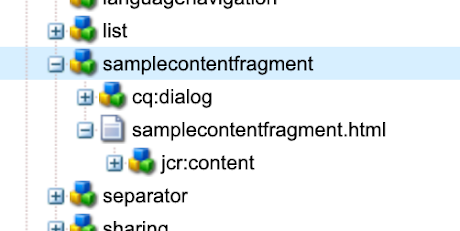
Create an AEM component "samplecontentfragment" which calls the sling model SampleContentFragment.java

samplecontentfragment.html
<p data-sly-test="${properties.text}">Text property: ${properties.text}</p>

Render Content Fragment using Sling Model
Title: ${model.title}
Description: ${model.description}
Release Date: ${model.releaseDate}
</img>
</sly>
SampleContentFragment.java

package com.adobe.aemquickstart.core.models;

import java.util.Calendar;
import java.util.Optional;

import javax.annotation.PostConstruct;
import javax.inject.Inject;

import org.apache.commons.lang.StringUtils;
import org.apache.sling.api.resource.Resource;
import org.apache.sling.api.resource.ResourceResolver;
import org.apache.sling.models.annotations.DefaultInjectionStrategy;
import org.apache.sling.models.annotations.Model;
import org.apache.sling.models.annotations.injectorspecific.Self;

import com.adobe.cq.dam.cfm.ContentElement;
import com.adobe.cq.dam.cfm.ContentFragment;
import com.adobe.cq.dam.cfm.FragmentData;
import com.adobe.cq.dam.cfm.FragmentTemplate;

@Model(adaptables = Resource.class, defaultInjectionStrategy = DefaultInjectionStrategy.OPTIONAL)
public class SampleContentFragment {
public static final String MODEL_TITLE = "AEM Book";
public static final String CF_PATH = "/content/dam/aemquickstart/content-fragments/aem-book";

@Inject
@Self
private Resource resource;
@Inject
ResourceResolver resourceResolver;
private Optional<ContentFragment> contentFragment;

@PostConstruct
public void init() {
Resource fragmentResource = resourceResolver.getResource(CF_PATH);
contentFragment = Optional.ofNullable(fragmentResource.adaptTo(ContentFragment.class));
}

public String getTitle() {
return contentFragment.map(cf -> cf.getElement("title")).map(ContentElement::getContent)
.orElse(StringUtils.EMPTY);
}

public String getDescription() {
return contentFragment.map(cf -> cf.getElement("description")).map(ContentElement::getContent)
.orElse(StringUtils.EMPTY);
}

public Calendar getReleaseDate() {
return ((Calendar) contentFragment.map(cf -> cf.getElement("releaseDate")).map(ContentElement::getValue)
.map(FragmentData::getValue).orElse(StringUtils.EMPTY));
}

public String getImage() {
return contentFragment.map(cf -> cf.getElement("image")).map(ContentElement::getContent)
.orElse(StringUtils.EMPTY);
}
}

Add the new component on to the page and refresh the page.


By aem4beginner

Fetch Content Fragment using AEM Core Components

We have seen how to create a content fragment in the previous post.
Content Fragments can be rendered onto a page by below different ways:
  1. Using AEM core components
  2. Using Custom Sling Model
  3. Using Servlet to access Content Fragment.
Let's see how to render Content Fragment using AEM Core Components.
Enable AEM core components
Create a new project called “aemquickstart” using Adobe’s project archetype. Below is a maven archetype command to use. This will generate a boilerplate project with the latest version of Core Components.
mvn -B archetype:generate 
 -D archetypeGroupId=com.adobe.granite.archetypes 
 -D archetypeArtifactId=aem-project-archetype 
 -D archetypeVersion=23 
 -D aemVersion=cloud 
 -D appTitle="AEM Quickstart" 
 -D appId="aemquickstart" 
 -D groupId="com.aemquickstart" 
 -D frontendModule=general 
 -D includeExamples=n

Run below maven command to install the package in AEM
mvn clean install -PautoInstallPackage

Content fragment and content fragment list core components under ui.apps sub module
/aemquickstart/ui.apps/src/main/content/jcr_root/apps/aemquickstart/components/content/contentfragment
/aemquickstart/ui.apps/src/main/content/jcr_root/apps/aemquickstart/components/content/contentfragmentlist


Let's add these components to the page.
  1. Go to AEM Start > Sites > aemquickstart > US > English
  2. Click on the parsys
  3. Click the plus icon
  4. Select Content Fragment
  5. Edit the content fragment
  6. Select the "AEM Book" content fragment that we created in the previous post
  7. Add Title, Description, Release Date and Image elements as shown below.
  8. Save the dialog


Now we can see the content fragment info on the page.


By aem4beginner