Showing posts with label Overlay. Show all posts

October 13, 2020
Estimated Post Reading Time ~

Extending fields in Tag Component in AEM 6.5.5

Sometime back I had one requirement where I needed some extra fields as part of tagfield dialog along with the Title and Description.

So to achieve such scenarios we can overlay the existing OOTB tagfield component and use the tagedit option to add different fields as part of dialog of tagpicker.

Just navigate to /libs/cq/tagging/gui/content/tags/tagedit and this node will contain two sub-nodes i.e head and body. So if you open and explore the body node you will find out the fields title and description getting picked up from here.


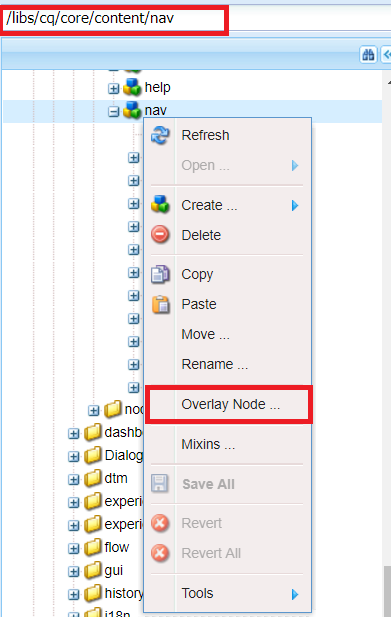
OOTB path of tagfield

Now we will overlay this node to our apps folder structure and once done we can find the same at /apps/cq/tagging/gui/content. So once you have a copy of OOTB tagfield in your app structure then try adding some extra fields to the body node as below:


overlayed app path

Once we are done with overlaying the node structure in apps folder. Now we will overlay the corresponding Javascript file to load and retain the fields in the tagfield dialog and JCR.

Navigate to /libs/cq/tagging/gui/components/tagedit/clientlibs/tagedit/js/tagedit.js and overlay this Js file to apps folder, this will be created parallel to the previous one.


overlayed path in apps

Now open the overlayed tagedit.js and add the corresponding fields retention code in js, similar to existing title and description field. For reference I have added the below code to render the newly added fields of tag dialog:


Here the highlighted fields are the extra fields that added as part of the dialog and here in js, I am rendering it.

By following the above steps we can create our own custom fields in tagpicker and utilize it saving any data as part of tagfield as per our business requirement.


By aem4beginner

May 15, 2020
Estimated Post Reading Time ~

Extending the ACS AEM Commons Generic List to Support Multiple Fields


The Adobe Experience Manager ACS Commons Generic List facilitates authorable Title / Value pairs that can be used to populate dropdowns from a centrally authored location. The functionality of the Generic List is limited to the Title and Value pairs, but there could be other use cases for centrally managed metadata that can be easily chosen from a dropdown. This example will extend the Generic List to manage metadata for organizational units/departments.

The Generic List implementation is final, so not extendable, but the underlying interface only relies on the jcr:title/value pairs to be present. We will use this and add additional fields that we can adaptTo to our own implementation. The Generic List was built before the prevalence of Sling Models, so for this example, we will try to simplify this by utilizing Sling Models.

Example Implementation on Github: https://github.com/msullivan-r2i/acs-genericlist-extension

Implementing the List Extension

department.java
This is the Sling Model that will add email and phone values to the existing jcr:title and value fields. It implements GenericList.Item, however, this is not strictly required. The mechanisms that populate the dropdown will not use the Department implementation and rely on the underlying jcr:title & value fields and utilize the ACS implementation.

@Model(adaptables=Resource.class)
public class Department implements GenericList.Item {

static final String TITLE_PREFIX = NameConstants.PN_TITLE + ".";

@Inject
private Resource resource;

@Inject @Named("jcr:title") @Default(values="")
public String title;

@Inject @Default(values="")
public String value;

@Inject @Default(values="")
public String phone;

@Inject @Default(values="")
public String email;

public String getTitle() {
return title;
}

public String getTitle(Locale locale) {
/* see full file */
}

private String getLocalizedTitle(Locale locale) {
return resource.getValueMap().get(TITLE_PREFIX + locale.toString().toLowerCase(), String.class);
}

public String getValue() {
return value;
}

public String getPhone() {
return phone;
}

public String getEmail() {
return email;
}
}
department-generic-list.html
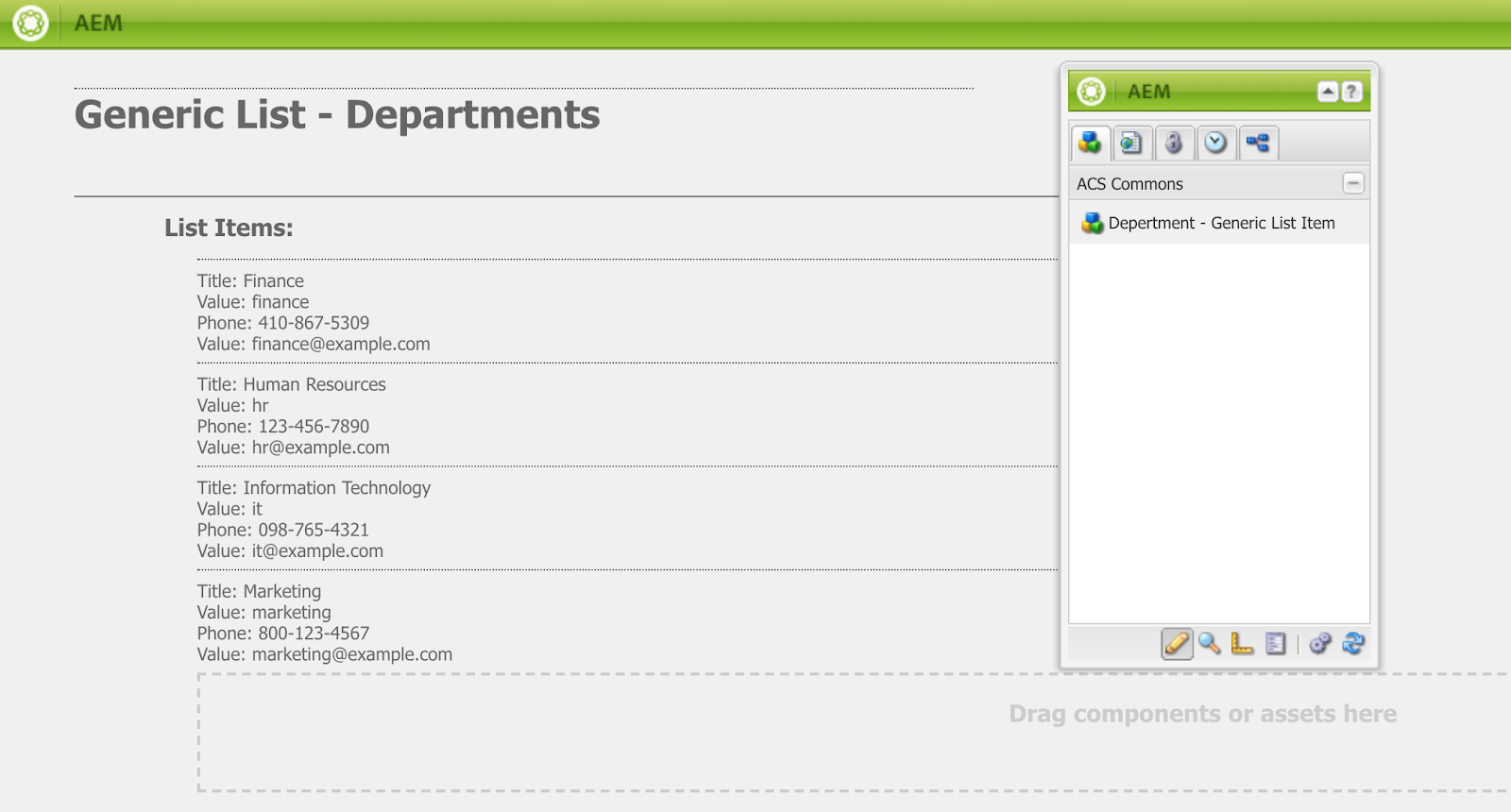
This renders the item in the Generic List authoring page. The ACS Implementation uses JSP and not Sling Models, but this is a little simpler.


<sly data-sly-use.department="com.example.core.genericlist.Department">
<li>
<span data-sly-test="${!department.title}" style="color: red;">Please enter a title</span>
<sly data-sly-test="${department.title}">
Title: ${department.title} <br />
Value: ${department.value} <br />
Phone: ${department.phone} <br />
Value: ${department.email} <br />
</sly>
</li>
</sly>
dialog.xml 

The Generic List is still Classic UI only, so we keep the jcr:title and value fields and add our email and phone fields.
<?xml version="1.0" encoding="UTF-8"?>
<jcr:root xmlns:cq="http://www.day.com/jcr/cq/1.0" xmlns:jcr="http://www.jcp.org/jcr/1.0" xmlns:nt="http://www.jcp.org/jcr/nt/1.0"
jcr:primaryType="cq:Dialog"
title="Department - Generic List Item"
xtype="panel">
<items jcr:primaryType="cq:WidgetCollection">
<title
jcr:primaryType="cq:Widget"
fieldLabel="Title"
name="./jcr:title"
xtype="textfield"/>
<value
jcr:primaryType="cq:Widget"
fieldDescription="This is typically the text used internally or for URL generation"
fieldLabel="Value"
name="./value"
xtype="textfield"/>
<phone
jcr:primaryType="cq:Widget"
fieldLabel="Phone"
name="./phone"
xtype="textfield"/>
<email
jcr:primaryType="cq:Widget"
fieldLabel="Email Address"
name="./email"
xtype="textfield"/>
</items>
<listeners
jcr:primaryType="nt:unstructured"
afterrender="function() { ACS.CQ.GenericListItem.addTitleFields(this); }"/>
</jcr:root>

Usage
Department Helper

The DepartmentHelper provides two methods, one to get a specific Department model given a value. The other to give a list of all of the models.

A department and department sample components are in the example project.
Department Component

The department component shows how to implement the dialog field to allow an author to choose a department from a dropdown. It then utilizes a WCMUsePojo helper to display the details of the selected department.

department/cq:dialog
We are referencing the ACS genericlist/datasource ui component to populate the dropdown, so this requires jcr:title and value fields be present for each item.

<department
jcr:primaryType="nt:unstructured"
sling:resourceType="granite/ui/components/coral/foundation/form/select"
fieldLabel="Department"
name="./department">
<datasource
jcr:primaryType="nt:unstructured"
sling:resourceType="acs-commons/components/utilities/genericlist/datasource"
path="/etc/acs-commons/lists/departments" />
</department>
department.html
The DepartmentHelper takes the value of the selected department from the dropdown and returns an adapted Department model.

<div class="cmp-department"
data-sly-use.departmentHelper="${'com.example.core.genericlist.DepartmentHelper' @ value=properties.department }"
data-sly-test.department="${departmentHelper.department}">
<h1>${department.title}</h1>
<ul>
<li>${department.phone}</li>
<li>${department.email}</li>
</ul>
</div>
<h1 data-sly-test="${!department}">Select a Department</h1>
Departments Component
The department component iterates over all of the departments in the list in node order.

departments.html

<div class="cmp-departments"
data-sly-use.departmentHelper="com.example.core.genericlist.DepartmentHelper"
data-sly-test.departments="${departmentHelper.allDepartments}"
data-sly-test.hasDepartments="${departments.size > 0}">
<div data-sly-list.department="${departments}">
<h1>${department.title}</h1>
<ul>
<li>${department.phone}</li>
<li>${department.email}</li>
</ul>
</div>
</div>
<h1 data-sly-test="${!hasDepartments}">Add departments to the department generic list named <pre>/etc/acs-commons/lists/departments</pre></h1>
Optional Implementation
The example also creates a new template that can be placed under /etc/acs-commons/genericlist and an /etc/designs/acs-genericlist-example design definition that allows our department-generic-list component to be added to that page template. There is also a page component that simply extends the acs genericlist page component to give the design something unique to bind to.

This is optional and the extended generic list item could be allowed through the standard design ui.

i18N

This implementation doesn’t consider I18n, and the ACS list seems to do this through the dictionary. If this is a requirement, perhaps moving these out of /etc and into /content/../locale could allow for translations of this metadata as long as the values stayed the same.

Source: https://aemhq.com/posts/extending-the-acs-aem-commons-generic-list-to-support-multiple-fields/


By aem4beginner

May 13, 2020
Estimated Post Reading Time ~

Extending an existing component

To extend a component you should use the sling:resourceSuperType.

You should take a look at base components stored at: core/wcm/components/list/v2/

It is also common to change the following properties:
  • jcr:title
  • componentGroup


By aem4beginner

May 11, 2020
Estimated Post Reading Time ~

Add a button in site console's action toolbar to open pages in disabled mode

In Author instance, sometimes we need to check pages in disabled mode to debug HTML/or to see pages how they will look in the publisher or other then edit, preview, design mode. AEM provides the way how to check pages in disabled mode, following are the ways -

1. Add wcmmode=disabled querystring in the page url e.g.
http://localhost:4502/content/mfHTL63/en/demo1.html?wcmmode=disabled
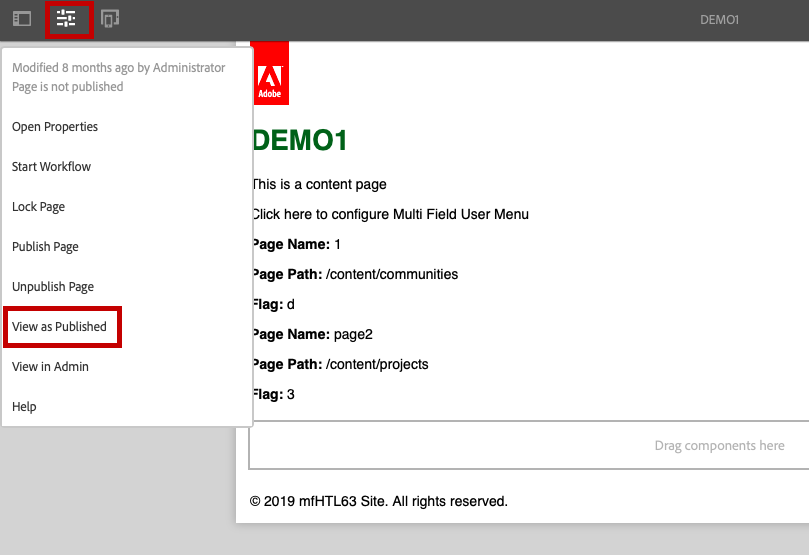
2. Open a page as edit e.g. http://localhost:4502/editor.html/content/mfHTL63/en/demo1.html and then click on page information button, it will show popover menu from there click on 'View as Published', a page will be opened in new tab with the disabled mode.


But if you are using 'View as Published' option frequently then you can add a button in site console to view page(s) in disabled mode in one click.

Follow below step to add a new button/option :
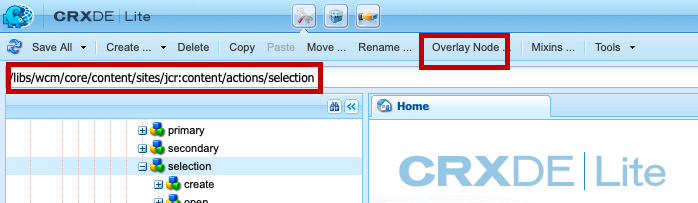
overlay /libs/wcm/core/content/sites/jcr:content/actions/selection using Resource Merger (Overlay Node option from CRXDE).

CRXDE to overlay nodes

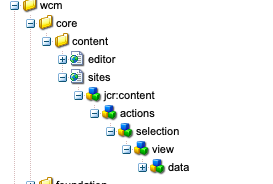
Create a node i.e 'view' and 'data' node child of 'view' node, as below screenshot

overlayed selection and view & data node

add the following properties to view and data nodes

<view
granite:rel="cq-siteadmin-admin-actions-edit-activator"
granite:title="View as Published"
jcr:primaryType="nt:unstructured"
sling:resourceType="granite/ui/components/coral/foundation/collection/action"
action="cq.wcm.open"
activeSelectionCount="multiple"
icon="devicePreview"
target=".cq-siteadmin-admin-childpages"
text="View"
variant="actionBar">
<data
jcr:primaryType="nt:unstructured"
href.uritemplate.abs="\{+item}.html?wcmmode=disabled"/>
</view>


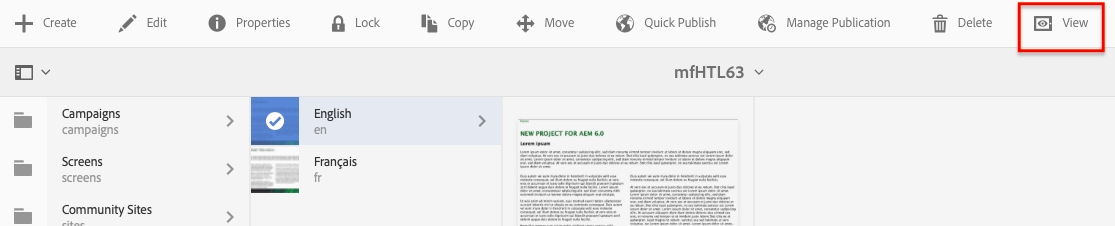
That's it. The new option 'View' will be shown in site consoles action toolbar when one or many pages are selected.

View button is added in site console

Enable the View button from package
You can install below package to enable/add view option in sites console in Author mode.
https://github.com/arunpatidar02/demo/blob/master/view-as-published-2.zip


By aem4beginner

May 10, 2020
Estimated Post Reading Time ~

Using the Sling Resource Merger in AEM

Purpose
The Sling Resource Merger provides services to access and merge resources. It provides diff (differencing) mechanisms for both:
Overlays of resources using the configured search paths .
Overrides of component dialogs for the touch-enabled UI ( cq:dialog ), using the resource type hierarchy (by means of the property sling:resourceSuperType ).

With the Sling Resource Merger, the overlay/override resources and/or properties are merged with the original resources/properties:
  • The content of the customized definition has a higher priority than that of the original (i.e. it overlays or overrides it).
  • Where necessary, properties defined in the customization, indicate how content merged from the original is to be used.
The Sling Resource Merger and related methods can only be used with Granite . This also means that it is only appropriate for the stndard, touch-enabled UI; in particular overrides defined in this manner are only applicable for the touch-enabled dialog of a component.
Overlays/overrides for other areas (including other aspects of a touch-enabled component or the classic UI) involve copying the appropriate node and structure from the original to where the customization will be defined.

Goals for AEM
The goals for using the Sling Resource Merger in AEM are to:
  • ensure that customization changes are not made in /libs .
  • reduce the structure that is replicated from /libs .
  • When using the Sling Resource Merger it is not recommended to copy the entire structure from /libs as this would result in too much information being held in the customization (usually /apps ). Duplicating information unnecessarily increases the chance of problems when the system in upgraded in any way.
Overrides are not dependent on the search paths, they use the property sling:resourceSuperType to make the connection.
However, overrides are often defined under /apps , as best practice in AEM is to define customizations under /apps ; this is because you must not change anything under /libs .

You must not change anything in the /libs path.
This is because the content of /libs is overwritten the next time you upgrade your instance (and may well be overwritten when you apply either a hotfix or feature pack).
The recommended method for configuration and other changes is:
  1. Recreate the required item (i.e. as it exists in /libs ) under /apps
  2. Make any changes within /apps
Properties
The resource merger provides the following properties:
  • sling:hideProperties ( String or String[] )
  • Specifies the property, or list of properties, to hide.
  • The wildcard * hides all.
  • sling:hideResource ( Boolean )
  • Indicates whether the resources should be completely hidden, including its children.
  • sling:hideChildren ( String or String[] )
  • Contains the child node, or list of child nodes, to hide. The properties of the node will be maintained.
  • The wildcard * hides all.
  • sling:orderBefore ( String )
  • Contains the name of the sibling node that the current node should be positioned in front of.
These properties affect how the corresponding/original resources/properties (from /libs ) are used by the overlay/override (often in /apps ).

Creating the Structure
To create an overlay or override you need to recreate the original node, with the equivalent structure, under the destination (usually /apps ). For example:
Overlay
  • The definition of the navigation entry for the Sites console, as shown in the rail is defined at:
  • /libs/cq/core/content/nav/sites/jcr:title
  • To overlay this, create the following node:
  • /apps/cq/core/content/nav/sites
  • Then update the property jcr:title as required.
Override
  • The definition of the touch-enabled dialog for the Texts console, is defined at:
  • /libs/foundation/components/text/cq:dialog
  • To override this, create the following node - for example:
  • /apps/the-project/components/text/cq:dialog
To create either of these you only need to recreate the skeleton structure. To simplify the recreation of the structure all intermediary nodes can be of type nt:unstructured (they do not have to reflect the original node type; for example, in /libs ).

So in the above overlay example, the following nodes are needed:
/apps
  /cq
    /core
      /content
        /nav
          /sites

When using the Sling Resource Merger (i.e. when dealing with the standard, touch-enabled UI) it is not recommended to copy the entire structure from /libs as it would result in too much information being held in /apps . This can cause problems when the system in upgraded in any way.

Use Cases
These, in conjunction with standard functionality, enable you to:
  • Add a property
  • The property does not exist in the /libs definition, but is required in the /apps overlay/override.
    • Create the corresponding node within /apps
    • Create the new property on this node ``
Redefine a property (not auto-created properties)
The property is defined in /libs , but a new value is required in the /apps overlay/override.
  • Create the corresponding node within /apps
  • Create the matching property on this node (under / apps )
  • The property will have a priority based on the Sling Resource Resolver configuration.
  • Changing the property type is supported. If you use a property type different to the one used in /libs , then the property type you define will be used.
Changing the property type is supported.

Redefine an auto-created property
By default, auto-created properties (such as jcr:primaryType ) are not subject to an overlay/override to ensure that the node type currently under /libs is respected. To impose an overlay/override you have to recreate the node in /apps , explicitly hide the property and redefine it:
  • Create the corresponding node under /apps with the desired jcr:primaryType
  • Create the property sling:hideProperties on that node, with the value set to that of the auto-created property; for example, jcr:primaryType
  • This property, defined under /apps , will now take priority over the one defined under /libs
Redefine a node and its children
The node and its children are defined in /libs , but a new configuration is required in the /apps overlay/override.
  • Combine the actions of:
    • Hide children of a node (keeping the properties of the node)
    • Redefine the property/properties
Hide a property
The property is defined in /libs , but not required in the /apps overlay/override.
Create the corresponding node within /apps
Create a property sling:hideProperties of type String or String[] . Use this specify the properties to be hidden/ignored. Wildcards can also be used. For example:
  • *
  • ["*"]
  • jcr:title
  • ["jcr:title", "jcr:description"]
Hide a node and its children
The node and its children are defined in /libs , but not required in the /apps overlay/override.
  • Create the corresponding node under /apps
  • Create a property sling:hideResource
    • type: Boolean
    • value: true
Hide children of a node (while keeping the properties of the node)
The node, its properties and its children are defined in /libs . The node and its properties are required in the /apps overlay/override, but some or all of the child nodes are not required in the /apps overlay/override.
  • Create the corresponding node under /apps
  • Create the property sling:hideChildren :
    • type: String[]
    • value: a list of the child nodes (as defined in /libs ) to hide/ignore
  • The wildcard * can be used to hid/ignore all child nodes.
Reorder nodes
The node and its siblings are defined in /libs . A new position is required so the node is recreated in the /apps overlay/override, where the new position is defined in reference to the appropriate sibling node in /libs .
Use the sling:orderBefore property:
  • Create the corresponding node under /apps
  • Create the property sling:orderBefore :
  • This specifies the node (as in /libs ) that the current node should be positioned before:
    • type: String
    • value: <before-SiblingName>
Invoking the Sling Resource Merger from your code
The Sling Resource Merger includes two custom resource providers - one for overlays and another for overrides. Each of these can be can invoked within your code by using a mount point:

When accessing your resource it is recommended to use the appropriate mount point.
This ensures that the Sling Resource Merger is invoked and the fully merged resource returned (reducing the structure that needs to be replicated from /libs ).

Overlay:
  • purpose: merge resources based on their search path
  • mount point: /mnt/overlay
  • usage: mount point + relative path
  • example:
    • getResource('/mnt/overlay' + '<relative-path-to-resource>');
Override:
  • purpose: merge resources based on their super type
  • mount point: /mnt/overide
  • usage: mount point + absolute path
  • example:
    • getResource('/mnt/override' + '<absolute-path-to-resource>');
Example of Usage
Some examples are covered:
Overlay:
  • Customizing the Consoles
  • Customizing Page Authoring
Override:
  • Configuring your Page Properties

By aem4beginner

Sling Resource Merger

The Sling Resource Merger provides services to access and merge resources. It provides diff (differencing) mechanisms for both:
  • Overlays of resources using the configured search paths.
  • Overrides of component dialogs for the touch-optimized UI (cq:dialog), using the resource type hierarchy (by means of the property sling:resourceSuperType).


By aem4beginner

April 26, 2020
Estimated Post Reading Time ~

Touch UI (Rich Text) Overlay Component does not work when included statically on the template

<div data-sly-resource="${ @path='richText' , resourceType='/apps/XXX/components/content/text'}" ></div>
Included Statically on a Template. When Tries to Edit the dialog :
I see error in console
GET http://localhost:4502/content/a/b/c/jcr:content/richText.json?_=1458055488719 404 (Not Found)

But when I drop the component statically on a template it works fine.
This is because when you include it that way, the "text" resource is technically null and not available. Since you're including it in your page component, modify the associated template and pre-set the text node. Example:

<?xml version="1.0" encoding="UTF-8"?>
<jcr:root xmlns:sling="http://sling.apache.org/jcr/sling/1.0" xmlns:cq="http://www.day.com/jcr/cq/1.0" xmlns:jcr="http://www.jcp.org/jcr/1.0"
          jcr:description="Page Template"
          jcr:primaryType="cq:Template"
          jcr:title="Page Template"
          allowedPaths="[/content/site/en(/.*)?]"
          ranking="{Long}100">
    <jcr:content
            jcr:primaryType="cq:PageContent"
            sling:resourceType="site/components/page/interior"
            cq:designPath="/etc/designs/site">
            <text jcr:primaryType="nt:unstructured" sling:resourceType="wcm/foundation/components/text" />
    </jcr:content>
</jcr:root>

Read More


By aem4beginner

April 14, 2020
Estimated Post Reading Time ~

Overlaying the Adobe Experience Manager 6.4 Parsys component to display custom text

Adobe Experience Manager has long used the principle of overlays to allow you to extend and customize components. The overlay is a term that can be used in many contexts. In this context, an overlay means taking the predefined functionality and modifying it to meet your business requirements.

Default Experience Manager components are stored under /libs and it is recommended practice to define your overlay under the /apps JCR branch. AEM uses a search path to find a resource, searching first the /apps branch and then the /libs branch (the search path can be configured). This mechanism means that your overlay (and the customizations defined there) will have priority.

To demonstrate how to overlay an Experience Manager component, this article modifies the out of the box parsys component (wcm/foundation/components/parsys) by modifying the text the appears, as shown in the following illustration.


To read this development article, click https://helpx.adobe.com/experience-manager/using/overlay_parsys.html.


By aem4beginner

April 13, 2020
Estimated Post Reading Time ~

Learn how to build an AEM component that inherits from a foundation component

Here is a great community video that talks about how to build an AEM component that inherits from an foundation component.

https://www.youtube.com/watch?v=yYUX21ejG0Q


By aem4beginner

April 2, 2020
Estimated Post Reading Time ~

How to extend Search panel to inform user that search returned no results?

Currently, The searching of Assets/Pages in the damadmin/siteadmin search panel does not let the user know the search is complete when there are no records.  This article providing simple steps on how to overlay the search panel to provide information message to the user that there were no records.

Two simple steps, Namely

  1. Overlay /libs/cq/ui/widgets/source/widgets/wcm/SiteAdminSearchPanel.js
  2. In performing the search method after the unmask method verify the total count is zero. If zero display an alert stating "No record found".  Snapshot below
Sample output after implementing the above change
The package for AEM 5.6.1 with the above changes can be downloaded from & install in your aem instance.

http://dev.day.com/docs/en/cq/current/dam/dam_documentation.html#Searching%20for%20Assets

Search Panel No record fix for AEM 5.6.1


By aem4beginner

March 29, 2020
Estimated Post Reading Time ~

Sling Resource Merger in AEM 6.3

The Sling Resource Merger provides services to access and merge resources. It provides diff (differencing) mechanisms for both:

Overlays of resources using configured search paths
Overrides of component dialogs for the touch-optimized UI (cq:dialog), using the resource type hierarchy (by means of the property sling:resourceSuperType).

Note: sling:resourceMerger concept is basically used for Granite. So this concept is specifically applicable for touch UI.

1. Approach for Overlaying Resources: Resource Overlay works on the path which is having the same hierarchy in /apps. If there is a path in libs: “/libs/text/example” then Its overlaying path can only be: “/apps/text/example”. This approach saves you from copying the entire structure of libs in apps when you need customizations.You can customize as much as required.

Fig - Overlaying the resource

Example: Customization the consoles
Reference: https://sgaem.blogspot.in/2017/03/display-name-instead-of-page-title-in.html
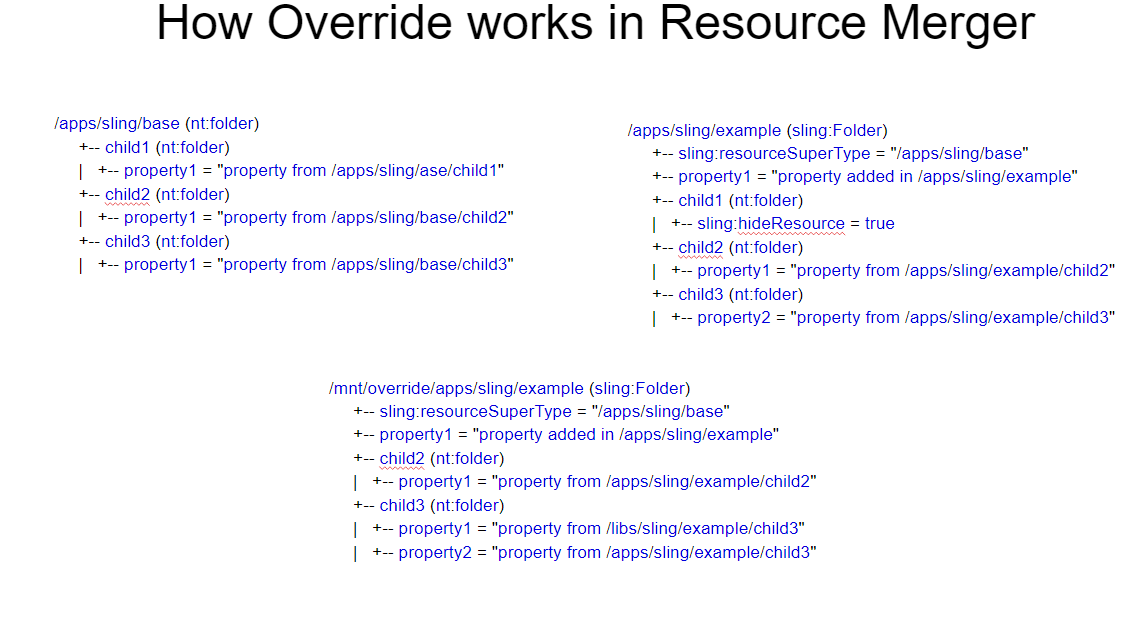
Fig - How Overlay works in Resource Merger? 

2. Approach for Overriding Resources: This approach works on the property sling:resourceSuperType. This concept is also called the inheritance of the resource in AEM.

Example: Configuring your page properties


Fig - Overriding the resource


Fig - How Override works in Resource Merger?

Goals of Resource Merger concept in AEM
1. Reduce the structure that is replicated from AEM and reusability of resources.
2. Ensure that any changes should not make in /libs.

Properties of Resource Merger
sling:hideProperties
String or String[]
Hide the properties, The wildcard(*)hides all.

sling:hideResource
Boolean
Indicates that the resource should be completely hidden with its children

sling:hideChildren
String or String[]
Hide the list of children of a particular resource. The wildcard(*)hides all the children.

sling:orderBefore
String
It contains the name of the preceding sibling.

Points to Remember
1. Overrides are not dependent on search paths. They use sling:resourceSuperType property to make a connection.
2. You must not change anything in /libs, The reason may be that when you upgrade your instance or apply any service pack/hotfix, It may be overwritten. So Any customization you needed should be done in /apps.

Use cases of sling: ResourceMerger:

Add a property
Redefine a property(not auto-created properties)
Redefined an auto-created property
Redefine a node and its children
Hide a property
Hide a node and its children
Hide Children of a node (while keeping the properties of the node)
Reorder nodes
Invoking the Sling Resource Merger from your code
The Sling Resource Merger includes two custom resource providers - one for overlays and another for overrides. Each of these can be invoked within your code by using a mount point:
Overlay:
purpose: merge resources based on their search path
mount point: /mnt/overlay
Usage: mount point + relative path
Example: getResource('/mnt/overlay/' + '<relative-path-to-resource>');
Override:
purpose: merge resources based on their supertype
mount point: /mnt/override
Usage: mount point + absolute path
Example: getResource('/mnt/override' + '<absolute-path-to-resource>');

Since Long, I am trying to find a good example of explaining /mnt/overlay and /mnt/override concept in resource Merger. So finally I got a use case to justify this concept.
Use Case: Recently I have gone through a scenario, where I want to add some more locales in the drop-down of page properties.
To know from where languages are getting listed out, I check the language widget in the page properties dialog.

Fig - language widget in the page properties dialog

So to populate languages, cq/gui/components/common/datasources/languages is playing an important role.
If I check the language.jsp under /libs/cq/gui/components/common/datasources/languages, you can see that all the languages are coming from /libs/wcm/core/resources/languages.

Fig - Source of language population in the dropdown

Now if I add some more languages in /apps/wcm/core/resources/languages, then the jsp will start taking the values from /apps not /libs, because /apps are having preference over /libs.
But I don’t want to duplicate all the locales in apps as well. So what to do?
1. Overlaying the hierarchy of the language: Just add all the new locales in /apps/wcm/core/resources/languages and now overlay the language.jsp with the following modifications.

Fig - Merging the new locale and existing locale using mnt overlay

2. Overriding the hierarchy of the language: Add new locales in any hierarchy example I have taken it “/apps/languages/core/resources/languages” and add a property sling:resourceSuperType to /libs/wcm/core/resources/languages.
Fig - Overriding the languages which are available under libs

Overlay the language.jsp with the following modifications.
Fig - Merging the new locale andexisting locale using mnt override


By aem4beginner

March 15, 2020
Estimated Post Reading Time ~

How to overlay a component using sling resource merger in AEM

Sling Resource merger in aem is one of the most commonly and frequently used features of the sling after aem 6.0. Due to the limited functionality of Touch UI components, we often are required to overlay/ override a component from /libs to /apps. Earlier (before aem 6.0) in case of overlay we need to copy-paste entire component structure with node type and properties and then we make our changes which indirectly increases the overhead on /apps folder.
But as adobe is promoting to use its new ouch-optimized UI for granite components, it has changed the definition of overlay for Touch UI (Granite) components where you need to create only similar skeleton structure (where nodes can be of type nt: unstructured) and you can add, remove or modify existing node.

After completing this tutorial you will have a clear understanding of:
· What is the Sling Resource Merger.
· What's the difference between overlay, override and sling resource merger
· How to overlay a component using a sling resource merger.
What is Sling Resource Merger

Sling resource merger in aem provides us the flexibility to have a merged view of multiple other resources. The exact merging mechanism will depend on the resource picker implementation that we are using (i.e. Overlay or Override). It is a part of the sling framework and available under Felix console by name (org.apache.sling.resourcemerger). To understand in detail how sling handles resource merging you can visit Sling Resource Merger.

By using Sling Resource Merger we can:
· remove existing resource/properties from the underlying resources.
· modify existing properties/child resources of the underlying resources.
· add new properties/child resources.

What's the difference between overlay, override and sling resource merger

With AEM 6.0 onwards for Non-Granite Overlay(Classic UI) and Before AEM 6.0 Overlay is used in below manner as only classic UI was supported:-

Usually when you have to overlay a component in AEM, then you copy a component from /libs/ folder to /apps/ folder. And you can write your own customization on it like changing title, add or remove a node or change the layout of newly copied components under /apps/.

As per the default OSGI preferences, AEM uses a search path to find a resource, searching first the /apps/ branch and then the /libs branch so your newly copied components under /apps/ gets priority over /libs/. But you change this preference any time from Felix console by modifying Apache Sling Resource Resolver Factory configuration(not recommended). Overlay works on the principle of the search path.

One more important thing to note about overlay is that when you overlay a component your both component that is apps and libs will be displayed in the sidekick.
With AEM 6.0 onwards, after the introduction of Touch UI for Granite related overlay we are using Sling Resource Merger:-

Now if we have to overlay a component or use a sling resource merger for a component then we need not required to copy-paste entire component structure with node properties from libs to apps. We only need to recreate the skeleton structure. To simplify the recreation of the structure all intermediary nodes can be of type nt:unstructured (they do not have to reflect the original node type; for example, in /libs).

Note: Sling Resource Merger and its related methods can only be used with granite(Touch UI) components.

The advantages of using the Sling Resource Merger in AEM is to:
· ensure that customization changes are not made in /libs.
· reduce the structure that is replicated from /libs.

Override a component in AEM:
Overriding a component is basically extending or inheriting the component using sling:resourceSuperType property. You can override a component from /libs by creating a custom component under apps manually and adding all necessary nodes and setting the value of sling:superResourceType property to that component will inherit all the features from /libs/ component, even after the upgrade you still inherit the features of the image component.

Here we can use the sling:superResourceType for any component that you want to inherit functionality (example from project A component to ProjectB etc., not only restricted to libs).

When to use overlay/sling resource merger and when to use override totally depends upon your requirement.
How to overlay a component using sling resource merger

In this section, we are going to see how to overlay a component using a sling resource merger in aem.

Example -1 Suppose we have to overlay the Project-related node jcr:title value which is under /libs/ to /apps


· Login to Crxde.
· Go to /libs/cq/core/content/nav/projects.
-- Right-click on Projects Node.
-- Select Overlay Node.


· For safer side always select Match Node Types.


· Click Ok.
· Go to /apps/cq/core/content/nav/projects
· Select the project node and add below the property
-- Name – jcr:title
-- type – String
-- Value – Test-Project


· Click SaveAll.
· Now go to http://localhost:4502/projects.html/content/projects


Congratulations You have used Sling Resource Merger in AEM 6.2.

Note: This is a very basic example of the Sling resource merger. Some times it might happen that after overlaying the node changes are not getting reflected, it means if you change in libs changes are working but not from apps. That means the sling resource merger is not working properly.

In such a chance you might need to add URL = url.replace(“/libs/”,”/mnt/overlay/”); to tell sling explicitly to merge resource. The location of this line that you have to add depends on which component is not working usually it is in your foundation component js file. This I think is a sling resource merger bug and they will fix it soon.


By aem4beginner