Showing posts with label SSL. Show all posts

January 2, 2021
Estimated Post Reading Time ~

AEM SSL Enablement

This is an Adobe Experience Manager (AEM) task-specific to enabling HTTP over SSL to employ more secure connections to AEM environments. The steps in this document are specific to configuring the Author instance: Secure client connections to the author instance specifically the connectivity from Dispatcher to the rendered Author instance. At a high-level, we are trying to achieve the following connectivity flow:

Content Authors – SSL Connection—Author Dispatcher—SSL Connection—Author AEM

Prerequisites
The following are the required prerequisites for enabling SSL within AEM:

1. SSL Certificate
SSL Certificate, self-signed for development and signed CRT for production implementation

2. Private Key
Private key pertaining to the SSL certificate and in DER format

3. Apache Dispatcher Module w/ SSL support, latest web module from Adobe

dispatcher-apache2.4-4.2.2.sohttps://www.adobeaemcloud.com/content/companies/public/adobe/dispatcher/dispatcher.html

Technical Steps
The following are the steps for installing the SSL certificate in an AEM Author instance:

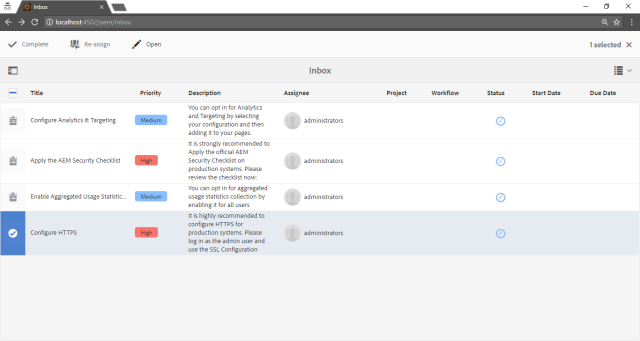
1. It is highly recommended to configure HTTPS now in any AEM Author instance and as part of this initiative; AEM lists “Configure HTTPS” as an active task that needs to be performed.


2. Click on the “Configure HTTPS” task and click on open to start the wizard. A service user called ssl-service has been created for this feature.


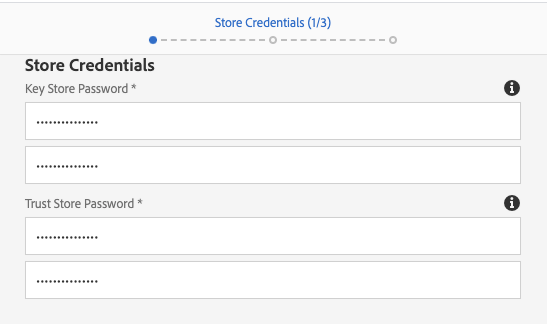
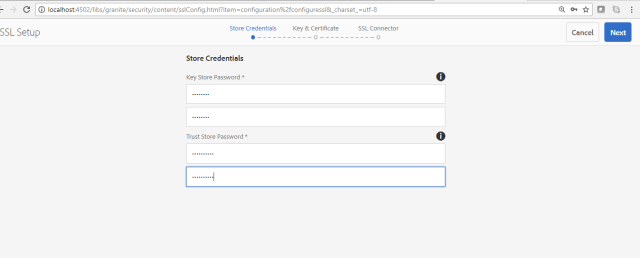
3. Type in a Key Store and Trust Store passwords. These are the Store credentials for the ssl-service system user's key store that will contain the private key and trust store for the HTTPS listener.


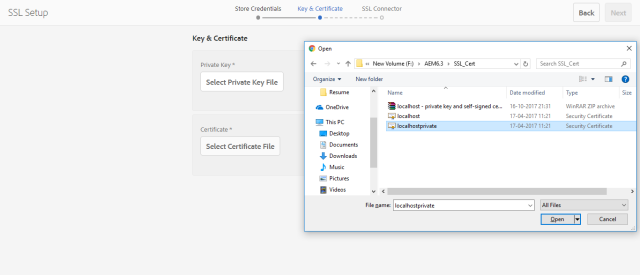
4. Upload the associated private key and internal signed CSR for the SSL connection.


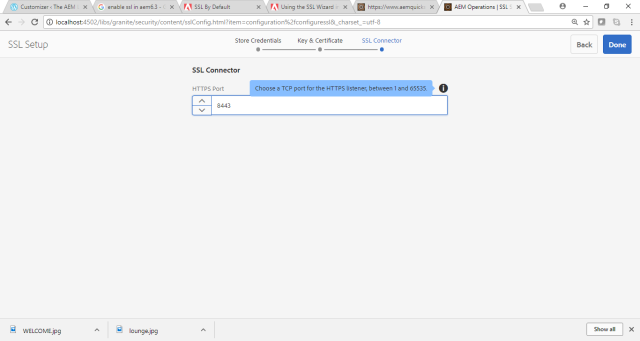
5. Select the HTTPS port. 8443 is the default TCP port for Author AEM HTTPS listener.

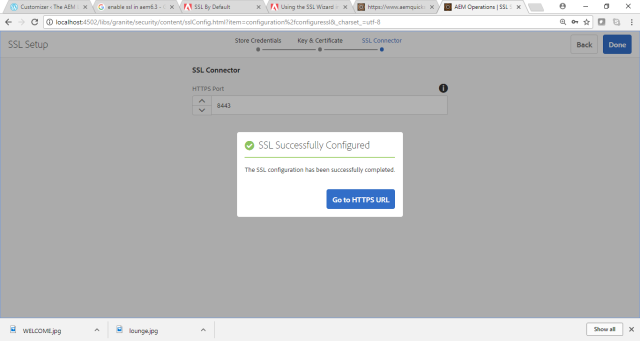
6. You should get a success page stating that “SSL Successfully Configured”


Validation
To validate that the proper certificate has been installed, please perform the following steps:

1. Go to AEM User Management and look for the service user, ssl-service.
2. In the Account Settings section, make sure that the status is set to “active”. Click on “Manage KeyStore” to view the certificate


3. Confirm that the Certificate Subject, Issuer, and Expiry date are consistent with the CRT that was installed.

Dispatcher/Apache Webserver
The following are the steps for installing the update dispatcher module and configuring the dispatcher to use the secure SSL channel:

1. Validate you have the right version of the dispatcher. If not, upload the updated dispatcher-apache2.4-4.2.2.so to the webserver (dispatcher).

2. Edit dispatcher.any file to use secure channel and SSL port


3. Restart Apache
4. Validate to test.


By aem4beginner

October 1, 2020
Estimated Post Reading Time ~

Configure the https(SSL) on AEM instance quickly

There are cases where during development we may need to set up an https connection in our existing AEM instance.

By the following procedure, we can have both http and https on the same AEM instance. This is very helpful while testing some of the AEM features which require SSL connections.

To start with, we need keys and certificates to configure SSL on AEM. We will use OpenSSL to set up keys and certificates. The method is tested on the window but should work on any other OS seamless way.

How to setup OpenSSL on Windows
Download OpenSSL from any URL - Ensure its relevant to your OS (including 86 Vs 64 Bit)
Unzip it.
Set the classpath


place the conf file in the below path (Else you may get an error that openSSL conf cannot be found)


Now the OpenSSL is configured on your windows
Using a command prompt execute the below commands
### Create Private Key
$ openssl genrsa -aes256 -out localhostprivate.key 4096

### Generate Certificate Signing Request using private key
$ openssl req -sha256 -new -key localhostprivate.key -out localhost.csr -subj "/CN=localhost"

### Generate the SSL certificate and sign with the private key will expire one year from now
$ openssl x509 -req -days 365 -in localhost.csr -signkey localhostprivate.key -out localhost.crt

### Convert Private Key to DER format - SSL wizard requires key to be in DER format
$ openssl pkcs8 -topk8 -inform PEM -outform DER -in localhostprivate.key -out localhostprivate.der -nocrypt

You will have the certificates now in the local drive as shown below.


Use the SSL Wizard in AEM

Now login to AEM
http://localhost:4502/aem/start.html

Tools > Security > SSL Configuration

For store, credentials provide the Key store and Trust store password. [I have used admin for all, since its a localhost]


In Keys and Certificate Section

Select the Key and certificate generated using openSSL


In the next section enter the domain (localhost), and leave the port as it is

Click on 'Done' and continue will open the AEM in a specified new port. For eg: https://localhost:8443

The advantage here is, you will be able to use AEM as http over 4502/4503(based on author or publish where ever you have configured) and https over the new port. This will help us in testing many cases where we need AEM as https service.

Note: For using SSL on servers ensure you use a key & certificate which is provided by a certificate authority which ensures security.


By aem4beginner

April 27, 2020
Estimated Post Reading Time ~

Enabling SSL in Dispatcher with self signed certificate

This post will explain how to Enabling SSL in Dispatcher with self signed certificate in Adobe CQ5

Generating Self-signed certificate in Dispatcher:Create a folder ssl under /etc/httpd/ directory.
Generate server.key and server.crt file by running the following command:

openssl req -new -x509 -sha1 -newkey rsa:1024 \
-nodes -keyout /etc/httpd/ssl/server.key -out /etc/httpd/ssl/server.crt \
-subj '/O=<Organization>/OU=<Department>/CN= <Common Name>'

Change the <Organization>, <Department> and <Common Name> accordingly.

Configure Dispatcher:Install mod_ssl.so by running the following command
yum install mod_ssl

Modify the VirtualHost in /etc/httpd/conf.d/ssl.conf file with the host name.

<VirtualHost test.server.com:443>

Also, specify the server certificate and key path in the below properties.

SSLCertificateFile /etc/httpd/ssl/server.crt
SSLCertificateKeyFile /etc/httpd/ssl/server.key

Restart the Apache HTTP Server, now we can able to access the URLs through https.


By aem4beginner

April 26, 2020
Estimated Post Reading Time ~

Enable SSL for AEM author instance

Accessing site over https is must. AEM has capability to access entire site or few pages https.

There are two ways to access site or pages by https:
  • Using OSGI service Apache Felix Jetty Based Http service. (To access entire instance using https).
  • Using crxde, manually creating nodes. (To access few pages using https).
Create credential for SSL development
Use the Java keytool to create a self-signed credential and to store it in a keystore file. The following procedure uses a single command that includes all of the information needed to create the keystore. For complete information about the command, see the Oracle Java SE Documentation.

Create a directory named ssl in the directory where the quickstart JAR file is located.
In the command prompt, type the following command to create the credential and keystone:

keytool -genkeypair -keyalg RSA -validity 3650 -alias cqse
 -keystore [quickstart_dir]/ssl/keystorename.keystore  -keypass key_password 
-storepass  storepassword -dname "CN=Host Name, OU=Group Name, 
O=Company Name,L=City Name, S=State, C=Country_ Code"

The following example generates a private/public key pair with the following properties:
  • alias: cqse
  • keystore file: keystorename.keystore
  • key password: password
  • keystore password: password
keytool -genkeypair -keyalg RSA -validity 3650 -alias cqse
 -keystore D:/kishore/CQ5/AEM6.1/ssl/keystorename.keystore 
-keypass password -storepass password -dname "CN=sbroders-w7, 
OU=CQ, O=AEMQuickstart, L=HYD, S=TG, C=IN"

Through OSGI service Apache Felix Jetty Based Http Service

Through OSGI service Apache Felix Jetty Based Http Service. [Move entire author or publish instance to https]


Click Save
Note: If you get an ajax error on saving check error logs and make sure you are not getting error of port already in use. If port is not available try saving the configuration with some other port name.
Now your AEM instance can be opened over SSL.

Through crxde by manually creating the node.
Through crxde by manually creating the node. [Move selected pages of author instance to https]

How to configure SSL on Author Instance.
How to force cq to use ssl port.
Lets understand how to enable http over ssl in aem or how to enable https in aem with the help of a use case.
Use Case: For example if you want all pages of Geometrix’s outdoor to be open in http port but the pages under ‘men’ hierarchy to be open using secure https port.


Below image describes the usecase


Enable SSL on the Author Instance
Configure the Apache Felix Jetty-based HTTP service to use SSL, employing your certificate.

  1. Open CRXDE Lite and select the /apps folder. Click Create > Create Folder to create a folder named system (http://localhost:4502/crx/de).
  2. Below the system folder create a folder named config.author.
  3. Select the /apps/system/config.author node.
  4. Click Create > Create Node and enter the following properties:
  • Name: org.apache.felix.http
  • Type: sling:OsgiConfig
5. Add properties to the node according to the following table:
Name
Type
Value
org.apache.felix.https.enable
Boolean
TRUE
org.osgi.service.http.port.secure
Long
5433
org.apache.felix.https.nio
Boolean
TRUE
org.apache.felix.https.keystore
String
[quickstart_dir]/ssl/cqkeystore.keystore
org.apache.felix.https.keystore.password
String
password.
org.apache.felix.https.keystore.key
String
alias e.g. cqse
org.apache.felix.https.keystore.key.password
String
password.
org.apache.felix.https.truststore
String
Path to truststore
org.apache.felix.https.truststore.password
String
Truststore password.
(Optional) org.apache.felix.https.clientcertificate
String
Defaults to none

Click Save All.


Forcing the Use of the SSL Port
Go to /etc folder.
Create a new sling:folder with name as map.
Now under /etc/map create http node of type sling:folder.
Under that create a node
  • Name – localhost.4502
  • Type– sling:mapping.
Add below properties to this node:
  • Name: sling:redirect Type : String Value : https://localhost:5404
  • Name: sling:match Type : String Value : content/geometrixx-outdoor/en/men/(.*).html
Click Save ALL , your all pages will be automatically open with https domain .

Below hierarchy explains above steps more clearly:


By aem4beginner

April 22, 2020
Estimated Post Reading Time ~

Enabling HTTP Over SSL In AEM 5.6.1 For Windows OS

Enabling HTTP over SSL in AEM 5.6.1 for Windows OS
Follow the below steps

Step: 1
Create SSL folder inside the AEM server folder which is parallel to the crx-quickstart.jar file

For Example D:\CQ-5.6.1- software\latest-5.6.1 software\ssl\

Step: 2
Generate a self-signed certificate for public/private key pair-
- Go to command prompt point to the SSL folder

For Example:
D:\CQ-5.6.1- software\latest-5.6.1 software\ssl\

Steps to be followed to create Keystore and CSR

Option1: Create a Keystore with a public/private key pair
D:\CQ-5.6.1- software\latest-5.6.1 software>ssl\keytool -genkeypair -keyalg RSA -keysize 2048 -validity 3650 -alias cqse -keystore cqkeystore.keystore -keypass S!n@t$!123 -storepass S!n@t$!123 -dname "CN=test.com, OU=test.com, O=test, L=Singapore, S=Singapore, C=SG"

Option2: Generate CSR
D:\CQ-5.6.1- software\latest-5.6.1 software>ssl\keytool -certreq -alias "cqse" -keystore cqkeystore.keystore -file LCCertRequest.csr

Verify the generated keystore and csr certificate in the local file system where D:\CQ-5.6.1- software\latest-5.6.1 software\ssl folder

Step: 3
Login to the Author instance as Admin User

Step: 4
Open the OSGI/Felix console: http://localhost:4502/system/console/configMgr

Step: 5
Select Configuration options from OSGI tab

Step: 6
Select “Day CQSE HTTP Service” & open it.

Step: 7
Configure the HTTPS port, Keystore Absolute file path, and Keystore password

Step: 8
Where

Keystore: Path of the key store file:  D:\CQ-5.6.1- software\latest-5.6.1 software\publish\ssl\cqkeystore.keystore

Keystore Password: S!n@t$!123
Key password: S!n@t$!123
Enable HTTPS: Select the checkbox
Https Port: 5443
Key Alias: cqse
Client Certificate: No client certificate

Finally, click on save.

Step:9
Validate whether the HTTP and HTTPS port started in the error.log file

02.10.2014 18:46:35.409 *INFO* [CQSE HTTP Service] cqse-httpservice Started CQSE 4.x at port(s) HTTP:4502 HTTPS:5443 on context path /

Sanity Test for SSL in Author and Publishers
Launch the welcome console of author and Publishers: https://localhost:4502/welcome.html

Note:
Follow the above-mentioned steps from the point no 7 to configure HTTP over SSL in the Publishers as well

For Author Use HTTPS port: 5443
For Publisher Use HTTPS port: 8443
Use strong password
Increase the validity of the certificate.


By aem4beginner

April 19, 2020
Estimated Post Reading Time ~

Implementing SSL on AEM

By default, server-to-server communication on AEM is all in plaintext HTTP. As these connections are usually all on the backend, this generally isn’t much of a security concern aside from the fact that the user that is used to replicate content between AEM Author & Publish instances generally has sufficient permissions to create & replicate content throughout the entire site. So, anyone sniffing traffic momentarily on the network would see the masses of repl events between servers, and thus you have yourselves a compromised site.

Table of Contents
  • SSL in AEM 6.3, 6.4 and Later
  • AEM SSL Keystore Location in the new 6.3+ way vs the old way
  • Problems when upgrading from an earlier SSL implementation into AEM 6.3/6.4/6.5
  • Steps for SSL installation on the Dispatcher
SSL in AEM 6.3, 6.4 and Later
Though there is definitely a performance hit for running SSL on AEM, most of why most implementations I’ve seen tend to go all-http instead of all-SSL is complexity. SSL on AEM 6.2 and earlier was a nightmare. However, Adobe implemented a vastly simplified scheme to implement SSL on Adobe Experience Manager 6.3. The following instructions work to get SSL up between AEM instances, using self-signed certs:

1) First, create the keys you’ll need for AEM. Below are the steps for generating a self-signed certificate.

### Create Private Key
$ openssl genrsa -aes256 -out localhostprivate.key 4096

### Generate Certificate Signing Request using private key
$ openssl req -sha256 -new -key localhostprivate.key -out localhost.csr -subj '/CN=localhost'

### Generate the SSL certificate and sign with the private key, will expire one year from now
$ openssl x509 -req -days 365 -in localhost.csr -signkey localhostprivate.key -out localhost.crt

### Convert Private Key to DER format - SSL wizard requires key to be in DER format
$ openssl pkcs8 -topk8 -inform PEM -outform DER -in localhostprivate.key -out localhostprivate.der -nocrypt


1a) Generate a separate unencrypted private key to use for Apache

[me@localhost ssl]$ openssl rsa -in localhostprivate.key -out localhost_apache.key

Enter passphrase for localhost private.key:
writing RSA key


1b) Create a new file that has the key on top and the crt below it, to be used on the apache servers. You’ll put it at /etc/pki/tls/certs/.

2) On the Author or publisher, go into http://localhost:4502/libs/granite/security/content/sslConfig.html to configure SSL. Upload the .der file generate above as the key and the .crt file as the certificate

3) AEM will then fire upon SSL without a restart. I like to restart it anyhow after SSL is instantiated, but it will, in fact, work on the SSL port that you’ve configured without an AEM restart.

Further info on this is on Adobe’s site here:
https://helpx.adobe.com/experience-manager/kt/platform-repository/using/ssl-wizard-technical-video-use.html
https://helpx.adobe.com/experience-manager/6-3/sites/administering/using/ssl-by-default.html

AEM SSL Keystore Location in the new 6.3+ way vs the old way
It’s worth noting that AEM stores the SSL certificates in different locations on pre-6.3 releases than it now does currently. Up through AEM 6.2, SSL was configured by creating org.apache.felix.https configurations directly, and then storing the SSL truststore and keystores on-disk in a Java Keystore (JKS) file.

With AEM 6.3 and later (it’s unchanged in 6.4 and 6.5), AEM now stores the keystore in the JCR, under /home/users/system/security/ssl-service/keystore/store.p12, and the truststore is in /etc/truststore/truststore.p12.

Problems when upgrading from an earlier SSL implementation into AEM 6.3/6.4/6.5
When I’ve done in-place upgrades of an SSL-enabled AEM 6.2 instance to AEM 6.3 or 6.4, the legacy org.apache.felix.https configurations were migrated over with the upgrade, and SSL continued to work as before.

However, don’t try to then update SSL using the new SSL wizard, as the configurations will then get into a fight and won’t work. You’ll have to use one or the other.

Steps for SSL installation on the Dispatcher
These are the steps I’ve done to get SSL working both for inbound HTTP requests, as well as for the backend SSL requests that are then made to the publishers.

Install mod_ssl (command below is for mod_ssl on Apache 2.4 for CentOS 7)
yum install httpd24u-mod_ssl

Make a new vhost_ssl.conf file in /etc/httpd/vhosts/ (assuming you’re using such) which will take the *:443 requests:

<VirtualHost *:443>
ServerName ThisFrickingServerName
DocumentRoot /var/www/html/
DocumentRoot /var/www/html
ErrorLog logs/ssl_error_log
TransferLog logs/ssl_access_log
LogLevel warn
SSLEngine on

SSLProtocol all -SSLv3
SSLProxyProtocol all -SSLv3

SSLHonorCipherOrder on

SSLCipherSuite HIGH:MEDIUM:!MD5:!RC4
SSLProxyCipherSuite HIGH:MEDIUM:!MD5:!RC4

SSLCertificateFile /etc/pki/tls/certs/environment_name.crt
<Directory /var/www/html/>
<IfModule mod_deflate.c>
# Enable gzip compression
SetOutputFilter DEFLATE
# Don't compress binaries
SetEnvIfNoCase Request_URI .(?:exe|t?gz|zip|iso|tar|bz2|sit|rar) no-gzip dont-vary
# Don't compress images
SetEnvIfNoCase Request_URI .(?:gif|jpe?g|jpg|ico|png) no-gzip dont-vary
# Don't compress PDFs
SetEnvIfNoCase Request_URI .pdf no-gzip dont-vary
# Don't compress flash files
SetEnvIfNoCase Request_URI .flv no-gzip dont-vary
# Netscape 4.X has some problems
BrowserMatch ^Mozilla/4 gzip-only-text/html
# Netscape 4.06-4.08 have some more problems
BrowserMatch ^Mozilla/4.0[678] no-gzip
# MSIE masquerades as Netscape, but it is fine
BrowserMatch \bMSIE !no-gzip !gzip-only-text/html
# Make sure proxies don't deliver the wrong content
Header append Vary User-Agent env=!dont-vary
</IfModule>
<IfModule disp_apache2.c>
SetHandler dispatcher-handler
ModMimeUsePathInfo On
DirectorySlash Off
</IfModule>
Options FollowSymLinks
AllowOverride None
</Directory>
</VirtualHost>


For the SSLCertificateFile listed above, paste in the name you saved your new cert as.

Update Dispatcher module in /etc/httpd/modules to at least 4.2.3 from https://www.adobeaemcloud.com/content/companies/public/adobe/dispatcher/dispatcher.html and ln -s /etc/httpd/modules/mod_dispatcher.so to this new version. 
NOTE: The AWS boxes we’ve been using have come with OpenSSL 1.0.2k which does not work with Dispatcher 4.2.2 and earlier. It will work on the front side, but will not make SSL backend connections and you’ll get errors. Make sure that it is the SSL version of the dispatcher as well. If the file is already there, remove it and download this version of it.
Change your dispatcher.any to point at the SSL port on the backend author or publisher:

/renders
{
/ThisFrickingRenderName
{
/hostname "127.0.0.1"
/port "5443" #put in your ssl port here
/timeout "0"
/secure "1" #this enables SSL on the dispatcher
}
}

Restart Apache
I’ll make a separate post on how to do SSL on AEM 6.2 and earlier, as with those you have to keep your SSL keys in a Java Keystore (.jks file) on-disk and manage your SSL inside of those JKS files. Also, there are a number of OSGI console configs you have to make (difficult to automate generically).

Source: 
http://www.jetteroheller.com/implementing-ssl-on-aem/


By aem4beginner

April 7, 2020
Estimated Post Reading Time ~

How to Enable SSL By Default in AEM6.3

SSL
SSL
In this article, I am going to explain how to use SSL Wizard in AEM6.3 to enable SSL by default for AEM instances.
Before start explaining how to enable SSL in AEM, I want to share the necessity behind https implementation for current age websites. Initially, we implemented SSL for pages that involve transactional data like payments, user credentials, etc. Now we turn to the internet for everything. From selling to buying, it’s the high-end digital-world. With this dominating trend, online security has become a necessity.
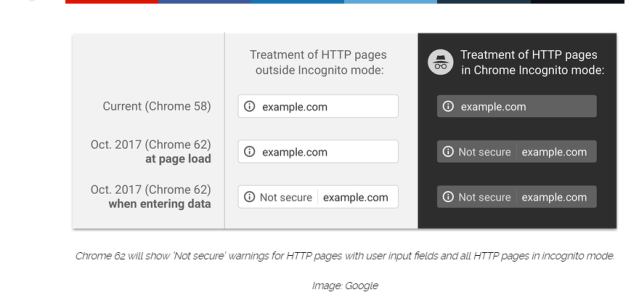
Recently I got a chance to read one article which stated “Don’t have an SSL Certificate? Google is going to flag your website this year!” When I have gone through that article, came to know that “Any type of data that users type into websites should not be accessible to others on the network, so starting in version 62 Chrome will show the ‘Not secure’ warning in the URL bar when users type data into HTTP sites”
ssl_google_warning
In order to make websites that run in AEM secure, I searched for SSL implementation in AEM. Earlier if you want to implement SSL for the whole website or for a particular page in AEM, manually you have to write an OSGi configuration and you have to force AEM to use the SSL port.

With AEM 6.3, Adobe has introduced a feature called SSL By Default. The purpose is to encourage the use of HTTPS to connect to AEM instances. Refer the below step by step procedure to enable SSL by default in AEM 6.3.
For DEMO purpose, I have used the Private Key File and SSL Cert The file used in the Adobe Helpx Article. If you want to implement SSL for the Production Environment, you need to get an authorized SSL Certificate from a third-party Certificate Authority (CA) like verisign, geotrust etc. by raising a CSR request with Private Key generated for your Server.
For further details kindly refer, http://docs.rightscale.com/faq/How_do_I_create_an_SSL_certificate_for_my_web_server.html
Source of Reference :
https://helpx.adobe.com/experience-manager/kt/platform-repository/using/ssl-wizard-technical-video-use.html
Steps to Enable SSL by default in AEM Author Instance:
  1. Install AEM 6.3 and login to your author instance
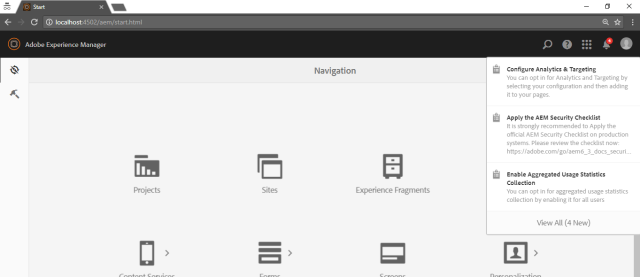
  2. After logging in for the first time, see the notifications inbox on the top right side. Click View all
2_see_inbox
  1. Select “Configure HTTPS” and open
4_configure_https
  1. In the Store Credentials section, it will prompt for key store password and trust store password. Give the password of your choice and keep it with you for future use and click NEXT
6_enter_pwd
5. In the Key & Certificate section, it will prompt you to upload the Private Key file in.DER format and SSL Certificate file in.CRT format and click NEXT
For the local environment, either you can use the sample files available in the Helpx article or you can create your own using Open SSL. For further details kindly refer,

https://helpx.adobe.com/experience-manager/kt/platform-repository/using/ssl-wizard-technical-video-use.html [To download Sample SSL certificate and to know how to use openSSL]
7.1_upload_der_file
  1. In the SSL Connector section, choose a TCP Port for the HTTPS listener, between 1 and 65535 and click DONE
10_ssl_connector
  1. Now you have successfully configured SSL by default in your AEM instance and It will show a pop-up message “Go to HTTPS URL
11_ssl_configured
  1. When you click on Go to HTTPS URL, your instance will run in HTTPS port
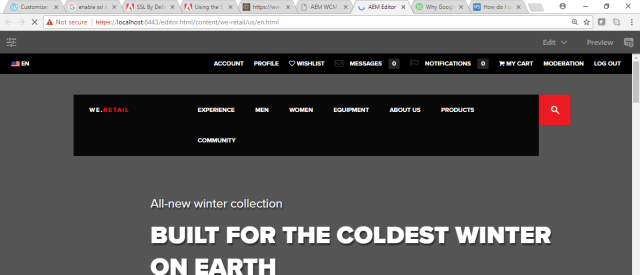
aem_on_https
As it is for Demo purpose, it’s showing https with Not Secure Label. When you install a valid SSL certificate signed by third party CA. It will show the trusted Secure Green Symbol for HTTPS Pages.
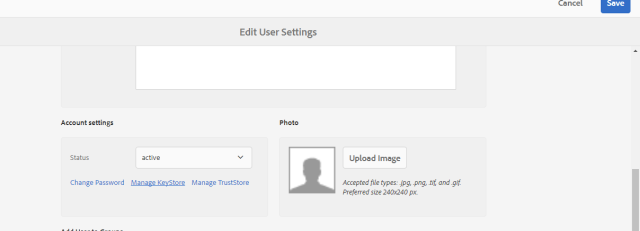
A service user called ssl-service has been created for this SSL feature. After the successful initial SSL setup, if you want to update the SSL configuration this ssl-service user will help you.

Hit the User Admin Console. Search for ssl-service and click on Edit User Settings. Here you can change the key store and trust store passwords and also you can update/ add SSL certificates.
Manage_key_trust_store
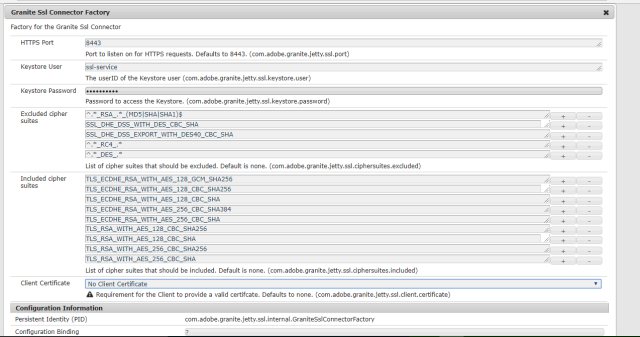
And also if you want to change the HTTPS port and key store user, you can use the Granite SSL Connector Factory configuration available in the Web Console.
Granite_ssl_config
Finally, your AEM site will become SSL Secured with better security options.


By aem4beginner

April 2, 2020
Estimated Post Reading Time ~

Configure SSL on Windows/Linux environment CQ5/AEM

I was recently asked to work on https on my local environment of AEM. Since I am using windows, I had a little bit of trouble configuring SSL.

I was following this article http://docs.adobe.com/docs/en/cq/5-6-1/deploying/config-ssl.html to configure SSL over the developer environment. Please see that since it is just a dev environment you don’t need a trust store hence only follow the steps for the developer environment.
The only problem was the parameter below
org.apache.felix.https.keystoreString[quickstart_dir]/ssl/cqkeystore.keystore
Now, this parameter uses an absolute path and not relative. So my windows settings were akin to below. The ssl directory was placed alongside the crx-quickstart and the jar file.  It is very easy to configure SSL. For Linux the path can changes to /opt/abc/ssl/cqkeystore.keystore
org.apache.felix.https.keystoreStringC:/cq/ssl/cqkeystore.keystore
Reference: 


By aem4beginner

April 1, 2020
Estimated Post Reading Time ~

How to Enable HTTP over SSL for CQSE 5.5 ‘Author’ Instances

To configure CQ’s Servlet Engine (CQSE) to listen on HTTP over SSL, you have to configure ‘Day CQSE HTTP Service’. 

As a first step, you need to create a key pair, stored in a Keystore.
1) Log in to the “author” instance as the 'admin’ user
2) Launch the Felix Admin Console at http://server:4502/system/console
3) The default tab is the list of bundles. Click on the 'Configuration’ tab
4) Find 'Day CQSE HTTP Service’ and click on it
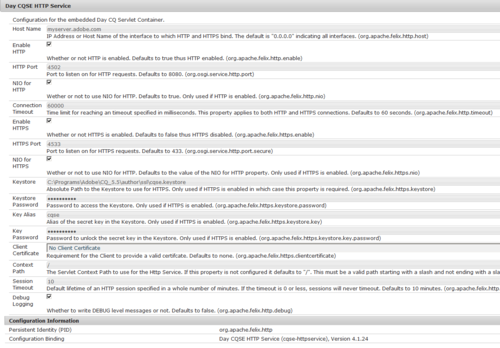
5) Configure it. See below, for example, the HTTPS port chosen was 4533:
6) In CQ’s log (error.log), you should see an INFOrmational entry such as follows:
*INFO* [CQSE HTTP Service] cqse-httpservice Started CQSE 4.x at port(s) HTTP:4502 HTTPS:4533 on context path /


By aem4beginner

How to Set up SSL for local in CQ / WEM / Dispatcher

Use case For testing
Step 1: Generate Key Store
Use Keytool to generate Keystore

You can also confirm if you have keytool in your system by using command keytool --help

Once you have keytool installed you can following command to generate ketstore

From command line navigate to /crx-quickstart/server/etc
Use the command "keytool -genkey -keystore mykey -alias myalias -keyalg rsa"

Set up SSL till CQ5.4 (Using server.xml)

use following entry in server.xml

<container>
<listener>
<!-- You already have one entry here don't modify it-->
</listener>
<!--Entry for new SSL Listener-->
<listener>
<bind-port>443</bind-port>
<ssl>
<protocol>SSL</protocol>
<key-store>
<name>etc/mykey</name>
<passphrase><Password you have given while creating certificate></passphrase>
</key-store>
<key>
<alias>myalias</alias>
<password><Password you have given while creating certificate></password>
</key>
</ssl>
</listener>
<!--End of new entry for SSL-->
</container>


You can also check /crx-quickstart/server/etc/SSL_HowTo.txt to see how configuration can be done.

NOTE: Once you have SSL set up check logs/server.log to make sure that the server is started on a secure port.

If you get Error like,

*ERROR* servletengine: Unable to start https listener on address 127.0.0.1, port 443: Permission denied
That means you need to start CQ as the root user.

Set up SSL in CQ5.5
In CQ5.5 CQSE is deployed as a bundle and you can configure SSL using Felix configuration, Please see a screenshot of how to do that. All parameter is self-explanatory


This is the actual configuration


Note
1. You can put the certificate file at any location you want. An only absolute path is required.
2. There is no way to configure multiple ports you can listen to now.

Set up SSL on apache (If your SSL terminate at apache)

Assuming that you are using Apache web server,

Click here to see how to generate a certificate and key file

If you already have cert and password then you can use the following command to generate key

openssl rsa -in <Your Key>.key -out <Key with Password>.new.key
Then go to /conf/httpd.conf and add the following entry

Listen 443
<VirtualHost *:80>
ServerName wemblog.com
ServerAlias wemblog*.com

RewriteEngine on
#Rewrite all request to https
RewriteRule ^(.*)$ https://%{HTTP_HOST}$1 [L,R=301]
</VirtualHost>

NameVirtualHost *:443
Listen 443
<VirtualHost *:443>
ServerName wemblog.com
ServerAlias wemblog*.com
SSLEngine on
SSLCertificateFile <cert path>.cert
SSLCertificateKeyFile <key path>.key

RewriteEngine on

ProxyPreserveHost On
ProxyPass / http://localhost:4502/
ProxyPassreverse / http://localhost:4502

#set header for SSL
Header add X-Forwarded-Proto "https"
<LocationMatch "/(content|apps|etc).*">
RequestHeader set X-Forwarded-Proto "https"
</LocationMatch>

</VirtualHost>

To be honest you will get a ton of information about How to set up SSL on Apache on Google.

Note: If you just have to use https (force https in CQ) and not let the author use http, There are two options,

1) You can configure dispatcher rewrite rule to redirect all http requests to https.
2) If you are not using dispatcher, you can write rewrite rule under /etc/map to redirect all requests to https port. Here is an example

Please check https://cwiki.apache.org/SLING/flexible-resource-resolution.html

You have to do something like this

/etc/map
+-- http
+-- localhost.4502
+-- sling:redirect = "https://localhost:<your secure port>"


By aem4beginner

How to make Instances SSL context aware in CQ/AEM

Use Case:
Most of the times we terminate SSL on load balancer or at dispatcher and communication to publish happen over http. In this case publish server is often not SSL aware and any request specific operations (For example relative path redirect or Link rewriting) happens over http. For example if you do something like request.sendRedirect("/somepath") from server it will get redirected to http://server-name/somepath or when you will do request.isSecure() it will return false. Operations like externalizer.externalLink(resolver, "mydomain", "/my/page") + ".html"; will also return http version of link.

Solution:
Option 1:
Let all links be http and then do force redirect on dispatcher or Load Balancer. For dispatcher rule can be as simple as this,

RewriteCond %{HTTPS} off
RewriteRule ^(.*)$ https://%{HTTP_HOST}$1 [L,R=301]

Issue:
Not SEO friendly (Unless it is relative link).
Can not embed as portlet or Iframe (Cross Site include error) over https.

Option 2:
Use SSL filter from Felix HTTP services http://felix.apache.org/documentation/subprojects/apache-felix-http-service.html#using-the-ssl-filter

If filter is configured, it looks for header configured in configuration and if header value matches configured value context on publish is considered secure and request.isSecure() will return true.


In above case if X-Forwarded-SSL is present with value on then servlet context is secure.

Note: This might not work in version latest CQ version. You can build your own version from trunk https://github.com/apache/felix/tree/trunk/http/sslfilter or from http://svn.apache.org/repos/asf/felix/trunk/http/sslfilter/

One working version of file can be downloaded from here


By aem4beginner

March 23, 2020
Estimated Post Reading Time ~

How to Enable SSL on AEM

Enable HTTPs in AEM 6.1
Why SSL?

It gives additional security to AEM instances, replication between authors and publishers also can be made secure.
We can enable SSL for the whole site or for specified pages in AEM
For example, if you want all pages of Geometrix’s Mobile Demo Site to be open in http port but the pages under the ‘company’ hierarchy to be open using a secure https port.


1. Create Credentials for Development:
Create a directory named SSL in the directory in the crx-quickstart directory. Execute the following command to create the credential and Keystore:
# keytool -genkeypair -keyalg RSA -validity 3650 -alias cqse -keystore crx-quickstart/ssl/keystorename.keystore -keypass <password> -storepass <password> -dname “CN=Host Name, OU=Group Name, O=Company Name,L=City Name, S=State, C=Country_ Code”
Note: For a production environment, you should use a certificate that is signed from a trusted certificate authority. Generate a certificate signing request and when obtained import it to your Keystore.

2.Configuring SSL on Author Instance:
1. Go to crxde and create a node of Name – config.author Type – nt:folder
2. Under this folder create a node with below details
3. Name – org.apache.felix.http
4. Type – sling:OsgiConfig


Add the following properties in the node.


3. Forcing the Use of the SSL Port
2. Go to /etc folder
Create a new sling:folder with name as a map.
3. Now under /etc/map create http node of type sling:folder.
4. Under that create a node
· Name – localhost.4502
· Type– sling:mapping.
5. Add below properties to this node:
· Name: sling:redirect Type : String Value : https://localhost:4000
Name: sling:match Type : String Value : content/geometrixx-mobiledemosite/English/company/(.*).html ## add this line if you want to enable https for particular pages


Click Save ALL, your all pages will be automatically open with the https domain.
Source: https://labs.tadigital.com/index.php/2017/06/06/enable-ssl-on-aem/

By aem4beginner