Showing posts with label Page. Show all posts

March 22, 2021
Estimated Post Reading Time ~

How to Create/Delete CQ5/AEM page through Javascript

We can create / delete the CQ page by using OOTB service /bin/wcmcommand by passing necessary parameters.

1) Create : To create page do POST Ajax call to /bin/wcmcommand with below parameters object

var data = {};
var title = Title of Page //required
var label = name of the page //optional
data['cmd'] = "createPage";
data['title'] = title;
data['_charset_'] = "utf-8";
data[':status'] = "browser";
data['template'] = template path // like -- /apps/geometrixx/templates/homepage
data['parentPath'] = parent page path // like -- /content/geometrixx/en

$.ajax({
type : "POST",
url : '/bin/wcmcommand',
data:data,
}).done(function(data) {console.log(data);});

2) Delete : To delete page do POST Ajax call to /bin/wcmcommand with below parameters object

var data = {};
data['cmd'] = "deletePage";
data['_charset_'] = "utf-8";
data['force'] = false;
data['path'] = page apth;// like -- /content/geometrixx/en/test

$.ajax({
type : "POST",
url : '/bin/wcmcommand',
data:data
}).done(function(data) {console.log(data);});


By aem4beginner

January 11, 2021
Estimated Post Reading Time ~

AEM Sample Page Guide

How to create a sample page during installation

Once you install the integration, you will need to create a sample page in AEM before you can finish your configuration.

Note: Your sample page should be created by someone who regularly creates AEM pages and is familiar with what your final AEM pages will look like when they have Contently content on them.

When you pull Contently content onto a new AEM page, your Contently content, metadata, and assets will automatically appear on your new page. To do this, we use a sample page as a model to create and fill in your new page. This way, your new page will use the right template and page properties. By using a sample page as a model, your new page will also already include the components you use and expect. This helps us put your Contently content and assets right on the page for you – not just in your page property fields but in your existing component fields too.

Before you continue the installation process, please create a sample page to use as a model for pages that will have Contently content on them. Sample pages are normal AEM pages. To create a sample page, create an AEM page using any AEM template. The goal is to create an AEM page with the template and components that will be used for every AEM page that will have Contently content on it.

Here is a list of instructions and tips to help you create your sample page:
  • A sample page should closely reflect the pages that you will pull Contently content onto.
  • A sample page should use the page template you will use when you pull Contently content onto new pages.
  • A sample page should include the page properties, components, and component fields you expect Contently to automatically put content, metadata, and assets into for you.
  • You can create a brand new page to use as your sample page or you can use an existing AEM page.
  • You can create more than one sample page if you’d like to pull Contently content onto a variety of different page variations. Right now you can only create one sample page per AEM template.
  • You can save your sample page anywhere in your content tree as long as the page has permission to access your AEM page template.
  • Your sample page does not have to be published or activated.
  • You can fill in any field or component on your sample page or you can leave them blank. If you do not plan on filling in that field with content from Contently when you pull Contently content onto new pages, the field will be left blank or keep its original value from the sample page. This means you can use the sample page to auto-populate fields.
  • You can also put additional components on the page even if you do not plan to fill them in with Contently content. These components will still appear when you pull Contently content onto a new page.
  • Sample pages will remain untouched and will simply be cloned when you pull Contently content onto new AEM pages.
After you create your sample page, please reach out to your IT team so that they can finish configuring your integration. The next steps in Contently's AEM Integration Guide include setting up a Cloud Service Configuration and setting up a Mapping for your new sample page.


By aem4beginner

January 4, 2021
Estimated Post Reading Time ~

Creating A Page using Static Templates in AEM 6.3

SYNOPSIS:
Following is the guide to creating a page component using the OOTB component on AEM 6.3. We shall create a Page from scratch and render the page at the end of this guide. To keep it simple we shall not add any custom style sheets or clientlibs. The final page will be very basic. The main aim of this guide is to explore how to create a page using AEM.

GUIDE:
Step-01: Application Structure


Step-02: Creating required folders
Right-Click on apps & select Create > Create Folder, create folders as shown in Step-01


Step-03: Create a Template to render the page component

Step-04: Create Page rendering Component
Right-Click on structure > Create > Create Component and follow the steps below, we shall add a resourceSuperType [OOTB] to render our page


Step-05: Rename the newly created component [JSP -> HTML] and add content


Step-06: Create a WebPage

Go tohttp://localhost:4502/welcome select Websites


Step-07: Create a new page using the Template created in Step-03

Step-08: View the Page


By aem4beginner

January 3, 2021
Estimated Post Reading Time ~

Get JSON response of an AEM Page

Creating a Default servlet with a selector to get Page JSON Response
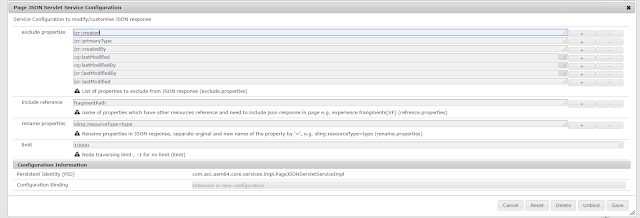
For the demo, I created a 'hcms' Selector to get Page JSON Response, when the request is made using 'hcms' selector the node would be converted into JSON, and JSON response would be returned, it is like OOTB 'model' selector but with extension

Allow renaming properties
filter results(exclude properties based on config)
include reference response e.g. experience fragments

Uses
URL - http://host:port/resourcepath.hcms.json

Examples :
http://localhost:4504/content/we-retail/language-masters/en/men.hcms.json
http://localhost:4504/content/experience-fragments/demoxf/demoxf.hcms.json

with tidy selector
http://localhost:4504/content/experience-fragments/demoxf/demoxf.hcms.tidy.json

OSGi Config
exclude properties: list of properties to be excluded from JSON response
include references: a list of properties that specify the reference of another resource.
rename properties: list of property to rename if response, e.g. originalname=newname
limit: to restrict look up if there is an infinite loop due to reference inclusion or the number of child nodes more than expected.

JSON Output
JSON output contains an array of node representations of JSON objects.
Each node object has the name, properties, and childnodes items(properties).

The JSON object would not have properties or childnodes items if they are empty, That's means if the node doesn't contain any property(filtered) then there will be no properties item in JSON response and if there is no child node of a node then childnodes items will be not there in the response)

JSON representation of experience fragment :
 "name": "jcr:content", 
 "properties": { 
 "cq:tags": [], 
 "jcr:title": "demoXF", 
 "cq:xfVariantType": "web", 
 "type": "weretail/components/structure/xfpage", 
 "cq:template": "/conf/we-retail/settings/wcm/templates/experience-fragment-web-variation", 
 "cq:xfMasterVariation": true 
 }, 
 "childnodes": [ 
 { 
 "name": "root", 
 "properties": { 
 "type": "wcm/foundation/components/responsivegrid" 
 }, 
 "childnodes": [ 
 { "name": "product_grid", "properties": { "tagsMatch": "any", "pages": [ 
 "/content/we-retail/language-masters/en/products/men/shirts/eton-short-sleeve-shirt", 
 "/content/we-retail/language-masters/en/products/men/pants/trail-model-pants", "/content/we-retail/language-masters/en/products/men/shorts/pipeline-board-shorts", 
 "/content/we-retail/language-masters/en/products/men/shirts/amsterdam-short-sleeve-travel-shirt", 
 "/content/we-retail/language-masters/en/products/men/shorts/buffalo-plaid-shorts", 
 "/content/we-retail/language-masters/en/products/men/coats/portland-hooded-jacket" ], 
 "feedEnabled": true, 
 "displayAs": "products", 
 "listFrom": "static", 
 "limit": "6", 
 "orderBy": "jcr:title", 
 "type": "weretail/components/content/productgrid", 
 "pageMax": "0" 
 }
 }, 
 { "name": "image", "
properties": { 
 "isDecorative": "false", 
 "altValueFromDAM": "true", 
 "titleValueFromDAM": "true", "
fileReference": "/content/dam/core-components-examples/library/sample-assets/mini.jpg", 
 "displayPopupTitle": "true", 
 "type": "weretail/components/content/image" 
 }
 }
 ] 
 }
 ] 
}

POM Gson dependency
<dependency>
<groupId>com.google.code.gson</groupId>
<artifactId>gson</artifactId>
<version>2.8.5</version>
</dependency>

Github code
https://github.com/arunpatidar02/aem63app-repo/tree/master/java/page/json


By aem4beginner

January 2, 2021
Estimated Post Reading Time ~

AEM page load time

In the process of debugging performance issues, we need to narrow down the load time of the page and hence the individual component/requests part of the page.

Below are a few ways of finding out the same.
  • From Browser: The very first place where we look for the page load time is our browser's Developer tools->Network Tab which will display the time taken for each of the requests that are part of the page.


  • AEM Component load time: We have an OOB feature on the AEM Sites page to find out the load time of a component.
    • Open AEM Site Page in editor mode(with /editor.html) -> Switch to Developer mode from Edit mode -> Left rail in content finder area -> Components section -> Components available as part of the page will be displayed with the time taken.


  • request.log:
    • request.log file available in ../crx-quickstart/logs folder will have a trace of each and every request and its duration.
    • There exist a Request Log Analyzer available OOB in ../crx-quickstart/opt/helpers/rlog.jar which will help find out the requests which took a longer duration to respond.
      • clear out existing contents in request.log file -> Access an AEM page -> logs would have been trapped in request.log file.
      • Let's say we have to display 5 requests in the order starting with longest duration, execute the below command being in /crx-quickstart/logs folder of AEM instance.
        • java -jar ../opt/helpers/rlog.jar -n 5 request.log where n refers to the number of lines to be displayed


AEM Chrome plugin from ACS Commons:
  • Log tracer and Adaptive form are the primary functionalities, covered in detail in ACS site
  • To find out load time of the request: Chrome browser -> Developer Tools -> AEM Tab -> Tracer -> Will have a list of requests of the page with time displayed under "Response time" (After installing the plugin by following installation steps in ACS site)


By aem4beginner

December 30, 2020
Estimated Post Reading Time ~

Unable to rename the page in AEM 6.5

We recently migrated our sites from AEM 6.3 to AEM 6.5. In AEM 6.5 rename page is not working in touch UI but it works in Classic UI.

Solution:
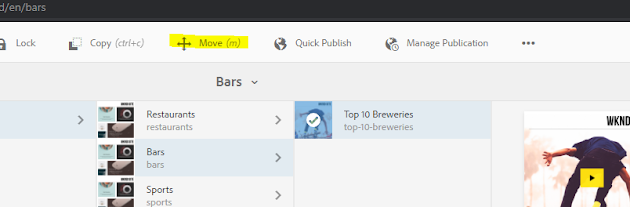
You can do the same using the "Move" option.

Select the page you want to rename


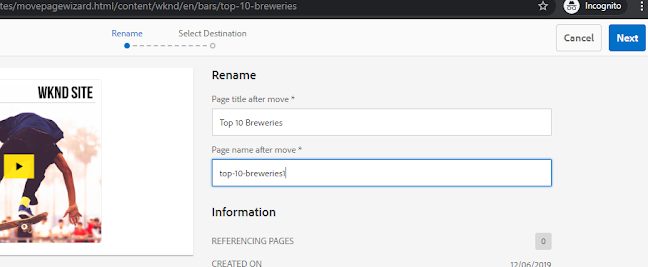
2. Change the values as required. and select the destination as the same folder


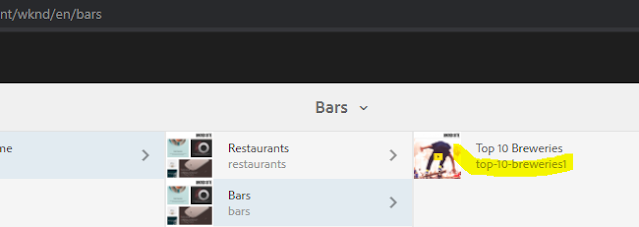
Click next and choose the same folder as the destination and you can rename (title or node name or both) the file.


By aem4beginner

May 27, 2020
Estimated Post Reading Time ~

How to Obtaining AEM Page Information in JSON Format

AEM/CQ Page Information in JSON Format
you can get page inform by hitting bellow service bypassing page path as parameter

http://server:port/libs/wcm/core/content/pageinfo.json?path=<page-path>

Ex : http://localhost:4502/libs/wcm/core/content/pageinfo.json?path=/content/geometrixx/en

Adobe documentation


By aem4beginner

How to Create/Delete CQ page through Java Script

we can create/delete the CQ page by using OOTB service /bin/wcmcommand bypassing necessary parameters.

1) Create: To create page do POST Ajax call to /bin/wcmcommand with below parameters object

  var data = {};
  var title = Title of Page //required
  var label = name of the page //optional
  data['cmd'] = "createPage";
  data['title'] = title;
  data['_charset_'] = "utf-8";
  data[':status'] = "browser";
  data['template'] = template path // like -- /apps/geometrixx/templates/homepage
  data['parentPath'] = parent page path // like --  /content/geometrixx/en

  $.ajax({
   type : "POST",
   url : '/bin/wcmcommand',
   data:data,
  }).done(function(data) {console.log(data);});

2) Delete: To delete page do POST Ajax call to /bin/wcmcommand with below parameters object
              
   var data = {};
  data['cmd'] = "deletePage";    
  data['_charset_'] = "utf-8";
  data['force'] = false;
  data['path'] = page apth;// like -- /content/geometrixx/en/test

   $.ajax({
   type : "POST",
   url : '/bin/wcmcommand',
   data:data
       }).done(function(data) {console.log(data);});


By aem4beginner

May 26, 2020
Estimated Post Reading Time ~

Opening properties html in a New Tab on Card Click in Omnisearch

Introduction:
Omnisearch can be triggered by pressing “/” (forward slash) on a sites.html page, or clicking on the Magnifying glass icon in the top bar.

Fig. 1 – Opening Omnisearch 

By default, the results are displayed as cards in an aesthetically pleasing manner. Clicking on a result card opens its properties page in the same tab, but this erases our results page. Going back takes us to the sites.html page from which we initiated the search. If we want to get the same results again, we have to enter the same search term and scroll to the same position. This can get really tiring when you have multiple items to check/modify.

Fig. 2 – Results in Card view  

Requirement:
Preserve Omnisearch results in sites.html
We want to preserve the results, so that we can go back and forth without any overheads. This would increase authors’ efficiency and thus save time.  

Analysis:
In Omnisearch, an AJAX call passes the search parameters to a Sling servlet which returns the results’ HTML markup. Granite UI receives this rudimentary markup, picks only the tags and attributes it needs, translates them to Coral UI-specific tags, and modifies the DOM dynamically. The rendering and behaviour is handled by Coral UI. Sites.html (Touch UI) has thus been designed as a Single Page Application (SPA), powered by the Coral UI and Granite UI libraries.
When we go back from the properties page, it redirects us to the previous URL. Since it did not store the search results, we don’t see them. Only the initial page source (which is stored in the browser history/cache) is served.  

Proposed solution:
The card click should open the link in a new tab
When the user clicks on the card, the properties page will open in a new tab, thereby preserving the results as they were. After the user is done with the property changes, they can close the tab and return to the results.
Limitation is that this will only work on card click for sites.html. It will not work for:
Clicking the Quick Icons (they appear on mouse hover on the card)
List view
Assets, projects, or any other admin interface.  

Discovery:
The following are the relevant points from the control flow:
There is <link rel=”properties” href=”…”/> a node in every card’s DOM. The href attribute stores the address to which we have to navigate.
Shell clientlib listens for clicks on the cards. On being invoked, the listener picks the link tag with the rel=”properties” property from the relevant card, and navigates to it. 

Search results rendering is not a simple task in AEM. Features were probably added over a long time and by different teams with different architects, which has resulted in a spaghetti implementation. Control flow follows confusing paths and there is no consistent data source. Some datasource paths are defined in /libs and can be overridden, while some are hardcoded into the Omnisearch bundle, which makes extending capabilities very tough. This is why the scope of this blog is limited to its current state.
Nevertheless, the new tab functionality for sites.html can be modified without meddling too much with Adobe code.

Fig. 3 – Desired result. Properties page opens in a new tab
Approach:
Overlay the Shell clientlib.
We shall overlay the Shell clientlib under /apps, which lets us accomplish our task with minimal effort.  

Implementation
Copy the folder: “/libs/granite/ui/components/shell”
Paste it under /apps such that the path is: “/apps/granite/ui/components/shell”
Delete all the files in this folder, except “js/omnisearch.js”
Open “js/omnisearch.js”
Go to line 827 

Replace the existing function with: $(document).on("click", "#granite-omnisearch-result-content .foundation-collection-navigator", function(event) { var element = $(event.currentTarget).find("link[rel=properties]"); if(this.hasAttribute("data-foundation-collection-navigator-href")){ var href = element.attr("href"); if (href) { window.location = href; } } else { var href = element.attr("href"); if (href) { window.open(href, "_blank"); } } event.preventDefault(); });

Fig. 4 – The overlaid JS file and modified content
Line 838 is the relevant code for sites.html. We changed it from window.location = href to window.open(href,“_blank”) which opens the page in a new tab.
The condition on Line 829 detects if the search was performed in assets.html. If it evaluates to true, then the default/old code is executed. Had we not placed the check, then a card-click in assets.html would have opened the link in the same tab and a new tab as well. This is because assets.html cards have an additional attribute called data-foundation-collection-navigator-href. When this attribute is combined with the attribute data-foundation-collection-navigator, Granite UI treats the card as a link. So, that would have opened the new page in the same tab, and our code (line 829) would have opened it in a new tab.

Conclusion:
Now when you go to “host:port/sites.html/” and search something, the card click will open the properties page in a new tab.


By aem4beginner

May 22, 2020
Estimated Post Reading Time ~

Unable to select the components on a page

I want to perform a rollout only for the selected components in the page. I noticed that I am not able to select any of the components presented in the pages using the small checkbox in the component's edit bar.

I am not sure why this is happening. All of them are custom components and not OOTB ones.

Any solutions to this, please share them.

Best How To:
I just discovered that in EditBar.js, the listener associated with the checkbox was not functioning. The following loc can be found at /libs/cq/ui/widgets/source/widgets/wcm/EditBar.js if not overlayed.

listeners: {
            check: function(cb, checked) {
                if (checked) {
                    CQ.WCM.select(editBar, true);
                } else {
                    CQ.WCM.deselect(editBar, true);
                }
            }
        }

It worked when the 'check' event was changed to 'selectionChanged' . Clearing the browser cache, reload the page to see the changes. Thanks!


By aem4beginner

How to do a search by date query on cq pages

I am trying to create a blog in cq5. The OOTB search component in blog is not supporting search by date feature. I tried to override it, but could not find the correct query to fetch the blogs created on a particular date. Seems the only functions supported are >,>=,<,<=.

Please help me in finding a query (preferabbly xpath) to fetch a page created on a particular date (cq:lastModified).

Best How To:
There are some functions in XPath like contains or not. There is also one for date fields. Here an example for anything that was just modified in the content tree:

/jcr:root/content//*[@cq:lastModified >= xs:dateTime('2015-05-29T08:44:56.280Z')]


By aem4beginner

How to get url of all child,grand child pages using root path?


By aem4beginner

Page activation(using siteadmin) is too long

I have page with a lot amoun of content. After activation button is pressed, the loading bar is shown for a 2-3 mins, activation response is pending for a 2-3 mins.


If i use curl command : curl -u admin:admin -F cmd=activate -F ignoredeactivated=false -F onlymodified=false -F path=/path/topage 
http://server:port//etc/replication/treeactivation.html

Or http://server:port/etc/replication/treeactivation.html

Page will be activated in a few mills.

If I use sidekick to activate page - page activation is too long as on siteadmin


How to fix long activation?
Best How To:
As you may see preActivateValidaror executed too long. There was used some long-runned XPATH queries, I just have substituted them with SQL2 query. Now preActivateValidaror executes for a 500ms.


By aem4beginner

May 20, 2020
Estimated Post Reading Time ~

Adobe CQ Renders Pages with Custom Extension

You may already know CQ can render HTML pages with .html extension, I'd like to show you how to tell CQ to render pages with another custom extension. For example, instead of responding to http requests end with .html, we want CQ to respond to requests end with .foo.

In order to tell CQ to be able to deal with a custom request with a special page extension (e.g., .foo), you need to

Implement a component JSP file to render the page with .foo extension, and

Tell CQ that .foo extension is acceptable.

Here's the details of what you need to do:

#1) Implement component JSP to render page with .foo extension
Like many other CQ5 component, you should have known how to implement a CQ5 component in JSP, and what to name (according to url-to-script resolution rules) it so that it'll be used to render the page being requested. In our example case to render page with .foo extension, the JSP component can be named as foo.jsp. If you're not familiar with url-to-script resolution in Sling, please refer to other articles and tutorials first then come back to this article. In this post, I'd like to focus on the next step which is essential and is not quite clearly documented by Adobe.

#2) Tell CQ that .foo extension is acceptable
This has to be achieved by creating a file under /libs/foundation/components/primary/cq/Page/. Specifically, using our .foo extension example, we need to create the following file named Page.foo.jsp if you want request to pages of .foo extension to be acceptable by CQ:

/libs/foundation/components/primary/cq/Page/Page.foo.jsp

Make the above file has the following one line content:

<%@include file="/libs/foundation/components/primary/cq/Page/proxy.jsp" %>

Please note, for unknown reason, use the following line without the full path of proxy.jsp or with extra return characters at the end may lead you to some unknown 500 Error on rendering the page, so don't:

<%@include file="proxy.jsp" %>
[return]

Therefore, I highly suggest you to make sure you don't have extra carriage return at the end and use the full path to reference proxy.jsp in Page.foo.jsp if possible. Otherwise, you may encounter 500 Internal Server Error as I did using CQ 5.6.1.

Conclusion
Suppose you have implemented a component JSP named foo.jsp (#1) and have a Page.foo.jsp file set up as mentioned above (#2), as a result, user request to http://...whatever/..../[pagename].foo will be handled by proxy.jsp, which in terms will somehow pass the control to the component jsp file named foo.jsp referenced by the resourceType (or resourceSuperType) property of the page's content node.

References
CQ5.3: How to add a custom page extension
How to create custom renderers for all/specific extensions?


By aem4beginner

May 19, 2020
Estimated Post Reading Time ~

How to create a Page in CQ5

Creating a page in CQ5 requires two ingredients, Template and Script to render the template. Let's take a look at how pages are structured in cq5.


Note: There is no fixed pattern. This is how its generally done

The pages in cq5 are created in a tree structure. This helps in managing multi-language and multi-national websites.'i18n' features of cq5 are very easy to use when the pages are created in a tree structure. All the actual pages are created under the language node.

To create a page you have to pick a template. What the template actually does is specify the sling:ResourceType property for that page. 'sling:ResourceType' property is a sling concept that tells which script is going to render that node [check out this link for more].

Creating the template: On the templates folder of your project [for project structure, hit this link], right-click and select create template [in crxde lite]. Give it a title and label and you'll see a field for the resource type. Leave it blank for the time being and then fill in the other fields. Now you have a template, but it's still not usable because there is no script to render it.

Creating the rendering script: To create a component that renders the template, go to components/page component of your project. Right-click on that folder and select create a new component. Give it a title and label. A jsp file, with the same name as the label you give, will be created by default. While creating the component give the path of the foundation page component as the sling:resourceSuperType.

What the sling:resourceSuperType tells is the place of the default script that handles the component. Sling engine will treat that as default and any code in your component's jsp is actually overriding the default script. When the default script has a lot of parts say body, header, footer, and so on... to extend only one of them; let's say header, for example, give the default script's path as sling:resourceSuperType in your custom component. Then copy the contents of the jsp that is of the same name as the default script component to your component's script. Now create a jsp with the same name as the header in your component and write the code that you want.

The sling engine will come to the content node and check the resource type. This will make it use your component to render the content. In the content, all it'll find is the default jsp and header jsp but the default jsp has included too few other jsp's. The sling engine will then use the sling:resourceSuperType property to reach the default component and use the body, footer, etc. present in that component.

A sling node can have multiple scripts to render it; for example, a page can be rendered in desktop view, printer-friendly view, mobile view, and so on. This can be done by creating multiple jsp files inside a component with proper selectors.

In the url, if sling doesn't find any selectors then it will use the jsp that has the same name as the component to render it by default. If there are selectors in the url and they match the ones on the scripts, then the content will be rendered by that script. For rules of url decomposition, hit this link.


By aem4beginner

May 13, 2020
Estimated Post Reading Time ~

Page without Templates in AEM

During CQ5 interviews, a general question has been asked –

Can we create a page without template?
in this post I will explain it’s answer in detail. before knowing the answer of this question just rethink the definition of a Template.

“A template is used to create a Page and defines which components can be used within the selected scope. A template is a hierarchy of nodes that has the same structure as the page to be created, but without any actual content“

when you create a template using crxde lite then it creates two nodes by default having primaryTypes
  • cq:Template as parent
  • cq:PageContent as child
When we create a page using a template via siteadmin then siteadmin uses content page component & it copies all the child nodes under the template to a newly created page node.

and once the page has been created it doesn’t require cq:Template as all the child node of the template copied under cq:Page node & these nodes contains all the required properties to display a component group for that page.

It means if you want to create a page without template you can do that but it’s not possible using siteadmin console as it’s content page component uses templates to create pages.

you have to do all this stuff manually from crxde i.e.

create a node of type cq:Page and save, add cq:PageContent node under page node, add required properties to show the component & if you want to add some default node under this cq:PageContent node adds all of them manually.

It’s not a good practice to create a page manually, always use templates as it provides a different set of properties which are very helpful while creating pages or websites.
Some of the important properties are –
allowedTemplates
allowedPaths (deprecated Now)
allowedParents
allowedChildren
these properties can be used for filtering the page structure using the siteadmin console. but if you are creating a page manually then you have to take care of all of this restriction by your own.

Your comments are heartily welcome. These comments will update me about my mistakes.


By aem4beginner

HTML of a Page in OSGi Service in AEM

In this blog, I will explain one interesting use-case of one of my projects. Here is the user-case-

“whenever we activate a page on author instance we need to get the HTML for the activated page and send this page HTML to another search engine. “

In this blog, I will explain how I got the HTML of the activated page in my CustomTransportHander. Let’s start with questions and answers.

Have you used the HTTPClient API?
No, we have the instructions not to use HTTPClient API to get the HTML. We need to use an internal AEM library for it.

Which APIs you have used?
We completed this task using threeOOTB services.
RequestResponseFactory
SlingRequestProcessor
ResourceResolverFactory

What is the use of RequestResponseFactory?
We have used this service to create HttpServletRequest and HttpServletResponse objects.

What is the use of SlingRequestProcessor?
This service is used to execute the newly created HttpServletRequest.

What is the use of ResourceResolverFactory?
This service is used to create the Resource Resolver object.

What code you have added for getting the HTML of the activated page?
Here is the code snippet-

private String getHTMLForRequestedPage(ReplicationLog replicationLog) {

HttpServletRequest req = requestResponseFactory.createRequest(“GET”, pageURL);

WCMMode.DISABLED.toRequest(req);

ByteArrayOutputStream out = new ByteArrayOutputStream();

HttpServletResponse resp = requestResponseFactory.createResponse(out);

try (ResourceResolver serviceResourceResolver = resolverFactory.getServiceResourceResolver(Collections.singletonMap(ResourceResolverFactory.SUBSERVICE, SUB_SERVICE))) {

slingRequestProcessor.processRequest(req, resp, serviceResourceResolver);

} catch (IOException | LoginException | ServletException e) {

replicationLog.error(“Exception occured : {}”, e.getMessage());

}

return out.toString();

}

Don’t forget to refer to all of the above-mentioned services.

What are the reference statements for these services?
Here are these-

@Reference
private SlingSettingsService slingSettingsService;

@Reference
private RequestResponseFactory requestResponseFactory;

@Reference
private SlingRequestProcessor slingRequestProcessor;

@Reference
private ResourceResolverFactory resolverFactory;

In the above-defined method, what is the value of pageURL?
pageURL is the page URL with .html extension of the newly activated page. For example-

If author activates a page – /content/demo/en then pageURL value should be /content/demo/en.html.

How are you managing other assets or configurations which got activated with the page?
We have written down this code in such a way that it will handle only the page activation request. It will not work for other assets.

Is this solution worked for you?
Yes, I got the expected results.


By aem4beginner

Pages

While I have mentioned that pages are just page level components so most of the information on the Components page is the same here, there are a few things that are different in how they are used.

Templates

To create a page in AEM there has to be a template. The template tells AEM that a page component is allowed to be created, and where it can be created
<?xml version="1.0" encoding="UTF-8"?>
<jcr:root xmlns:sling="http://sling.apache.org/jcr/sling/1.0"
xmlns:cq="http://www.day.com/jcr/cq/1.0"
xmlns:jcr="http://www.jcp.org/jcr/1.0"
xmlns:nt="http://www.jcp.org/jcr/nt/1.0"
jcr:description="Template for Sample applications."
jcr:primaryType="cq:Template"
jcr:title="Sample Admin Page"
allowedPaths="[/content/sample/en/.+]"
ranking="{Long}100">
<jcr:content jcr:primaryType="cq:PageContent"
sling:resourceType="sample/components/structure/admin-page"> <par jcr:primaryType="nt:unstructured"
sling:resourceType="wcm/foundation/components/parsys"/>
<node1 jcr:primaryType="nt:unsrtuctured" sling:resourceType="sample/components/content/admin"/>
</jcr:content>
</jcr:root>
The template has a few tasks.
  1. Tell AEM that a page type can be created in the sites.html console
  2. Tell AEM how to build the structure in the jcr:repository for the page so it is in a default state

Telling AEM about your page

As you can see in the code above, we have the fields jcr:title and jcr:description that will describe the template itself. You can also add an image called thumbnail.png below the node so that an image appears in AEM's page creation dialog
AEM Templates
The ranking defines the order that the template will appear in relation to the other templates available for that content location.
Obviously, you wouldn't want your page types being created in other applications, and this is where the allowedPaths property comes into play. It is an array so that you can add multiple locations. The values themselves are regex's so that you can define the different structures.
i.e imagine that the sites that we are going to build with the sample application will be /content/site1 and /content/site2 since we know what the structure of the site is we could either specify [/content/site1,/content/site2] however that is very restrictive and harder to maintain if we decide to add site3 later so instead you can add [/content/site*] which would mean anything under content starting with the site.
Again this is quite restrictive and would only allow the template to be created directly below a page starting with the site if we add a bit more regex we can allow it to be created anywhere below the site [/content/site*(/.*)?] will do the trick.
There are additional attributes that can be added to the template's root element
  • allowedParents
    • Defines what pages you can create a page of this template on. This is very similar to the cq:allowedTemplates section below.
  • allowedChildren
    • The opposite of allowedParents, it defines what child templates can be created under a page of this template

Telling AEM the default structure of the page

The nodes below the root define the structure that you will be created by default when you click create in the page creation console.
By default, this should set up any default nodes that you need i.e. any parsys fields or default components that are coded into your page.
There is also an additional item you can add to the jcr:content section other than the mandatory sling:resourceType of the page's component to control what templates are visible when creating new pages.
  • cq:allowedTemplates
    • Defines what templates can be created below this page
    • If set AEM will show these templates that have are in this list and have an allowedPath that fits this page, or no allowedPath.
      • Only templates that have both are shown. i.e. if a template has an allowedPath that is valid but is not in the list of templates in the cq:allowedTemplates, it will not be shown

Page Structure

I have mentioned inheritance on the components page, however, when it comes to pages it really comes into its own.
The example I am going to explain will have a base page with just header and footer and nothing else, that will be extended by a section page, which will be extended by a sub-section page.
I won't show the code for the templates as that is self-explanatory

Base Page

The base page wouldn't actually be a page you can create because it doesn't have the functionality to display anything and is just the boilerplate
I won't go into much explanation of the sightly structures as this will be discussed further in the sightly page.
The structure for this page will be
  • .content.xml
    • Page definition
  • _cq_dialog
    • Page dialog
  • base.html
    • Main page
  • partials
    • The substructure of the page
    • body
      • Body elements
    • foot
      • Footer elements
    • head
      • Header elements

.content.xml

<?xml version="1.0" encoding="UTF-8">
<jcr:root xmlns:sling=http://sling.apache.org/jcr/sling/1.0" xmlns:cq=http://www.day.com/jcr/cq/1.0" xmlns:jcr=http://www.jcp.org/jcr/1.0"
jcr:primaryType="cq:Component"
jcr:title="Base Page"
sling:resourceSuperType="foundation/components/page"
componentGroup=".hidden"/>
There isn't anything special about the base page component, as this is the base its supertype is foundation/components/page which is the base page structure supplied by AEM. We don't have to extend the base page, it is just a standard that I have always done. Because we will have an html file named after this page, the base doesn't actually provide us with any functionality. Also, the foundation/components/page component is a jsp component so it can't be extended properly with sightly.
All pages should be in the componentGroup .hidden so that they are not shown in the component dropdown.

_cq_dialog.xml

As with all components, a page can have additional attributes, the difference with a page is that you are extending the default dialog for the pages, and it will just add a new tab into the default dialog. If you add a node that is the same as one of the default dialog nodes then you will overwrite the functionality of that particular tab.
The dialog is configured in the .content.xml file
<?xml version="1.0" encoding="UTF-8"?> <jcr:root
xmlns:sling="http://sling.apache.org/jcr/sling/1.0" xmlns:cq="http://www.day.com/jcr/cq/1.0" xmlns:jcr="http://www.jcp.org/jcr/1.0" xmlns:nt="http://www.jcp.org/jcr/nt/1.0" jcr:primaryType="nt:unstructured" jcr:title="Application Page"> <content jcr:primaryType="nt:unstructured">
<items jcr:primaryType="nt:unstructured">
<tabs jcr:primaryType="nt:unstructured">
<items jcr:primaryType="nt:unstructured">
<description
jcr:primaryType="nt:unstructured" jcr:title="Description" sling:resourceType="granite/ui/components/foundation/section" class="full-width"> <layout
jcr:primaryType="nt:unstructured" sling:resourceType="granite/ui/components/foundation/layouts/fixedcolumns" margin="{Boolean}false" class="full-width" />
<items jcr:primaryType="nt:unstructured">
<column
jcr:primaryType="nt:unstructured" sling:resourceType="granite/ui/components/foundation/container" class="full-width"> <items jcr:primaryType="nt:unstructured">
<fieldset
jcr:primaryType="nt:unstructured" jcr:title="User Groups" sling:resourceType="granite/ui/components/foundation/form/fieldset" name="./aclGroup"> <layout
jcr:primaryType="nt:unstructured" sling:resourceType="granite/ui/components/foundation/layouts/fixedcolumns"/>
<items jcr:primaryType="nt:unstructured">
<column
jcr:primaryType="nt:unstructured" sling:resourceType="granite/ui/components/foundation/container"> <items jcr:primaryType="nt:unstructured">
<description jcr:primaryType="nt:unstructured"
sling:resourceType="granite/ui/components/foundation/form/textfield" name="./sample:description" class="full-width"/>
</items>
</column>
</items>
</fieldset>
</items>
</column>
</items>
</description>
</items>
</tabs>
</items>
</content>
</jcr:root>
As you can see it is structured identically to a normal component dialog. You will notice that instead of just adding items to the dialog i have added a fieldset. The nice thing about a fieldset in a dialog is it groups the items, even if they are not in a multifield it will still put a divider between the items so they are visually separated. This dialog will add the description tab at the end of the existing page dialog, and because it is in the base, any page that extends this will also have the description tab.

base.html

The base.html is the initial file that will be used for the page, because it is named the same as the page component. Any page that extends this won't have to have an html file the name of it's page as AEM will go to it's parent and find it's base html
<html lang= "en" data-sly-use.userlocale= "sample.core.models.LocaleModel" data-sly-attribute.lang= "${userlocale.language}" >
<head>
<sly data-sly-include= "partials/head/head.html" data-sly-unwrap/>
</head>
<body class = "page" >
<sly data-sly-include= "partials/body/main.html" data-sly-unwrap/> <sly data-sly-include= "partials/foot/footlibs.html" data-sly-unwrap/>
</body>
</html>
As you can see it is very clean which makes management and extensibility very simple.
I did say I won't go much into sightly, however, I will mention a few things that are here.
<html lang="en" data-sly-use.userlocale="sample.core.models.LocaleModel" data-sly-attribute.lang="${userlocale.language}">
I will talk about data-sly-use later, but for now, you should know that the name after data-sly-use is the name that the object will be known as, and it will be an object of type sample.core.models.LocaleModel, as long as LocaleModel is either a model or a wcmuse class. I also use data-sly-attribute which replaces an existing attribute with a value if the value exists, in this case, I am changing the lang attribute which is defined as lang="en" with the value of user locale. language This is part of the internationalization of the page. The local model will be responsible for deciding what the user's locale is, whether that is from their profile, the location of the page, or the user's browser.
The other tag of interest is
<sly data-sly-include="partials/head/head.html" data-sly-unwrap/>
The data-sly-include attribute tells sightly that it needs to read the file mentioned and bring it into the page structure. While data-sly-unwrap specifies that the new content should replace the <sly> tag, in this case it is not really needed, however i keep it there to maintain standards and readability.

partials

As you saw in the base page, there isn't any content, all the content will be in the partials folder, this means that the child component has the ability to overwrite any part of the base page
head
The head folder is for all header information
head.html
This is the main file that makes up the header of the html page
<meta charset= "utf-8" data-sly-use.head= "head.js" >
<meta name= "viewport" content= "width=device-width" >
<title>${currentPage.title || currentPage.name}</title>
<meta name= "keywords" content= "${head.keywords}" />
<meta name= "description" content= "${properties.jcr:description}" />
<meta name= "appdescription" content= "${properties.sample:description}" />
<link rel= "apple-touch-icon" sizes= "180x180" href= "/etc/designs/sample/assets/img/favicons/apple-touch-icon.png" >
<link rel= "icon" type= "image/png" href= "/etc/designs/sample/assets/img/favicons/favicon-32x32.png" sizes= "32x32" >
<link rel= "icon" type= "image/png" href= "/etc/designs/sample/assets/img/favicons/favicon-16x16.png" sizes= "16x16" >
<link rel= "manifest" href= "/etc/designs/sample/assets/img/favicons/manifest.json" >
<link rel= "mask-icon" href= "/etc/designs/sample/assets/img/favicons/safari-pinned-tab.svg" color= "#5bbad5" >
<meta name= "theme-color" content= "#ffffff" >
<meta data-sly-test= "${wcmmode.edit || wcmmode.design}" data-sly-include= "/libs/wcm/core/components/init/init.jsp" data-sly-unwrap></meta>
<sly data-sly-include= "partials/head/headlibs.html" data-sly-unwrap/>
<sly data-sly-include= "partials/head/pagelibs.html" data-sly-unwrap/>
Pretty much boilerplate html for the header, but i have put a few extra bits in. you can see the data-sly-use.head is a js file. This will be processed as serverside javascript to get some values.
You can also see I am using a mix of variables, you get access to a few variables in your components by default, I am using currentPage, properties, and wcmmode which will be explained a bit more in the sightly page.
One thing of interest is:
<meta data-sly-test="${wcmmode.edit || wcmmode.design}" data-sly-include="/libs/wcm/core/components/init/init.jsp" data-sly-unwrap></meta>
This will include the init.jsp, only if you are in the wcmmode of edit or design. This will initialise some of the editing functions that are useful. Without this some of the editing functions around parsys won't work correctly as they haven't been initialised.
I am only including this while in edit and design mode as I don't like having anything in the HTML in the final view that is not needed there.
head.js
// Server-side JavaScript for the head.html logic
use(function () {
var WCMUtils = Packages.com.day.cq.wcm.commons.WCMUtils;
var resourceResolver = resource.getResourceResolver();
return {
keywords: WCMUtils.getKeywords(currentPage, false ),
favIcon: resourceResolver.getResource(currentDesign.getPath() + "/favicon.ico" ).getPath()
};
});
head.js is an example of a WCMUse class done in serverside javascript. In this case we use the WCMUtils to get the keywords and the current design's path. While this information is also available via the currentPage sightly object, it is easier to use a script to get the details.
headlibs.html
<!-- jQuery library -->
<sly data-sly-use.clientLib= "/libs/granite/sightly/templates/clientlib.html" data-sly-call= "${clientLib.js @ categories='cq.jquery'}" data-sly-unwrap/>
<script src= "//code.jquery.com/ui/1.11.4/jquery-ui.js" ></script>
<link rel= "stylesheet" href= "//code.jquery.com/ui/1.11.4/themes/black-tie/jquery-ui.css" >
<!-- Bootstrap -->
<script src= "//maxcdn.bootstrapcdn.com/bootstrap/3.3.6/js/bootstrap.min.js" ></script>
<sly data-sly-use.clientLib= "/libs/granite/sightly/templates/clientlib.html" data-sly-call= "${clientLib.css @ categories='sample.site'}" data-sly-unwrap/>
the headlibs.html file is where we define libraries commonly used by the pages, in this case i am importing a couple of client libs as well as some jquery and bootstrap libraries
<sly data-sly-use.clientLib="/libs/granite/sightly/templates/clientlib.html" data-sly-call="${clientLib.js @ categories='cq.jquery'}" data-sly-unwrap/>
Another important sightly use, in this case it is for clientlibs, the /libs/granite/sightly/templates/clientlib.html file defines some sightly templates used to import all of the client libs into a single file. as you can see in the above example we use a call to clientLib.js and clientLib.css which are separate templates within the html file. There is also a .all template so we could do clientLib.all and both the js and css would be imported. While it is available I do prefer to keep them separate so i can layout the html how i want.
pagelibs.html
pagelibs is actually an empty file, and this is so that any file that extends the base can keep all of it's functionality while adding more libraries to the head section of the html
body
The body folder contains all of the html content to make up the visual section of the page
<div class="page__main">>
<div data-sly-resource="${@path='header', resourceType='sample/components/content/applicationHeader'}"></div>
<sly data-sly-include="partials/body/main-content.html" data-sly-unwrap/>
</div>
Just like the rest of the html in the base, it uses a other resources to show information and includes a file that can be overwritten by later pages. The main-content.html like the pagelibs.html in the head section is an empty file.
In this file however we are adding a fixed component
<div data-sly-resource="${@path='header', resourceType='sample/components/content/applicationHeader'}"></div>
The data-sly-resource attribute tells sightly to replace this div with a new component. The path field specifies which sub-node is used to hold data for the component, while the resourceType specifies which component is to be used
foot
The foot section is the opposite of the head and is where we can put any javascript files that you want to load after the page is loaded.
<!--/* Include the site client libraries (loading only the JS in the footer, CSS was loaded in the header) */-->
<sly data-sly-use.clientLib="/libs/granite/sightly/templates/clientlib.html" data-sly-call="${clientLib.js @ categories='sample.site'}"data-sly-unwrap/>
<sly data-sly-include="partials/foot/pagelibs.html" data-sly-unwrap/>
again you can see I am bringing in the clientlib js for sample.site and adding another pagelibs.html for other components to overwrite
And that is it, you now have a base page that other pages can extend. As you can see this page won't do much if it was instantiated. It would load all the js/css code required, and add a header at the top of the page, but there is no area for an editor to add any new content so it wouldn't be very useful.

Application page

We are going to now build a new page type that an editor can add content to. It will use data from the dialog to display the page's description
We always have to have our .content.xml file to define the page
<?xml version=<"1.0" encoding="UTF-8"?>
<jcr:root xmlns:sling=http://sling.apache.org/jcr/sling/1.0" xmlns:cq=http://www.day.com/jcr/cq/1.0" xmlns:jcr=http://www.jcp.org/jcr/1.0"
jcr:primaryType="cq:Component"
jcr:title="Application Page"
sling:resourceSuperType="sample/components/structure/base"
componentGroup=".hidden"/>
You can see that the sling:resourceSuperType points to our base page as that is what we want to extend. We don't have an application.html as we want to use the core functionality of the base page and only overwrite small pieces

partials

We need to maintain the structure of any part of the page that we want to overwrite. Having a file named the same but in a different sub folder will not work.
head
in the base file we had pagelibs.html that was empty. While we could just overwrite the headlibs.html to make the header completely custom, we want to extend the page not overwrite it's base functions.
<sly data-sly-use.clientLib= "/libs/granite/sightly/templates/clientlib.html" data-sly-call= "${clientLib.css @ categories='sample.application.site'}" data-sly-unwrap/>
<script>
$.get( "/bin/sample/analytics" , function (data) {
if (data) {
(function (i, s, o, g, r, a, m) {
i[ 'GoogleAnalyticsObject' ] = r;
i[r] = i[r] || function () {
(i[r].q = i[r].q || []).push(arguments)
},
i[r].l = 1 * new Date();
a = s.createElement(o),
m = s.getElementsByTagName(o)[ 0 ];
a.async = 1 ;
a.src = g;
m.parentNode.insertBefore(a, m)
})(window, document, 'script' , '//www.google-analytics.com/analytics.js' , 'ga' );
ga( 'create' , String(data.trackingId), { 'siteSpeedSampleRate' : 100 }, {customUserId: data.userId});
ga( 'set' , 'dimension1' , data.userId);
ga( 'send' , 'pageview' );
}
});
</script>
<sly data-sly-include= "partials/head/itemlibs.html" data-sly-unwrap/>
For our application we want to add google analytics as well as adding any application specific clientlibs, as we expect this page to be extended we have also added a blank itemlibs.html that the sub pages can overwrite if they want
body
As with the header, we are overwriting the main-content.html file to add a bit more content
<div class="container ordering-container">
<p data-sly-test="${properties.sample.description}" >${properties.sample.description}</p> <div class="page__par" data-sly-resource="wcm/foundation/components/parsys"></div>
</div>
We are not doing much in the application's html, but you can see we are adding a parsys. There are multiple ways of adding parsys, I prefer the wcm parsys, however, you could just put "par" and you will get a parsys as well. Some people use the foundation/components/parsys, and in all reality, there isn't much difference between them and it is a personal choice on which one you use.
You will notice in the body we don't add an empty html file to be extended. We expect if someone is going to extend this page type then they will want to overwrite how the body is, and the parsys would be removed.
I have added the extra description from the page to show that any page properties are still available. One thing to note, when you are in a non page component the properties value is the properties of the component not the page. I am also using a data-sly-test attribute which will validate if the tag should be shown. In this case it will only be shown if the properties.sample:description has a value.
foot
Just like the rest we are adding more clientlibs into the footer in the pagelibs.html, as well as adding a new empty section for extension in the itemlibs.html
<!--/* Include the site client libraries (loading only the JS in the footer, CSS was loaded in the header) */-->
<sly data-sly-use.clientLib="/libs/granite/sightly/templates/clientlib.html" data-sly-call="${clientLib.js @ categories='sample.application.site'}" data-sly-unwrap/>
<sly data-sly-include="partials/foot/itemlibs.html" data-sly-unwrap/>
Again, it is surprising that we now have 2 page structures in a very small piece of code, and it allows us to create a new page that has content on it very simply

Content Page

The content page will be a specially structured page, while it will still have the ability to put additional content, it also contains some fixed content. The .content.xml file is again very simple
<?xml version= "1.0" encoding= "UTF-8" ?>
<jcr:root xmlns:sling= "http://sling.apache.org/jcr/sling/1.0" xmlns:cq= "http://www.day.com/jcr/cq/1.0" xmlns:jcr= "http://www.jcp.org/jcr/1.0"
jcr:primaryType= "cq:Component"
jcr:title= "Content Page"
sling:resourceSuperType= "sample/components/structure/application"
componentGroup= ".hidden" />

partials

We are still overriding some of the content from the application page, however in this case we don't have additional header and footer client libs so we are just going to overwrite the page content itself.
body
As we are overwriting how the application page works, we are going to put in place a new main-content.html file
<div class = "container ordering-container" >
<div data-sly-resource= "${@path='section1', resourceType='sample/components/content/sectionOne'}" ></div>
<div class = "page__par" data-sly-resource= "wcm/foundation/components/parsys" ></div>
<div data-sly-resource= "${@path='section2', resourceType='sample/components/content/sectionTwo'}" ></div>
<div class = "page__par" data-sly-resource= "{@path='par2', resourceType='wcm/foundation/components/parsys'}" ></div>
</div>
Again, not that complex and we have a different page. One thing you will notice, in this page we have 4 components, sectionOne, a parsys, sectionTwo and another parsys. While adding multiple parsys to a page might be a bit strange, i have done it to highlight the different syntax.
In the first parsys
<div class="page__par" data-sly-resource="wcm/foundation/components/parsys">></div>
In the basic parsys implementation, we don't specify a path, and it will default to the path "par", however, if you are adding 2, or just want to be specific they you can give it a path
<div class="page__par" data-sly-resource="{@path='section2', resourceType='wcm/foundation/components/parsys'}"></div>
you can see that when adding parameters to the detail you have to wrap it as a sightly command {} with an @ in front of the parameter name, you can have as many parameters as the resource needs, this is also possible with data-sly-use classes
So above we have seen how to really use component inheritance, as I mentioned, even though we are doing it here as a page, the same is possible with all components.


By aem4beginner