Showing posts with label Clientlibs. Show all posts
Showing posts with label Clientlibs. Show all posts
March 30, 2021
Estimated Post Reading Time ~
Debug Your Client libs
AEM will concatenate your CSS/js files for you and roll them into a single file. This reduces your HTTP request load, but it makes debugging a little difficult. Fortunately, there's a way to turn that off temporarily...

By
aem4beginner

Send a CSRF Token to an AEM 6.1 Servlet without using jQuery or granite.csrf.standalone clientlib
Introduction
AEM 6.1 introduced new CSRF protections for Servlets. If you're using OOTB AEM jQuery, this is mostly handled for you. I want to cover the use case for not using jquery or the granite.csrf.standalone ClientLib.
AEM 6.1 introduced new CSRF protections for Servlets. If you're using OOTB AEM jQuery, this is mostly handled for you. I want to cover the use case for not using jquery or the granite.csrf.standalone ClientLib.
Why
I've been making it a point to reduce my dependency on jQuery. With an AEM author, you'll never get 100% away from it, but it's possible to do on publish if you're doing typical WCM type sites. Also, with my current project, we are keeping the site as dependency free as humanly possible.
I've been making it a point to reduce my dependency on jQuery. With an AEM author, you'll never get 100% away from it, but it's possible to do on publish if you're doing typical WCM type sites. Also, with my current project, we are keeping the site as dependency free as humanly possible.
How
The trick is to send an async XHR request to the token endpoint (/libs/granite/csrf/token.json), pass that token on to your servlet as a header property called "CSRF-Token".
Below you see a fairly basic Sightly Component. Comments are inline.
<form method="POST" id="registerForm">
<input name="email" value="emily.andrews@mailinator.com" id="email"/>
<input type="submit" name="submit" id="submit"/>
</form>
<script type="text/javascript">
"use strict";
// Get our registration form
var registerForm = document.querySelector("#registerForm");
// Add the listener
registerForm.addEventListener("submit", function(event){
// Stop the form from submitting
event.preventDefault();
// Grab the email address
var email = document.querySelector("#email").value;
// Build a new XHR
var xhr = new XMLHttpRequest();
// On XHR state change and 200, parse the json to get the token
xhr.onreadystatechange = function() {
if (xhr.readyState == 4 && xhr.status == 200) {
var msg = JSON.parse(xhr.responseText);
// Send the request to our POST Servlet
sendRequest(msg.token, email);
}
};
// Open the request to the token endpoint and send the GET
xhr.open("GET", "/libs/granite/csrf/token.json", true);
xhr.send();
});
function sendRequest(token, email) {
// Create a form data object and stick email inside it.
var formData = new FormData();
formData.append("email", email);
// Build a new XHR request
var xhr = new XMLHttpRequest();
// On XHR state change and 200, parse the json to get the email address
xhr.onreadystatechange = function() {
if (xhr.readyState == 4 && xhr.status == 200) {
var msg = JSON.parse(xhr.responseText);
console.log(msg.email);
}
};
// Open the POST request to our servlet, set the CSRF Token in the header
xhr.open("POST", "/bin/registerUser", true);
xhr.setRequestHeader("CSRF-Token", token);
xhr.send(formData);
}
</script>
And a simple servlet to return the information back...
package org.millr.core.servlets;
import java.io.IOException;
import java.rmi.ServerException;
import org.apache.felix.scr.annotations.sling.SlingServlet;
import org.apache.sling.api.SlingHttpServletRequest;
import org.apache.sling.api.SlingHttpServletResponse;
import org.apache.sling.api.servlets.SlingAllMethodsServlet;
import org.apache.sling.commons.json.JSONObject;
import org.slf4j.Logger;
import org.slf4j.LoggerFactory;
/**
* A simple servlet to receive a POSTed email address and return it as a JSON object.
*/
@SlingServlet(paths="/bin/registerUser", methods="POST", metatype=false)
public class UserRegistrationServlet extends SlingAllMethodsServlet {
/** The Constant LOGGER. */
private static final Logger LOGGER = LoggerFactory.getLogger(UserRegistrationServlet.class);
/** The Constant serialVersionUID. */
private static final long serialVersionUID = 1L;
@Override
protected void doPost(SlingHttpServletRequest request, SlingHttpServletResponse response) throws ServerException, IOException {
LOGGER.info(">>>>>> In doPost");
try
{
String email = request.getParameter("email");
LOGGER.info("Email Adress: " + email);
JSONObject json = new JSONObject();
json.put("email", email);
response.setContentType("");
response.getWriter().write(json.toString());
}
catch(Exception e)
{
e.printStackTrace();
}
LOGGER.info(">>>>>> Leaving doPost");
}
}
The trick is to send an async XHR request to the token endpoint (/libs/granite/csrf/token.json), pass that token on to your servlet as a header property called "CSRF-Token".
Below you see a fairly basic Sightly Component. Comments are inline.
<form method="POST" id="registerForm">
<input name="email" value="emily.andrews@mailinator.com" id="email"/>
<input type="submit" name="submit" id="submit"/>
</form>
<script type="text/javascript">
"use strict";
// Get our registration form
var registerForm = document.querySelector("#registerForm");
// Add the listener
registerForm.addEventListener("submit", function(event){
// Stop the form from submitting
event.preventDefault();
// Grab the email address
var email = document.querySelector("#email").value;
// Build a new XHR
var xhr = new XMLHttpRequest();
// On XHR state change and 200, parse the json to get the token
xhr.onreadystatechange = function() {
if (xhr.readyState == 4 && xhr.status == 200) {
var msg = JSON.parse(xhr.responseText);
// Send the request to our POST Servlet
sendRequest(msg.token, email);
}
};
// Open the request to the token endpoint and send the GET
xhr.open("GET", "/libs/granite/csrf/token.json", true);
xhr.send();
});
function sendRequest(token, email) {
// Create a form data object and stick email inside it.
var formData = new FormData();
formData.append("email", email);
// Build a new XHR request
var xhr = new XMLHttpRequest();
// On XHR state change and 200, parse the json to get the email address
xhr.onreadystatechange = function() {
if (xhr.readyState == 4 && xhr.status == 200) {
var msg = JSON.parse(xhr.responseText);
console.log(msg.email);
}
};
// Open the POST request to our servlet, set the CSRF Token in the header
xhr.open("POST", "/bin/registerUser", true);
xhr.setRequestHeader("CSRF-Token", token);
xhr.send(formData);
}
</script>
And a simple servlet to return the information back...
package org.millr.core.servlets;
import java.io.IOException;
import java.rmi.ServerException;
import org.apache.felix.scr.annotations.sling.SlingServlet;
import org.apache.sling.api.SlingHttpServletRequest;
import org.apache.sling.api.SlingHttpServletResponse;
import org.apache.sling.api.servlets.SlingAllMethodsServlet;
import org.apache.sling.commons.json.JSONObject;
import org.slf4j.Logger;
import org.slf4j.LoggerFactory;
/**
* A simple servlet to receive a POSTed email address and return it as a JSON object.
*/
@SlingServlet(paths="/bin/registerUser", methods="POST", metatype=false)
public class UserRegistrationServlet extends SlingAllMethodsServlet {
/** The Constant LOGGER. */
private static final Logger LOGGER = LoggerFactory.getLogger(UserRegistrationServlet.class);
/** The Constant serialVersionUID. */
private static final long serialVersionUID = 1L;
@Override
protected void doPost(SlingHttpServletRequest request, SlingHttpServletResponse response) throws ServerException, IOException {
LOGGER.info(">>>>>> In doPost");
try
{
String email = request.getParameter("email");
LOGGER.info("Email Adress: " + email);
JSONObject json = new JSONObject();
json.put("email", email);
response.setContentType("");
response.getWriter().write(json.toString());
}
catch(Exception e)
{
e.printStackTrace();
}
LOGGER.info(">>>>>> Leaving doPost");
}
}
By
aem4beginner
A simplified front end architecture solution for AEM
Tl;dr
There are a few solutions to this problem, one being (shameless plug) Iron (fe) which is an AEM front end framework I helped out on that includes a component generator. Iron extracts the entire front end code out into a separate, independent space then builds, bundles and pushes your front end to AEM. It works for very complex projects however it's massive overkill for simple AEM implementations, requires some ramp-up time for devs to get use to its structure, and can also provides complications for back end developers and architects.
- Simplify your build process using some of AEM's built-in features.
- Use a Maven Sass plugin so you're not limited to plain-old CSS or forcing back end devs to deal with gulp builds.
- Create a simplified and optional gulp workflow that will sling updated files to AEM.
There are a few solutions to this problem, one being (shameless plug) Iron (fe) which is an AEM front end framework I helped out on that includes a component generator. Iron extracts the entire front end code out into a separate, independent space then builds, bundles and pushes your front end to AEM. It works for very complex projects however it's massive overkill for simple AEM implementations, requires some ramp-up time for devs to get use to its structure, and can also provides complications for back end developers and architects.
A simple solution
After trying out a lot of different architectures I came up with a slightly opinionated solution that has worked extremely well so far. It keeps things simple and goes back to the question of "what exactly is required for this project that AEM cannot provide out of the box?"
Let's take a look at what this will take care of:
After trying out a lot of different architectures I came up with a slightly opinionated solution that has worked extremely well so far. It keeps things simple and goes back to the question of "what exactly is required for this project that AEM cannot provide out of the box?"
Let's take a look at what this will take care of:
- Sass for styles compiled via Maven build (no compiled code in source control, anyone/anything can run a build)
- JavaScript concatenation via AEM
- Predictable file structure
- Optional automagic builds and file deployment to AEM
File Structure
File structure and location is completely subjective, however I will say that the structure outlined here has been the most pleasant to work with compared to other front end AEM structures I've worked with. I tried to put everything in predictable locations as one of my biggest pet peeves with AEM is that there are so many different directories it's incredibly difficult to find stuff the majority of the time.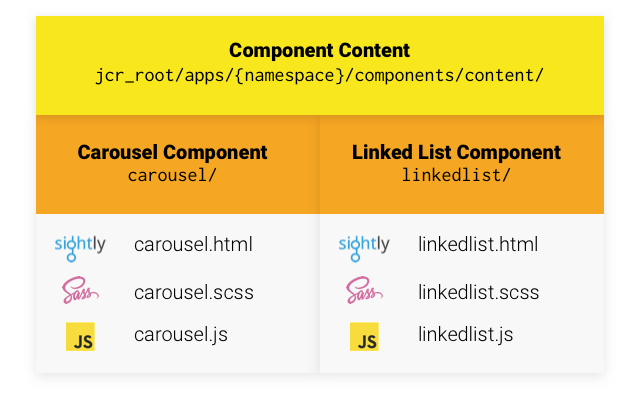
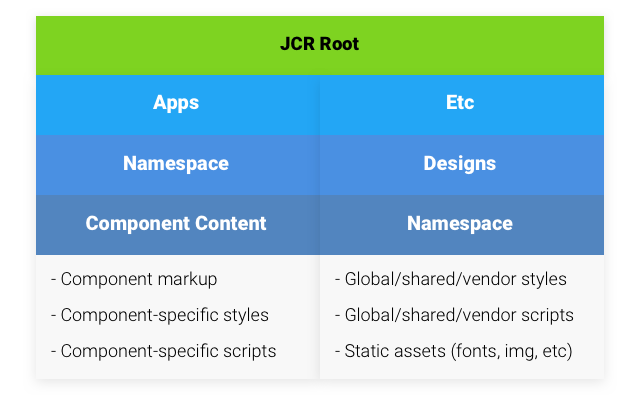
- Component-specific templates, scripts, and styles are all within
jcr_root/apps/{namespace}/components/content - Global/utility styles and scripts, vendor libraries, and static assets are all within
jcr_root/etc/designs/{namespace}/
Given that the majority of the time you'll have a few extra vendor libraries and a couple global/utility files (namespace creation/general event binding and library instantiation on the JavaScript side, mixin/variable declarations and shared layout/utility class declarations on the Sass side), tossing a large amount of styles and scripts randomly in the component content section would pollute that hierarchy and really isn't semantically correct as they are design-related. That's where the etc/designs hierarchy comes into play.
Before we continue, there are ways to have Maven download and install npm and everything necessary to run your build at run time, however I've seen this work inconsistently and I've heard it can cause issues on some environments. What we're after is a simplified solution that will run anywhere, anytime consistently.
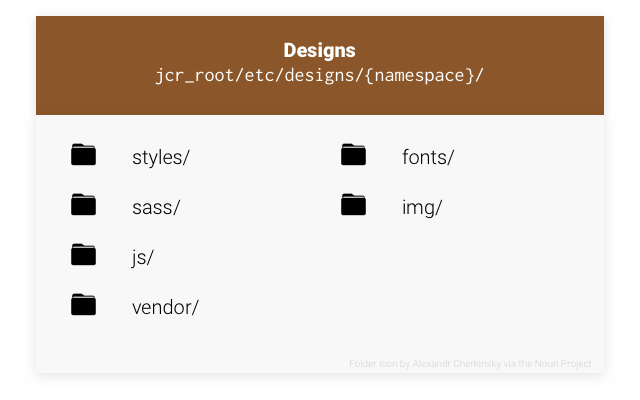
The designs section is a little more open to interpretation as every project is going to be different and everybody likes to structure things their own way. The one important caveat to note is that the main .scss file needs to be completely independent from the rest of the sass files, otherwise you'll wind up with every single one of your source .scss files being converted into .css files. Trust me, you don't want that. In the case of the diagram above, with this in mind the styles/ directory would contain 1 file: main.scss and that would import the files in the sass/ directory and get built into main.css.
Getting Sass to work
Now that we've got a general idea of where things should go we can start setting up some scaffolding and get an actual build running. We'll start with getting our Maven build compiling Sass first since that's the biggest hurdle.Before we continue, there are ways to have Maven download and install npm and everything necessary to run your build at run time, however I've seen this work inconsistently and I've heard it can cause issues on some environments. What we're after is a simplified solution that will run anywhere, anytime consistently.
The Maven build
I've tried a few different Maven plugins for Sass compilation, and so far my favorite has been the libsass-maven-plugin by @warmuuh. It's essentially just a wrapper for libsass so it's very robust in the options it provides, however there are some limitations that you may have to play around with to find workarounds.
All we have to do is add the plugin to our UI pom and configure it to use the correct files and paths.
I've tried a few different Maven plugins for Sass compilation, and so far my favorite has been the libsass-maven-plugin by @warmuuh. It's essentially just a wrapper for libsass so it's very robust in the options it provides, however there are some limitations that you may have to play around with to find workarounds.
All we have to do is add the plugin to our UI pom and configure it to use the correct files and paths.
<!-- /(namespace)-ui/pom.xml -->
<build>
  <plugins>
    <plugin>
      <groupId>com.github.warmuuh</groupId>
      <artifactId>libsass-maven-plugin</artifactId>
      <version>0.1.6-libsass_3.2.4</version>
      <executions>
        <execution>
          <id>compile-sass</id>
          <goals>
            <goal>compile</goal>
          </goals>
          <configuration>
            <inputPath>${project.basedir}/src/main/content/jcr_root/etc/designs/(namespace)/styles</inputPath>
            <includePath>${project.basedir}/src/main/content/jcr_root/etc/designs/(namespace)/sass:${project.basedir}/src/main/content/jcr_root/apps/(namespace)/components</includePath>
            <outputPath>${project.basedir}/src/main/content/jcr_root/etc/designs/(namespace)/css</outputPath>
            <outputStyle>compressed</outputStyle>
            <generateSourceMap>true</generateSourceMap>
            <sourceMapOutputPath>${project.basedir}/src/main/content/jcr_root/etc/designs/(namespace)/css</sourceMapOutputPath>
            <omitSourceMapingURL>true</omitSourceMapingURL>
          </configuration>
        </execution>
      </executions>
    </plugin>
  <!-- . . . -->
  </plugins>
</build><inputPath>: Tell it to use our main files directory as the source. It will compile every single.scssfile inside of this directory, so its best to have your main file separated from the rest of your code for this reason.<includePath>: Set both our main source code directory (etc/designs/namespace/sass) and component content directory (apps/namespace/components) as paths the compiler should look in when handling an@importdeclaration.<outputPath>: Set where the compiled css file should be saved.<outputStyle>: Tell it to compress (minify) the output.<generateSourceMap>: Have the compiler also generate a source map for easier debugging during development.<sourceMapOutputPath>: Tell the compiler where the compiled source map should be saved.<omitSourceMapingURL>: That property name isn't a typo. This just tells the compiler to not automatically inject the source map URL into the finished.cssfile. This was something that needs to be set to true and a URL manually added to the main sass file for Source Maps to work an, I found out the hard way.
Setting up some Sass scaffolding
I won't go too much in detail in this section, but rather go over some caveats and provide an example of how you could get up and running quickly. The example will include Bootstrap, but can obviously be altered to use any front end framework such as Foundation or Semantic UI.
The globals/sass source directory
We'll start out with the etc/designs/namespace/sass directory, or our actual Sass source. Since every project I implement Bootstrap on it winds up getting heavily extended and customized, I prefer to include the actual Bootstrap source so I can hand pick exactly what gets built and what gets ignored. The source would get tossed into the Sass source directory into a directory bootstrap/. Along with the source code of our framework of choice we'd create some global/utility sass files that we can use for general Sass environment setup and shared or utility classes. Here's an example of what this directory may look like after this:
bootstrap/          // The source code for our framework of choice.
_variables.scss     // Site-wide Sass variables.
_mixins.scss        // Any custom mixins your code requires.
_utils.scss         // Utility classes such as floats, clears, show/hide classes.
components.scss     // Component bulk-import file.
layout.scss         // Layout-specific styles, such as page template scaffolding.
icons.scss          // Custom icon declarations.
forms.scss          // Global form styles.
typography.scss     // Global typography such as headers, color options, links, etc.
globals.scss // Global styles that don't really fit in anywhere else.// etc/designs/namespace/sass/components.scss
/* . . . */
@import "content/carousel/carousel.scss";
@import "content/linkedlist/linkedlist.scss";
/* . . . */The main file
Now we'll add our main file that will be used by the compiler to compile our stylesheet. This is in that etc/designs/namespace/styles directory, and can be named whatever you want. I have a habit of naming it main.scss so I can expect the resulting css file to be main.css. This file is essentially just a bulk-importing file that will go through and import all of globals and framework files, followed by all of the components. If you chose to have the compiler generate a Source Map this file will also need a comment of the URL of the compiled source map added to the bottom of it.
// etc/designs/namespace/styles/main.scss

// Custom Variables and mixins
@import "variables";
@import "mixins";
@import "icons";

// Bootstrap imports
/*
  Removing vast majority of them since there are so many,
  but you essentially just copy the entire `bootstrap.scss`
  file into here with your own overrides scattered in between.
*/
@import "bootstrap/variables";
@import "bootstrap/mixins";
// More bootstrap imports...

// Core Overrides
@import "type";
@import "layout";

// Bootstrap Components...

// Globals
@import "utils";
@import "forms";
@import "globals";

// Components
@import "components";

/*!# sourceMappingURL=namespace/css/main.css.map */Some dummy component files
Now I'll just show some dummy components to give you the idea of how you'll import them. Let's say we have a super complex component we need to create called the List component, back end has already finished the backing class for it and it just needs front end now. First we'll go in and add that file to our components.scss file:
// etc/designs/namespace/sass/components.scss

@import "content/carousel/carousel.scss";
@import "content/linkedlist/linkedlist.scss";
@import "content/list/list.scss"; // Our new component// apps/namespace/components/content/list/list.scss
ul.namespace-list {
list-style: none;
padding-left: 0;
}At this stage if we were to run a Maven build we'd wind up with shiny new main.css and main.css.map files in our etc/designs/namespace/css directory. As great as that is, as far as AEM is concerned there are just some annoying files filling up precious space and not doing anything, so now is a perfect time to start creating some clientlibs.
We're going to wind up having 3 different clientlib categories:
- namespace-frontend.design: Main clientlib category containing all of the global styles and scripts.
- namespace-frontend.components: A complimentary design category that will be embedded into the main category.
- namespace-frontend.vendor: All of our vendor/external clientlibs.
Our main clientlib
We'll start with the namespace-frontend.designs clientlib since that's our main clientlib that will be included in our templates. We embed the components clientlib category in this one
<!-- etc/designs/namespace/.content.xml -->
<?xml version="1.0" encoding="UTF-8"?>
<jcr:root xmlns:sling="http://sling.apache.org/jcr/sling/1.0" xmlns:jcr="http://www.jcp.org/jcr/1.0" xmlns:rep="internal"
    jcr:mixinTypes="[rep:AccessControllable]"
    jcr:primaryType="cq:ClientLibraryFolder"
    sling:resourceType="widgets/clientlib"
    embed="[namespace-frontend.components]"
    categories="[namespace-frontend.design]"
/># etc/designs/namespace/css.txt
#base=css
main.css
# etc/designs/namespace/js.txt
#base=js

main.js
utils.js
This should be pretty standard for anybody who has made clientlibs before, all we're doing is directing the clientlib to our files.Vendor libraries
Chances are you're going to need to include some sort of JavaScript or CSS library on your project, so that's where our vendor clientlib comes into play. This is going to be a separate category than our main design clientlib, so we're tossing this into the vendor/ directory of our design directory.
<!-- etc/designs/namespace/vendor/.content.xml -->
<?xml version="1.0" encoding="UTF-8"?>
<jcr:root xmlns:sling="http://sling.apache.org/jcr/sling/1.0" xmlns:jcr="http://www.jcp.org/jcr/1.0" xmlns:rep="internal"
    jcr:mixinTypes="[rep:AccessControllable]"
    jcr:primaryType="cq:ClientLibraryFolder"
    sling:resourceType="widgets/clientlib"
    categories="[namespace-frontend.vendor]"
  />
In typical AEM fashion, the libraries going in the vendor/ directory get split up into css/ and js/ directories, which we'll just include via the css.txt and js.txt files in the vendor root.
# etc/designs/namespace/vendor/js.txt
#base=js

bootstrap.carousel.js
bootstrap.collapse.js
jquery.validate.js
Adding component scripts
Now we've got all of our vendor libraries set up, our main scripts and all of our styles ready to go, but now it's time to get component-specific javascript hooked into everything. This is where we're going to make use of that namespace-frontend.components clientlib category. Each component that requires a script will have it's own clientlib declaration that mates it to that category, which if you'll remember from earlier is being embedded into our main designs clientlib.
<!-- apps/namespace/components/content/linkedlist/js/.content.xml -->
<?xml version="1.0" encoding="UTF-8"?>
<jcr:root xmlns:sling="http://sling.apache.org/jcr/sling/1.0" xmlns:jcr="http://www.jcp.org/jcr/1.0" xmlns:rep="internal"
    jcr:mixinTypes="[rep:AccessControllable]"
    jcr:primaryType="cq:ClientLibraryFolder"
    sling:resourceType="widgets/clientlib"
    categories="[namespace-frontend.components]"
  />
# apps/namespace/components/content/linkedlist/js/js.txt
linkedlist.js
linkedlist.item.js
It's worth noting that the structure of the component directory is completely subjective. You can have something like:apps/namespace/components/content/linkedlist/
js/
.content.xml
js.txt
linkedlist.js
or:
apps/namespace/components/content/linkedlist/
  .content.xml
  js.txt
  js/
    linkedlist.js
The concept is the same, so use whichever structure works for you and your project.Adding our clientlibs to templates
This should be pretty trivial to anyone who is already well-versed in clientlibs in AEM, so I won't go into extreme detail on this. All you need to do is include the main design clientlib category and our vendor clientlib. I generally have my vendor libraries included before my main designs.
For the bare minimum all you really need as far as npm packages go is gulp-slang to auto-sling the files to AEM, which you can then fire off in a task or watch block.
If you're interested in an example gulp file, we'll set up one with sass compilation, jslinting and auto-slinging whenever a style, script, or template is updated. First off we need to install some npm packages in our absolute project root and initialize our npm project:
<!-- apps/namespace/components/page/global/head.html -->
<head data-sly-use.clientLib="${'/libs/granite/sightly/templates/clientlib.html'}">

  <sly data-sly-unwrap data-sly-call="${clientLib.css @ categories='namespace-frontend.vendor'}" />
  <sly data-sly-unwrap data-sly-call="${clientLib.css @ categories='namespace-frontend.design'}" />
</head>
<!-- apps/namespace/components/page/global/body.html -->
<body data-sly-use.clientLib="${'/libs/granite/sightly/templates/clientlib.html'}">
<div id="wrapper">
<header id="header" data-sly-include="header.html"></header>
<div id="content" class="container" data-sly-include="content.html"></div>
</div>
<footer id="footer" data-sly-include="footer.html"></footer>
<sly data-sly-unwrap data-sly-call="${clientLib.js @ categories='namespace-frontend.vendor'}" />
<sly data-sly-unwrap data-sly-call="${clientLib.js @ categories='namespace-frontend.design'}" />
</body>Now we have a working Sass build via Maven, component styles/scripts in predictable locations, connected global/utility styles/scripts and vendor libraries. If you have no need for Gulp automation for quicker builds and code deployment to AEM you should be ready to start developing. If not, all that's left is setting up our optional Gulp build.Gulp Automation for the time-savings
One of the things that really bugs me about most standard AEM setups is that if I need to make a 1-line change to some CSS, JavaScript or template my only options are using CRX/DE (yuck) or running a full Maven build (yuck). Let's bring this build into the modern era with a gulp setup that will automagically sling our compiled Sass and other files to AEM on file change so we're not stuck waiting for slow Maven build.For the bare minimum all you really need as far as npm packages go is gulp-slang to auto-sling the files to AEM, which you can then fire off in a task or watch block.
If you're interested in an example gulp file, we'll set up one with sass compilation, jslinting and auto-slinging whenever a style, script, or template is updated. First off we need to install some npm packages in our absolute project root and initialize our npm project:
npm init

# utils
npm install --save-dev gulp gulp-watch gulp-plumber gulp-rename gulp-util gulp-watch

# style-related
npm install --save-dev gulp-sass gulp-sourcemaps

# script related
npm install --save-dev jshint gulp-jshint

# aem related
npm install --save-dev gulp-slang// gulpfile.js
/* Requires */
var gulp = require('gulp'),
watch = require('gulp-watch'),
// Utilities
gutil = require('gulp-util'),
plumber = require('gulp-plumber'),
slang = require('gulp-slang'),
rename = require('gulp-rename'),
// Styles
sass = require('gulp-sass'),
sourcemaps = require('gulp-sourcemaps'),
// Scripts
jshint = require('gulp-jshint');// gulpfile.js, continued
/* Requires */
// . . .
/* Paths */
var root = 'namespace-ui/src/main/content/jcr_root/',
components = root + 'apps/namespace/components/',
designs = root + 'etc/designs/namespace/',
// Styles
cssPath = designs + 'css/',
sassPath = designs + 'sass/',
mainCss = designs + 'styles/main.scss',
cssBuild = cssPath + 'main.css',
cssSrcMaps = cssPath + 'main.css.map',
// Scripts
jsPath = designs + 'js/',
vendorPath = designs + 'vendor/',
// Images
imgPath = designs + 'img/';// gulpfile.js, continued
/* Requires */
// . . .
/* Paths */
// . . .
/**
* Helper: changeNotification
* Logs an event to the console.
*
* @param {String} fType - The file type that was changed.
* @param {String} eType - The event that occured.
* @param {String} msg - Short description of the actions that are being taken.
*/
function changeNotification(fType, eType, msg) {
gutil.log(gutil.colors.cyan.bold(fType), 'was', gutil.colors.yellow.bold(eType) + '.', msg);
}// gulpfile.js, continued
/* Requires */
// . . .
/* Paths */
// . . .
/* changeNotification */
// . . .
/**
* Task: `sass:build`
* Compiles the sass and writes sourcemaps.
*/
gulp.task('sass:build', function (cb) {
gulp.src(mainCss)
.pipe(plumber()) // Prevents pipe breaking due to error (for watch task)
.pipe(sourcemaps.init())
.pipe(sass({
outputStyle: 'compressed',
omitSourceMapUrl: true, // This is hardcoded in the main.scss due to resource path issues
includePaths: [sassPath, components]
}).on('error', sass.logError))
.pipe(sourcemaps.write('./', {
addComment: false
}))
.pipe(plumber.stop())
.pipe(gulp.dest(cssPath));
// Fire the callback Gulp passes in to tell it we're done
cb();
});
/**
* Task: `sass:sling`
* Slings the compiled stylesheet and sourcemaps to AEM.
*/
gulp.task('sass:sling', ['sass:build'], function () {
return gulp.src([cssBuild, cssSrcMaps])
.pipe(slang());
});
/**
* Task: `sass`
* Runs the sass build and slings the results to AEM.
*/
gulp.task('sass', ['sass:build', 'sass:sling']);// gulpfile.js, continued
/* Requires */
// . . .
/* Paths */
// . . .
/* changeNotification */
// . . .
/* Sass tasks */
// . . .
/**
* Task: `js:lint`
* Lints project JS, excluding vendor libs.
*/
gulp.task('js:lint', function () {
return gulp.src([components + '**/*.js', jsPath + '**/*.js'])
.pipe(jshint())
.pipe(jshint.reporter('default'));
});// gulpfile.js, continued
/* Requires */
// . . .
/* Paths */
// . . .
/* changeNotification */
// . . .
/* Sass tasks */
// . . .
/* JS tasks */
// . . .
/**
* Task: `watch`
* Watches the HTML, Sass, and JS for changes. On a file change,
* will run builds file-type dependently and sling the new files
* up to AEM.
*/
gulp.task('watch', function () {
gutil.log('Waiting for changes.');
// Set up our streams
var jsWatch = gulp.watch([components + '**/*.js', jsPath + '**/*.js'], ['js:lint']),
sassWatch = gulp.watch([components + '**/*.scss', mainCss, sassPath + '**/*.scss'], ['sass']),
markupWatch = gulp.watch([components + '**/**/*.html', components + '**/**/*.jsp']),
imgWatch = gulp.watch([imgPath + '**/*']);
// js needs to be linted
jsWatch.on('change', function (ev) {
changeNotification('JS file', ev.type, 'Linting code & slinging to AEM.');
return gulp.src(ev.path)
.pipe(slang(ev.path));
});
// Sass needs to get built and slung up
sassWatch.on('change', function (ev) {
changeNotification('Sass file', ev.type, 'Running compilation & slinging to AEM.');
});
// Markup just needs to be slung to AEM
markupWatch.on('change', function (ev) {
changeNotification('Sightly file', ev.type, 'Slinging file to AEM.');
return gulp.src(ev.path)
.pipe(slang(ev.path));
});
// Images just need to be slung to AEM
imgWatch.on('change', function (ev) {
changeNotification('Image file', ev.type, 'Slinging file to AEM.');
return gulp.src(ev.path)
.pipe(slang(ev.path));
});
});- gulp watch - Watches for changes to JavaSript, CSS/Sass, and HTML files, runs any necessary subtasks and slings the result to AEM.
- gulp sass - Builds all Sass files and slings the compiled stylesheet and source maps to AEM.
- gulp js:lint - Runs all JavaScript files against JSHint and outputs the results to the console.
Now, if we run gulp watch any component-level and global changes will automagically be built and slung to AEM far faster than it would take to run a Maven build. The best part of this is that it allows for easier front-end development, but also allows for the front end to not add any more dependencies to the project that back end devs may not want to deal with. Plus, you don't have to check in any compiled code to version control as the Maven build will generate the compiled code every time.
If you'd like to check out the gulpfile more in-depth, you can view it in its entirety on Github. You can also browse through a full example of this hierarchy with all of the code from this post in place via this repo.
If you'd like to check out the gulpfile more in-depth, you can view it in its entirety on Github. You can also browse through a full example of this hierarchy with all of the code from this post in place via this repo.
By
aem4beginner
January 4, 2021
Estimated Post Reading Time ~
AEM — Versioned Clientlibs
SYNOPSIS:
Guide to configure versioned client libraries on AEM and IIS web server on Windows 10 Enterprise.
Tools Used:
STEP-01: ACS Commons Verification
NOTE: It is presumed that ACS Commons is already installed on the AEM instance


IIS Configuration to send the right header to set a long TTL
Guide to configure versioned client libraries on AEM and IIS web server on Windows 10 Enterprise.
Tools Used:
- AEM
- IIS Webserver
- ACS Commons Package Version 3.17.x
- AEM Publish instance up and running
- ACS commons package pre-installed
- IIS Website for AEM Instance
STEP-01: ACS Commons Verification
NOTE: It is presumed that ACS Commons is already installed on the AEM instance
ACS Commons Package — version Installed 3.17
- Go to CRX Package manager
- Search for ACS commons
- Verify that the package is installed [if not use this link to install and configure ACS Commons
Application Config Directory
- Go to CRXDE
- select the apps folder
- select your application [sdintranet] where you want to enable versioned clientlibs
- select config folder
App config folder
Rewriter configuration folder
- Right-Click on the config folder
- select Create
- select create Node
- on the pop-up window
- name: rewriter
- Type: sling: Folder
- Click OK
- Press Save All
Copy OOTB rewriter config
Rewriter config on app config folder
Verify and Save
- Go to libs
- select cq
- select config
- select rewriter and right-click on the default
- copy the default config
- go to apps
- go to sdintranet application
- select config
- select rewriter and right-click on the rewriter folder
- paste, verify and press Save All
Rename the configuration
STEP-06: Add transformer Type – versioned-clientlibs
STEP-06: Add transformer Type – versioned-clientlibs
Edit the transformer types
Add the clientlibs transformer type
Make sure you restart the AEM instance, for the clientlibs to take effect, Restarting the remote server can be done in any way you are comfortable, one can directly log into the instance and restart the AEM service, or can remotely restart using Jenkins if configured or can restart using Remote Session.
- Select the renamed rewriter [/apps/sdIntranet/config/rewriter/versioned-clientlibs]
- Edit the transformerTypes property
- click the + symbol
- Add the transformerType versioned-clientlibs
- Click OK
- Press Save All
Make sure you restart the AEM instance, for the clientlibs to take effect, Restarting the remote server can be done in any way you are comfortable, one can directly log into the instance and restart the AEM service, or can remotely restart using Jenkins if configured or can restart using Remote Session.
Get the remote service information
Stop the service
Start the service
STEP-08: Verify the sling rewriter status

STEP-08: Verify the sling rewriter status
versioned clientlibs verification
STEP-09: Configure IIS to send the right header to set a long TTL
Add the following to the IIS webservers system/web.server sectionGroup
STEP-09: Configure IIS to send the right header to set a long TTL
Add the following to the IIS webservers system/web.server sectionGroup
<httpProtocol>
<customHeaders>
<remove name="X-Powered-By" />
<add name="X-XSS-Protection" value="1; mode=block" />
<add name="X-Content-Type-Options" value="nosniff" />
<add name="Cache-Control" value="max-age=2592000" />
<add name="Strict-Transport-Security" value="max-age=31536000" />
<add name="Access-Control-Allow-Origin" value="*" />
<add name="Access-Control-Allow-Methods" value="GET" />
<add name="Access-Control-Allow-Headers" value="Content-Type" />
</customHeaders>
</httpProtocol>
By
aem4beginner
How to recompile clientlibs and invalidate cache?
The clientlibs in AEM consist of JS and CSS and in some instances they get cached; which as would be obvious; causes issues.
To remove this cache and rebuild the clientlibs, the following link is quite useful:
<domain-name>/libs/granite/ui/content/dumplibs.rebuild.html
There are individual buttons to invalidate the cache and rebuild the libraries on this page.
For faster access, there is a query parameter for each process that can be appended to the URL:
Invalidate Caches: ?invalidate=true
Rebuild Libraries: ?rebuild=true

To remove this cache and rebuild the clientlibs, the following link is quite useful:
<domain-name>/libs/granite/ui/content/dumplibs.rebuild.html
There are individual buttons to invalidate the cache and rebuild the libraries on this page.
For faster access, there is a query parameter for each process that can be appended to the URL:
Invalidate Caches: ?invalidate=true
Rebuild Libraries: ?rebuild=true

By
aem4beginner
December 28, 2020
Estimated Post Reading Time ~
Structural Static Assets in AEM as Client Library Resources
As developers, when we are building components or view logic, in typical scenarios require assets like background image patterns, icons, logos, typography, etc.. These assets are considered structural assets. Structural assets are assets that support CSS styles or JavaScript view logic; which are also static assets.
Structural assets should be stored and managed within the client library’s resources folder by the code package, and not in AEM Digital Assets Manager (DAM) “as content”. The AEM DAM is a very flexible AEM product where it allows users & groups to freely manage (based on ACL permissions) assets to make available for the public. Sometimes developers may find the ease of storing structural assets in the DAM (with the help of content authors), so they can quickly make the structural asset publically available for consumption. But, in fact, this is the wrong pattern to follow.
The reason why structural assets should not be stored “as content” and managed as DAM assets because:
Structural assets should be stored and managed within the client library’s resources folder by the code package, and not in AEM Digital Assets Manager (DAM) “as content”. The AEM DAM is a very flexible AEM product where it allows users & groups to freely manage (based on ACL permissions) assets to make available for the public. Sometimes developers may find the ease of storing structural assets in the DAM (with the help of content authors), so they can quickly make the structural asset publically available for consumption. But, in fact, this is the wrong pattern to follow.
The reason why structural assets should not be stored “as content” and managed as DAM assets because:
- It would be surfaced to AEM content authors (the customers) during image selection when they are editing an AEM page that requires an AEM DAM asset; they can be confused, and they can potentially select on the structural asset (because it’s available for selection).
- It opens opportunities for interruption of our CSS styles or JavaScript view logic; where authors can actually delete/update a structural asset, and the website may look like it's broken.
- It would kickstart workflows; creating thumbnails, preview renditions, meta-data extractions, and other workflow processes… These are unnecessary asset processing… we do not want any thumbnails or renditions for the structural asset.
- Code like CSS styles or JavaScript logic referenced assets “as content” is not ideal, as DAM assets are maintained by authors, and can be unpredictability changed at any time.
- Structural assets should be stored and managed within the client library’s resources folder by the code package. It allows developers to have full control of which structural asset gets added, updated, or removed.
- AEM authors have 0% chance of breaking accidentally removing one of these assets vs if structural content is stored “as content”, where assets can be managed and consumed in an unpredictable way.
By
aem4beginner
How to Serve Static Assets in AEM as Client Library Resources
This article provides step by step instructions on how to create a client library, to only serve structural static assets as client library resources. Resources from this article will build upon the latest maven AEM Project Archetype, and the instructions below will demo the configuration setup within the code.
Instructions
1. Create a cq:ClientLibraryFolder node
JCR Path: /apps/sourcedcode/clientlibs/cllienlib-site
Separate code from content and configuration to maximize project file organization and separation of concerns, Adobe recommends to place client libraries under /apps and expose these client libraries via the path, /etc.clientlibs, by leveraging the allowProxy property.
<?xml version="1.0" encoding="UTF-8"?>
<jcr:root xmlns:cq="http://www.day.com/jcr/cq/1.0" xmlns:jcr="http://www.jcp.org/jcr/1.0"
jcr:primaryType="cq:ClientLibraryFolder"
allowProxy="{Boolean}true"
categories="sourcedcode.site"/>

1. Create a cq:ClientLibraryFolder node
JCR Path: /apps/sourcedcode/clientlibs/cllienlib-site
Separate code from content and configuration to maximize project file organization and separation of concerns, Adobe recommends to place client libraries under /apps and expose these client libraries via the path, /etc.clientlibs, by leveraging the allowProxy property.
<?xml version="1.0" encoding="UTF-8"?>
<jcr:root xmlns:cq="http://www.day.com/jcr/cq/1.0" xmlns:jcr="http://www.jcp.org/jcr/1.0"
jcr:primaryType="cq:ClientLibraryFolder"
allowProxy="{Boolean}true"
categories="sourcedcode.site"/>
When allowedProxy is enabled, we instead of accessing the client library from /apps/sourcedcode/clientlibs/cllienlib-site, we can access the cliebt library from the proxy servlet via /etc.clientlibs/sourcedcode/clientlibs/cllienlib-site.
2. Create an nt:folder node named “resources”
JCR Path: /apps/sourcedcode/clientlibs/cllienlib-site/resources
By convention, the client library “resource” folder is named as “resources”; naming is very important if structural static assets are planned to be served from a client library. This setup allows structural static assets to be accessed via the proxy.
Example: /etc.clientlibs/sourcedcode/clientlibs/cllienlib-site/resources/tick.svg

3. Place the assets under the “resources” folder
In this example, we will only insert one asset image, tick.svg.
JCR Path: /apps/sourcedcode/clientlibs/cllienlib-site/resources/tick.svg

4. Build and Upload into AEM
This default maven profile should be a part of the maven AEM Project Archetype.
mvn clean install -PautoInstallPackage -Padobe-public
Results: Review the JCR
A successful project builds and deployment should make JCR node resources available in the AEM environment.

2. Create an nt:folder node named “resources”
JCR Path: /apps/sourcedcode/clientlibs/cllienlib-site/resources
By convention, the client library “resource” folder is named as “resources”; naming is very important if structural static assets are planned to be served from a client library. This setup allows structural static assets to be accessed via the proxy.
Example: /etc.clientlibs/sourcedcode/clientlibs/cllienlib-site/resources/tick.svg
3. Place the assets under the “resources” folder
In this example, we will only insert one asset image, tick.svg.
JCR Path: /apps/sourcedcode/clientlibs/cllienlib-site/resources/tick.svg
4. Build and Upload into AEM
This default maven profile should be a part of the maven AEM Project Archetype.
mvn clean install -PautoInstallPackage -Padobe-public
Results: Review the JCR
A successful project builds and deployment should make JCR node resources available in the AEM environment.
Results: Access the Asset(s)
The images can be resolvable via the proxy servlet, replacing /apps with /etc.clientlibs.
Visit: http://localhost:4502/etc.clientlibs/sourcedcode/clientlibs/cllienlib-site/resources/tick.svg

The images can be resolvable via the proxy servlet, replacing /apps with /etc.clientlibs.
Visit: http://localhost:4502/etc.clientlibs/sourcedcode/clientlibs/cllienlib-site/resources/tick.svg
By
aem4beginner
September 22, 2020
Estimated Post Reading Time ~
ClientLibs debugger [?debugClientLibs=true] in AEM
Today in this tutorial we are going to discuss how and what we can achieve using the debugClientLibs parameter in AEM.
What is debugClientLibs? What is the use of debugClientLibs?
AEM provides tools for debugging and debugClinetLibs is one of them. Using this we can see all the embedded client library files. By default, client libraries embed all your code in a single file when it delivered to the browser. So when you want to see all the embedded files in separate at runtime append "?debugClinetLibs=true" in URL (this is something like passing a parameter with URL). Then you will see response return all of the individual script files that ClientLibs embed inside each clientLibs file.
e.g. URL: https://localhost:4502/content/jorvee/home.html?debugClientLibs=true
Benefits of using debugClientLibs:
- You can detach your embedded script at runtime.
- Helps you to identify and fix the JS/CSS issues.
Ref:
By
aem4beginner