Showing posts with label LiveCopy. Show all posts

May 10, 2020
Estimated Post Reading Time ~

AEM Multilingual Contents in Sightly

There are two ways one can configure multilingual contents on AEM using Multisite Management.
1. Blueprints
2. Language Copy

A blueprint is the source for creating multiple contents with the same format. Say for example we have a site in English, French and German. All these sites have similar contents in three different languages. We can configure blueprint keeping English site as the source and create French and German live copies. Now there should be dictionaries configured as per https://docs.adobe.com/docs/en/aem/6-0/develop/components/i18n/translator.html

To enable the multilingual contents your sightly pages to use the content key as follows.

${'your_internationalization_key_as_per_i18n_file' @ i18n}
Here the locale/language is selected as per the language of contents

${'your_internationalization_key_as_per_i18n_file' @ i18n, source='user'}
In this syntax the language is selected from the browser setting of the user.

${'your_internationalization_key_as_per_i18n_file' @ i18n, locale='de'}
In this syntax the language is de (German) taken from the locale value assigned.


By aem4beginner

May 5, 2020
Estimated Post Reading Time ~

Blueprint, Live Copy, Links Rewriting

In the past 2 years, I had occasion to work on Live Copy, Language Copy, and BluePrint on some projects on AEM 6.1 and AEM 6.2. Well, I cannot say I was delighted by a touch UI that was missing a lot of interesting features that were working fine in previous CQ 5.x implementations: live copies and MSM (Multi-Site Manager) are areas where these problems are more evident and only with AEM 6.3 I started to see a more complete solution.

But in this article, I would like to focus my attention on a problem (or maybe is a feature???) that I have found out after long analysis: Adobe documentation doesn’t describe this behaviour in detail and it’s very difficult for a newbie in Live Copies to understand it.

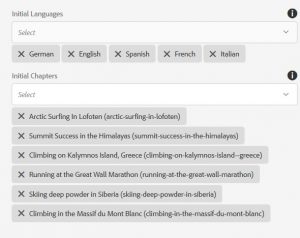
I’m referring to the way links are rewritten by AEM when you create a new site with the “Create Site” option, starting from a BluePrint. When you create a new site starting from a BluePrint AEM asks you to choose for languages and chapters. I have to say I really don’t understand why Adobe engineers have decided to add the concept of “chapter”. Every first level folder under the languages is defined as “chapter”: in this way when you create a new site you can decide to add only some specific subsections of the website leaving out others.

In figure 1 you can see the create site from blueprint property page, with chapters selection.


If you flag the livecopy checkbox (almost natural in a multi-country website) all the pages will be kept in sync with the blueprint, with a nice-to-have rollout option and (from AEM 6.3) a centralized MSM interface to inspect the synchronization status of each blueprint page (unfortunately I still believe that CQ 5.5 MSM interface was more intuitive, but this is only my opinion as of AEM 6.3).

After site creation I was noticing some problems on internal links: some of them were pointing to the blueprint site and were not rewritten.

The following example clarifies the situation. Let’s take this simple website:

/exmaple-site/
/language-masters (blueprint)/
/en
/products
/product1
/product2
/about-us
/company With this structure, “it” is a language, “products” and “about-us” are chapters of the blueprint.
Now place 2 links inside product1 page:

first link points to product2
second link points to company Create a new site starting from the blueprint (/content/example-site/en). The two links in “product1” page will be rewritten in this way:

link1: /content/example-site/en/products/product2
link2: /content/example-site/language-masters/en/about-us/company I was very surprised by this behaviour and started surfing online to find a solution or an explanation. I was able to find issues / problems similar to the one I was experiencing, with Adobe answers that were leaving me a litte surprised.

The explanation is contained here (from Adobe page: https://helpx.adobe.com/experience-manager/6-3/sites/administering/using/msm-best-practices.html)

“Once a new site has been created as a live copy (using Create, then Site), the first two levels of this live copy are shallow. Children of the page do not belong to the live-relationship, but a roll-out will still descend if a live-relationship that matches the trigger is found.
It helps avoid:

manually adding languages in the blueprint (below the first level)
manually adding content directly below the language root,
does not result in automatically carrying this new content over to the live copy on rollout.” So, the first two folder levels are Shallow live copies (root + language). Chapters are independent live copies. This is the point. Links are rewritten by AEM only inside the livecopy. If the links point outside of the livecopy, the link is not going to be rewritten.

So, in conclusion, simply to avoid some “manual” operations, we are going to make a blueprint completely useless in a lot of potential scenarios (quite common to have internal links pointing between chapters). One of the answers I found in the forum was: “Don’t use blueprint and simply make a livecopy”. Very bad, because blueprints gives you access to full MSM functionalities, above all a centralized tool to monitor the synchronization status for all the pages. Not using the MSM central tool makes extremely difficult to manage something that is difficult by itself.

If you take a look at nodes structure with CRXDE you can better understand what it’s happening here:

/content/example-site/en/jcr:content/cq:LiveSyncConfig
. cq:master: points to the blueprint
. cq.isDeep: false It’s Shallow

/content/example-site/en/en_gb/jcr:content/cq:LiveSyncConfig
. cq:master: points to the blueprint language folder
. cq:isDeep: false It’s shallow

/content/example-site/en/en_gb/about/jcr:content/cq:liveSyncConfig
. cq:master: points to the blueprint chapter folder
. cq:isDeep: true Ok, finally a real livecopy

Once I realized the problem I was not able to find a clean solution. The only way seems not to use the MSM functionalities. So I decided to manually create the country folder and then to setup a livecopy for each language node. Since I wanted to keep the MSM functionalities, I manually added the cq:LiveSyncConfig the root country node (with cq:isDeep false). In this way I was able to keep also central MSM functionalities, combining the good behaviour of link rewriting. Nothing Adobe-approved… so please, if you want to follow this solution, do it at your own risk.

I write this article with the hope to receive an answer telling me there is a better solution. Or at least to see a nice alert on AEM documentation.

Source: https://aemcorner.com/blueprint-live-copies-links-rewriting-why-chapter-links-are-not-correctly-rewritten/


By aem4beginner

May 4, 2020
Estimated Post Reading Time ~

Live Copy and MSM Custom Configuration

Adobe CQ5 gives us the ability to easily create a new site, or multiple sites, based on an existing site through Live Copy. Multi Site Manager (MSM) will then allow us to easily manage the content and relationships between these sites.

Note: For more details regarding the Multi Site Manager and Live Copy, see http://dev.day.com/docs/en/cq/current/administering/multi_site_manager.html. MSM and Live Copy are much more powerful and complex than what we can cover in this brief overview. It’s highly recommended that all users read through the documentation.

What is Live Copy?
Live Copy is the creation of a new site based on the content and structure of an existing site. Changes or additions to the main site can then cascade down throughout Live Copies. When used to its full potential, this is a very powerful tool that can simplify management across a large number of sites with little effort.

For example, let’s say we want to create a mobile site based on our main site. Additionally, we want this mobile site to maintain itself whenever changes are made to the main site. We want the mobile pages to update themselves, create themselves, etc. The only difference between the main site and the mobile site will be the design. With a little configuration and I do mean “little”, Live Copy will be able to handle all of this for us.

MSM Custom Rollout Configs
If we run Live Copy straight out of the box, we get an exact duplicate of our original site. That can be good, but probably doesn’t fulfill a project’s requirements. Chances are we’d need to change the template and resource types of our Live Copy pages. These changes can be made using rollout configurations in Live Copy. With a rollout configuration, CQ can automatically create a new mobile page anytime we create a new page in our main site, taking the exact content from the new main page while still using the mobile site’s designs. We could always do this manually, but configuring our Live Copy rollouts will automate the process—and it really isn’t too difficult.

Rollout configurations can be found by navigating to etc/msm/rolloutconfigs. Here, we can see some of the out-of-the-box configurations files as well as some custom Geometrixx configurations. New rollout configurations can be created from scratch or by copying an existing layout and altering it to our project’s needs.

The Trigger Property
The Trigger Property will tell CQ when to use specific configurations. We can specify that a particular config is used only on a site’s initial rollout, or we can call a configuration. There are four types of triggers:
  1. Rollout (performed when a page is rolled out)
  2. Modification (performed when a page is modified)
  3. Publish (performed when a page is activated)
  4. Deactivation (performed when a page is deactivated)
For more information regarding these triggers, refer to the official documentation.

The editMap


In the editProperties node of our rollout’s jcr:content, we can find the editMap property. This is where we need to declare any changes we want made to any property values during the Live Copy. The editMap is where we declare all of our desired automation using regular expressions. An editMap property can have multiple declarations, each one separated by a comma. As an example, consider the following declaration:

sling:resourceType#^testsite/components/templates/base$#testsite/components/templates/mobile/base
The above declaration is rather straightforward. If a page has a sling resource type of “testlivecopy/components/templates/base,” we change the resource type to “testlivecopy/components/templates/mobile/base” for its Live Copy.

Let’s look at one more example, taken from the Geometrixx Outdoors Mobile Rollout Config:

campaignpath#^/content/campaigns/geometrixx-outdoors/(banner|products|article)$#/content/campaigns/geometrixx-outdoors/$1_mobile
The above declaration is a bit more complex and much more powerful. Any campaign path property of “/content/campaigns/geometrixx-outdoors/banner,” “/content/campaigns/geometrixx-outdoors/products” or “/content/campaigns/geometrixx-outdoors/article” will have “_mobile” added to the end of the path.

Blueprint Control Center
Managing a number of sites may become a burdensome task, even if the sites are all Live Copies. The Blueprint Control Center (MSM Control Center) can help us stay organized with all of these Live Copies. The Blueprint Control Center is located in the Tools section of your site admin.


Here we can get a detailed overview of all of the Live Copies that a specific site has, as well as detailed information on each page of each Live Copy. We can see if the Live Copy capabilities of a specific page have been turned off, if the page has been altered and currently has different content from its Live Copy, or whether a page is a Live Copy at all. We can also manage our Live Copies from within the Blueprint Control Center, creating, removing, or re-rolling them.

Component Inheritance
As another demonstration of the power of Live Copy, we can manage it at the component level. On a Live Copy page, we can use the Live Copy tab to disable or enable Live Copy on each component of the page. Each component of a Live Copy will contain a clickable lock icon in the top left of the component. Unlocking the component will cancel the component’s inheritance. The rest of the page can continue to receive updates from changes to the original, while the unlocked components will basically live on their own, ignoring any Live Copies they may be attached to. To renew the component’s inheritance, we simply click the lock again.


Power from Experience
The best way to really unleash the power of Live Copy is through experience. The phrase “practice makes perfect” really applies here. Have a look at some of the rollout configurations provided with Geometrixx. Experiment with the triggers. Create test sites with test rollouts. Finding the perfect rollout and setup might take a few tries, but in the end, the power of Live Copy will save you time—easing some of the tedious and oftentimes difficult tasks of managing multiple sites.


By aem4beginner

April 26, 2020
Estimated Post Reading Time ~

Language Copy or Live Copy?

Does this question seem familiar – should we use Language Copy or Live Copy? From experience, I can tell you that every AEM customer does ask this question, not once but multiple times during AEM adoption. Adobe has described the these two concepts in the AEM documentation quite clearly.

Live Copy: A live copy is a copy of specific site content for which a live relationship with the original source is maintained. The live copy inherits content from its source; synchronization performs the actual transfer of content. Prime use case is to reuse content at multiple locations. One very good example of the usage of Live Copy is for sharing the content on multiple sub-sites – example Car Dealership Sites.

Language Copy: A language copy is a copy of an existing site that is to be translated to another language. There is no live relationship as established in case of Live Copy. It is one time copy of the content. Please note, there is no translation as part of the Language Copy Creation. However, Language Copy should be used if you wish to translate the content eventually. You may chose to partially translate the content. Thumb rule: create Language Copies if you intend to translate content.

There is a common myth
– Language Copies can’t be updated/synchronized. After reading the documentation most AEM users think that if they have to synchronize content between two sites, they must use Live Copy. However, that is not the case. The decision for using Live Copy vs. Language Copy should be based on whether you are going to translate content or not. If you do wish to translate content, then please evaluate using Language Copy instead. 

Language Copies can be updated as well and synchronized with their source. AEM has Update & Translate workflows available Out of the box that can synchronize changes between the source and language copy. However, in order to use these workflows, one needs to structure the content in a way that language roots (pages with ISO locale code) are all at the same level.


By aem4beginner

Global Site Structure: Part 3

In this blog, let’s take a step further and think through how would we set up such a site in Adobe Experience Manager (AEM). What I will try to do is set-up a site using We.Retail sample that ships with AEM 6.2 and can be found here: https://github.com/Adobe-Marketing-Cloud/aem-sample-we-retail

AEM has two important concepts – Live Copy and Language Copy. Most often a lot of information architects and developers confuse these two concepts. Here is a thumb rule that I use:
  • Sites (partial subsites included) in the same language – use LIVE COPY. Useful for Corporate > Dealer or Company > Reseller kind of scenarios.
  • Sites in different languages – use LANGUAGE COPY. Useful for global sites, when the same content is translated in multiple languages. These can be updated as well via Update Language Copy
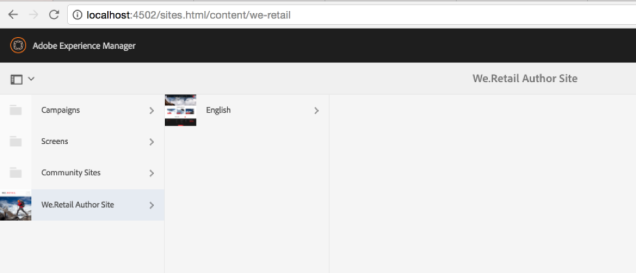
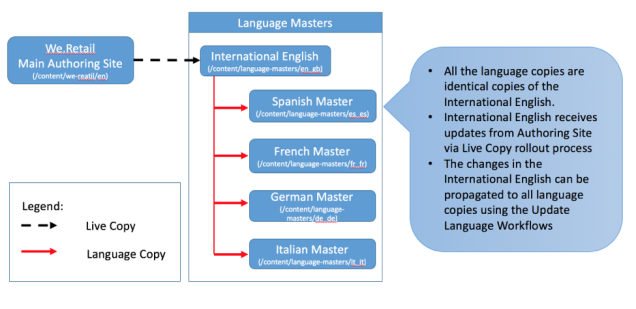
For most organizations, that I have worked with, most authoring (95+ percent) happens in a single language. And usually, authoring happens for a particular geography. In case of We.Retail, let’s assume that primary authoring happens for the North American market (the USA to be specific) and in the English language. The first and foremost thing that we will do is to set up the primary Authoring Branch. This the primary authoring language. This is how it would look in AEM:


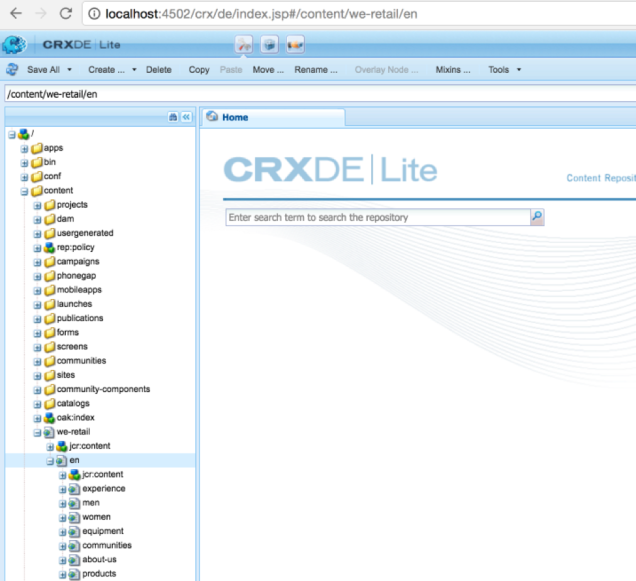
And this is the view in CRX:


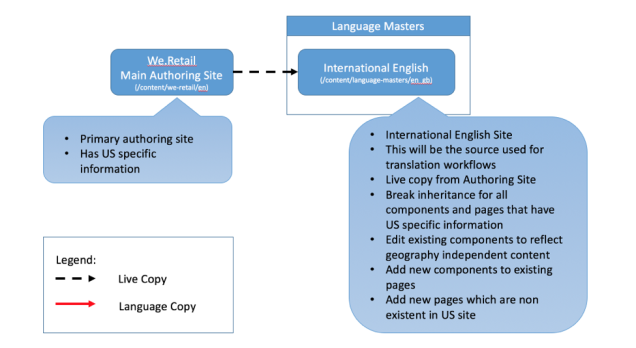
Since this site contains USA specific content, we will create an International copy. We will create a Live Copy from the authoring site. We will create this under We.Retail Language Masters under en_gb locale folder. You can use en as well, in case you want it to be agnostic to the dialect. After the Live Copy has been created, we will break inheritances for any content that was the US specific. We shall ensure that the content is truly common and can be shared across different geographies and markets. Here is a picture that describes how to set up International English


One important thing to note is that We.Retail Authoring Site is not identical to International English Site. It has common content that applies to all geographies and markets.

Next, we are going to translate the common content into various languages. For illustration, we will set up only four additional languages – Spanish (es_es), French (fr_fr), German (de_de), and Italian (it_it) and will set up five countries – USA, Canada, France, Germany, and Switzerland.

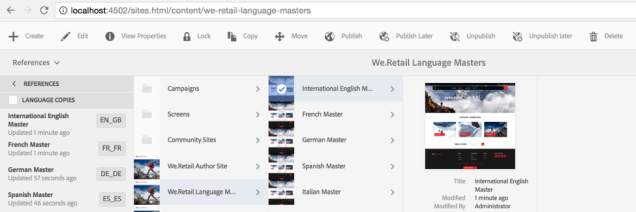
We use International English as the source and translate content in four languages – Spanish (es_es), French (fr_fr), German (de_de), and Italian (it_it) using Language Copies functionality in AEM. In order to create Language Copies, create language roots in all these four languages. Language roots are nothing but blank pages named using these specific locales.

Language Copies require a specific structure. Things that you need to take care off are:
  • The Language Root name must be a language ISO locale. You can use either two-letter locales (en, fr, de) or five letter locales (en_us, en_gb, fr_fr, fr_ca). You can choose to use dashes instead of underscores as well (en-us, en-gb, fr-fr, fr-ca).
  • All the Language Roots need to be at the same level. In our setup, we are going to use five letter underscores and set them up under the language-masters node. Please note, most companies use dashes. I will write another blog post to talk about those.


Once these Language Roots have been created, these will start appearing in the References Panel, under Language Copies. You can invoke Create Language and Update Language Copy workflows from References Panel.

Once the Language Copies have been created, we will now go ahead and create Country Sites. I am skipping a lot of details about how to configure and kick of translation as well as Update Translations. It will be a topic for another blog post. It has been covered fairly well in the AEM documentation as well: https://docs.adobe.com/docs/en/aem/6-2/administer/sites/translation.html.

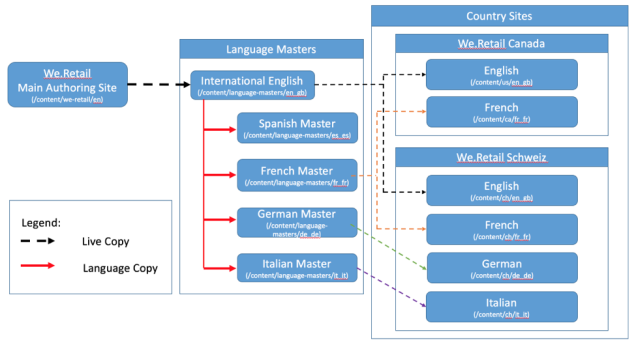
Here is a pictorial representation of the progress so far:


Next, we are going to create country Sites. We are again going to use Live Copy functionality (MSM) to set up country websites. We will set up Live Copies between the Language Copies under Language Masters to specific Country Sites. Let’s first set up country sites for Canada, France, Germany, and Switzerland. We are intentionally skipping the US for a moment.

Here is a pictorial representation of the setup for We.Retail Canada and We.Retail Schweiz (the ones that have more than one language):


Here is what we did for setting up country sites for Canada, France, Germany (Deutschland) and Switzerland (Schweiz):
  • Live Copy from International English (/content/language-masters/en_gb) to We.Retail Canada English (/content/ca/en_gb) and We.Retail Switzerland English (/content/ch/en_gb)
  • Live Copy from French Master (/content/language-masters/fr_fr) to We.Retail Canada French (/content/ca/fr_fr), We.Retail Switzerland French (/content/ch/fr_fr) and We.Retail France (/content/fr/fr_fr)
  • Live Copy from German Master (/content/language-masters/de_de) to We.Retail Deutschland (/content/ca/de_de) and We.Retail Switzerland German (/content/ch/de_de)
  • Live Copy from Italian Master (/content/language-masters/it_it) to We.Retail Switzerland German (/content/ch/it_it)
After the Country Sites have been created, they will contain all the common content. We all know that each geography has country-specific content as well. Now marketing managers can go ahead and create additional country-specific content in each of the country sites. You can have local contact addresses, campaigns, event information, etc.

Let’s now talk about the USA site. Since we already have adaptations for the US market in the authoring site, we are going to leverage that. So for English, rather than creating a Live Copy from International English, we will create a Live Copy from the main authoring site.

These are the steps that we follow for creating the USA English site.
  • Live Copy from Spanish Master (/content/language-masters/es_es) to We.Retail USA Spanish (/content/us/es_es)
  • Live Copy from We.Retail Authoring Site (/content/we-retail/en) to We.Retail USA English (/content/us/es_us)


By aem4beginner

Not able to inherit page properties from the parent page

Problem:
I have created a live copy from the Geometrixx site. I have pointed cq:template and sling:resourceType of parent page to my custom template and page component. I have created a new child page, when I checked the page properties of the child page I don't see inheritance (lock symbol) on my child page properties dialog.

-Sample/
    -en/
        -childpage/

Solution:
I am able to see the lock symbol on child page properties dialog after adding the mixin "cq:LiveRelationship".


By aem4beginner

April 23, 2020
Estimated Post Reading Time ~

AEM What is the average number of Live Copies per month

Solution:To determine the total number of Live Copies made since installation use a repository query; via CRXDE - Tools - Query:
  • Type XPath
  • Path /
  • Query //element(*, cq:LiveSyncConfig)

Again use the number of months that have elapsed since installation to calculate the average.


By aem4beginner

April 14, 2020
Estimated Post Reading Time ~

Retrieving AEM LiveCopy information using the MSM API

You can use the Adobe Experience Manager Multi-Site Manager (MSM) API to retrieve information about LiveCopys. AEM MSM functionality lets you define relations between AEM sites and also lets you define to what degree re-use or control is exerted on the different sites. Using MSM, once configure MSM, you can update multi-site with little effort.

This article walks you through how to use the AEM MSM API to retrieve LiveRelationship information. A LiveRelationship defines a live relationship of a synced resource between its blueprint and livecopy. For example, if a site (blueprint) "/content/geometrixx" has a livecopy in "/content/copy", then the resource of "/content/geometrixx/en/jcr:content" and "/content/copy/en/jcr:content" form a relationship. See Interface LiveRelationship.

Note: For information about MSM functionality, see Multi-Site Management.

Using an OSGi bundle that contains these APIs, you can retrieve LiveRelationship information. In this development article, the LiveRelationship values are written to the Adobe CQ log file.

1.07.2016 13:08:26.768 *INFO* [0:0:0:0:0:0:0:1 [1469120906760] GET /content/MsmAPI.html HTTP/1.1] foo.service.aem.msm.MsmExampleImpl **** Inside before try LiveCopy Status MSM Example Impl class
21.07.2016 13:08:26.768 *INFO* [0:0:0:0:0:0:0:1 [1469120906760] GET /content/MsmAPI.html HTTP/1.1] foo.service.aem.msm.MsmExampleImpl Inside LiveCopy Status MSM Example Impl class
21.07.2016 13:08:26.792 *INFO* [0:0:0:0:0:0:0:1 [1469120906760] GET /content/MsmAPI.html HTTP/1.1] foo.service.aem.msm.MsmExampleImpl Key is: msm:isTargetFromDifferentTree
21.07.2016 13:08:26.792 *INFO* [0:0:0:0:0:0:0:1 [1469120906760] GET /content/MsmAPI.html HTTP/1.1] foo.service.aem.msm.MsmExampleImpl Value is: false
21.07.2016 13:08:26.792 *INFO* [0:0:0:0:0:0:0:1 [1469120906760] GET /content/MsmAPI.html HTTP/1.1] foo.service.aem.msm.MsmExampleImpl Key is: msm:isTargetManuallyCreated
21.07.2016 13:08:26.792 *INFO* [0:0:0:0:0:0:0:1 [1469120906760] GET /content/MsmAPI.html HTTP/1.1] foo.service.aem.msm.MsmExampleImpl Value is: false
21.07.2016 13:08:26.792 *INFO* [0:0:0:0:0:0:0:1 [1469120906760] GET /content/MsmAPI.html HTTP/1.1] foo.service.aem.msm.MsmExampleImpl Key is: msm:isTargetCancelledChild


To read this development article, click https://helpx.adobe.com/experience-manager/using/msm_api.html.


By aem4beginner

March 15, 2020
Estimated Post Reading Time ~

Color Coding in Adobe CQ blueprint and livecopy relationship.

Do you really wonder what's the exact message of a color button you see in the blueprint control center?


Color Codes of Blueprint Live copy relationship.

This information is directly available on CQ instance as well,
You can go to the "Blueprint Control Center" and click "Legend".


By aem4beginner