Showing posts with label Encrypting - Decrypting. Show all posts

January 4, 2021
Estimated Post Reading Time ~

How To Use Crypto Support In AEM To Encrypt/Decrypt Data?

While working with AEM, sometimes we have requirements to call third-party APIs/Services. Configurations related to these APIs/Services like username, passwords, client id/secrets, API keys are usually stored in a code repository in the form of OSGi configuration. This sensitive information should be stored encrypted rather than in plain-text format.

This is possible through the OOTB AEM Crypto Support bundle. This bundle provides services for encrypting and decrypting the confidential/secured data through system-wide keys (hmac and master files).

What are the Features of Crypto Support?
  • Decryption happens at runtime.
  • No one can decrypt the data through the UI. There’s no UI to decrypt the encrypted data. So, the information remains secure.
What are hmac/master keys?
  • Encryption/decryption happens through keys (hmac and master files).
  • These keys get generated during the first startup of the AEM instance.
  • In older versions of AEM (< 6.3), these files are stored under /etc/key but recent AEM versions have these files on the file system under crx-quickstart.
  • These keys are unique for every AEM instance.
How to encrypt data using Crypto Support?
In order to encrypt a string, follow the below steps:

1. Navigate to /system/console/crypto. The console looks like below:
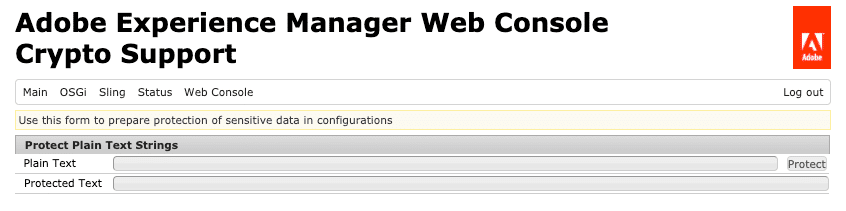

2. Enter the plain-text string in the “Plain Text” field and click on “Protect”.

3. An alphanumeric value will get generated in the “Protected Text” field.
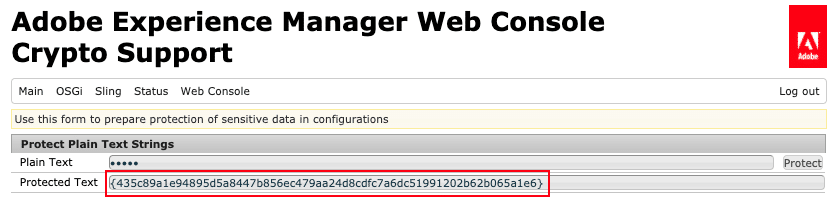

4. Copy above alphanumeric value including curly brackets. For e.g. {435c89a1e94895d5a8447b856ec479aa24d8cdfc7a6dc51991202b62b065a1e6}

5. Go to the codebase and put the above value in your OSGi config like below


Note:
1. Clicking on “Protect” again, will generate a new alphanumeric value. So, just click once and copy the alphanumeric value and put it in the codebase.

2. The encrypted value generated for the same plain-text string will differ from one AEM instance to another instance because keys are unique to each instance. We will talk about how to sync keys between the environments in our next blog.
How to decrypt data using Crypto Support:

@Reference

private CryptoSupport cryptoSupport;

public String getDecryptedValue(final String encryptedText) {

return cryptoSupport.isProtected(encryptedText)

? cryptoSupport.unprotect(encryptedText)

: encryptedText;

}

Note: For encrypted data, which is stored in OSGi configuration, we don’t need to call the “unprotect” method explicitly as you see above. AEM has a Configuration Plugin to decrypt OSGi configuration properties. This plugin automatically decrypts and returns the plain-text string.


By aem4beginner

Crypto Support In AEM (Syncing Keys Among AEM Instances)

Crypto Support is based on keys (hmac and master files) which are unique for each AEM instance. Encrypted text generated for the same plain-text string on one AEM instance will be different from another instance. This can raise alarms in cases where we have the same OSGi configuration values shared among Author and Publish instances under the same topology.

For e.g. /apps/my-project/config.prod/com.day.cq.mailer.DefaultMailService.xml.

Here SMTP password for Default Mail Service will be same across all Prod AEM instances. So, in order to make sure that the same encrypted value works on all Prod instances, we will have to sync hmac and master files among Prod Author and Publish instances.

Locating keys (hmac and master files):
Follow below steps to locate your keys:
1. Navigate to /system/console/bundles and look for the “Adobe Granite Crypto Support” bundle. [Symbolic Name: com.adobe.granite.crypto]

2. Note the bundle ID.

3. Navigate to file system: /crx-quickstart/launchpad/felix/bundle<id>/data [Note: here <id> is the bundle ID from step 2]

4. Open the “storage” file. This file contains just one single line:

a. JCR i.e. files are stored in JCR under /etc/key.

b. Bundle i.e. files are stored on a file system.

Note: If you have always upgraded your AEM instance using in-place upgrade, then these keys are going to be under /etc/key and there’s no harm in keeping these keys under /etc/key even though latest versions of AEM have moved the keys from JCR to file system (crx-quickstart). We had upgraded AEM for one of our clients from 5.6.1 to 6.1 and a few years later again from 6.1 to 6.3. The client is using Crypto Support and their keys are stored in /etc/key. If at all needed, you can move the keys from JCR to the file system and vice versa.

Syncing keys:
If keys are stored under /etc/key:

1. Create a package of /etc/key from the source instance and install this package on the target instance.

2. OR go to CRXDE, select node /etc/key; click on the Replication tab and press the Replication button.

3. Restart target AEM instance.

If keys are stored on the file system:

1. On the source instance, navigate to /system/console/bundles and look for the “Adobe Granite Crypto Bundle Key Provider” bundle. [Symbolic Name: com.adobe.granite.crypto.file]

2. Note the bundle ID.

3. Navigate to file system: /crx-quickstart/launchpad/felix/bundle<id>/data [Note: here <id> is the bundle ID from step 2]

4. Copy hmac and master files from the above directory.

5. Follow steps 1-3 on the target instance.

6. Replace hmac and master files on target instance from the source instance hmac and master (copied in step 4).

7. Restart target AEM instance.

Note: You can avoid restarting instances, rather you can restart the Crypto bundle “com.adobe.granite.crypto”. The catch here is – if you restart the Crypto bundle through the OSGi console, the regular AEM login fails. So, it’s better to restart this bundle through the CURL command.

Stopping the bundle:
curl -u admin:<admin_password>

http://<host>:<port>/system/console/bundles/com/adobe.granite.crypto -F action=stop

Starting the bundle:
curl -u admin:<admin_password>

http://<host>:<port>/system/console/bundles/com.adobe.granite.crypto -F action=start

Issues post hmac/master files sync:
If your target AEM repository had SSO/SAML integration, it will stop working after hmac/master files are synced from the source instance.

SSO/SAML integration works based on the trust store and key store. Passwords for trust store and key store are stored in an encrypted format in the repository under “keystorePassword” at below locations:

1. /etc/truststore
2. /home/users/system/authentication-service/keystore

You just need to the re-encrypt trust store and key store passwords and update “keystorePassword” properties at both the locations. This will resolve the issue.


By aem4beginner

October 2, 2020
Estimated Post Reading Time ~

How to Use Encrypted Password for OOTB Configurations

1. Encrypted Password for OOTB Configurations: We always talk about making
passwords in an encrypted value as part of the codebase to secure the password.To tackle this issue, we always talk about CryptoSupport in AEM. So basically if there are a custom configuration and a need to use an encrypted password, I can use the concept of cryptosupport in AEM.

But there are few OSGi Configurations in AEM like “JDBC ODBC Connection Pool” or “Adobe Granite SAML 2.0 Authentication Handler” having password fields, So can we use cryptosupport concept here too??

So the answer is yes, you can keep encrypted value in the “password fields” directly in these configurations and for the decryption part, you don’t need to worry. AEM will take care of it. To encrypt a password, go through the cryptosupport console in AEM.

Conclusion: We need to understand this very clearly that if we define a field as "Password type" either in OOTB or custom configurations, we don’t need to worry about the decryption part, just configure the encrypted value in the field, and AEM will understand that because it is a password field, it may need to decrypt it.
But if your field is a plain text, then you have to take care of the decryption part as mentioned in the previous post.

Fig1: For a password field, no need to write the logic for decryption.

2. AEM SAML Configuration in the Code Repository Issue: Recently while working on a project, I configured AEM SAML integration on the author instance and it just works fine. Now, this was the time to put the config in the code repository. So,
a) I put that config in the code repository (at /apps/<project-folder>/config.author.dev/com.adobe.granite.auth.saml.SamlAuthenticationHandler-myproject.xml
b) Deleted the manually created SAML configuration in Felix Console and performed a build and I was able to see the SAML config added by code.
c) I hit the Author URL and it doesn't take me to the IDP login page.
d) I go to Felix, open SAML config, click Save (without touching anything else) and I hit the Author URL again and now it takes me to the IDP login page.

Exactly the same issue I found on Adobe Community and the solution work for me.

Solution:
a) Name the file as: "com.adobe.granite.auth.saml.SamlAuthenticationHandler-<Project_Identifier>.config" (Make sure it is a regular file in Eclipse or IntelliJ); no need to add extension ".xml" at the end.
b) Inside this file, just add the configuration like a regular text. Please see below:

# Configuration created by Apache Sling JCR Installer
// Storing keyStorePassword as an encrypted manner.
keyStorePassword="{41bdcd34d9a34ae1c68bafa6b7b647443c429ad97e00a9f2cb5f876b2433}"
service.ranking=I"5002"
idpHttpRedirect=B"false"
createUser=B"true"
defaultRedirectUrl="/content/project/en/aem-assets.html"
userIDAttribute="http://schemas.xmlsoap.org/ws/2005/05/identity/claims/name"
assertionConsumerServiceURL=""
defaultGroups=["contributors"]
signatureMethod="http://www.w3.org/2001/04/xmldsig-more#rsa-sha256"
idpCertAlias="certalias___xxxxxxxxxxxx"
addGroupMemberships=B"true"
path=["/content/projects"]
digestMethod="http://www.w3.org/2001/04/xmlenc#sha256"
synchronizeAttributes=""
clockTolerance=I"60"
groupMembershipAttribute="groupMembership"
idpUrl="IDP URL GOES HERE"
logoutUrl="logouturl"
serviceProviderEntityId="service_provider_entity_id"
handleLogout=B"true"
spPrivateKeyAlias=""
useEncryption=B"false"
nameIdFormat="urn:oasis:names:tc:SAML:2.0:nameid-format:transient"


You can also copy the content of the file from CRXDE, after you manually save the OSGi config thru /system/console/configMgr.

Note: This solution really worked for me, but logically it didn’t make any sense to me as while working on another project on AEM 6.5.4, the XML file used to work for me. I face this issue only in AEM 6.5.5 till now, So can’t really comment if this is an upgrade issue or something else.

So, If you face this issue in any of the AEM versions, you can directly try this solution.

Source: http://www.sgaemsolutions.com/2020/09/how-to-use-encrypted-password-for-ootb.html


By aem4beginner

May 26, 2020
Estimated Post Reading Time ~

Crypto Support in AEM: Encrypting Plain Text and Decrypting Protected Text

Recently, we came across a business requirement where we had to save API keys (secured date) in OSGI service. One of the recommendations based on Adobe Health Check is to encrypt data (API keys) to store them in JCR more securely. The same can be achieved using Crypto Support in AEM.

The Crypto Support Bundle provides a service that encrypts/decrypts binary or String data in AEM. On exploring further, it seems to be nailing the issue of encryption and decryption in just a few minutes. Crypto support is necessary to store the password in a salted or hashed form in the JCR so as to make the password storage secure and to avoid any breach.

The following steps will elaborate on the mechanism to generate an encrypted key.

Step 1: Protecting the Plain Text
Crypto Support bundle provides a service that allows users to generate the “Protected Text” from the “Plain Text” input.

Open the URL http://<host>:<port>/<system/console/crypto>


In the “Plain Text” field, add the string which needs to be encrypted and press the protect button. The “Protected Text” field will show the encrypted string to be used. plain text string The encryption algorithm used in this procedure is symmetric key encryption namely AES algorithm, CBC mode with PKCS5 padding used from the RSA JSafe library.

For instance, while setting up the SMTP configurations, it is not ideal to keep the password as a plain text in the OSGI config. The best way to do is to encrypt the password using Crypto Support and then use the Protected Text in the SMTP Configurations.

The next step is to decrypt the protected text in the backend code so as to fetch the original password, which is easy.

Step 2: Decrypt the Protected Text.
Since the OSGI configuration has the “Protected Text” configured, it is required to decrypt the value before actually using it.

Following code, the sample is used to decrypt the password:

@Reference
private CryptoSupport cryptoSupport;

private void setEmailConfiguration(Object smtpHost,Object smtpPort,Object smtpUser,Object smtpPwd,Object from Address){

        String password=PropertiesUtil.toString(smtpPwd,StringUtil.EMPTY);
        if(this.cryptoSupport.isProtected(password)){
            this.smtpPassword=this.cryptoSuport.unProtect(password);
            } else {
            this.smtpPassword=password;
            }
}

The method unprotect(String cipherText) unprotects (decrypts) the string to return the plain text. We can also check if the String is already protected by using the isProtected(String text)method. This method returns true if the String provided is protected.

Note that we are not done yet. The protected string generated by Crypto Support will be different for different instances. One last step is required to make sure the same protected text can be used throughout. It is an optional step if different protected strings need to be used in different instances.
Step 3 (Optional): To Make the Protected Text Same for all the AEM Instances.

If we intend to use the same protected text for all the environments (it is recommended to use different passwords for the production environment to ensure data integrity), then we need to follow the below steps.
Download the hmac and master files from the /etc/key current instance. The encryption uses a key that is created with AEM installation in the OS filesystem under crx-quickstart. These are binary files that are randomly generated at the start of Adobe Granite Crypto Support bundle.


Create the /etc/key node for the destination instance and copy the above two files.
Deploy the code and make sure to restart “com.adobe.granite.crypto” for the very first time you upload these keys and make cryptography effective.

Note: If we manually stop the Crypto Support bundle, then AEM login fails and the user will be unable to login with any user. Hence, it is always recommended to use the CURL command at the root directory of the server with the admin user only to restart the crypto support bundle.

CURL command to stop the bundle:
curl -u admin:admin
http://<host>:<port>/system/console/bundles/com.adobe.granite.crypto -F action=stop


CURL command to start the bundle:
curl -u admin:admin
http://<host>:<port>/system/console/bundles/com.adobe.granite.crypto -F action=start


Reference: 
https://www.argildx.com/technology/crypto-support-aem/


By aem4beginner

May 15, 2020
Estimated Post Reading Time ~

AEM Encryption 101: How to Encrypt a Shared Secret

I recently had a request from a client who wanted to use a third party service that didn’t provide an authentication key. Instead, I need to use a simple username and password combo that the client didn’t want to be exposed in our code repository where we generally keep our configuration values.

Having heard about encrypted configuration values, I set out to learn how to use them. I found a variety of resources out there, but none of them really walked me through from Point A to Point B. I had to kind of make some logical leaps to figure out what to do. It turns out that this is really straightforward once you know what to do.

First things first, take the value you want to encrypt and open up your system console to the Crypto Support tab (/system/console/crypto). It should look like this:
Just put the value you want to keep safe in the “Plain Text” field and click the Protect button. You’ll get back a value that looks something like this {89cb4befeb375b865332fed9bbde85b8842a2318be4901851c3b5a0495c49f13dad8b4cfd38a6fa26f07ea361ea4994e}
There is one “gotcha” to be aware of. When you encrypt the password using the Crypto Support tool, the encryption is specific to the instance you are running. If you want to re-use that same encrypted value, you will need to copy the crypto keys as helpfully outlined here by Nate Yolles:  http://www.nateyolles.com/blog/2017/05/sharing-crypto-keys-in-aem-63

You’ll want to copy that encrypted value and place it in your configuration file. It might look something like this:

<?xml version="1.0" encoding="UTF-8"?>
<jcr:root xmlns:sling="http://sling.apache.org/jcr/sling/1.0"
xmlns:jcr="http://www.jcp.org/jcr/1.0" jcr:primaryType="sling:OsgiConfig"
username="mySampleUsername"
encryptedpassword="{89cb4befeb375b865332fed9bbde85b8842a2318be4901851c3b5a0495c49f13dad8b4cfd38a6fa26f07ea361ea4994e}"/>
Next you’ll want a service that pulls these configuration values in and makes them available for interaction with your third party application. Nate Yolles wrote an excellent and very helpful blog on how to use OSGi annotations to do this (http://www.nateyolles.com/blog/2017/05/osgi-declarative-services-annotations-in-aem) so for our purposes, we’ll just note that your service will look something like this:

package com.example.servlets;
import com.adobe.granite.crypto.CryptoException;
import com.adobe.granite.crypto.CryptoSupport;
@Component(immediate=true,
service=Servlet.class,
property={
Constants.SERVICE_DESCRIPTION + "=Example Servlet",
"sling.servlet.methods=" + HttpConstants.METHOD_POST
}
)
@Designate(ocd=ExampleServlet.Configuration.class)
public class ExampleServlet extends SlingAllMethodsServlet {
private String apiPassword;
private String apiUsername;
protected CryptoSupport cryptoSupport;
@Reference
public void bindCryptoSupport(CryptoSupport cryptoSupport) {
this.cryptoSupport = cryptoSupport;
}
public void unbindCryptoSupport(CryptoSupport cryptoSupport) {
this.cryptoSupport = cryptoSupport;
}
@Override
protected void doPost(final SlingHttpServletRequest req, final SlingHttpServletResponse resp) throws ServletException, IOException  {
// some code here
String username = apiUsername;
String password = getPassword();
someAPIFunction(username, password);
// more code here
}
private String getPassword() {
String passwd = "";
try {
if (this.cryptoSupport.isProtected(apiPassword)) {
passwd = this.cryptoSupport.unprotect(apiPassword);
} else if (apiPassword.length() > 0) {
passwd = apiPassword;
}
} catch (CryptoException ex) {
logger.error("A helpful log message");
} catch (NullPointerException ex) {
logger.error("A helpful null pointer exception message");
}
return passwd;
}
@Activate
@Modified
protected void Activate(Configuration config) {
apiPassword = config.encryptedpassword();
apiUsername = config.username();
}
@ObjectClassDefinition(name = "Example Servlet - OSGi")
public @interface Configuration {
@AttributeDefinition(
name = "API Password",
description = "Pull the API password from the configuration settings",
type = AttributeType.STRING
)
String encryptedpassword() default "";
@AttributeDefinition(
name = "API Username",
description = "Pull the API username from the configuration settings",
type = AttributeType.STRING
)
String username() default "";
}

Note that although I’m checking in the getPassword() function to make sure I’m decrypting properly, in my experience, this just works. My service doesn’t actually require me to make the “unprotect” call, but I left it here just in case it is helpful to anyone else.


By aem4beginner

April 27, 2020
Estimated Post Reading Time ~

Encrypting/Decrypting data in AEM

com.adobe.granite.crypto.CryptoSupport service can be used to encrypt/decrypt the data in Adobe Experience Manager(AEM).

Maven Dependency:

<dependency>
<groupId>com.adobe.granite</groupId>
<artifactId>com.adobe.granite.crypto</artifactId>
<version>0.0.18</version>
<scope>provided</scope>
</dependency>

Service to encrypt/decrypt the message:

import org.apache.felix.scr.annotations.Component;
import org.apache.felix.scr.annotations.Reference;
import org.apache.felix.scr.annotations.Service;
import com.adobe.granite.crypto.CryptoException;
import com.adobe.granite.crypto.CryptoSupport;

@Component(immediate = true, metatype = true)
@Service(value = EncrypionService.class)
public class EncrypionService {
@Reference
private CryptoSupport cryptoSupport;

public String encrypt(String plainText) throws Exception

{
try {
return cryptoSupport.protect(plainText);
} catch (CryptoException e) {
throw e;
}
}

public String decrypt(String encryptedText) throws Exception
{
try {
return cryptoSupport.unprotect(encryptedText);
} catch (CryptoException e) {
throw e;
}
}
}


By aem4beginner

April 26, 2020
Estimated Post Reading Time ~

Encrypting and Decrypting String in Java

The Advanced Encryption Standard (AES), also known by its original name Rijndael (Dutch pronunciation: [ˈrɛindaːl]),[5][6] is a specification for the encryption of electronic data established by the U.S. National Institute of Standards and Technology (NIST) in 2001.[7]

Below is a sample java code to encrypt and decrypt a string.
package com.kishore;

import java.io.UnsupportedEncodingException;
import java.security.MessageDigest;
import java.security.NoSuchAlgorithmException;
import java.util.Arrays;

import javax.crypto.Cipher;
import javax.crypto.spec.SecretKeySpec;

import org.apache.commons.codec.binary.Base64;
import org.slf4j.Logger;
import org.slf4j.LoggerFactory;

public class Encrypt {

    protected final Logger LOGGER = LoggerFactory.getLogger(this.getClass());
    
    public static void main(String[] args) {
        String encryptString = "45634634";
        final String KEY = "kishore";
        Encrypt obj = new Encrypt();
        String encryptedString = obj.encrypt(encryptString, obj.encryptSecretKey(KEY));
        System.out.println("encryptedString: "+encryptedString);        
        String decyptedString = obj.decrypt(encryptedString, obj.encryptSecretKey(KEY));
        System.out.println("decyptedString: "+decyptedString);
    }
    public SecretKeySpec encryptSecretKey(final String secretKey) {
        MessageDigest sha = null;
        SecretKeySpec encryptApiSecret = null;
        try {
            byte[] key = secretKey.getBytes("UTF-8");
            sha = MessageDigest.getInstance("SHA-1");
            key = sha.digest(key);
            key = Arrays.copyOf(key, 16);
            encryptApiSecret = new SecretKeySpec(key, "AES");
        } catch (final NoSuchAlgorithmException e) {
            LOGGER.error("Exception occurred in encryptApiSecret",e);
        } catch (final UnsupportedEncodingException e) {
            LOGGER.error("Exception occurred in encryptApiSecret",e);
        }
        return encryptApiSecret;
    }
    
    public String decrypt(final String strToDecrypt, final SecretKeySpec secretKey) {
        String decryptedApiKey = "";
        try {
            final Cipher cipher = Cipher.getInstance("AES/ECB/PKCS5PADDING");
            cipher.init(Cipher.DECRYPT_MODE, secretKey);
            byte[] c = Base64.decodeBase64(strToDecrypt.getBytes("UTF-8"));
            decryptedApiKey = new String(cipher.doFinal(c));
        } catch (final Exception e) {
            LOGGER.error("Exception occurred in decrypt",e);
        }
        return decryptedApiKey;
    }

    public String encrypt(final String strToDecrypt, final SecretKeySpec secretKey) {
        String encryptedApiKey = "";
        try {
            final Cipher cipher = Cipher.getInstance("AES/ECB/PKCS5PADDING");
            cipher.init(Cipher.ENCRYPT_MODE, secretKey);
            byte[] c = cipher.doFinal(strToDecrypt.getBytes());
            encryptedApiKey = new String(Base64.encodeBase64(c));
        } catch (final Exception e) {
            LOGGER.error("Exception occurred in encrypt",e);
        }
        return encryptedApiKey;
    }

}


By aem4beginner

March 29, 2020
Estimated Post Reading Time ~

CryptoSupport in AEM 6.5

While working with AEM, The information related to an API like endpoint, username and the password used to be maintained in OSGi Configurations.

Sometimes these APIs are really secure and the client doesn’t want the password to be seen by anyone. OSGi Configurations are always part of the code. Even in some cases, clients don’t want to share the password even with the developer, they want to use an encryption methodology so that they can share the encrypted code with the developer and the code can be decrypted only at run time and nobody can not know about it.

AEM provides us that kind of crypto support which can really make things really confidential and secure.

There is a Crypto console in AEM, through which clients can generate the encryption code without even sharing the plain text with the developer.
They can just share the encryption key and the developer can put it in the codebase as OSGi Configuration. There is no console in AEM, from where the encrypted code can be decrypted into plain text.

Every instance hmac/master key is different and if the developer knows the encrypted key they can’t get to know the plain text by anyway. In other words, the encrypted key will be unique for each and every server.

So how to use CryptoSupport in AEM?
1. Go to Crypto Support using Felix console in AEM and type your password/any sensitive information in the plain text field and click on Protect to encrypt this.
2. The code to decrypt the key is below:

@Reference
CryptoSupport cryptosupport;

Public getDecryptedKey(int encryptedKey)
{
if(this.cryptoSupport.isProtected(key){
this.cryptoSupport.unprotect(key)
}
}
Now the major concern of using this encryption method comes up with production servers. As I mentioned previously that every instance is unique and generates a different encrypted key. But ideally, the production server might have two publishers and we can't create configuration based on the individual publishers. So the ideal scenario is, we want to use the same key for all authors and publishers belong to one environment.

So ideally all the servers related to one environment irrespective of author/publishers must be sharing the same key.

How to do that?
Before AEM 6.2, you can see the “hmac” and master files directly in AEM CRX, but due to security concerns, these keys have been removed from crx and moved inside the bundle.
1. Go to the author instance and see the bundle id of “Adobe Granite Crypto Bundle Key Provider (com.adobe.granite.crypto.file)”, usually it is bundled No 25, then go to crx-quickstart/launchpad/felix/bundle25/data. There are two files sitting in data which are hmac and master. Copy the files and replace them with the files sitting in publishing servers under the same path.

2. Restart the AEM server or you can restart the bundle Adobe Granite Crypto Support (com.adobe.granite.crypto). I always prefer restarting the server because it takes lesser time than restarting the Crypto Support Bundle ( this also does a kind of restart for all bundles and takes time).

How to validate the keys:
You can run a command in terminal “md5sum hmac” under the data folder and can help to match the key with all the servers to validate if the same key exists for all the servers.

Note: Initially to validate the keys, I was trying to generate the encrypted code from author and publisher and trying to match them, to validate if they are sharing the same hmac and master files But when you enter the same text on an AEM server and try to generate the encrypted code, again and again, the server generates the different encryption code in every attempt. So you need not worry about it, encrypt the plain text once and put in the configurations. AEM will take care of the decryption part.

When you put the encrypted key in the OSGI configuration, the encrypted key is always having curly brackets in start and end.
So if you put a config like :
getPassword="{590ea2a50e2cffcc5800a80ade1623fd96d4fa3ed28f157344f29bc636e49a55}"/>

You won’t be able to deploy configuration because curly brackets are always used to mention data type in OSGI Config like {boolean} true,so always mention the data type of config for encrypted keys.
getPassword="{String}{590ea2a50e2cffcc5800a80ade1623fd96d4fa3ed28f157344f29bc636e49a55}"/>


By aem4beginner
