Showing posts with label Search. Show all posts

December 30, 2020
Estimated Post Reading Time ~

AEM search function 6.5

In 6.5 tagged an asset and then I tried to go to the site's console and search for a particular term. I presume this Omnisearch from the sites console should automatically also bring up tagged assets as well as pages?

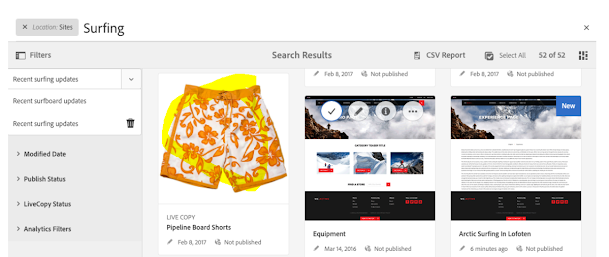
Right now only bringing up pages and no tagged assets. Is there some extra development we need to do? At the bottom of this document https://docs.adobe.com/help/en/experience-manager-65/authoring/essentials/search.html, there is a pipeline board shorts assets that came up. So I wondered why ours isn't bringing up the assets as well.

Solution:
Firstly about the screenshot you have attached. In the screenshot, the "Pipeline Board shorts" card you see is not an asset but a live copy which is also a page.

If you just want to search by term and search all assets and pages, you can try this.

1. Go to sites and select filters, it will open up the search bar like this:


2. Now remove the "Location:Sites" filter from the search bar, the screen will appear like this:


3. Now whatever search you will enter here will bring you both assets and pages


You can get a list of assets and pages tagged with a particular tag in a classic way:

1. Go to http://localhost:4502/tagging

2. Go to the tag and right-click on it


3. Select the list option and it will show you all the pages/assets tagged with this particular tag.


By aem4beginner

October 16, 2020
Estimated Post Reading Time ~

Adobe AEM (CQ5) and Enabling Stemming Search on Lucene

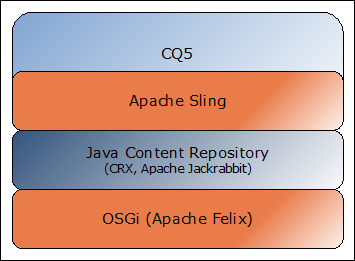
Adobe Experience Manager (AEM) CQ5 is a powerful Web Content Management system (WCMS) which was originally developed by Day Software and acquired by Adobe in 2010. The WCMS is based on numerous open-source Java applications, which of its core is Java Content Repository (JCR) specification and Apache Jackrabbit, a full implementation of the JCR specification, both led by the former Day Software employees.

This revolutionary way of storing data for content in a hierarchical manner to enable versioning and performance allowed many diverse enterprise-level CMS including Jahia, Hippo CMS, Magnolia CMS, Oracle Beehive, and Alfresco, to name a few.

Content Repository Extreme (CRX) is Day Software version of the implementation of JCR specification that borrowed heavily from Apache Jackrabbit but continued to add other powerful open-source Java technologies like Apache Felix that implements OSGi specification to ease the feature deployment management, and accessible through Apache Sling (also developed by Day Software), a REST-based web framework, making it fully web compatible.


In addition to aforementioned powerful Java technologies to create one-of-a-kind WCMS, CRX, through Jackrabbit, uses Apache Lucene to index content and make the content available for searching. Needless to say, Lucene is yet another powerful open-source Java technology that enables powerful indexing and search. For this article, we will particularly focus on its analyzer capability.

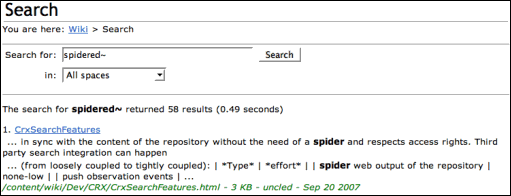
If you are like me, new to AEM CQ5, and needing to enable stemming for search that allows searching “hike” that would allow matches “hikes“, “hiked“, and “hiking“, you will soon be lost due to incorrect instruction and an example provided by Adobe documentation. Googling “CQ5 search stemming” quickly returns the Adobe help page that shows how easy it is to add stemming capability to search: by adding tilde (~) at the end of the search query:


I too was very happy to see the search results returning more than just the exact match. But soon, you will discover that something was wrong. The search also returned similar sounding words like “like“, “kite“. This is when I looked further into the underlying technology, Lucene, and its documentation to see what is going on.

Turned out that, in Lucene, adding tilde enabled fuzzy search, which is a powerful search capability, but it wasn’t stemming. This was the perfect reason why search “hike” returned “like”, since its default fuzzy search distance is 0.5, the trailing “ke” made this match possible. In fact, when you search stemming”, the page returns no result. This made me ponder. It’s got to be in Lucene that indexes and enables stemming search. Further research revealed that Lucene implemented analyzers to not only enable more concise indexing and searching for English, but there are analyzers for most of major languages, including Hebrew, Korea, Chinese, Japanese, Russian, Thai, and Arabic. It was clear that somehow CRX was set to StandardAnalyzer and that enabling EnglishAnalyzer should allow stemming.

Since CRX meant sorting through a maze of Java technologies, it made sense to actually try out the version of Lucene that shipped with AEM CQ 5.6.1. According to this post, I soon found out that the Lucene core JAR file was under author\crx-quickstart\launchpad\felix\bundle65\version0.0\bundle.jar, and that it shipped version 3.6.0 with analyzer library that had EnglishAnalyzer library.

Following this great Lucene tutorial, I was able to quickly setup my own test, and confirm that indeed EnglishAnalyzer allowed indexing words with stemming. Though, one interesting snag I ran into was that the search term has to be the root word and cannot be the variation. Searching “hike” returned “hiking” but searching “hiking” did not return “hike”. This meant that the search words has to be in the root form. This made sense because when Lucene indexes words with EnglishAnalyzer, it would store root form, not the variation, to enable stemming search.

Download Source Code from GitHub

With the renewed discovery, the next step was to find out how to enable EnglishAnalyzer on AEM CQ5.6.1. Many documentation showed that CRX implemented Jackrabbit, but they all pointed out how to include index_configuration.xml to configure the indexer and not about setting the analyzer. After many many hours of researching, I ran across a post that was trying to configure Lucene for their own CMS. It showed that all you needed to specify an analyzer was to add it as an <param> under <SearchIndex>. For AEM CQ5, workspace.xml is found in author\crx-quickstart\repository\workspaces\crx.default folder. Edit workspace.xml and add the highlighted line:

<SearchIndex class="com.day.crx.query.lucene.LuceneHandler"> <param name="path" value="${wsp.home}/index"/> <param name="resultFetchSize" value="50"/> <param name="analyzer" value="org.apache.lucene.analysis.en.EnglishAnalyzer"/> </SearchIndex>

<SearchIndex class="com.day.crx.query.lucene.LuceneHandler">
    <param name="path" value="${wsp.home}/index"/>
    <param name="resultFetchSize" value="50"/>
    <param name="analyzer" value="org.apache.lucene.analysis.en.EnglishAnalyzer"/>
</SearchIndex>

Apply this to both authors and publish instances and restart AEM CQ5.

That’s it! As long as you are doing a fulltext search within the Query, the results will return all matches based on stemming:

public List<Hit> getHits(QueryBuilder queryBuilder, Session session, String path, String escapedQuery){ 
Map mapFullText = new HashMap(); 
mapFullText.put("path",path); 
mapFullText.put("fulltext", escapedQuery); 
mapFullText.put("fulltext.relPath", "jcr:content"); mapFullText.put("type","nt:hierarchyNode" ); mapFullText.put("boolproperty","jcr:content/hideInNav"); mapFullText.put("boolproperty.value","false"); 
mapFullText.put("p.limit","-1"); mapFullText.put("orderby","@jcr:content/cq:lastModified"); // order by latest first (pbae) mapFullText.put("orderby.sort", "desc"); 
PredicateGroup pg=PredicateGroup.create(mapFullText); 
Query query = queryBuilder.createQuery(pg,session); query.setExcerpt(true); 
return query.getResult().getHits(); 
}

public List<Hit> getHits(QueryBuilder queryBuilder, Session session, String path, String escapedQuery){
Map mapFullText = new HashMap();
mapFullText.put("path",path);
mapFullText.put("fulltext", escapedQuery);
mapFullText.put("fulltext.relPath", "jcr:content");
mapFullText.put("type","nt:hierarchyNode" );
mapFullText.put("boolproperty","jcr:content/hideInNav");
mapFullText.put("boolproperty.value","false");
mapFullText.put("p.limit","-1");
mapFullText.put("orderby","@jcr:content/cq:lastModified"); // order by latest first (pbae)
mapFullText.put("orderby.sort", "desc");
PredicateGroup pg=PredicateGroup.create(mapFullText);
Query query = queryBuilder.createQuery(pg,session);
query.setExcerpt(true);
return query.getResult().getHits();
}

One interesting finding is that even though the index was not rebuilt using EnglishAnalyzer, it seems that index was already indexed with the stemming on as if AEM CQ5 knew that my instance is by default on English and somehow used the proper analyzer. This made the job all the more easier since I did not have to reindex the whole repository that could take hours to complete.


By aem4beginner

May 26, 2020
Estimated Post Reading Time ~

Full-Text Search in AEM Pages and Assets including PDF, Excel and PowerPoint

Search is an important feature of any website. Implementing an efficient search on your website can considerably improve the experience of your visitors. For websites on AEM, creating a custom search component without creating any new indexes has been a challenge.
We took up the challenge

We created Full-Text Search – a custom search component to help end users search through all your web pages and published assets. This includes searching through PDFs, Excel files, PowerPoint presentations, asset metadata and SEO tags. This is a generic search component which can be used to search within any content and DAM hierarchy.

As compared to the OOTB search component of AEM, the custom search component does a full sentence search instead of individual words of sentences. For asset search it can even provide the page number in which the text is present.
The objective behind creating a custom search component

To create a search component in AEM to enable users to search any word, number or sentence. Even special characters in AEM website pages as well as DAM assets (PDFs, Excel files, PowerPoint presentations).
The approach taken to create our AEM Search component

We used Omnisearch API with QueryBuilder, which in turn uses Lucene indexes to perform effective and efficient searching.
Prerequisites for creating Full-Text Search in AEM

For efficient searching, please validate your AEM instance has the following nodes.
/oak:index/lucene
/oak:index/cmLucene
/oak:index/damAssetLucene
/oak:index/nodetype
/oak:index/cqPageLucene
How to implement our Full-Text Search component in your AEM instance?
Create a component with search directory as dialog and text fields along with submit button on display layer.

The component dialog will look like this


The basic UI will look like this but you can customize it the way you want.


2. Add AJAX call on submit button click which sends search string and search location.


3. Create a servlet which gets the search parameters:
Search string
Search location


4. Create a query using ‘QueryBuilder’ to perform the search.


5. Parse the result in required format.


6. Send the response in JSON.


7. Parse the result on screen.
Advantages of our Custom Search Component

Through Full-Text Search, you can improve the user journey on your AEM website as users can find the specific item they’re looking for. Additionally, this custom search component will help you in site personalization as you can implement a user-permission based search. You can even integrate analytics with this search to understand your users’ demands at a more granular level.


By aem4beginner

May 8, 2020
Estimated Post Reading Time ~

How to Create Search Predicates For Assets On AEM 6.2, 6.3, 6.4

This can be used to extend the default search capabilities of assets on AEM Author.

Step-by-step guide
1. Create a namespace, if you do not already have one.
2. Add your custom new metadata field to the default metadata profile. Or you can also create a new one.
  • Go to AEM Tools > Assets > Metadata Schemas > default > select “image” > Edit
  • I added a new Tab “Brand” for testing. You can also add a field to the default tabs as well.
  • Add a “Single Line Text” from the “Build Form” tab on the right.
  • Map to Property: ./jcr:content/metadata/brand:name( “brand” is the namespace )
3. Add a new search predicate to the assets’ search form
  • Go to AEM Tools > General > Search Forms > Select Assets Admin Search Rail > Edit
  • Add a Multi Value Property Predicate to the form. Use the same “Property Name” as used in 2(c) above.  Save
4. Add test metadata to the newly added field to some assets

5. Test your search predicates.
  • Go to AEM Navigation > Assets > Search (if on 6.3 then, AEM Navigation > Assets > Files > Search
  • Enter some search term.. or blank and hit search
  • Open filters.. you can see the newly added Brand Name search filter. Enter a search term like Nike, preferably something that matches with test data in 4(a)
I have tested this on AEM 6.2 and 6.3


By aem4beginner

May 5, 2020
Estimated Post Reading Time ~

How does a Search works in AEM


AEM content repository is based on Apache OAK, which implements the JCR standard. OAK allows to plug different indexers into the repository.
An indexer is a mechanism to optimize the searches on specific paths/node types/properties through the use of a structured data called index.
The advanced features in search are available only using fulltext seach indexes.
Only Lucene and Solr frameworks support indexes for fulltext search. Let’s consider Lucene.

Introducing Lucene
Lucene is a high-performance, scalable information retrieval (IR) library. IR refers to the process of searching for documents, information within documents, or metadata about documents. Lucene lets you add searching capabilities to your applications. It’s a mature, free, open source project implemented in Java.
It concerns the both indexing and searching phases:
  1. indexing: the document is acquired and transformed into a structured data optimized for searching;
  2. searching: the act to retrieve information based on the indexing output.
Indexing
To search large amounts of text quickly, you must first index that text and convert it into a format that will let you search it rapidly, eliminating the slow sequential scanning process. This conversion process is called indexing, and its output is called an index.

Collecting informations
Lucene allow to make searchable various kind of data sources.
It manage by default plain texts.
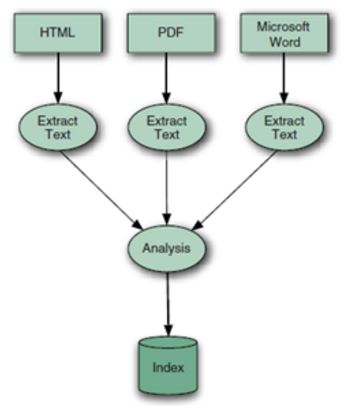
Using some of its extensions (for example Tika), it can also extract informations from other kind of structured textual files such as HTML, PDF, Word documents.
Also images containing texts can be parsed and indexed.
It’s possible to connect Lucene with DB to search on tables.

Building documents
Once you have the raw content that needs to be indexed, you must translate the content into the units (usually called documents) managed by the search engine. The document typically consists of several distinct named fields with values, such as title, body, abstract, author, and url. You’ll have to carefully design how to divide the raw content into documents and fields as well as how to compute the value for each of those fields. Often the approach is obvious: one email message becomes one document, or one PDF file or web page is one document. In other cases, it’s not so simple.
When a search will be performed, the engine will search only in the fields of the documents (only those marked as searchable).
Let’s say we the HTML page contains the following logical fields:
  • Title
  • Abstract
  • Short Description
  • Long description
  • Tables
  • Images
We want only index the title and the abstract fields.

Lucene manage only two kind of object:
  • Document: the entity containing one of more fields. In this case, the web page.
  • Fields: the unit containing the text to search. In this case, the title and the abstract.
Boosting documents and fields
Another common part of building the document is to inject boosts to individual documents and fields that are deemed more or less important. Perhaps you’d like your press releases to come out ahead of all other documents, all things being equal? Perhaps recently modified documents are more important than older documents?
Boosting may be done statically (per document and field) at indexing time or dynamically during searching. Nearly all search engines, including Lucene, automatically statically boost fields that are shorter over fields that are longer.

Analyzing documents
Analysis, in Lucene, is the process of converting field text into its most fundamental indexed representation, terms. These terms are used to determine what documents match a query during searching.
An analyser tokenizes text by performing any number of operations on it, which could include extracting words, discarding punctuation, removing accents from characters, lowercasing (also called normalizing), removing common words, reducing words to a root form (stemming), or changing words into the basic form (lemmatization).
This process is also called tokenization, and the chunks of text pulled from a stream of text are called tokens. Tokens, combined with their associated field name, are terms.

In Lucene, an analyser is a java class that implements a specific analysis.
Choosing the right analyzer is a crucial development decision with Lucene, and one size definitely doesn’t fit all. Language is one factor, because each has its own unique features. Another factor to consider is the domain of the text being analyzed; different industries have different terminology, acronyms, and abbreviations that may deserve attention. No single analyzer will suffice for all situations.
It’s possible that none of the built-in analysis options are adequate for your needs, and you’ll have to invest in creating a custom analysis solution, that means create a custom java class.

Analysis occurs any time text needs to be converted into terms, which in Lucene’s core is at two spots: during indexing and when searching.
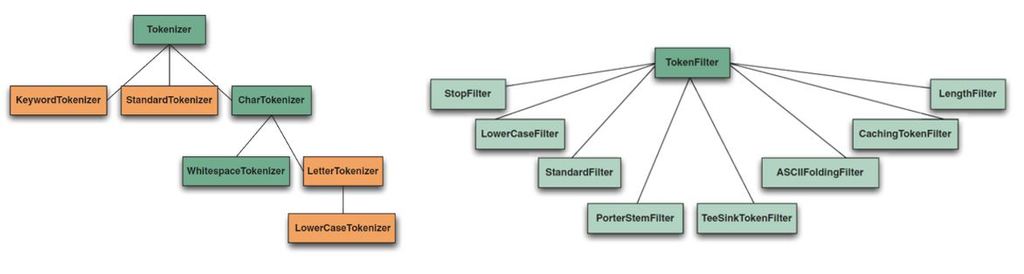
An analyzer chain starts with a Tokenizer, to produce initial tokens from the characters read from a Reader, then modifies the tokens with any number of chained TokenFilters.


There are all sorts of interesting questions here:
  • How do you handle compound words?
  • Should you apply spell correction (if your content itself has typos)?
  • Should you inject synonyms inlined with your original tokens, so that a search for “laptop”also returns products mentioning “notebook”?
  • Should you collapse singular and plural forms to the same token? Often a stemmer is used to derive roots from words (for example, runs, running, and run, all map to the base form run).
  • Should you preserve or destroy differences in case (lowercasing)?
  • For non-Latin languages, how can you even determine what a “word” is?
All these features can by handled by one or more tokenizers or token filters.

Let’s see the most important built-in analyser available in Lucene bundle:
  • WhitespaceAnalyzer, as the name implies, splits text into tokens on whitespace characters and makes no other effort to normalize the tokens. It doesn’t lowercase each token.
  • SimpleAnalyzer first splits tokens at nonletter characters, then lowercases each token. Be careful! This analyzer quietly discards numeric characters but keeps all other characters.
  • StopAnalyzer is the same as SimpleAnalyzer, except it removes common words. By default, it removes common words specific to the English language (the, a, etc.), though you can pass in your own set.
  • KeywordAnalyzer treats entire text as a single token.
  • StandardAnalyzer is Lucene’s most sophisticated core analyzer. It has quite a bit of logic to identify certain kinds of tokens, such as company names, email addresses, and hostnames. It also lowercases each token and removes stop words and punctuation.
The list below is an example of the stop words in the English language
"a", "an", "and", "are", "as", "at", "be", "but", "by", "for", "if", "in", "into", "is", "it", "no", "not", "of", "on", "or", "such","that", "the", "their", "then", "there", "these", "they", "this", "to", "was", "will", "with"

Let’s see an example of applying these analyzers:

Analyzing:
 “The email of XY&Z Corporation : xyz@example.com”
WhitespaceAnalyzer:
 [The] [email] [of] [XY&Z] [Corporation] [:] [xyz@example.com]
SimpleAnalyzer:
[the] [email] [of] [xy] [z] [corporation] [xyz] [example] [com]
StopAnalyzer:
[email] [xy] [z] [corporation] [xyz] [example] [com]
KeywordAnalyzer:
[The email of XY&Z Corporation : xyz@example.com]
StandardAnalyzer:
[email] [xy&z] [corporation] [xyz@example.com]

It’s important to notice that an analyzer is applied to a field, not to a document.
So if a document is composed by 4 fields, the analyzer is applied to each field separately.

Indexing documents
During the indexing step, the document is added to the index.
You can think of an index as a data structure that allows fast random access to words stored inside it.
The concept behind it is analogous to an index at the end of a book, which lets you quickly locate pages that discuss certain topics. In the case of Lucene, an index is a specially designed data structure, typically stored on the file system as a set of index files.

Searching
Searching is the process of looking up words in an index to find documents where they appear.
The quality of a search is typically described using precision and recall metrics:
  • recall measures how well the search system finds relevant documents.
  • precision measures how well the system filters out the irrelevant documents.
Search user interface
Lucene doesn’t provide a user interface, that is up to the specific application. But it provides functionalities that affect search results and how can be rendered:
  • spellchecker for spell correction.
  • excerpts extraction with hit highlighting.
  • ranking order.
  • pagination.
  • refining results.
  • find similar
Building queries
When you manage to entice a user to use your search application, she or he issues a search request, often as the result of an HTML form or Ajax request submitted by a browser to your server. You must then translate the request into the search engine’s Query object.
The query may contain Boolean operations, phrase queries (in double quotes), or wildcard terms.

Many applications will at this point also modify the search query so as to boost or filter for important things (for example, an e-commerce site will boost categories of products that are more profitable, or filter out products presently out of stock).

Searching queries
Search Query is the process of consulting the search index and retrieving the documents matching the Query, sorted in the requested sort order. This component covers the complex inner workings of the search engine, and Lucene handles all of it for you.

Building index


During indexing, the text is first extracted from the original content and used to create an instance of Document, containing Field instances to hold the content.

The text in the fields is then analyzed to produce a stream of tokens, optionally applying a number of operations on them.
For instance, the tokens could be lowercased before indexing, to make searches case insensitive, using Lucene’s LowerCaseFilter. Typically it’s also desirable to remove all stop words, which are frequent but meaningless tokens, from the input (for example a, an, the, in, on, and so on, in English text) using StopFilter. Similarly, it’s common to process input tokens to reduce them to their roots, for example by using PorterStemFilter for English text (similar classes exist in Lucene’s contrib analysis module, for other languages).
The combination of an original source of tokens, followed by the series of filters that modify the tokens produced by that source, make up the analyzer. You are also free to build your own analyzer by chaining together Lucene’s token sources and filters, or your own, in customized ways. Finally, those tokens are added to the index in a segmented architecture.

Searching with stemming and synonyms in AEM
Definitions
Let’s understand what stemming and synonyms are before see how to handle them in AEM.

Stemming
The stemming is process to reduce a word in its root/base form or in its lemma (lemmatisation).

Word
Base form / lemma
books
book (base form)
booking
book (base form)
fishing
fish (base form)
fished
fish (base form)
fisher
fish (base form)
am
be (lemma)
was
be (lemma)

Searching with stemming means that if I search for the word fishing, I want include in the results the matching for all words whose base form is fish: fish, fished, fishing, fisher, etc..

Synonyms
The synonyms are two or more words with the same or nearly the same meaning.

Examples:
  • intelligent, smart, bright, brilliant, sharp
  • old, antiquated, ancient, obsolete, extinct, past, prehistoric, aged
  • true, genuine, reliable, factual, accurate, precise, correct, valid, real
  • important, required, substantial, vital, essential, primary, significant, requisite, critical
Searching with synonyms means that if I search for the word intelligent, I want include in the results also all its synonyms: smart, bright, brilliant, sharp, etc..

Configuring analyzers in AEM
As we could see in the previous chapters, the advanced search features are managed in AEM configuring Lucene indexes.
Indexes are store in the repository at path /oak:index.
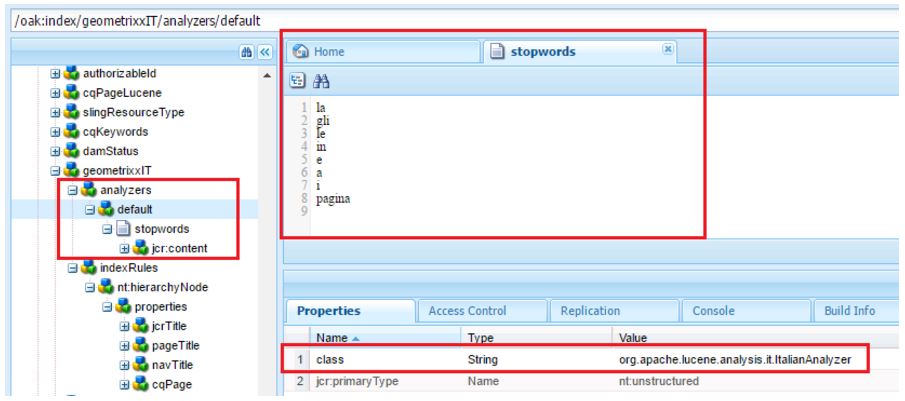
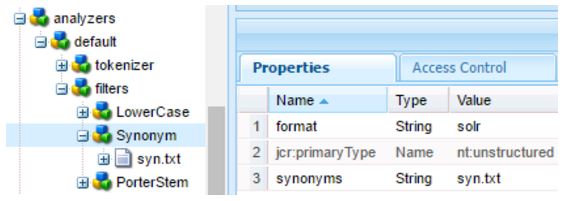
Analyzers can be configured as part of index definition via analyzers node.

The default analyzer can be configured via analyzers/default node

/oak:index/indexName
- jcr:primaryType = "oak:QueryIndexDefinition"
- compatVersion = 2
- type = "lucene“
- async = "async"
+ analyzers
+ default
+...

Current only one analyzer is supported for each index, so you’re forced to configure the default node if you want to add an analyzer to an index.

Two alternative configurations
  • By specifying the java class implementing the analyzer

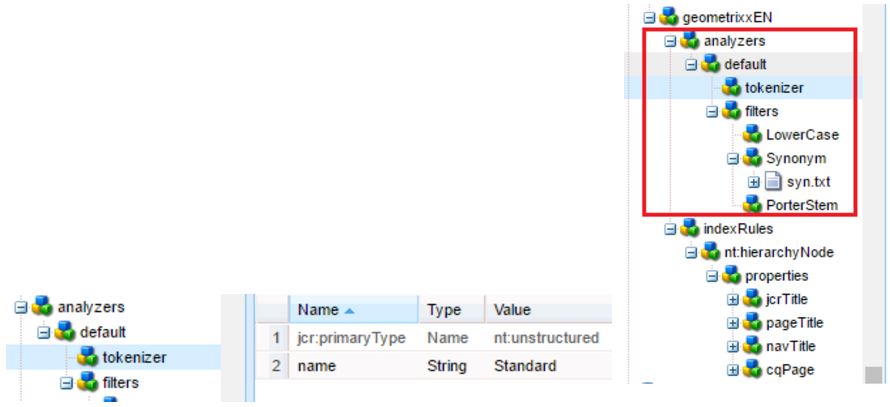
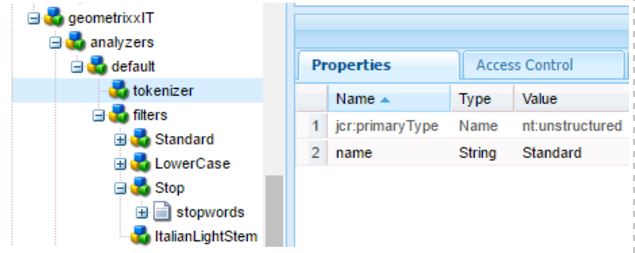
  • By composition: listing the tokenizers and token filters that implement the analyzer.
Name of tokenizers and token filters are specified by removing the factory suffixes in the Java class name. For instance:
  • org.apache.lucene.analysis.standard.StandardTokenizerFactory -> Standard
  • org.apache.lucene.analysis.charfilter.MappingCharFilterFactory -> Mapping
  • org.apache.lucene.analysis.core.StopFilterFactory -> Stop
Any config parameter required for the factory is specified as a property of that node.
If the factory requires to load a file e.g. stop words from some file then file content can be provided via creating child nt:file node of the filename.

ATTENTION: the order in which filters are in the repository is the same of that followed in the processing chain of the analyzer!


Stemming in AEM
For English language, the Porter stemming algorithm is the most common.
So, by composition, it’s enough to specify the create the node PorterStem under the filters node (see image above).

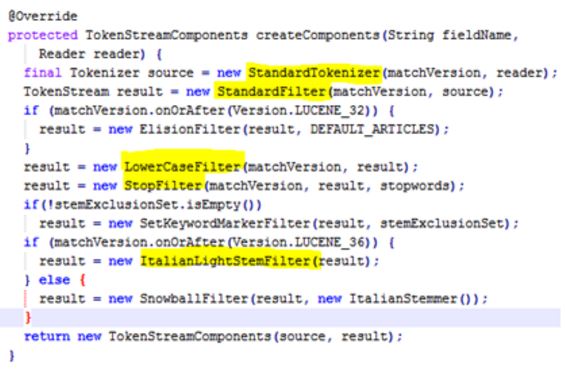
For other languages, Lucene includes one analyzers for each language including common features and the stemming one.
So it’s possibile specify by Java class the analyzer according to the chosen language:

ArabicAnalyzer, ArmenianAnalyzer, BasqueAnalyzer, BrazilianAnalyzer, BulgarianAnalyzer, CatalanAnalyzer, CJKAnalyzer, CzechAnalyzer, DanishAnalyzer, EnglishAnalyzer, FinnishAnalyzer, FrenchAnalyzer, GalicianAnalyzer,GermanAnalyzer, GreekAnalyzer, HindiAnalyzer, HungarianAnalyzer, IndonesianAnalyzer, IrishAnalyzer, ItalianAnalyzer, LatvianAnalyzer, NorwegianAnalyzer, PersianAnalyzer, PortugueseAnalyzer, RomanianAnalyzer, RussianAnalyzer, SoraniAnalyzer, SpanishAnalyzer, SwedishAnalyzer, ThaiAnalyzer, TurkishAnalyzer

See Lucene API for canonical Java class names and futher informations.

If you want implement it by composition, I suggest to take a look at the code of language specific analyzer to extract the token filters chain.


Synonyms in AEM
The implementation of synonyms is only possible by composition, using the SynonymFilterFactory class.
The synonyms dictionary is configured as parameter of the Synonyms node.


There are two possible formats for the dictionary:
  • wordnet: based on the popular Wordnet community which has a project for multilanguage dictionary. The format is a little bit complex. Example: [IMAGE9]
  • solr: it’s more plain text similar. Example: second, 2nd, two
Autocompletion and Suggestion
When you start to write something in a search form, nowadays what happens more often is that application start to help you with some useful feature like autocompletion or suggesting you some words to search and maybe also with some cool predictive search as Google likes to call that.

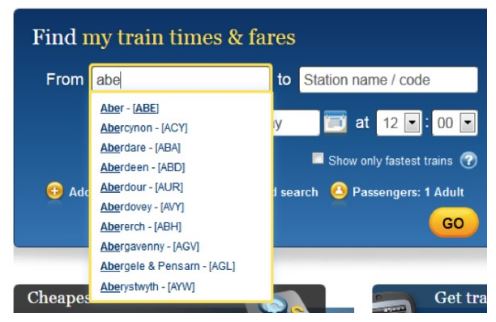
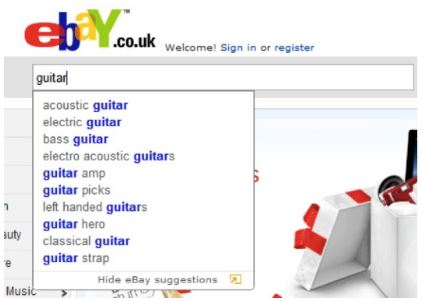
However this is a good chance to make some opinionated definitions with the help of the following images.

The purpose of auto-complete is to resolve a partial query, i.e., to search within a controlled vocabulary for items matching a given character string . Tipically can be used to complete the search of the user for a city or state in a booking transport application.


The purpose of auto-suggest is to search a virtually unbounded list for related keywords and phrases, which may or may not match the precise query string. What you receive with auto suggestion is just an advice for your search query. After select one of this suggestion you are redirect to a page with search results.


One step forward is to present directly the results while user is writing is query search . This is the most advanced feature but it also the one with most impacts in the performance application.

Starting from AEM 6.1 the feature of suggestion is available thank to the suggest module of Lucene.
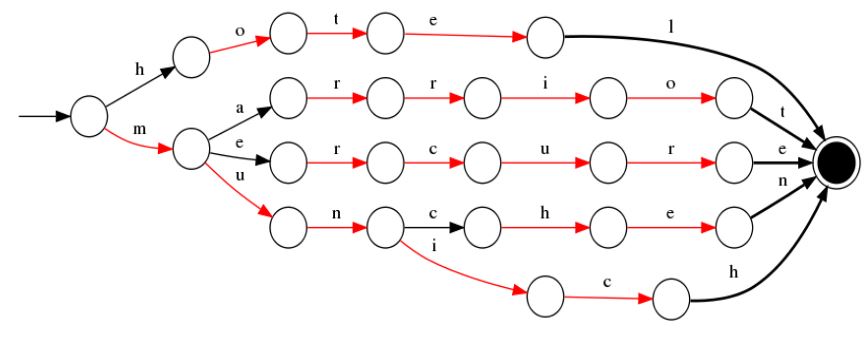
This module provides a dedicated and optimized data structure allows the engine to give autocompletion and suggestion feature without indexing all the possibile n-grams of a word. There is a specific analyzer (AnalyzingInfixSuggester) used that loads the completion values from the indexed data and then build the optimized structure in memory for a fast lookup.

In the following image you can see an example of an optimized lookup data structure:


If a user start to write the char h this structure is immediately able to suggest hotel as this is the only available path for the indexed data.

In order to implements the autosuggestion feature you need to define an index of type Lucene and for each property X of nodes that you are indexing you can add a specific property useInSuggest to tell to the engine to use X for suggesting query to the user.

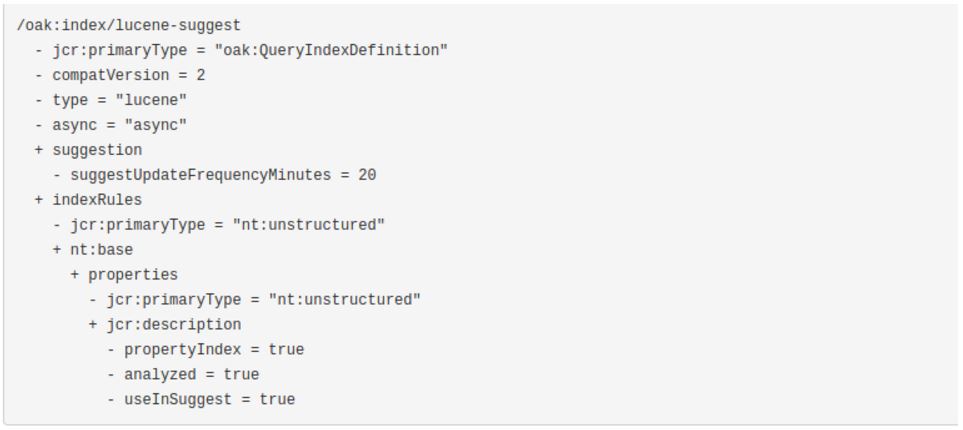
The following image shows a complete example definition of an index that use the property jcr:description of a node nt:base for the suggestion feature.


An additional property suggestUpdateFrequencyMinutes define the frequency of updating the indexed suggestions an can be useful to mitigate performance issues that can arise if indexed properties are frequently updated by the users of your application. The default value is 10 minutes.

If you want to use that autosuggestion feature in your application you need to write a specific query to retrieve the suggested terms. Keep following the same example you need to write:

SELECT [rep:suggest()]
FROM nt:base
WHERE SUGGEST('<strong>SEARCHINPUT</strong>')


where SEARCHINPUT is what the user write in your search form.

AUTHORS
Aldo Caruso, Marco Re


By aem4beginner

May 3, 2020
Estimated Post Reading Time ~

Predictive Search and Spell check in AEM

Search is a very important feature when it comes to any CMS solution. AEM offers a lot of cool search features that you can use. I will briefly touch base on the following two search features that I am working off late.
  1. Predictive Search
  2. Spell Check
Predictive Search
Prerequisites:
You need to have at least OAK 1.1.6 to enable a predictive search in AEM.
AEM 6.1 ships with a higher OAK version, so in a way, this feature is available in OOTB installation. However, if your application runs on AEM 6.0, you might want to check the OAK version and bring it up to at least 1.1.6

Configuration:
Predictive search can be configured in AEM 6.x using the following simple steps:
  • Configure a lucene index for word suggestions
If you are using lucene, then following index configuration is applicable
/oak:index/lucene-suggest
  - jcr:primaryType = "oak:QueryIndexDefinition"
  - compatVersion = 2
  - type = "lucene"
  - async = "async"
  - suggestUpdateFrequencyMinutes = 60
  + indexRules
    - jcr:primaryType = "nt:unstructured"
    + nt:base
      + properties
        - jcr:primaryType = "nt:unstructured"
        + jcr:description
          - propertyIndex = true
          - analyzed = true
          - useInSuggest = true

you can add other properties like jcr:title depending upon the requirement.
  • Using property rep:suggest() to retrieve word suggestions.
OAK 1.1.6 introduces support for rep:suggest() property to enable word suggestions following query can be used:

SELECT [rep:suggest()] FROM nt:base WHERE [jcr:path] = '/' AND SUGGEST('keyword')

Spell Check Support
Enabling spell check requires the same steps as that of predictive search. You need OAK 1.1.6 to get this working.

Configuration:
The following lucene index needs to be created first

/oak:index/lucene-spellcheck
  - jcr:primaryType = "oak:QueryIndexDefinition"
  - compatVersion = 2
  - type = "lucene"
  - async = "async"
  + indexRules
    - jcr:primaryType = "nt:unstructured"
    + nt:base
      + properties
        - jcr:primaryType = "nt:unstructured"
        + jcr:title
          - propertyIndex = true
          - analyzed = true
          - useInSpellcheck = true

rep:spellcheck() can be used for getting spell suggestions as used in the following query :

SELECT [rep:spellcheck()] FROM nt:base WHERE [jcr:path] = '/' AND SPELLCHECK('keyword').


By aem4beginner

April 24, 2020
Estimated Post Reading Time ~

How To Configure Google Custom Search CQ5 Component


In order to configure your custom search engine, you have to go to the developer console of the Google account of your choice: https://console.developers.google.com/project

Just remember Google will allow a quota of 100 requests to your custom search engine per day. It’s perfect for test purposes and when ready, all you’ll have to do is turn on billing on the Google Custom Search API.

Follow the steps below:
Enable Custom Search API
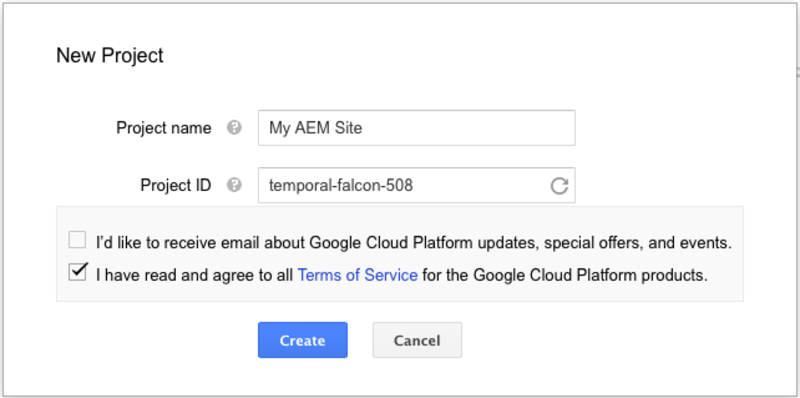
Create a new project.
Once created, click on “APIs & auth” on the left navigation.
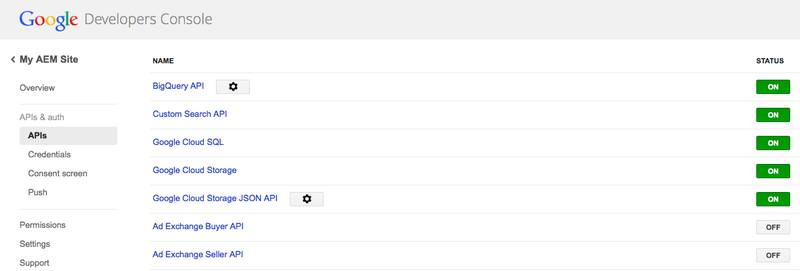
Scroll down to find “Custom Search API” and turn it on. You should now see an “ON” green status at the top of the list.
Get Your Public API Key

Copy your public API key which you can find in the “Credentials” section of the left sidebar of the developer console.
If you don’t have one, you can create a new one and even limit its access to certain IP addresses if needed.
Configure your Custom Search Engine and Get Your Context Number
Access the Custom Search Engine dashboard: https://www.google.com/cse/all
Click the “Add” button to configure your search engine.
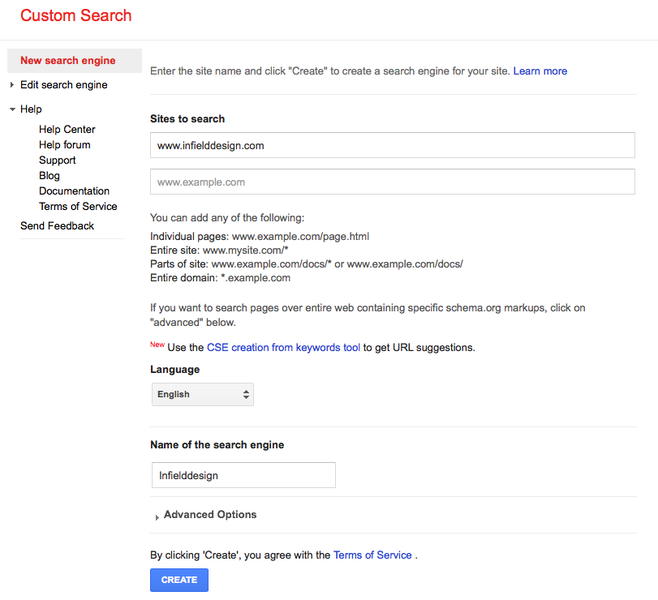
Enter one or several sites to search, specify the language if needed and name your configuration.

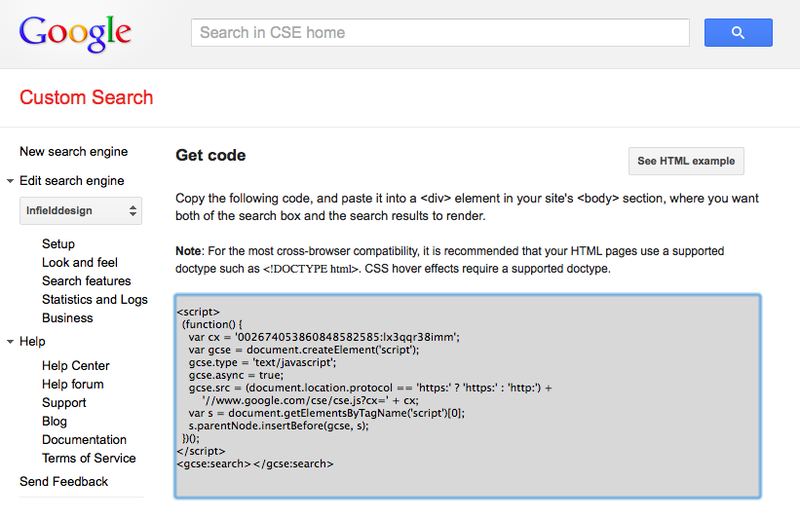
Once created, click the “Get Code” button and copy the context number. It is the password like string inside the cx variable of the code given by Google (i.e var cx = ‘YOUR_CONTEXT_NUMBER‘; don’t copy the quotes).

Create a new project:


Enable custom search:


Create custom search engine:


Get the context code:

Install the AEM – Google Custom Search package
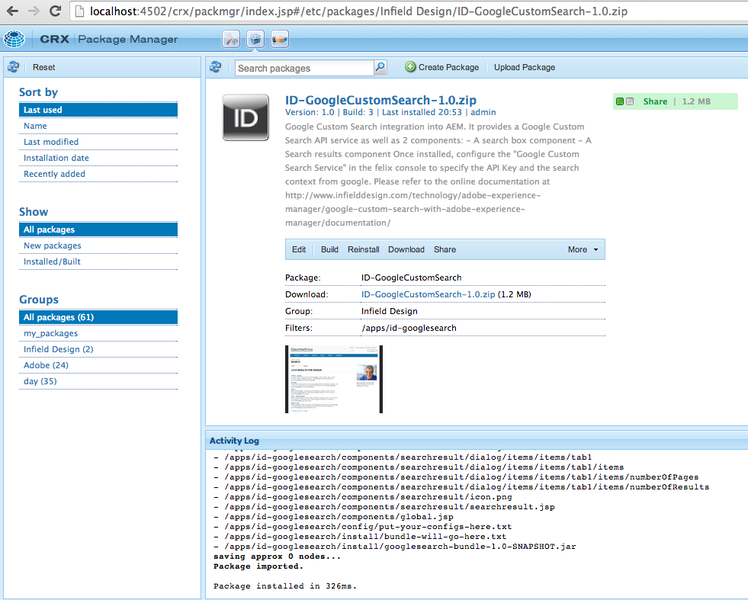
Get the package On GitHub: https://github.com/infielddesign/aem-id-googlesearch Or direct download from our website If you download the project via GitHub, you can build it via maven with mvn -PautoInstallPackage clean install as explained in the readme file of the repository. If you are downloading the package via the InfieldDesign website, follow the steps listed below. Install the package Go to your CQ5 instance package manager 
http://localhost:4502/crx/packmgr/index.jsp Upload the package and install it. If you are not familiar with this procedure, please refer to the official documentation here: You are done. :)Get the package On GitHub: https://github.com/infielddesign/aem-id-googlesearch Or direct download from our website If you download the project via GitHub, you can build it via maven with mvn -PautoInstallPackage clean install as explained in the readme file of the repository. If you are downloading the package via the InfieldDesign website, follow the steps listed below. Install the package Go to your CQ5 instance package manager http://localhost:4502/crx/packmgr/index.jsp Upload the package and install it. If you are not familiar with this procedure, please refer to the official documentation here: You are done. ?

Install Google Custom Search package:


Configure the Google Custom Search service

Once the package is installed, you are ready to configure the service to enter the two numbers you’ve copied in the first steps of the documentation.

Apply the API key and The Context Number
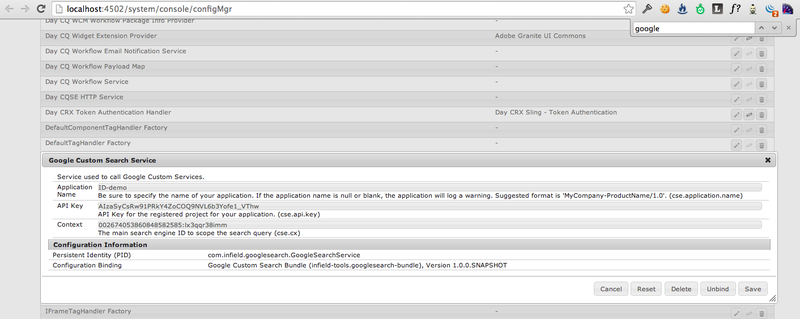
  1. Go to the “Web Console”, in the OSGI configuration manager section: http://localhost:4502/system/console/configMgr
  2. Search for “Google Custom Search Service” in the list and click on the title to edit the configuration.
  3. Enter an application name. This will identify your website for Google custom search statistics.
  4. Enter the API key.
  5. Enter the Context number.
  6. Click save.
Configuration of the service in the felix console:


Add the search result component to a page
The AEM – Google Custom Search package comes with a Search Box component and a Search Result component.

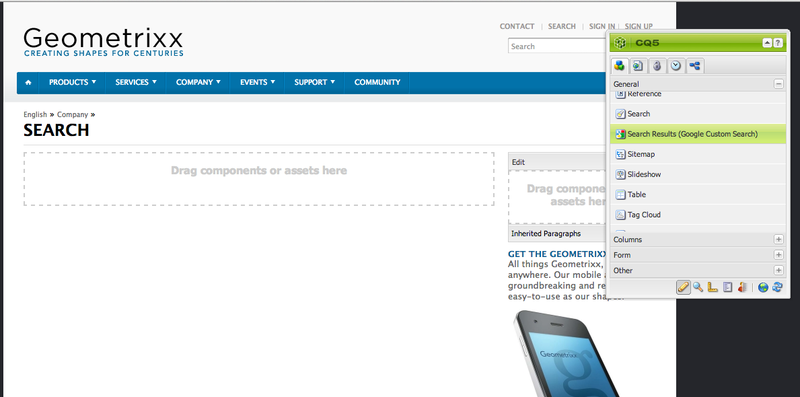
The Search Result component is part of the “General” component group so if your page doesn’t allow you to insert components from the “General” group, you’ll have to switch to design mode from the sidekick and check the “Search results (Google Custom Search)” entry in the list.

Add the component to a page
  1. Create a page or go to an existing search page you’d like to place the search result on.
  2. Drag and drop the “Search results (Google Custom Search)” component on the page.
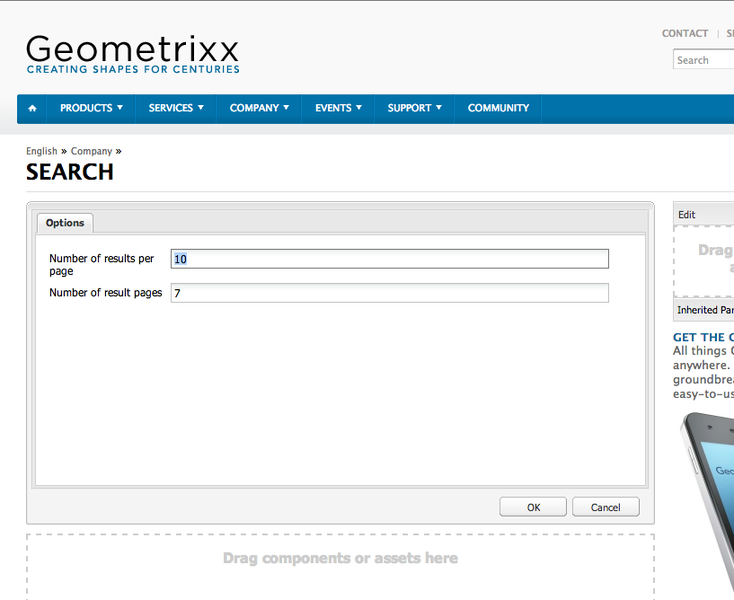
  3. Edit the component to configure the number of pages to show (default 7) and the number of results per page (default 10).
  4. Click OK and you should be able to perform a search right away.
The component in the sidekick:


Component configuration:


Search result:


Add the Search Box component to your template
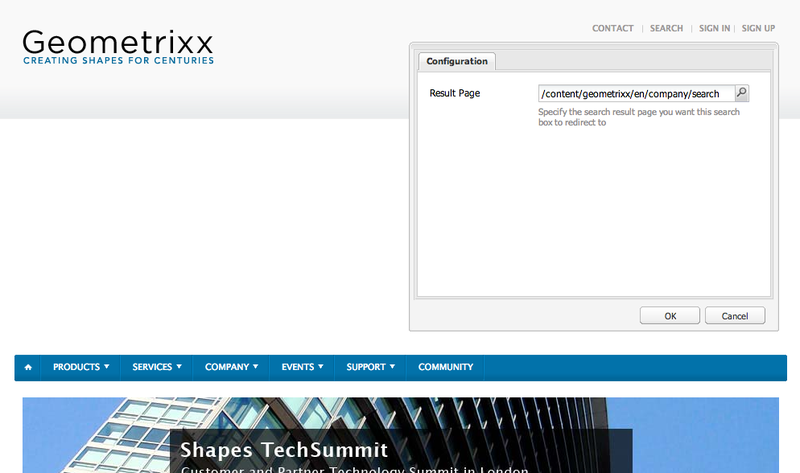
This step requires you to edit your template and to add the search box component in the header of your website. In this documentation, we are simply replacing the Geometrixx search box by our component to demonstrate the concept.
Edit the main template
  • Go to CRXDE lite: http://<YOUR_CQ5_INSTANCE>:4502/crx/de/index.jsp
  • Edit the file located at /apps/geometrixx/components/page/header.jsp
  • Replace the entire form html element by this: <cq:include path=”searchbox” resourceType=”/apps/id-googlesearch/components/searchbox”/> to refer to our component.
  • Click “Save all”.
Configure the Search Box component
  • Open the Geometrixx homepage.
  • Right click on the search box and click “edit”.
  • Configure the Search result page that you’ve set up in the previous step. This configuration will be applied globally to all the subpages of the homepage unless you override it for a specific section of your site.
Locate the component:


Configure the search result page:


Congratulations! You are finished. You can perform a search from any page of the site via the search box. it will direct you to the search results page with the performed search.

Enjoy!


By aem4beginner

April 8, 2020
Estimated Post Reading Time ~

How to disable DAM Assets Google search / Search Engine in AEM ?

Question: How can we make PDF files in DAM Assets non-searchable from search engines ?

Answer: You have to implement a checkbox for the assets, Now your next task should be to implement a event handler / workflow / scheduler which will update the robots.txt file dynamically.

Example: Whenever user check/uncheck the custom implemented checkbox, it will get store in JCR. Now any of event handler / workflow / scheduler will take that stored property and updated the robot.txt file accordingly.

For PDF we do not have <meta> tag like we have for pages.

Here is more for you:
1) Use robots.txt to block the files from search engines crawlers:User-agent: * Disallow: /pdfs/ # Block the /pdfs/directory. Disallow: *.pdf # Block pdf files. Non-standard but works for major search engines.

2) Use rel=”nofollow” on links to those PDFs<a href="something.pdf" rel="nofollow">Download PDF</a>

Complete Documentation: http://www.robotstxt.org/robotstxt.html

AEM Community Thread Link 1, Link 2


By aem4beginner

March 22, 2020
Estimated Post Reading Time ~

Search and Replace AEM Extension


Introduction
  • AEM is a very powerful CMS system to create and maintain huge web apps. However, in an AEM application, if we need to target and find a specific text, and want to replace it with something different, there is no OOTB solution that is provided by the AEM.
  • For this, the Search and Replace extension has been created, which will find out the text and can also make the replacements.
Use Case
Let’s consider a use case for this extension. We might have a client, which has its name at various places in the web app e.g. in Headers and Footers and at some places in the page content as well.
If they go through a rebranding and change their company name, the authors will have to go through the entire web app, page by page, check if the old company name is on their page, change it to the new one and publish the page. As expected, for a large web app (e.g. 600 pages), this requires a lot of man-hours to accomplish this simple but tedious task.

Even after the changes are done by authors, the whole web app needs to go through a QA phase also.
The Search and Replace extension reduces this manual effort done by authors by allowing them to pass the path and replacement to it, and the time taken to do the changes by the script is pretty quick and the changes are published also. After this, the web app can directly go to the QA.

How to Use
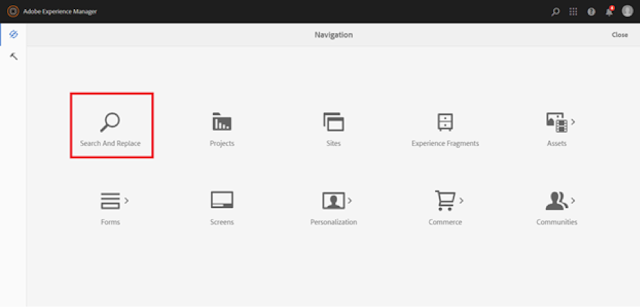
The Search and Replace extension can be found in the Navigation drawer in AEM.

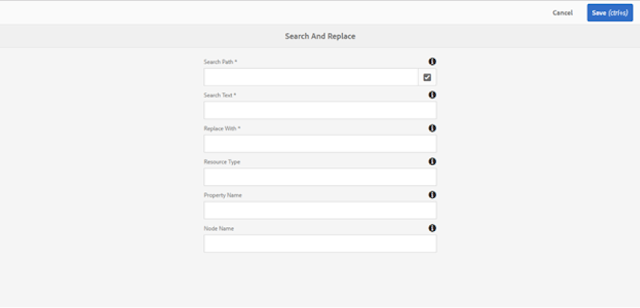
When the extension is opened, we can see a form with a couple of different options. These options are explained below:


1. Search Path: The path, under which the search should be made. This field is required and cannot be left blank.
2. Search Text: The text to be searched for. This field is also a required field.
3. Replace With: The search text will be replaced by this text. This is also a required field.
4. Resource Type: This field is optional and can be used such that the text is replaced only in those components, whose sling:resourceType property value matches this field’s value. If left empty, all the matching text will be replaced irrespective of their resource type.
5. Property Name: If only a specific property needs to be updated, the name of that property can be given. If not given, the property name is ignored while searching.
6. Node Name: The name of the node, of which the search text should be property value. This field is also optional and if left blank, the node name is ignored.
Once the required fields are filled, the Save button can be pressed to make the replacements. Once the replacements are done, a popup is shown with the list of nodes that have been updated.


How it Works
On clicking of the submit button, the component sends all the field values to a servlet via an AJAX call, if the required fields have been filled.
The servlet takes all the different field values and constructs the appropriate JCR2 SQL query to be executed. The JCR2 query has been used instead of Query Builder API as we have more flexibility while writing the queries and most of the filtering can be achieved using the query, thus reducing the time it takes to search for the resources.

Once the resources are fetched, the property value of each resource is matched with the search text and if a match is found, the matched text is replaced.
Each updated resource reference is stored, and once all the resources are updated, they are replicated.

Demo
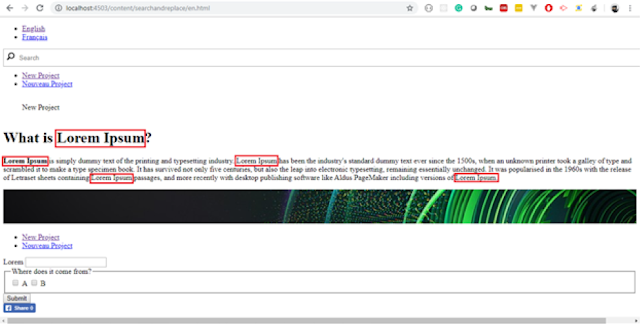
The search and replace extension is shown in action in the below two screenshots.
In the first screenshot, there is a page with multiple occurrences of the word Lorem Ipsum in it. By using the extension, all the occurrences of the word are replaced on the page.

Before replacement


After replacement
Future Scope

The UI of the tool can be improved. e.g. right now, the author should be knowing the resource type property value, and it can be made such that the user can select a component from a list and it automatically populates its resource type.

The user can also benefit from just a search functionality which will show him the resource nodes and pages where the text has been found and the user can have a choice to replace it if he/she wants.


By aem4beginner

March 21, 2020
Estimated Post Reading Time ~

Quality of search - Fine-tuning the search

There are many search engines, some are open source and some are paid. The trend in search technology shows an affinity towards cognitive and artificial intelligence now.
  • Solr
  • Elasticsearch
  • Google Search Appliance (GSA)
  • Oracle Endeca
  • Microsoft FAST
  • Attivio
  • Sinequa
  • Coveo
  • IBM Watson
  • Amazon CloudSearch
  • SharePoint Search
  • HP Autonomy
The common Big data used with searches are:
  • Apache Hadoop
  • Cloudera
  • Hortonworks
Quality of search(QoS)
Let us see how we can make a search effective. QoS is a term used with search implementation fine-tuning. Once a search is implemented, the next steps are to ensure the search performance. There are many ways we can do the fine-tuning.

Query cleaning:
Before search hits the index, ensure the query is cleaned and aligned to your index.

Add analytics:
Ensure you are using analytics hand in hand with search, which will definitely improve the effectiveness of search.

Rules:
Rules like ranking, relevance, etc can be adjusted to fine-tune the search results.

Proper metadata mapping:
Re-verify the metadata mapping for the index to ensure everything is done perfectly.

Dictionaries, Synonyms:
Some times we miss to configure dictionaries which will restrict the user from synonym search. Words with similar meaning do not come in result set at all. Confirm you have configured them well.

Excluded words:
Ensure the excluded word list is configured so that none of the unwanted queries fetch the result.

Restrictions:

There are cases where we have to skip some pages from search results. Ensure these restrictions are working as expected.

Once all the above conditions are met, the next step is to verify the search functionality ourselves to confirm the 'recent searches', 'search suggestion', 'auto-complete'/ 'type-ahead', 'null search results' are functioning as expected.

Finally don't miss checking the reports like Terms report, null search report, search requests, index reports, analytics reports, crawl reports, content request reports.

Usually, search technology is treated as 'once implement than ignore'. My recommendation is to keep improving the configurations by constantly watching the reports often.


By aem4beginner

Steps to implement a search

This post discusses the steps to implement search in any applications.

Set up
Set up the search engine and indexing options are considered as the first step in search implementation.
  • Hosting: Hosting the search tool.
  • Indexing: Indexing the data.
  • Index frequency: Configuring the index. (Daily, Monthly)
Configure
This step includes any configuration related to the search.
Metadata - Used for faceting, sorting, ranking, relevance.
Breadcrumbs - for better navigation.
Pagination - for better navigation.
Recent Searches - Search assist.
Search suggestions(Did you mean) - Search assist.
Autocomplete - Search assist.

Fine-tune
Once search implementation is done, we need to fine-tune the search by analyzing the results.

Promotion: Normal, Based on search results, we can promote.
Dictionaries: Configure for better results.
Banners: any organizational promotion.
Redirects: Send the user to a page.

General considerations to choose your future search platform.

Search Management and Maintenance -
Thinking about previous data migration and future search upgrades.

User experience -
Different user interface for a range of use cases.

Content -
Which resides in file repositories, document management system, database or CRM applications.

Classifying and unifying cross-system data -
Content processing and defining metadata for the new indexes.

Hybrid Scenarios -
Search data from on-premise and cloud.

Result set customization -

An efficient way of displaying results.

Ranking & Relevance -

Fine-tuning the order of results.

The migration process -

Provide transparent, solid experience to the end-users, Educate the users about the new system.


By aem4beginner

How do we select the best search tool for the site?

There are many search engines, some are open source and some are paid. The trend in search technology shows an affinity towards cognitive and artificial intelligence now.
· Solr
· Elasticsearch
· Google Search Appliance (GSA)
· Oracle Endeca
· Microsoft FAST
· Attivio
· Sinequa
· Coveo
· IBM Watson
· Amazon CloudSearch
· SharePoint Search
· HP Autonomy

The common Big data used with searches are:
· Apache Hadoop
· Cloudera
· Hortonworks

Search Trend Evolution
Keyword Search -> Semantic -> Contextual -> Cognitive -> (Human Brain)

Enterprise search now uses natural language processing and machine learning which dramatically improve the relevancy and completeness of the results.
Here the cognitive search is based on Artificial Intelligence.

Which search is the best?
I always suggest the one that meets your needs in your environment and requirements.

Process of identifying the needs
Auditing the current system

Understand the current system and new requirements.
OS & Systems
Think of an operating system to be hosted. On-Premise Vs Cloud Vs Hybrid
Dev tools
Think on the tools to develop while a search is getting revamped
Repositories
Think about the content repository and ensure product upgrade history is clean.
Security
Are there any new security levels to be added?
Content
Think on the content when search system upgrades are in place
Users
External Vs internal? The behavior & type of users.

Understand any data
Search solutions must connect to and ingest data from a wide variety of sources. For e.g.: Data types ranging from images, video, audio, and machine data such as from internet-of-things (IoT) devices.

Scale to handle big
Now the data is in petabytes that reside in distributed architectures.

The migration process
Provide transparent, solid experience to the end-users, Educate the users about the new system.

Install base and revenue history
A proven stream of revenue generated by customer adoption of its solution and installation market presence.

Cross-domain standalone solution, Employ AI technologies
The solution is a self-sufficient, general-purpose cross-domain one now. Understand and organize data, predict, improve relevancy, and automatically tune the relevancy of results over time using AI Techniques.

Allow developers to customize search applications
Currently, search vendors provide SDKs, Apis, and in some cases visual design tools to customize the search to a maximum extend.

List out your semi-finalists then finalists. Then rematch the requirement with finalists and decide the winner.

By aem4beginner

March 20, 2020
Estimated Post Reading Time ~

Overview on Search, Persistence Manager in AEM/Adobe CQ5

Search, Persistence Manager in AEM/CQ

Search:
There are two supported query languages in AEM
· SQL2
· XPATH
Accessing query browser
Tools>Query open query browser


Reference: http://helpx.adobe.com/experience-manager/using/querying-experience-manager-data-using1.html

Persistence manager:
Persistence manager helps to save the repository content to a permanent storage solution, such as the file system or a database.
All content is stored in a file system in the form of a tar file at the below location.

Location of persistence manager
AEM/CQ install directory-> Author->crx-quickstart->repository->workspaces->crx.default->data_00000.tar

Configuring/modifying the persistence manager location/type default tar is <PersistenceManager class="com.day.crx.persistence.tar.TarPersistenceManager"/>
AEM/CQ install directory-> Author->crx-quickstart->repository->repository.xml
MySQL Persistence Manager: Stores the workspace content in a MySQL database.

Configuration:
<PersistenceManager class="org.apache.jackrabbit.core.persistence.bundle.MySqlPersistenceManager">
<param name="driver" value="com.mysql.jdbc.Driver"/>
<param name="url" value="jdbc:mysql://localhost:3306/crx"/>
<param name="user" value="userid"/>
<param name="password" value="password"/>
</PersistenceManager>

Backups & restore CQ files
AEM provides online & offline backups.
Online: The online method creates a backup of the entire repository, including CQ5. We can perform this method while the repository is in use.
Offline: Creates a backup of the CRX repository files including all of the information stored in CRX, so you can restore the exact state of the repository during backup.
Also incremental so it updates only next day components to backup.


By aem4beginner