Showing posts with label Runmode. Show all posts

December 29, 2020
Estimated Post Reading Time ~

Run Modes with Use Cases in AEM 6.2

Run Modes is the most interesting feature in AEM. This allows you to tune your AEM instance for a specific purpose; for e.g., author/publish, QA, development, intranet or others.

Why Run Modes?
  • Uniquely identify an environment and instances
  • Unique configurations based on the environment
  • OSGI Component Creation for a specific environment
  • Bundle Creation for a specific environment
There are two types of run modes:
  • Primary Run Mode
  • Secondary Run Mode
Primary Run Modes are:
  • Author: This instance is used for the complete development and authoring purpose.
  • Publish: This is the actual environment which can be accessed by end users.
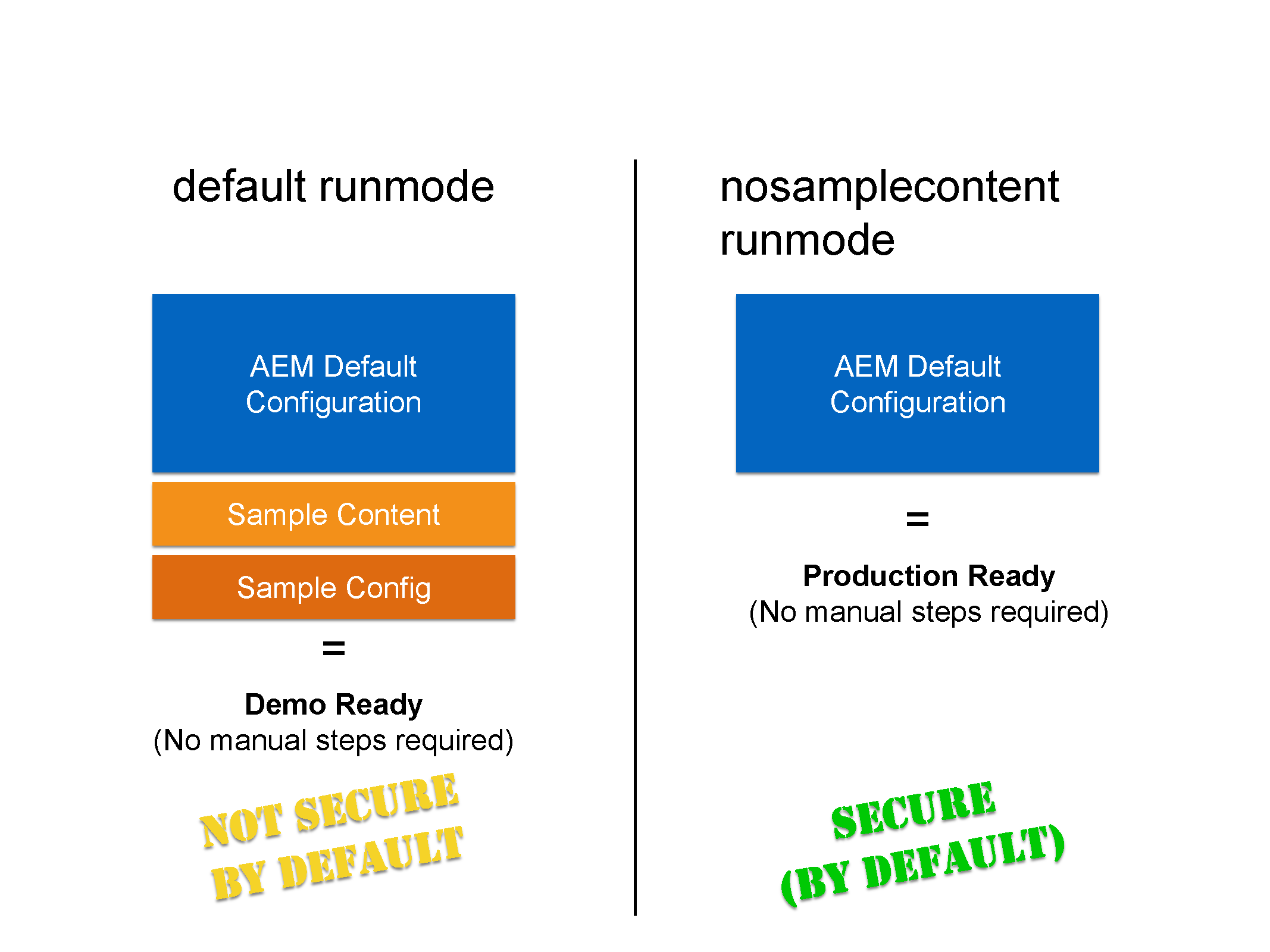
  • nosamplecontent: This instance is having no sample content(like geometrixx,we-retail not available).It is highly recommended in production environment because it is very secure and it provides no sample configurations.lt makes your instance production ready, by disabling CRXDE lite, webdav etc
  • samplecontent: having sample content like geometrixx-all package.This is just for the help of developers,not required on any server.
Note: Primary Run Modes can’t be change once the aem jar is started.So at the time of AEM instance startup only, we need to finalize which primary run mode is required.

Combination of primary run modes also happen:
  • Author+samplecontent
  • Author+nosamplecontent
  • Publish+samplecontent
  • Publish+nosamplecontent
Secondary Run Modes are:
  • Dev Server
  • QA Server
  • UAT Server
  • Prod Server
We can create our own customized run modes on the basis of location( i.e., us,uk), language or any other basis.

Where we define Run mode?
  • By Changing in sling:properties file
Steps to follow:
  • Go to crx-quickstart/conf directory of aem instance and add the below line: sling.run.modes= author,dev
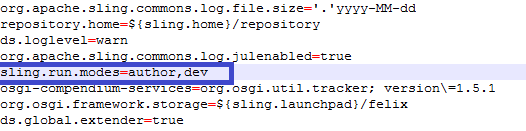
Fig- Set the run mode in sling.properties file

Using the -r option: When you start the AEM instance by command prompt then set “-r” option in the command.

Example: java -jar jar-name -r dev,sameplecontent
By Renaming Jar: cq5-<run-mode>-p<port-number>
Example: 
publish instance : cq5-publish -p4503.jar
Author instance : cq5-author-p4502.jar

Note: Only primary run modes (ex: author,publish) are applicable for renaming jar.
By adding JVM arguments: When you start the AEM instance by command prompt then set the jvm parameter in the command. This will be something like this:
Java -jar JAR_NAME -Dsling.run.modes=publish,prod,us

How to check the run mode of a running AEM instances?
Go to Felix Console.
Go to Status tab in Navigation and click on sling settings option.

Here you can see the Run Modes
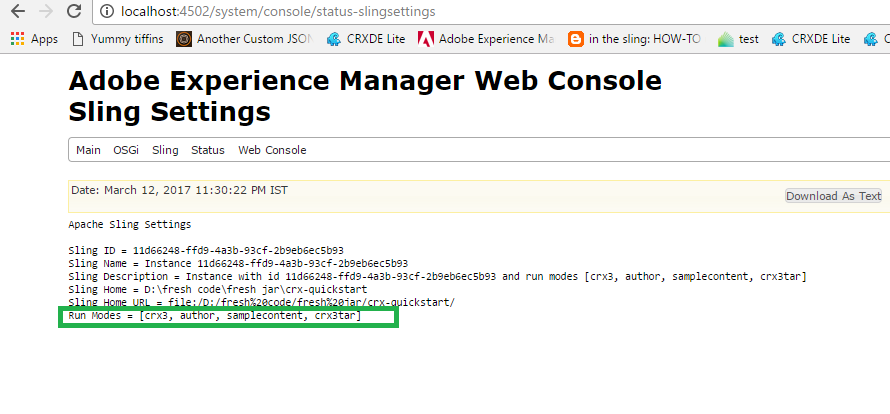
Fig - Check the run mode of running AEM instance

You can directly go to http://localhost:4502/system/console/status-slingsettings

USE CASE OF RUN MODE IN THE PROJECT
Problem Statement:
In Felix Configurations, there is a configuration named as DAY CQ MAIL SERVICE. Now lets say we have a requirement of using smtp.port=25 in author, Dev,US server but smtp.port=465 in Author,QA,UK Server. (Here US and UK are the location of servers)

Solution:
Create Run Modes:
Go to Crxde.
Go to /apps/my-project

Create Configurations for Author,Dev Server which is in US:
Create a folder (sling:folder) with the name config.author.dev.us
Create a sling:osgiConfig type of node named com.day.cq.mailer.DefaultMailService.config.

Note:Node name should be the same name as the Persistent Identity (PID) of the configuration in the OSGi Console.
Add the following properties in this config for Dev Server:
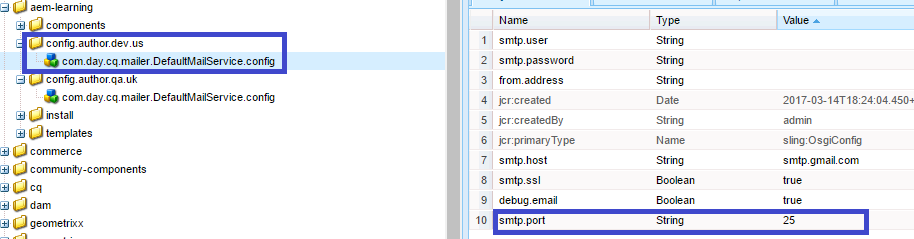
Fig - Adding the mail service configuration for DEV,US run mode

  • Run an AEM instance on Author,Dev,US Environment by using any of the option explained above.
  • Check the run mode of running AEM instance
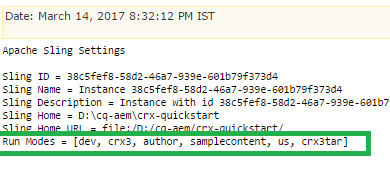
Fig- AEM instance is in AUTHOR,DEV,US run mode

Now Check the mail Configurations
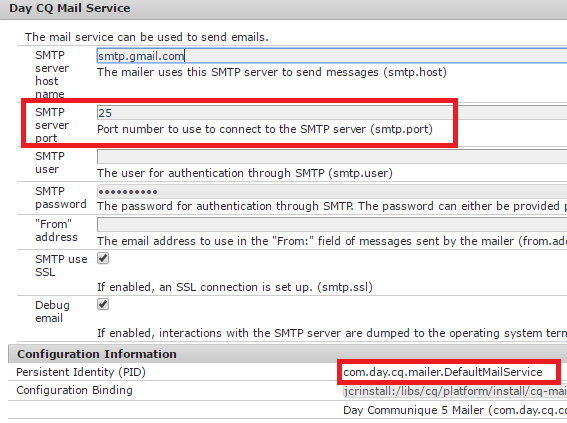
Fig- Check the configuration in felix console for DEV,US run mode aem instance

Create Configurations for Author,QA Server which is in UK:
  • Create a folder (sling:folder) with the name config.author.qa
  • Create a sling:osgiConfig type of node named com.day.cq.mailer.DefaultMailService.config
  • Add the following properties in this config for QA Server:

Fig - Adding the mail service configuration for QA,UK run mode

Run an AEM instance on Author, QA,UK Environment by using any of the option explained above.

Check the run mode of running AEM instance
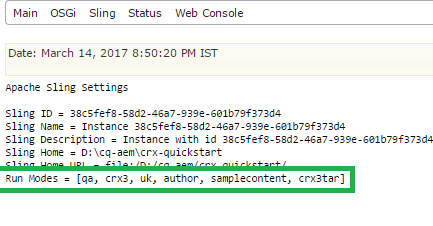
Fig- AEM instance is in AUTHOR,QA,UK run mode

Now Check the mail Configurations in Felix Console
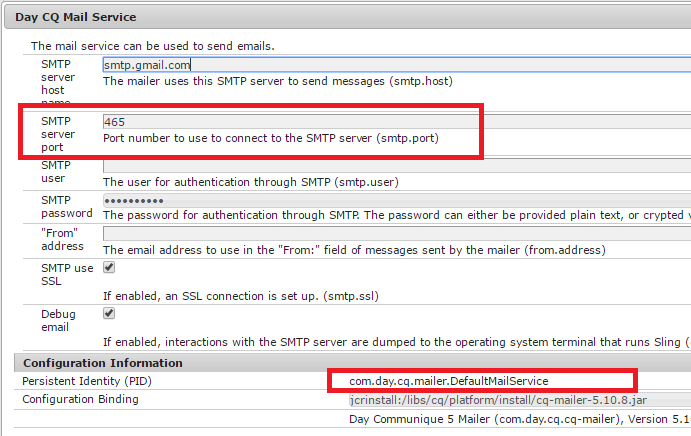
Fig- Check the configuration in felix console for QA,UK run mode aem instance

The minimum possible configurations for AEM environments.
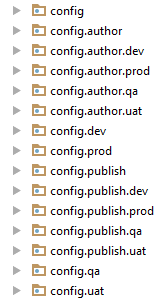
Fig- Minimal possible configuration in any AEM project

Note: Every run mode tries to find out the best possible match available for configuration.

If multiple configurations for the same PID are applicable, the configuration with the highest number of matching run modes is applied.

OSGi Component Creation for a specific environment
Run Modes helps to create OSGi component for the specific environment.
Problem Statement: To make OSGi Component to be available only for publish instance.
Solution: To solve this problem, follow these two steps:
  • Annotate the component with “ConfigurationPolicy.REQUIRE”
  • Make this configuration available under config.publish.
Sample code of OSGi Component
package com.aem.sgaem.project.services; 
import org.apache.felix.scr.annotations.Activate; 
import org.apache.felix.scr.annotations.Component; 
import org.apache.felix.scr.annotations.ConfigurationPolicy;
import org.apache.felix.scr.annotations.Service; 
import org.slf4j.Logger; 
import org.slf4j.LoggerFactory; 

@Component(label = "SGAEM - OSGi Configuration for 

Publish Run Mode", immediate = true, policy = ConfigurationPolicy.REQUIRE) 

@Service(ComponentPublish.class) 
public class ComponentPublish { 
private static final Logger LOGGER = LoggerFactory.getLogger(ComponentPublish.class); 

@Activate 
protected void activate() { 
LOGGER.debug("Run Modes Activated"); 
} 
}

Here “policy= ConfigurationPolicy.REQUIRE” means that this component should be available as configuration created under config nodes. But Initially, this configuration will not exist in felix console components

So, to make it visible in Felix console of publish instance, You need to create configuration of this component (using Pid of OSGi Component) under config.publish node.
Fig- Node name same as Pid of OSGi Component

After addition of this configuration, you can see, the component will be available in Felix console in publish instance.

Note: In other run modes, this component will not get executed because it is specified only for publish instance. If you want to use it in other run modes, you need to make it in other config as well. (eg: config.author,config.qa)

Bundle Creation for a specific environment
Run Modes is not only used for configurations, they can also be used to differentiate bundles based on the environments.

Isn’t it sounds interesting??
Problem Statement: Let Suppose, You have multiple bundles in a single project. like

“Bundle A” for “Author” Environment.
“Bundle B” for “Publish” Environment
Solution: So we need to make environment specific configuration for install folder.

Install.author (nt:folder)
=> Bundle A.jar
Install.publish (nt:folder)
=> Bundle B.jar 
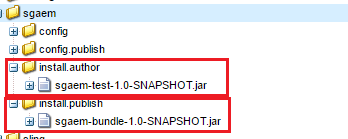
Fig- sgaem-test.jar for author and sgaem-bundle.jar for publish instance

Note: If you are in publish instance, You will not able to see bundle "sgaem-test" in felix console and vice-Versa for author instance.


By aem4beginner

October 1, 2020
Estimated Post Reading Time ~

Create a system user in AEM using runmode config

Add/create a system user through run mode in AEM using ACS commons. Create a run mode config file in your project.
/apps/aemquickstart/config/com.adobe.acs.commons.users.impl.EnsureServiceUser-customServiceUser.config

Add the below snippet in the config file

principalName="custom-service-user"
type="add"
ensure-immediately="{Boolean}true"
aces="[type=allow;privileges=jcr:read\,jcr:modifyproperties;path=/content/we-retail;rep:glob=/jcr:content/*,type=allow;privileges=jcr:read;path=/content/aemquickstart;rep:glob=/jcr:content/*]

The above snippet will add read and modify properties privilege to /content/we-retail path and read permission to /content/aemquickstart.

Click here to check how to create a system user using system explorer


By aem4beginner

May 27, 2020
Estimated Post Reading Time ~

How to Check Touch UI Mode in Sightly HTML

How to get different modes in sightly HTML
<sly data-sly-use.wcmModes="/libs/wcm/foundation/components/page/initwcm.js"></sly>

Classic Edit Mode:
<div data-sly-test="${wcmModes.wcmmode.edit}"> Classic Edit Mode </div>

Touch Edit Mode:
<div data-sly-test="${wcmModes.isTouchAuthoring}"> Touch Edit Mode </div>

Design Mode:
<div data-sly-test="${wcmModes.wcmmode.design}"> Design Mode </div>

Disabled mode:
<div data-sly-test="${wcmModes.wcmmode.disabled}"> Disabled mode </div>


By aem4beginner

How to check AEM server runmode in Sightly/HTL Using server-side JavaScript

How to check AEM server runmode in Sightly/HTL Using Server-side JavaScript 

Server-side JavaScript
"use strict";
use(function () {
 var myRunmode = this.runmode;
 var isValidRunmode = false; 
 var slingSettingsService = sling.getService(Packages.org.apache.sling.settings.SlingSettingsService);
 var  runModes = slingSettingsService.getRunModes().toString();
 if (runModes && myRunmode) {
  isValidRunmode = (runModes.indexOf(myRunmode) >= 0);
 }
    return {
        hasRunmode : isValidRunmode,
        runmodes:runModes
    };  
});

HTL / Sightly 
<div data-sly-use.checkRunmode="${'check-runmode.js' @ runmode='author'}">
    <div data-sly-test="${checkRunmode.hasRunmode}">Author runmode</div>
    ${checkRunmode.runmodes}
</div>
<div data-sly-use.checkRunmode="${'check-runmode.js' @ runmode='publish'}">
    <div data-sly-test="${checkRunmode.hasRunmode}">Publish runmode</div>
</div>


By aem4beginner

May 17, 2020
Estimated Post Reading Time ~

Run Modes in AEM

Run modes in AEM allow you to configure AEM instances for specific purposes.
For example, We can configure environment-specific OSGI Services metadata manually from Felix console, But the problem here is whenever a new build is deployed the OSGI metadata reset to default values, so again we have to configure. Instead of doing manually in Felix console, we can create run mode config nodes in repository, the sling will take this configuration automatically when we start the instance or config node update based on run mode values.

Run Mode types in AEM:
There are two types of run modes.
Standard run modes – author,publish,samplecontent,nosamplecontent
Custom run modes – dev,qa,stage,prod ..etc.

Standard run modes set up:
We can configure standard run modes directly by renaming jar file, Standard run modes are used at installation time and then fixed for the entire lifetime of the instance, they cannot be changed.

The naming convention to for AEM 5.6.1 and later is:

aem-<optional-version-or-indentifier>-<standard-run-mode>-<port-number>

1. author – Run mode for the author instance.
2. publish – Run mode for publish instance.
3. samplecontent – Run mode will install sample content.
4. nosamplecontent – Run mode will not install sample content.

Custom run modes set up:
We can define custom run modes in different ways, below are ways.

Using the sling.properties file :
The sling.properties file can be used to define the required run mode:
Edit the configuration file:
<cq-installation-dir>/crx-quickstart/conf/sling.properties
Add the following properties; the following example is for author:
sling.run.modes=author

Using the -R option:
A custom run mode can be activated by using the -r option when launching the quickstart. For example, use the following command to launch an AEM instance with run mode set to dev.

java -jar cq-56-p4545.jar -r dev

Using a system property in the start script:
A system property in the start script can be used to specify the run mode.
For example, use the following to launch an instance as a production publish instance located in the US:

-Dsling.run.modes=publish,prod,us

Order of precedence of run modes:
Here my question is what happens if we did all the above custom run mode configuration at a time, which one will take precedence.

below are the order of precedence of run modes.
Start jar (by double-clicking) – In this, you do not have the option to set the run mode in a sling.properties, start script first time. JAR's name takes precedence.
Unpack jar and specify run mode as system properties in start script – JAR name doesn’t come to picture here. In this, you do not have the option to set the run mode in sling.properties. System properties take precedence.
Even if we change the run mode in JAR name, it doesn’t change the installation time run mode. For custom run mode, the JAR file name is not applicable. Order of precedence is sling.properties -> specifying -r option (command line jar option) -> system properties (start script).

Read Sling run modes in Java:
We can read sling run modes directly from the SlingSettingsService OSGI service.

[code language=”java”] import org.apache.sling.settings.SlingSettingsService;[/code]

[code language=”java”]@Reference
private SlingSettingsService slingSettingsService;[/code]

[code language=”java”]slingSettingsService.getRunModes(); [/code]


By aem4beginner

May 13, 2020
Estimated Post Reading Time ~

Port change of running AEM instance

In this post, I will explain how to change the AEM port of a running AEM instance?
This is a very interesting feature of AEM, using this feature, you can change the port of a running AEM instance (author or publish). For doing this follow these steps

Step 1. Go to Felix Console.
Step 2. Open the Configurations tab.
Step 3. Search for jetty service configuration, you will see a screen as shown below


In this configuration dialog, you have a property – “Http Port“ with a default value “8080“.
Step 4. Change this port to whatever port you want, in my case I am using 6502.
Step 5. Click OK

Now the page reloads itself & you will see an exception “The webpage is not available” i.e. your AEM instance port has been changed successfully. So hit URL with a new HTTP port i.e. 6502. It starts working.

Note: This port change will work till the time you don’t shut down this instance. So when you restart your AEM instance your port resets to the default port.


By aem4beginner

May 2, 2020
Estimated Post Reading Time ~

Runmodes best practices

This is a critical lesson for lead developers, sysadmins, and AEM architects: the proper use of Runmodes.

The key thing you must know for this to make sense is that you can target OSGI settings to runmodes, both at an individual level and in combination.

Best Practice 1: Have a Runmode for each environment.
That means that all servers that are part of your CI environment setup (authors and publishers) should have a dedicated runmode, e.g. “integration” or “ci”. Extending off of the built in author/publish runmode, that would mean that the author server has the runmodes “author, ci” and the publish server has the runmodes “publish, ci”

Best Practice 2: Have a Runmode for each different server type.
In many setups, an AEM installation will have active production servers and backups. For some of the projects that I’ve worked on that deal with a lot of imported content from other web services and systems, there are AEM installs dedicated entirely to that purpose. For each of these purposes beyond author/publish, servers should have a runmode.
  • If you have backup servers, make sure they run with “backup” as a runmode.
  • For servers dedicated to ingesting data, have e.g. “ingest”as a runmode. Resulting in something like “author, production, ingest” as the runmodes for a production environment content ingestion server.
Best Practice 3: Have a Runmode for each server location.
If you have servers located in multiple locations go ahead and add a runmode for this — it won’t hurt anything. But it means that if you have a reason to adjust settings because of that different hosting environment or possibly even a different hosting company, you can target that. This doesn’t (and shouldn’t) come up for the vast majority of customers but it won’t hurt anything and can make your life much easier for that one time it matters. See also best practice #5 for using this with logging.
Best Practice 4: Have a Runmode for the host OS, especially if you are hosting AEM on different OSes for the same setup.
Again, this is one of those things that “shouldn’t come up” but can and has. I do not recommend hosting AEM on different types of hardware, different OS versions, etc. This is terrible practice in terms of managing risk and trying to hunt down discrepancies in behavior. Yet, people do it. As an implementer of AEM you may not have a choice in this — but you can at least make it so that you can respond to these differences by targeting settings (and by extension, code) to these circumstances. Again, a setup like this should be flagged as a risk and avoided. But if you can’t avoid it, at least have these settings in place to help you mitigate the issue.

Best Practice 5: Have a Runmode for each server
For instance, if you have 3 author servers in a production environment, give each a unique runmode, e.g. auth1, auth2, auth3. This should be used for logging if you have a centralized logging system or log aggregator. You can use this runmode and the location runmode to setup pretty log messages that can help pin down server specific behavior. If you see a lot of resource not found errors, it’s VERY helpful if you can tell from the logs immediately that this only happens on Auth server 2, west coast, vs simply ‘happening’.

Using runmodes to target custom behavior
You might be asking yourself “why do all this?” The answer is that AEM will automatically target sling:osgiConfig nodes that follow a certain naming convention, allowing you to precisely target code fixes and behavior to servers operating under certain modes. For instance, running content ingestion code on non-ingestion servers, even if you set up that code to do little or nothing, still wastes resources.


By aem4beginner

Dive into AEM Runmodes

For new AEM / CQ5 developers there is usually a bit of confusion when it comes to runmodes and wcmmodes.

Wait what? These aren’t the same thing?

No! They are not! Runmodes are global and AEM has two build in: author and publish. Most all AEM developers are familiar with these because of the jar naming conventions, e.g. “cq5-author-4502.jar” or “aem-publish-4502.jar” as taught in Adobe’s component developer classes.

These run modes correspond loosely to wcmmode settings — edit, design, and preview mode in author and “disabled” in publish.

What most AEM developers never learn is that runmodes are NOT limited to the built in author and publish modes. In fact, you can have whatever runmodes you like, and more than one can be active at a time.

Custom Runmodes
There are a number of ways to set custom runmodes. I won’t go into detail here as the linked article from Adobe covers the primary methods of setting the runmodes on startup. Instead, I’m going to cover the main usage.

Using custom runmodes for user-specific configurations
In most AEM projects there are development, UAT, and Production environments. In those environments, it’s not uncommon to also have a full AEM stack — author instance, publisher instance, and dispatcher running in either Apache or IIS. Using the standard sling:OsgiConfig nodes and the config.author and config.publisher folders, you can set configurations for author and publish instances — but what if you need specific configurations for development, uat, and production environments? This is where runmodes are quite useful. By adding a known runmode at launch, it is easy to keep and maintain OSGI configurations for different environments in a shared codebase and know that these configurations will only be active in the appropriate environment.

For instance, you may want to have extensive logging and error handling enabled in the dev environment, but restrict visual presentation of errors in production. This is a great time for config.production and config.development folders containing sling:OsgiConfig nodes along with custom production and development runmodes.

Just make sure to be careful with your testing. Don’t add runmodes and settings in production that you haven’t tried in development and UAT. As a general rule, Production should be running a restricted and not expanded number of settings.

WCMModes in AEM
AEM’s WCM modes are much more restricted than runmodes. As of now, there are only 6 WCMModes: Edit, Design, Preview, Disabled, Read Only, and Analytics. The Analytics WCMMode is relatively new and was added in CQ 5.6.

While runmodes and wcmmodes are related (specifically, the publish runmode restricts what wccmmodes are available and their behavior), the wcmmode is not a global property of a given AEM instance. Components on a single page can be rendered in multiple WCMModes under programmer control. For instance, in many projects, I restrict the editing of global headers and footers on most pages by including them using an iparsys, and then having that iparsys load in WCMMode.DISABLED except on specific templates.


By aem4beginner

April 26, 2020
Estimated Post Reading Time ~

Create a system user in AEM using runmode config

Add/create a system user through runmode in AEM using ACS commons.

Create a runmode config file in your project.
/apps/aemquickstart/config/com.adobe.acs.commons.users.impl.EnsureServiceUser-customServiceUser.config

Add below snippet in the config file

principalName="custom-service-user"
type="add"
ensure-immediately="{Boolean}true"
aces="[type=allow;privileges=jcr:read\,jcr:modifyproperties;path=/content/we-retail;rep:glob=/jcr:content/*,type=allow;privileges=jcr:read;path=/content/aemqui
ckstart;rep:glob=/jcr:content/*]

The above snippet will add read and modify properties privilege to /content/we-retail path and read permission to /content/aemquickstart.

Refer ACS Commons documentation


By aem4beginner

Create a system user in AEM using runmode config

Add/create a system user through runmode in AEM using ACS commons.

Create a runmode config file in your project.
/apps/aemquickstart/config/com.adobe.acs.commons.users.impl.EnsureServiceUser-customServiceUser.config

Add below snippet in the config file

principalName="custom-service-user" 
type="add" 
ensure-immediately="{Boolean}true"
aces="[type=allow;privileges=jcr:read\,jcr:modifyproperties;path=/content/we-retail;rep:glob=/jcr:content/*,type=allow;privileges=jcr:read;path=/content/aemquickstart;rep:glob=/jcr:content/*]

The above snippet will add read and modify properties privilege to /content/we-retail path and read permission to /content/aemquickstart.

Click here to check how to create a system user using system explorer
Refer ACS Commons documentation


By aem4beginner

April 22, 2020
Estimated Post Reading Time ~

How to find the current run mode of working AEM instance

Statement - Find the current run mode
Environment - AEM 6.3 GA

Solution:
The fastest way to retrieve all active run modes that are enabled within a running AEM instance would be from the OSGI console, Apache Sling Settings.

Follow below two simple steps below:
  1. Log in to AEM as an admin or a user who has access to the OSGI console using this URL: http://localhost:4502/crx/de/index.jsp
  2. Navigate to the Apache Sling Settings OSGI console page http://localhost:4502/system/console/status-slingsettings
see the below current run mode details of AEM instanceApache Sling Settings
Apache Sling Settings

Sling ID = a53fdbf0-288e-4629-8597-40e125f87237
Sling Name = Instance a53fdbf0-288e-4629-8597-40e125f87237
Sling Description = Instance with id a53fdbf0-288e-4629-8597-40e125f87237 and run modes 
[s7connect, crx3, author, samplecontent, crx3tar]
Sling Home = /Users/aem4beginner/Desktop/AEM6.5/author/crx-quickstart
Sling Home URL = file:/Users/aem4beginner/Desktop/AEM6.5/author/crx-quickstart/
Run Modes = [s7connect, crx3, author, samplecontent, crx3tar]
The active AEM run modes here are: “local-local”, “s7connect”, “crx3”, “author”, “samplecontent”, “local”, “crx3tar:

Properties Breakdown
  • Sling ID: A unique identifier of the running Sling instance. This value is created when Sling is first started and may be used to identify the instance, for example if multiple Sling instances are running on top of a Jackrabbit Repository Cluster.
  • Sling Home: The absolute filesystem path to the directory where Sling stores all its content.
  • Sling Home URL: The Sling Home path as a java.net.URL instance.
  • Run Modes: The active Run Modes of the running Sling instance.


By aem4beginner

Types of run mode available in AEM 6.2

Statement: Types of run mode available in AEM 6.2

Solution:
  • Go to the installation path of AEM server: crx-quickstart/conf/sling.properties file
  • Open the sling.properties file at the line#37 you can see the below ones:
sling.run.mode.install.options=author,publish|crx3|crx3tar,crx3mongo,crx3rdb,crx3h2,crx3segment|samplecontent,nosamplecontent

Choose one of the run mode based on the need to start the instance:
Run mode-1: Author,crx3 & Sample content
- sling.run.mode.install.options=author|crx3|samplecontent
Solution:
- start your instance through cmd prompt.
For example in windows:
D:\< path of AEM jar file>\java -jar aem-author-p4502.jar -r crx3,samplecontent

Run mode-2: Author,crx3 & No Sample content
- sling.run.mode.install.options=author|crx3|nosamplecontent
Solution:
- start your instance through cmd prompt.
For example in windows:
D:\\java -jar aem-author-p4502.jar -r crx3,nosamplecontent

Run mode-3: Author,crx3tar &Sample content
- sling.run.mode.install.options=author|crx3tar|samplecontent
Solution:
- Start your instance through cmd prompt.
For example in windows:
D:\\java -jar aem-author-p4502.jar -r crx3tar,samplecontent

Run mode-4: Author,crx3tar &noSample content
- sling.run.mode.install.options=author|crx3tar|nosamplecontent

Similarly follow for different data storage options(Ex: crx3tar, crx3he,crx3rdb,crx3mongo..etc)
Legend:
RDB= relational data base
H2 = Java SQL database


By aem4beginner

April 20, 2020
Estimated Post Reading Time ~

Running AEM in Production Ready Mode

With AEM 6.1, Adobe introduces the new "nosamplecontent" runmode aimed at automating the steps required to prepare an AEM instance for deployment in a production environment.

The new runmode will not only automatically configure the instance to adhere to the security best practices described in the security checklist, but will also remove all the sample geometrixx applications and configurations in the process.

Note:
Since, due to practical reasons, the AEM Production Ready Mode will only cover a majority of tasks needed to secure an instance, it is highly recommended you consult the Security Checklist before going live with your production environment.

Also, note that running AEM in Production Ready Mode will effectively disable access to CRXDE Lite. If you need it for debugging purposes, see Enabling CRXDE Lite in AEM.


In order to run AEM in production ready mode all you need to do is add the nosamplecontent via the -r runmode switch to your existing startup arguments:

java -jar aem-quickstart.jar -r nosamplecontent

For example, you can use the production ready to launch an author instance with MongoDB persistence like this:

java -jar aem-quickstart.jar -r author,crx3,crx3mongo,nosamplecontent -Doak.mongo.uri=mongodb://remoteserver:27017 -Doak.mongo.db=aem-author
Changes part of the Production Ready Mode
More specifically, the following configuration changes will be performed when AEM is ran in production ready mode:
  1. The CRXDE Support bundle (com.adobe.granite.crxde-support) is disabled by default in production ready mode. It can be installed at any time from the Adobe public Maven repository. Version 3.0.0 is required for AEM 6.1.
  2. The Apache Sling Simple WebDAV Access to repositories (org.apache.sling.jcr.webdav) bundle will only be available on author instances.
  3. Newly created users will be required to change the password on the first login. This does not apply to the admin user.
  4. Generate debug info is disabled for the Apache Java Script Handler.
  5. Mapped content and Generate debug info are disabled for the Apache Sling JSP Script Handler.
  6. The Day CQ WCM Filter is set to edit on author and disabled on publish instances.
  7. The Adobe Granite HTML Library Manager is configured with the following settings:
Minify: enabled
Debug: disabled
Gzip: enabled
Timing: disabled

The Apache Sling GET Servlet is set to support secure configurations by default, as follows:

Configuration                          Author                               Publish
TXT rendition                            disabled                             disabled
HTML rendition                          disabled                             disabled
JSON rendition                          enabled                              enabled
XML rendition                            disabled                             disabled
json.maximumresults                  1000                                   100
Auto Index                               disabled                              disabled


By aem4beginner

April 19, 2020
Estimated Post Reading Time ~

How to find the current run mode of working AEM instance

Statement - Find the current run mode
Environment - AEM 6.3 GA

Solution:

Apache Sling Settings
Sling ID = a53fdbf0-288e-4629-8597-40e125f87237
Sling Name = Instance a53fdbf0-288e-4629-8597-40e125f87237
Sling Description = Instance with id a53fdbf0-288e-4629-8597-40e125f87237 and 
run modes [s7connect, crx3, author, samplecontent, crx3tar]
Sling Home = /Users/tester/Desktop/AEM6.5/author/crx-quickstart
Sling Home URL = file:/Users/tester/Desktop/AEM6.5/author/crx-quickstart/
Run Modes = [s7connect, crx3, author, samplecontent, crx3tar]
That's it!


By aem4beginner

April 13, 2020
Estimated Post Reading Time ~

sling:OsgiConfig for multiple run modes

You can have multiple run modes and have CQ (or Sling.. I don't know) select proper sling:OsgiConfigs.

For example, if your run modes are a,b config.a.b are applied:
author,production
  • /apps/<foo>/config.author.production/*
author,staging
  • /apps/<foo>/config.author.staging/*
publish,production
  • /apps/<foo>/config.publish.production/*
Probably order of run modes are important. And I'm not sure if more than two run modes will work.

TODO:
author,production,foo,bar
  • /apps/<foo>/config.author.production.foo.bar/*
  • /apps/<bar>/config.author.production.foo.bar/*
  • /apps/<foo>/config/config.author.production.foo.bar/*
  • /apps/<foo>/config.production.bar.foo.author/*
test what configuration is selected...


By aem4beginner

April 10, 2020
Estimated Post Reading Time ~

Generating URL based on AEM Run mode using AEM Externalizer Service

AEM allows us to create content for various channels. In large enterprise ecosystem AEM is central system to deliver content to mobile, web, email, big screens and devices like echo show. Same content can be rendered in different ways and formats and that is a big advantage of AEM.

In this article, we are going to look at one specific challenge that becomes very visible when AEM delivers content via email, mobile etc. The challenge is making sure that links embedded in emails and content delivered via email are not broken. 

There are various ways in which you can fix this problem:
Dynamically determine the host URL based on incoming request (sling request and resolver) but, this is not possible in all situations (especially when original request is not originated from a resource/page served by same AEM instance)
Create your own OSGi configuration to store AEM instance host domain. This needs to be different for Author and Publisher
Hardcoded URLs … a big NO for this
Haven’t AEM team thought about this? Yes, they did and if we want to solve this problem in AEM way then we should AEM Externalizer Service.

Externalizer is an OSGI service programmatically transform a resource path (e.g. /content/mysite/mypage) into an external and absolute URL (for example, http://www.site.com/content/mysite/mypage) by prefixing the path with a pre-configured DNS. Author and Publish mapping is done for you but, we can map other custom URLs based on run mode/host DNS and while building URLs we can use appropriate configuration based on run mode of server to generate external URLs.

In this article, we are going to create a simple OSGi service that can be used to generate a link for external content delivery.

Step 1: Configure AEM with URLs for all run modes
Navigate to system console by entering URL http://:/system/console/configMgr
Open “Day CQ Link Externalizer” configuration, this will look like
Define a domain mapping for custom domains (if needed)
Save changes

Step 2: Create a sample OSGi service (interface and implementation)
Create a simple interface for sample OSGi service that we will implement


Implement ExternalLinkBuilderService interface


Step 3: Inject service created in Step# 2 in other classes
Now we can inject this service into other OSGi components (using @Reference) and call method buildExternalLink() with internal path and it’ll return an absolute link based on run mode

Small but a very useful concept. I hope you have enjoyed reading this. Feel free to post your comments.

References:
Externalizer Documentation & API usage: https://helpx.adobe.com/experience-manager/6-3/sites/developing/using/reference-materials/javadoc/com/day/cq/commons/Externalizer.html

Source: http://suryakand-shinde.blogspot.com/2018/03/generating-url-based-on-aem-run-mode.html


By aem4beginner

April 9, 2020
Estimated Post Reading Time ~

Changing the Port of a Running AEM Instance

AEM derives the port number from the quickstart jar file. As the documentation says that by renaming the jar file, we can configure AEM to run on a different port.
But this requires an instance shutdown. What if we want to change the port number of a running AEM instance? What if it is an e-Commerce site and shutting down the server means the loss of customers which implies the loss of business? This blog post will talk about how to change the port of a running AEM instance.

Use case:
In a production AEM environment, we access the AEM instance through a web server, typically Apache Web Server. Dispatcher module that sits on Apache communicates to the AEM server. An end-user is oblivious to the fact that an AEM server even exists? But if there is a vulnerability in your application that could be exploited through the port it is running on, then a potential hacker can take advantage of it and cause serious security problems by reaching the server through that port. 

It is always recommended that we should change the default port. Though, it is hidden that which port the AEM server is running on but what if a hacker gets that information? A production system needs to change the port in that case. Changing the port in the usual way requires downtime. And Downtime can have serious impacts.

Resolution:
With AEM 6 onwards, we can change the port of a running AEM instance. Go to Felix Console and search for Apache Felix Jetty Based Http Service.


Change the default value of HTTP Port (highlighted above) with the new port number and hit Save. As soon as you save the configuration, the AEM will start running on the new port. To verify if the configuration works, reload the page. It will not open up. Now, open the same page with the new port specified in the above configuration. You will see that the AEM is running on the new port.


By aem4beginner

April 6, 2020
Estimated Post Reading Time ~

New Run Mode Addressing Security In AEM 6.1

AEM 6.1 introduces a run mode ‘nosamplecontent’ which addresses few security configurations required for a production instance. This may not get your production instance 100% secure. You are still asked to use the security checklist to keep a check on known vulnerabilities.

Source: Running AEM in Production Ready Mode – docs.adobe.com


By aem4beginner

April 3, 2020
Estimated Post Reading Time ~

How to find the current run mode on an instance

The problem you suspect your instance is not running in publish mode, or is missing a custom run mode on startup and need to find out easily what runmode the instance is running under.

The solution Go to:
http://localhost:4502/system/console/status-slingsettings

You will see the following line down the bottom:

Run Modes = [samplecontent, author, crx2, crx3mongo]


By aem4beginner

Checkboxes OSGi property via run modes/ Setup checkboxes for OSGi

If you want to create checkboxes for your OSGI properties then you can do it by having boolValue attribute assigned to Property annotation.

@Property(boolValue = false/true)
public static final String XYZ_PROPERTY = “xyz.property”;

private boolean xyz;

Retrieving these properties is also simple, you can simply do it like this

@Activate
public void activate(final Map<String, String> properties) {

this.xyz = PropertiesUtil.toBoolean(properties.get(XYZ_PROPERTY ), false);

}


But sometimes you will run into situations where you would need to override these values from OSGI config. If you remove the boolValue from property annotation then the property will be treated as String instead of Boolean.

Example: you want checkbox checked for this above property from OSGI and you somehow don’t want to do it via code because this might change for environments

In your run mode file, if you have the below property and boolValue within the property annotation in the code, you are sorted.

xyz.property=”{Boolean}true”


By aem4beginner