Showing posts with label Mongo DB. Show all posts

May 15, 2020
Estimated Post Reading Time ~

Adobe Experience Manager 6 with a MongoDB Setup

With AEM 6 the persistence layer which is used to store content, configurations, and program code, is called a MicroKernel (MK). AEM 6 introduced a new MicroKernel and here's what you should know.

AEM 6 introduced a new MicroKernel (MongoMK) which allows the use of MongoDB as a repository. Further MicroKernels may be added along the line but are not fully confirmed yet. In this article we will be looking at a very basic local MongoDB setup.

A simple and local MongoDB with AEM
Requirements:
Linux or Mac
Java 7 (preferably JDK and possibly from Oracle so you can make full use of JMX)
An AEM 6 license
An AEM 6 crx-quickstart jar
The mongodb binaries (linked below)
Follow the steps below to get an AEM author (or publish) up and running using a local MongoDB

1. Prepare a folder structure (sample) as below:
./aem_600_mongodb
./aem_600_mongodb/mongodb
./aem_600_mongodb/mongodb/data
./aem_600_mongodb/mongodb/logs

2. Download MongoDB for Mac OSX or other OS (configs in this guide also work with Linux)
http://www.mongodb.org/downloads

3. extract the packages content directly into the mongodb directory as created under point 1. -> ( ./aem_600_mongodb/mongodb/bin should then exist )

4. in your mongodb directory, parallel to the data & logs & bin directory create the mongod.cfg file

mongod.cfg
bind_ip = 127.0.0.1
port = 27017
quiet = false
dbpath = ../data
logpath = ../logs/mongod.log
logappend = true
journal = true
directoryperdb = true
rest = true
httpinterface = true

5. now place your license.properties & AEM 6 quickstart jar in your base directory (in this case ./aem_600_mongodb)

6. extract the AEM 6 jar file (java -jar aem-6.0.0.20140515.jar -unpack)

7. edit the start script under ./aem_600_mongodb/crx-quickstart/bin and add the following properties

CQ_RUNMODE='author,crx3mongo' -> crx3mongo is added here
CQ_JVM_OPTS='-server -Xmx1024m -XX:MaxPermSize=256M -Djava.awt.headless=true -Doak.mongo.uri=mongodb://localhost:27017' -> -Doak.mongo.uri=mongodb://localhost:27017 is added here


8. once the above steps are completed go to your bin directory in your mongodb directory and start mongo db & tail the log

./mongod --config ../mongod.cfg && tail -f ../logs/mongod.log

9. now start your AEM from the ../crx-quickstart/bin directory and tail the log
./start && tail -f ../error.log

10. once your AEM is started and everything has been created you got an AEM running on MongoDB

11. for administration purposes have a look at using the robomongo app: http://robomongo.org/

The Adobe documentation and MongoDB documentation is your best bet for further details.


By aem4beginner

May 5, 2020
Estimated Post Reading Time ~

Setup an AEM Author Cluster With MongoDB

With the introduction of AEM 6 and its following releases, the creation of clusters of author instances has been rethought. The typical persistance model which supports clustering in AEM uses MongoDB.

Adobe suggests to define a cluster of author AEM instances when one of the following criteria is met:

  • 1000+ unique users per day
  • 100+ concurrent users
  • high volumes of page edits
  • large rollouts or activations
These guidelines do not take into consideration scenarios where, even if these criteria are not met, it is vital to guarantee continuity and fault tolerance. For those scenarios, it is available the Author Cold StandBy approach which grants fault tolerance but not work continuity which the cluster grants.

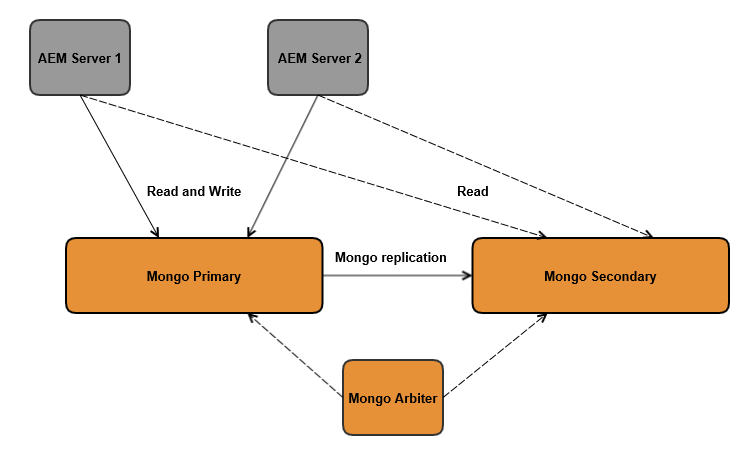
Once the cluster of author AEM instances is defined, it is important to avoid the use of MongoDB as a single point of failure. Therefore the database has to be configured as a ReplicaSet in order to grand robustness.

ADVANTAGES – DISADVANTAGES
Hence the advantages of using an author cluster are:
  • Ability to scale AEM instances
  • High availability, redundancy and automated failover of the data layer
Anyway there is also a clear disadvantage:
  • Performances are not as good as with TarMK
MongoDB will be used as a shared NodeStore for AEM, the DataStore can be set up using any of the available possibilities: usually, as FileSystem replicated on any author, or as a shared machine, or as an Amazon AWS service.

This part of the configuration is not in the scope of this post, it is possible to read more about it in the Adobe documentation

The following post provides a primer for setting up an AEM author cluster with MongoDB.


STEP-BY-STEP INSTALL
PRE-REQUISITE:

  • Java JRE version 1.8 (including its updates)
  • AEM version 6.2
  • MongoDB version 3.2. This is the last version at the moment working with AEM 6.2
STEP 1 – MongoDB with replica set configuration


In the following, three instances of MongoDB with replicaSet (a primary, a secondary, and an arbiter) will be set up. This tutorial explains how to deploy it on the same machine. This is usually an environment for testing and developing. In a real cluster, it is sufficient to change the name of the machines and ports accordingly, given that they can reach each other.

Create a config file for each MongoDB instance to be created, following this template:

# mongo.conf

# data directory
dbpath=Path to allocate files of the instance

# log file
logpath=Path to allocate the log file of the instance

logappend=true

# port number
port=[port_number] / Default: 27017

# replica set name
replSet=[replicaSet Name]


Note: If you want more information about configuration, check the documentation.

Be aware that on the same machine you must set different ports.
Once you have prepared the files, you can install each instance via the command line. This example works for windows and creates a service for each instance. Alternatively, it could be set up directly via the command line, as stated in the documentation.

[MONGODB_PATH]\bin\mongod --config mongod1.cfg --serviceName MongoDB1 --serviceDisplayName MongoDB1 --install
[MONGODB_PATH]\bin\mongod --config mongod2.cfg --serviceName MongoDB2 --serviceDisplayName MongoDB2 --install
[MONGODB_PATH]\bin\mongod --config mongod3.cfg --serviceName MongoDB3 --serviceDisplayName MongoDB3 --install


Start all three instances of MongoDB:
net start mongodb1
net start mongodb2
net start mongodb3


Now it is possible to configure the replica set from the MongoDB shell, connect with this command:

[MONGODB_PATH]\bin\mongo --port 27017

The instance on which the replica set is initiated will be the primary. Instantiate a configuration variable with the id of the replica set and its starting member:

config = { _id: "rs1",
members:[ { _id : 0, host : "localhost:27017"} ]
}


With this variable, initialize the replica set and verify its result status.

rs.initiate(config)
{
"info" : "Config now saved locally. Should come online in about a minute.",
"ok" : 1
}


Add the two other instances to the replica set, one will be a secondary replica and the other will be an arbiter:

rs.add("localhost:37017")
rs.addArb("localhost:47017")


It is possible now to verify the final status: you should have three instances with these roles: primary, secondary, and arbiter.

rs.status()

STEP 2 – Set up the AEM 6.2 servers.
Take two new AEM 6.2 instances and run them with the following commands:

java -jar [aem instance jar name] -r crx3,crx3mongo -Doak.mongo.uri=mongodb://[primaryhost]:[port],[secondaryhost]:[port]/?replicaSet=[replicaSet name]
During startup, check the logs both from mongo and from AEM in order to be sure the startup process ends well. On Mongo, you should see the connections from the AEM instances. On AEM you will see eventual errors.

STEP 3 – Testing
Log in to the AEM servers and open CRXde or the Geometrixx outdoors website to check the correctness of the startup.
On any of the two AEM servers, open a page of the Geometrixx outdoors website. Try adding/modifying/deleting some content on the page. If you check on the other server these changes are reflected instantaneously.
Shut down the primary MongoDB server and check that both AEM instances are still working without any problem.

AUTHORS
Javier Reyes Alonso, Marco Pasini


By aem4beginner

April 1, 2020
Estimated Post Reading Time ~

Performance Tuning AEM 6 Deployments on MongoDB

The performance of the AEM 6 “author” on MongoDB can be improved with additional configuration.

1) Put the Data Store on the server’s local filesystem, not MongoDB
NOTE: Don’t do this in a cluster.

2) If the JVM heap is 8 GB or more, set the in-heap cache to 1 GB or more

For example, if you have a 24 GB heap, set this to 12288, but ONLY if you set the JVM to init argument NewRatio=6

This cache is based on Google’s Guava Cache (com.google.common.cache). You can get its JMX stats at /system/console/jmx/org.apache.jackrabbit.oak%3Aid%3D8%2Cname%3D%22Document-Documents%22%2Ctype%3D%22CacheStats%22

In org.apache.jackrabbit.oak.plugins.document.DocumentNodeStoreService.cfg in the /crx-quickstart/install folder


cache=1024

3) Set memory cache of the File Data Store contents to 4 GB

In org.apache.jackrabbit.oak.plugins.blob.datastore.FileDataStore.cfg

in /crx-quickstart/install folder

cacheSizeInMB=4096

4) Set maximum size of a cacheable Data Store file to 10 MB

In org.apache.jackrabbit.oak.plugins.blob.datastore.FileDataStore.cfg in /crx-quickstart/install folder

maxCachedBinarySize=10485760

5) Enable CopyOnRead on the LuceneIndexProvider

You need to do this ONLY if you’re running oak 1.0.12 or older.

6) Enable Oak’s “persistent cache” on the server’s local filesystem

NOTE : In Oak v1.0.15 or newer, you don’t need to do this.

a) Build and deploy the H2 MVStore

i) Download H2 (v1.4.85 or newer) from here.

ii) Assuming you installed it to C:\Programs\H2 (and that you have a JDK configued), change folder to C:\Programs\H2\h2 and then build MVStore with

build jarMVStore

If this worked, you’ll get this:

Target: jarMVStore
Deleting temp
Deleting docs
Compiling 27 classes
Jar bin/h2-mvstore-1.4.187.jar (199 KB)
Done in 2449 ms

iii) Get the OSGi bundle jar from C:\Programs\H2\h2\bin (e.g. h2-mvstore-1.4.187.jar) and deploy it to AEM using the Apach Felix web console

iv) Stop AEM

v) Set that Oak “persistent cache” to 10 GB in org.apache.jackrabbit.oak.plugins.document.DocumentNodeStoreService.cfg in the /crx-quickstart/install folder

persistentCache=/opt/aem/author/crx-quickstart/cache,size=10240,-compact,-compress

If you don’t deploy H2 MVStore but enable the “persistent cache”, you’ll get this error:

org.apache.jackrabbit.oak.plugins.document.DocumentMK Persistent cache not available; please disable the configuration
java.lang.NoClassDefFoundError: org/h2/mvstore/MVMap$MapBuilder

Caused by: java.lang.ClassNotFoundException: org.h2.mvstore.MVMap$MapBuilder not found by org.apache.jackrabbit.oak-core [85]

Sample config files can be downloaded here:
1) org.apache.jackrabbit.oak.plugins.document.DocumentNodeStoreService.cfg
2) org.apache.jackrabbit.oak.plugins.blob.datastore.FileDataStore.cfg

Note: Also see the MongoDB production check list here.


By aem4beginner

How to Assess Disk Performance Using mongoperf

MongoDB comes with a free disk performance assessment tool named mongoperf that can be run independently without MongoDB.

1) Copy the contents of MongoDB’s /bin folder onto to the disk whose performance you want to assess

2) Then run it with the following command (the config file mongoperf.conf.js is available here)

mongoperf < D:\temp\mongoperf.conf.js

40 MB/sec or better can be considered good.


By aem4beginner

How to Set Up Clustering In CQ/AEM 6 using MongoDB

Background:
With CQ / AEM 6 TarPM is not supported anymore. AEM 6 ships with Oak which for now support TarMK and MongoMK Microkernal OOTB. More information about what is New Can be found from http://www.slideshare.net/AEMHub2014/oak-michael-marth . With this change Support from Clustering is moved to the actual storage layer itself (Which makes more sense, given supporting all issues for clustering in an earlier version). TarMK does not have replication or sharding feature so it comes down to MongoDB which supports replication and sharding and hence enables High Availability (HA through replication) and Scalability (Through Sharding, Though this is still a question ?? See note below) through clustering in CQ /AEM 6.

Here we will give step by step instruction of how to set up clustering using MongoDB in CQ

Prerequisite:
Make sure that You have CQ / AEM 6 jar file
Install MongoDB using instruction http://docs.mongodb.org/manual/installation/
Make sure that it is up and running
Read about replication http://docs.mongodb.org/manual/core/replication-introduction/
Read about deployment Strategy http://docs.adobe.com/docs/en/aem/6-0/deploy/recommended-deploys.html

There are two cases for setting Up Replica Set:
Set up a new MongoDB Instance:
Set up additional MongoDB instance based on instruction above
Start any one of instance using ./mongod --port <Your Port> --dbpath <Your DB Path> --replSet <Replica Set Name could be any thing> &
You can also use configuration file to do that. More instruction here http://docs.mongodb.org/manual/tutorial/deploy-replica-set/
Once Mongo DB is started you can add additional replica using following instruction

cd <Your Mongo bin Location>
# You can also configure port using configuration file
./mongo --port <PORT>
rs.initiate()
# Check the conf that it is not part of replica set yet
rs.conf()
#This is your second Mongo Instance, Make sure that your other Mongo Instance is already set up
rs.add("<HOST>:<PORT>")
#This is your Third Mongo Instance (You need to have odd number of instances for election to work)
rs.add("<HOST>:<PORT>")
# If you do not have space or do not want additonal instance then you can add arbitor
# Arbitor is another Mongo Instance which do not store data but take part in election process one one mongo is down
# You can add arbitor using following command
# rs.addArb("<HOST>:<PORT>")
# Check Conf to make sure that everything is right
rs.conf()
# Check Status of replication
rs.status()

Once Replica set is up, Now set Up AEM
# Unpack AEM jar using
java -jar <AEM Jar> -unpack

# Go to bin directory
cd crx-quickstart/bin

#Change syour start script
vi start

#Set runmode to crx3mongo
CQ_RUNMODE='<your run modes>,crx3mongo'

#Add oak.mongo.uri JVM argument -Doak.mongo.uri=mongodb://<SERVER:PORT> -Doak.mongo.db=<NAME OF DB>
# Note that all other java param will remain as is
CQ_JVM_OPTS='-server -Xms2048m -Xmx2048m -XX:MaxPermSize=512M -Djava.awt.headless=true -Doak.mongo.uri=mongodb://<HOST1>:<PORT1>,<HOST2>:<PORT2>,<HOST3>:<PORT3> -Doak.mongo.db=<This is the DB name you created while creating Mongo>'

# Then start your Instance
./start

Then You can go to each Mongo Instance and check of data is coming using Mongo Log

Convert Existing Mongo Instance:
Stop you AEM instance
Use Following instruction to convert Mongo to replica

cd <Mongo bin directory>
use admin
db.shutdownServer()
#Take Backup
./mongodump --dbpath ../data/<NAME OF DB> -o dataout
# Now set up new Mongo DB servers that you want to add in replica set Instruction above
# Now start your existing Mongo Using following command, Note that this time we are using replSet
# You can also do this using Mongo DB configuration file
./mongod --port 27017 --dbpath <your DB path> --replSet <Replica set Name> &
#Connect to the mongodb instance
./mongod --port 27107
rs.initiate()
#Make sure that other MongoDB are are up you can now add them to replica set
rs.add("<HOST2>:<PORT2>")
# To make sure that you have odd number of instances
rs.add("<HOST3>:<PORT3>")
#If you don't have space or don't want third instance to store data then you can do something like
# rs.addArb("<HOST4>:<PORT4>")
# Check config again
rs.conf()
# Check status of Replica
rs.status()

#If something goes wrong you can do something like
cd <Mongo bin location>
mongorestore --dbpath <database path> <path to the backup>

Once this is set Change AEM start script to add mongo replica instance as given in approach one
start your AEM instance
AEM should be part of replica set now

Backup and Restore
Please check https://docs.mongodb.org/v3.0/tutorial/backup-and-restore-tools/ for MongoDB instruction of backup and restore.

Automated script can be found here: https://github.com/micahwedemeyer/automongobackup/blob/master/src/automongobackup.sh just put this script under /etc/cron.daily and you are set for backup.

Some Common Questions
Should I set up my AEM author instance on MongoDB
Unless you have clustering requirement, I would not suggest to set up your author instance with MongoDB. Mainly because of administrative overhead.

Should I set up my AEM publish instance on MongoDB
Same as above, Unless you have a requirement which requires shared content generation I would suggest not to use MongoDB. With AEM communities, now you have an option to add Mongo Persistence for community feature at any time. Here is more detail https://docs.adobe.com/docs/en/aem/6-1/administer/communities/srp/msrp.html and https://docs.adobe.com/docs/en/aem/6-1/administer/communities/srp/msrp/demo-mongo.html

Should I store Blobs in MongoDB as well in AEM
It is not recommended to store Blob data with MongoDB. There are other options like, Local Storage, NAS, AWS you can use in that case. More detail https://docs.adobe.com/content/docs/en/aem/6-1/deploy/platform/aem-with-mongodb.html#AEM Configuration and https://docs.adobe.com/docs/en/aem/6-1/deploy/platform/data-store-config.html

How can I secure my MongoDB deployment with AEM
Check documentation here https://blogs.adobe.com/security/2015/07/securely-deploying-mongodb-3-0.html
Notes:
1) Mongo Replication Only Provide High Availability (HA) it does not provide scalability. For scalability you need to use Sharding feature provided by Mongo. However I am not sure what would be best key to create shard on for Mongo. You can create Shard based on _id attribute. More information about sharding can be obtained here http://docs.mongodb.org/manual/sharding/ . If you are using Sharding I would suggest to use sharding with replication (Shard and then replicate shard instance) to provide both HA and scalability.

2) There are many feature available in Mongo Replication where you can make certain replica instance read only (Data Center replica), you can use this to avoid high latency across Data Center here is all configuration you can do on Mongo http://docs.mongodb.org/manual/administration/replica-set-member-configuration/

3) MongoDB recently released MMS https://mms.mongodb.com/ to monitor and deploy Mongo Cluster easily. This will be useful if you are worried about administrative cost for Mongo

4) If you don't want to store large documents in Mongo feel free to use custom Data Store using instruction here http://jackrabbit.apache.org/oak/docs/osgi_config.html

5) Mongo Recently launched another feature of pluggable datastore. You can use this for faster read and write based on your requirement (For example Primary with high Write Enabled Storage Like SSD or something and read with cheap storage). More info here https://www.mongosoup.de/blog-entry/A-closer-look-at-pluggable-storage.html (Official Doc yet to come)

6) Official AEM Documentation: https://docs.adobe.com/content/docs/en/aem/6-1/deploy/platform/aem-with-mongodb.html

Here are few more Mongo Commands
cd <Mongo bin directory>
./mongo
# Show all db
show dbs
# Check status of replica set
rs.status()
# If this is secondary you need to do
rs.slaveOk()
# Use database (Use AEM DB or DB you chose)
use <data-base-name>
# Show all collection
show collections
# Check status of blob
db.blobs.stats()
# Check all cluster Node
db.clusterNodes.find().pretty()
#Will add more later .......


By aem4beginner

March 22, 2020
Estimated Post Reading Time ~

AEM clustering with Mongo DB And shared S3 Data Store


Overview :
This article talks about the setting up of AEM 6.2 with Mongo DB and AWS S3.
AEM clustering can be achieved by running each of the instances (which are expected to be in sync) on Mongo DB. In this scenario, the shared datastore is on S3 and the document node store is on Mongo DB.
Refer to the below article for setting up a Mongo DB with replica sets :

Installation steps :
· First create a directory ‘aem’ under /opt and under that create two directories source_files and author or publish(depending on whether you are installing an author or publish with mongo and S3), one to have all the installation files and the other will have an AEM author/publish in it.
· Install Java – JDK from the “/opt/aem/source_files” directory
#rpm -ivh jdk-8u121-linux-x64.rpm
# java -version
java version “1.8.0_121”
Java(TM) SE Runtime Environment (build 1.8.0_121-b13)
Java HotSpot(TM) 64-Bit Server VM (build 25.121-b13, mixed mode)
· Copy the AEM jar and licence.properties to “/opt/aem/author_master” from “/opt/aem/source_files”
· In our case, we are installing an author hence we create a folder author_master under /opt/aem.
#cd /opt/aem/author_master
#cp /opt/aem/source_files/cq-quickstart-6.2.0.jar . (assuming the cq jar file has been placed in /opt/aem/source_files)
#cp /opt/aem/source_files/licence.properties . (assuming the licence.properties file has been placed in /opt/aem/source_files)
· Extract the jar file using java -jar cq-quickstart-6.2.0.jar –unpack , where cq-quickstart-6.2.0.jar is AEM binary.
· On extraction it will create a folder crx-quickstart under /opt/aem/author_master/
· Change the port number(CQ_PORT) and Run mode(CQ_RUNMODE) in the /opt/aem/author_master/crx-quickstart/bin/start as below
if [ -z “$CQ_PORT” ]; then
CQ_PORT=4502 {Port No.}
fi
# runmode(s)
if [ -z “$CQ_RUNMODE” ]; then
CQ_RUNMODE=’author,dev,nosamplecontent’
Fi
· Include the JVM Parameters as below

CQ_JVM_OPTS=”-server -Xmx46080m -Xms20480m -XX:MaxPermSize=10240m -XX:PermSize=2048m -XX:+UseParallelGC -XX:+UseParallelOldGC -XX:ParallelGCThreads=8 -XX:+HeapDumpOnOutOfMemoryError -XX:HeapDumpPath=/opt/aem/author/heapdump_log/\`date\`.hprof -Djava.io.tmpdir=/opt/aem/author/tmp -Doak.queryLimitInMemory=500000 -Doak.queryLimitReads=100000 -Dupdate.limit=250000 -Doak.fastQuerySize=true -Djava.awt.headless=true”
CQ_JVM_OPTS=”-Djava.rmi.server.hostname=xx.xx.xx.xx -Dcom.sun.management.jmxremote.port=8082 -Dcom.sun.management.jmxremote.authenticate=false -Dcom.sun.management.jmxremote.ssl=false ${CQ_JVM_OPTS}”
CQ_JVM_OPTS=”-Xdebug -Xrunjdwp:transport=dt_socket,address=8081,server=y,suspend=n ${CQ_JVM_OPTS}”

The above mentioned JVM OPTs also have the parameters that are needed for Jmx monitoring.
NOTE: Xmx and MaxPermSize depends on physical memory
· In the persistence mode uncomment mongo related line and comment the tar one.
# ——————————————————————————
# persistence mode
# ——————————————————————————
# the persistence mode can not be switched for an existing repository
#CQ_RUNMODE=”${CQ_RUNMODE},crx3,crx3tar”
CQ_RUNMODE=”${CQ_RUNMODE},crx3,crx3mongo”
· Download the AWS S3 connecter “adobe.granite.oak.s3connector-1.4.8.zip”
# wget https://repo.adobe.com/nexus/content/groups/public/com/adobe/granite/com.adobe.granite.oak.s3connector/1.4.8/com.adobe.granite.oak.s3connector-1.4.8.zip
· Unzip the downloaded file.
· Copy the “install” folder from “/com.adobe.granite.oak.s3connector-1.4.8/jcr_root/libs/system/install” to “/opt/aem/author_master/crx-quickstart”
· Create a file “org.apache.jackrabbit.oak.plugins.document.DocumentNodeStoreService.cfg” under “/opt/aem/author_master/crx-quickstart/install” and copy the below mentioned fields and save the file.

#Mongo server details
mongouri=mongodb://xx.xx.xx.xx:27017,xx.xx.xx.xx:27017,xx.xx.xx.xx:27017/?replicaSet=rs&readPreference=nearest&w=1&j=1
#Name of Mongo database to use
db=sample_name
#Store binaries in custom BlobStore
customBlobStore=true
#This is distributed among various caches used in DocumentNodeStore
cache=512
#capped collection used in Mongo for caching the diff output.
changesSize=512
Note : The above config file is made for mongo with replica sets. In your case if you do not have a replica set and you have only a single mongo then give the IP of the single mongo in the mongouri field, while all the other fields remain the same.
Eg : mongouri=mongodb://xx.xx.xx.xx:27017
· Create a file “org.apache.jackrabbit.oak.plugins.blob.datastore.SharedS3DataStore.config” under “/opt/aem/author_master/crx-quickstart/install” and copy the below mentioned fields and save the file.
# vi org.apache.jackrabbit.oak.plugins.blob.datastore.SharedS3DataStore.config
accessKey=”XXXXXXXXXXXXXXXXXXXX”
connectionTimeout=”120000″
maxConnections=”40″
maxErrorRetry=”10″
s3Bucket=”sample_name”
s3Region=”us-standard”
secretKey=”XXXXXXXXXXXXXXXXXXXX”
socketTimeout=”120000″
writeThreads=”30″
concurrentUploadsThreads=”30″
asyncUploadLimit=”30″
maxCachedBinarySize=”17408″
minRecordLength=”16384″
cachePurgeTrigFactor=”0.95d”
cacheSize=”0″
concurrentUploadsThreads=”10″
path=”/opt/aem/author_master/crx-quickstart/repository/datastore”
uploadRetries=”3″
· To startthis instance, go to /opt/aem/author_master/crx-quickstart/bin/ and run the below command,
# ./start
Verification :
· To confirm if the AEM instance has started with S3 or not :
Check the /opt/aem/author/crx-quickstart/repository path after starting the instance, it will have the datastore and s3.init.done files in it.
Also, the S3 bucket in the AWS S3 console will start to have some content in it.
· To confirm if the AEM instance has started with Mongo or not :
Check the mongo db logs in the primary mongo DB and the replica sets, it will say that the connection has been established with that particular AEM server (shows the IP of the AEM server).
Also, a database for the AEM instance in the data/db folder in mongo with the same name that you have given in the “org.apache.jackrabbit.oak.plugins.document.DocumentNodeStoreService.cfg” file.

Note : Since our requirement is to have AEM author/publish with both mongo as well as S3, both the above verification steps should be positive.


By aem4beginner